
If you have ever searched for “how do I turn a PNG into a vector,” you have almost certainly bumped into Image Trace in Illustrator. It is Adobe’s built-in vector tracing engine, and for many designers it is the default way to convert a bitmap into editable paths. But a Creative Cloud subscription is expensive, Illustrator has a steep learning curve, and Image Trace is not always the fastest or most accurate option for every job.
In this guide we break down exactly how Image Trace Illustrator works, the settings that matter, where it falls short, and the best alternatives — including Super Vectorizer Pro, a dedicated desktop app for Mac and Windows that focuses purely on fast, high-quality raster to vector conversion with a free trial to preview results.
Want a faster, lighter way to trace images? Try Super Vectorizer Pro free trial to preview vectorization results.
Compatible with macOS 10.10+ (M1/M2/M3) & Windows 7/8/10/11
What Is Image Trace in Illustrator?
Image Trace is a feature inside Adobe Illustrator that automatically converts raster images (PNG, JPG, BMP, TIFF) into vector artwork. It analyzes the pixels, detects edges and color regions, and rebuilds them as Bézier paths in the SVG format (or other vector formats). Once traced, you can expand the result into editable paths and recolor or reshape it freely.
The feature replaced the older “Live Trace” tool and is found under Window → Image Trace or by selecting an image and clicking the Image Trace button in the Control panel. It is powerful, but it lives inside a much larger, subscription-based application.
How the Image Trace Panel Works
The power of Image Trace Illustrator is its preset and settings system. The key controls are:
- Presets — “Black and White Logo,” “3 Color,” “16 Colors,” “Photo,” “Sketched Art,” and more give you a fast starting point.
- Mode — Color, Grayscale, or Black and White determines the output type.
- Colors — sets the maximum number of colors in the traced result.
- Paths — higher values follow the original contours more closely (more detail, more nodes).
- Corners — higher values keep sharp corners instead of rounding them.
- Noise — ignores small speckles so stray pixels do not become paths.
- Method (Abutting vs Overlapping) — controls how adjacent color regions meet.
After tracing you click Expand to convert the preview into real, editable vector objects.
Step-by-Step: Tracing an Image in Illustrator
Step 1 — Place the image
Open Illustrator, create a document, and place your raster image with File → Place.
Step 2 — Open Image Trace
With the image selected, open the Image Trace panel and pick a preset close to your artwork (e.g., “3 Color” for a flat logo).
Step 3 — Refine settings
Adjust Paths, Corners, and Noise while watching the live preview. Lower Noise cleans up speckles; raise Paths for finer detail.
Step 4 — Expand
Click Expand to turn the trace into editable vector paths, then use the Direct Selection tool to tweak individual shapes.
Step 5 — Save as SVG
Choose File → Export → Export As and pick SVG. Illustrator writes the vector out in the SVG format you can use anywhere.
Illustrator vs Dedicated Tracing Apps: Our Verdict
Illustrator is unbeatable if you already pay for Creative Cloud and need a full design suite. But if your only goal is raster to vector, a dedicated app like Super Vectorizer Pro is faster to learn, far cheaper, and runs offline without a subscription.
Adobe Illustrator (Image Trace)
- Full professional design suite included
- Deep, granular trace controls
- Requires a paid Creative Cloud subscription
- Steep learning curve for non-designers
Super Vectorizer Pro
- Built specifically for image to vector conversion
- One-click auto trace with live preview
- Free trial to preview results, no subscription
- Native Mac (M1/M2/M3) and Windows app
Where Image Trace Struggles
Image Trace is excellent, but it is not magic. Common pain points:
- Subscription cost. Paying for all of Illustrator just to trace a logo is overkill for many users.
- Complex photos. Photorealistic images produce enormous, unwieldy path counts that are slow to edit.
- Noise sensitivity. Low-quality source scans create messy stray paths unless you carefully tune Noise.
- No batch by default. Tracing many files one-by-one is tedious; you need actions or scripts to automate.
| Need | Illustrator Image Trace | Super Vectorizer Pro | Winner |
|---|---|---|---|
| Cost | Creative Cloud subscription | One-time license, free trial | SVP |
| Ease of use | Steep learning curve | One-click auto trace | SVP |
| Batch conversion | Requires scripts/actions | Built-in batch mode | SVP |
| Full design suite | Layout, type, effects & more | Focused on tracing | Illustrator |
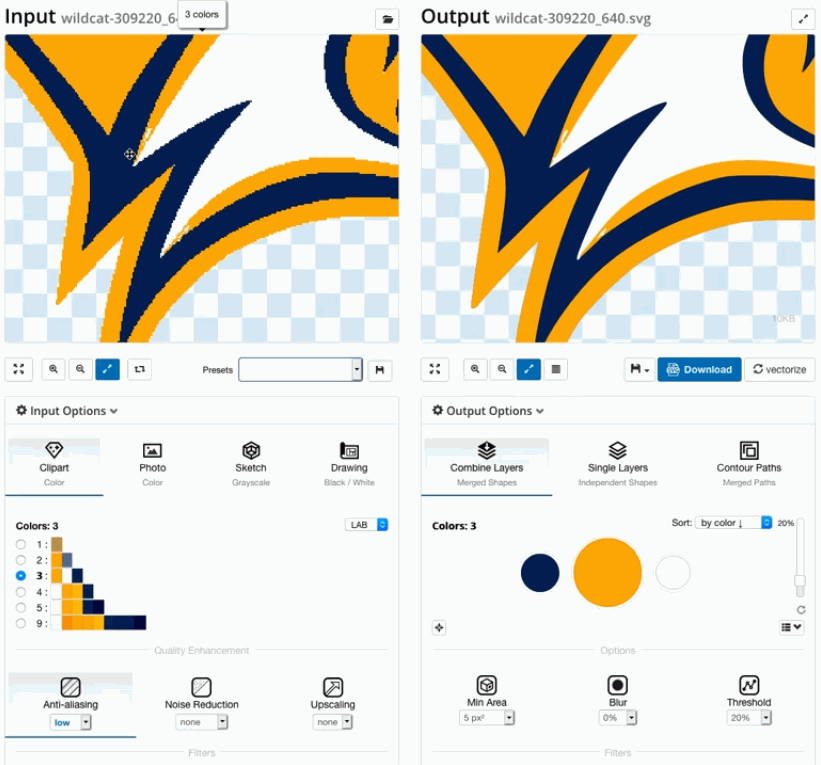
Best Illustrator Alternatives for Image Tracing in 2026
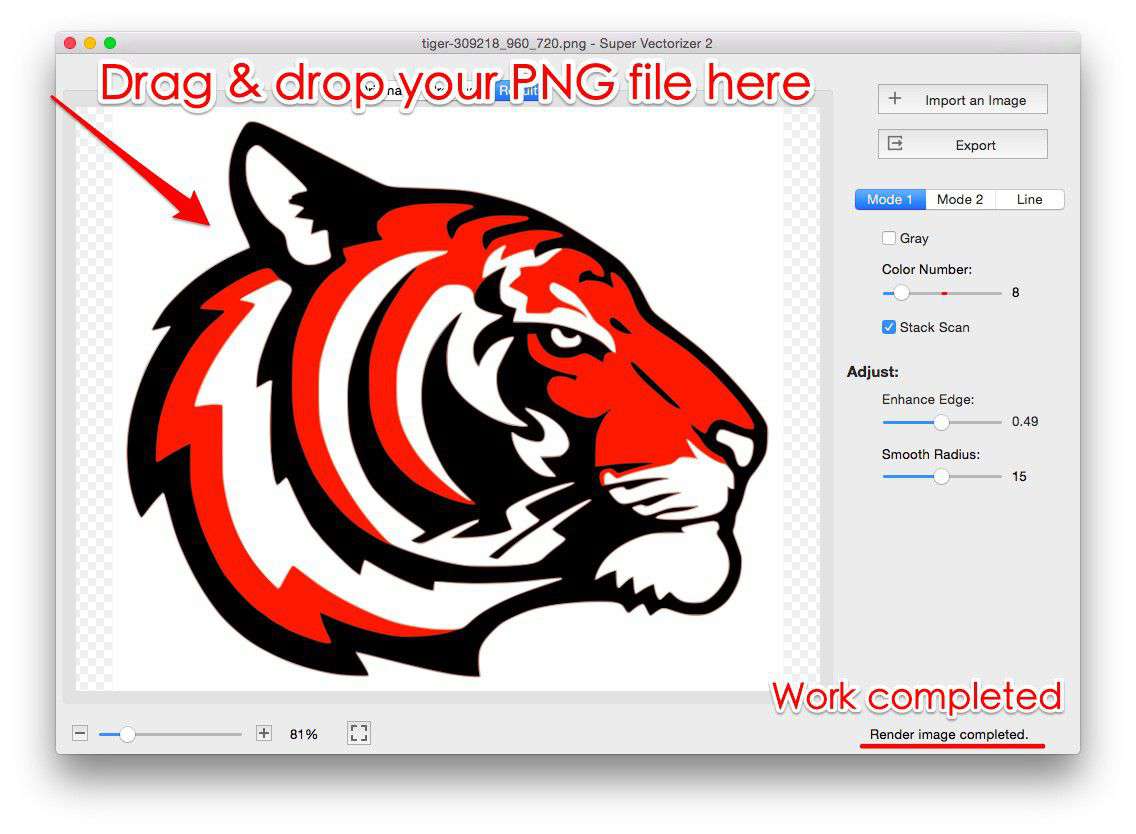
- Super Vectorizer Pro — A focused desktop app for Mac and Windows. Auto-traces with a live preview, processes one file at a time, and offers a free trial to preview results before you buy.
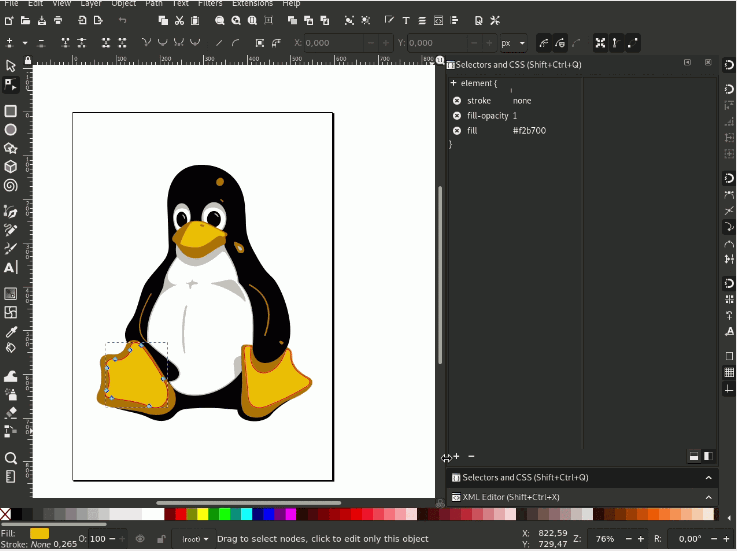
- Inkscape (Trace Bitmap) — Free and open-source; uses Potrace for single-color and multi-color tracing. Great budget option, covered in our Inkscape guide.
- Online converters — Browser-based tools for quick, one-off traces without installing anything. Convenient but upload your source to a server.
- CorelDRAW PowerTRACE — Another professional suite with strong tracing, popular among Windows users.
Tips for Cleaner Traces (in Any Tool)
- Start with a high-resolution source. Tracing a tiny, blurry PNG always produces weak vectors.
- Simplify the palette. Flat, few-color artwork traces far cleaner than busy gradients.
- Use transparent backgrounds so the traced SVG drops neatly into any project.
- Preview before exporting. Super Vectorizer Pro’s free trial lets you inspect the trace and adjust settings without committing.
Optimizing Trace Results for Different Image Types
The default Image Trace presets in Illustrator are a starting point, not an endpoint. For logos and line art, the Black and White preset with a high path threshold (100+) produces the cleanest results. For photographs, the High Color or Low Color presets with 6 to 16 colors work well, but expect significant cleanup afterward — Illustrator tends to create fragmented paths around areas of subtle color transition.
One often-overlooked setting is the "Ignore White" checkbox. When enabled, it prevents the tracer from creating white-filled paths for the background, which dramatically reduces the total path count and file size. This is essential for any image on a white or transparent background where the white areas should be empty space rather than vector paths.
After tracing, always use the Expand command to convert the live trace object into editable paths, then run Object > Path > Simplify with a tolerance of 0.5 to 1.0 pixels. This removes redundant nodes without visibly changing the artwork. The result is a cleaner SVG export with fewer anchor points and smaller file sizes when saved from Illustrator.
Frequently Asked Questions
Is Image Trace in Illustrator free?
No. Image Trace is a feature of Adobe Illustrator, which requires a paid Creative Cloud subscription. There is no free, fully functional standalone version of Image Trace outside of Illustrator’s paid plans or its limited free trial.
Can Super Vectorizer Pro replace Image Trace for most jobs?
For converting raster images to vectors — logos, icons, line art, photos — yes. Super Vectorizer Pro is purpose-built for raster to vector work and includes a free trial to preview results. You would still reach for Illustrator when you need its broader design, layout, and effects features.
Does the Super Vectorizer Pro trial export the final SVG?
The free trial is for previewing vectorization results, not for exporting finished files. You can load images, run the trace, and evaluate quality before purchasing. The licensed version unlocks export so you can save and use the SVG.
Which produces better vectors — Illustrator or a dedicated app?
Quality depends more on the source image and your settings than on the brand. Both can produce clean SVG vectors from flat artwork. Dedicated apps often win on speed and simplicity, while Illustrator wins when the vector is just one step in a larger design workflow.
A Simpler Way to Trace Images
Skip the subscription. Download Super Vectorizer Pro and use the free trial to preview how your images vectorize into clean SVG on Mac or Windows.
Compatible with macOS 10.10+ (M1/M2/M3) & Windows 7/8/10/11
Related Articles
Try These Free Online Tools
No download required — convert, compress & optimize SVGs right in your browser
PNG to SVG Converter
Convert PNG, JPG, BMP images to scalable vector graphics instantly
PNG to SVG ConverterSVG Compressor (Mini)
Reduce SVG file size by up to 80% without losing quality
SVG Compressor OnlineSVG Optimizer
Clean up SVG code, remove redundant data and optimize for web
SVG Optimizer OnlineJPG to SVG Converter
Turn JPEG photos into crisp vector artwork in seconds
JPG to SVG ConverterEPS to SVG Converter
Convert EPS vector files to web-friendly SVG format
EPS to SVG ConverterAll Free Tools
Browse our complete collection of free online conversion tools
Browse All Free Tools