
An SVG to BMP converter solves a very specific problem: you've designed an icon, logo, or interface element as a clean scalable vector, but the software that needs to display it only understands raw pixel data. Modern browsers and design tools happily render SVG. But a huge category of older Windows applications, industrial control panels, BIOS splash screens, and embedded devices have firmware that only loads uncompressed BMP files. Until you rasterize, the asset simply won't show up.
The catch is that BMP is uncompressed and tied to a fixed pixel grid. Once you rasterize, you've frozen the artwork at one resolution. The goal of this guide: pick the right color depth, set the right pixel dimensions, and end up with a BMP that the target system accepts on the first try. We'll also cover when to use PNG instead, how to handle transparency, and how to vectorize raster inputs back to SVG when your pipeline runs the other direction.
Need to vectorize a logo, icon, or photo into clean SVG first? Try Super Vectorizer Pro free trial to preview vectorization results.
Compatible with macOS 10.10+ (M1/M2/M3) & Windows 7/8/10/11
Our Verdict
SVG to BMP conversion is mainly needed for legacy Windows applications. Choose a tool that gives you control over resolution and color depth.
Best Desktop: Super Vectorizer Pro
- Export SVG to BMP at custom resolution
- Control over color depth and dithering
- Free trial to preview results
- Works offline on Mac and Windows
Best Online: CloudConvert
- Browser-based, no install
- Supports multiple output formats
- Free tier available
- File upload to third-party server
What Is BMP and Why Does It Still Exist?
BMP (Bitmap Image File) is the original Windows raster format, defined by Microsoft in 1986–1987. It stores raw, uncompressed pixel data — 24 bits per pixel for full color, or 32 bits when an alpha channel is included. The trade-off is universal compatibility: any Windows application, bootloader, or firmware that can paint a screen can usually handle BMP without needing a codec.
Three decades later, BMP looks obsolete compared to PNG, JPEG, and WebP, but it never went away. It persists in:
- BIOS and UEFI splash screens — boot logos drawn before the operating system loads.
- Windows resource files (.res) — older Win32 applications and installers.
- Industrial HMI panels and SCADA interfaces — operator screens on factory floors.
- PLC and embedded firmware — devices that only include a basic bitmap renderer.
- Older CNC, label-printer, and kiosk software — anything built before modern image codecs were common.
- Image processing pipelines — scientific and computer-vision algorithms that want predictable uncompressed input.
If your workflow touches any of these systems, rasterizing SVG to BMP is unavoidable. The good news is that the conversion is mechanical once you understand the format's quirks.
SVG vs BMP: A Quick Format Comparison
Before going deeper, fix the right mental model for the format mismatch. SVG is math (XML paths), BMP is a fixed pixel snapshot. SVG scales infinitely; BMP is locked to one resolution. SVG files for a logo are 2–20 KB; the same logo as BMP is 30–500 KB+ (or several MB at print resolution). SVG has full alpha transparency; BMP only has alpha in 32-bit, which most legacy apps ignore. SVG wins on the web and in modern design tools; BMP wins the moment you hit a system that doesn't have an SVG parser. That's why the converter exists at all.
BMP Color Depth: Pick the Right Bit Depth
BMP supports six color depths, and the right choice depends on the target system. Pick wrong, and the image either displays with the wrong palette or doesn't display at all.
| Bit Depth | Colors | Alpha Channel | Best For |
|---|---|---|---|
| 1-bit | 2 (black/white) | No | Icons, monospace bitmaps, early Windows cursors |
| 4-bit | 16 | No | Vintage UIs, retro art, low-color splash screens |
| 8-bit | 256 (indexed) | No | Game sprites, GIF-like graphics, DOS-era assets |
| 16-bit | 65,536 (high color) | Optional 1-bit | Old display drivers, some industrial panels |
| 24-bit | 16.7 million (true color) | No | Default for most modern Windows apps and firmware |
| 32-bit | 16.7 million + alpha | Yes (8-bit) | Compositing on layered interfaces; check target support |
How to Convert SVG to BMP: Three Reliable Methods
You have three solid options depending on whether you need a one-off conversion, a batch workflow, or full command-line automation.
Method 1 — Online SVG to BMP Converter (Fastest for One-Off Files)
For a single file or a few one-off conversions, a browser-based tool is the quickest route. Drop the SVG, choose the output dimensions and bit depth, and download the BMP. Look for tools that run entirely client-side (no upload to a server) if your SVG is confidential.
- Open the online converter in your browser.
- Drop the SVG file or paste a URL.
- Set the target width and height in pixels (or a scale multiplier).
- Pick 24-bit for compatibility, 32-bit only if the target needs transparency.
- Click Convert and save the BMP.
Method 2 — Desktop Image Editor (Most Control)
For full control over the rasterization — color profile, anti-aliasing, exact pixel dimensions — use a desktop editor: open the SVG, resize to the target dimensions, flatten transparency if needed, and export as BMP at the chosen bit depth.
Method 3 — Command-Line (Batch and Automation)
For pipelines and batch jobs, ImageMagick or Inkscape from the command line is hard to beat. Example ImageMagick invocation:
magick convert -background white -density 300 input.svg -resize 512x512 -depth 8 BMP3:output.bmp
The -depth 8 setting gives 8 bits per channel (24-bit BMP), -density 300 controls how the SVG is interpreted before resizing, and -background white flattens any transparency. Swap in your own dimensions and bit depth as needed.
Recommended Settings by Use Case
These starting points save you a lot of trial-and-error. Adjust based on your target's documentation.
| Use Case | Bit Depth | Resolution | Background |
|---|---|---|---|
| BIOS / UEFI splash | 24-bit | Native panel resolution | Solid color |
| Industrial HMI screen | 24-bit | Exact panel dimensions | Match interface chrome |
| Legacy Windows .res file | 32-bit (alpha) or 24-bit | Resource nominal size | Transparent or chrome |
| Game sprite / texture | 24-bit or 32-bit | Power-of-two (256, 512, 1024) | Transparent for layered engines |
| Scientific / CV pipeline | 24-bit | Native camera resolution | Solid black or white |
| Document / archive | 24-bit | 300 DPI at print size | White |
Common Pitfalls and How to Avoid Them
Most failed conversions fall into one of five traps. Skim this list before you start so you don't burn an afternoon debugging.
1. Text Rendering With the Wrong Font
SVGs can reference fonts by name, embed them, or convert text to paths. If the converter doesn't have the same font installed as your design tool, you'll get a fallback font or missing glyphs. Fix: convert all text to outlines/paths before rasterizing.
2. Black Backgrounds Where There Should Be Transparency
32-bit BMP supports alpha, but many legacy apps ignore it and render transparency as black. Fix: flatten transparency to a solid background color if 32-bit isn't confirmed.
3. SVG Effects That Don't Rasterize Cleanly
CSS filters, blend modes, and some gradient types may render differently across rasterizers. Fix: keep the SVG self-contained (no external references), use inline fill/stroke, and flatten effects to plain paths where possible.
4. Resolution Too Low for the Display
Unlike SVG, BMP is locked to a pixel grid — exporting at 256×256 means you can't upscale without visible blur. Fix: match the export dimensions to the target device's native resolution, and always go higher rather than lower.
5. File Size Explosion From Uncompressed Pixels
A 1920×1080 24-bit BMP is ~5.9 MB. Multiply by 100 icons and you have a multi-GB mess. Fix: use PNG when the target supports it — lossless but 5–20× smaller.
When You Should Use PNG Instead
Most of the time, PNG is the better raster target. It is lossless, supports a full alpha channel, and is typically 5–20× smaller than the equivalent BMP. If the target system accepts PNG, use PNG. Reserve BMP for environments where compatibility forces your hand — older Windows applications, firmware, and specific industrial protocols. Our related SVG to PNG converter guide walks through that workflow.
Verdict: Which Conversion Path Should You Pick?
Different situations call for different conversion paths. Here's how to decide quickly.
Online vs Desktop vs Command-Line
Choose the path that matches your volume, your privacy needs, and how much control you want over the output.
Online Converter — One-Off Conversions
- Zero install; works on any browser
- Client-side tools keep files private
- Best for 1–20 files with reasonable control
Desktop / Command-Line — Repeatable Pipelines
- Full control over color depth, DPI, and anti-aliasing
- Batch hundreds of files in seconds via script
- Required when target demands exact dimensions
Conclusion
An SVG to BMP converter is a small but essential tool when your work touches legacy Windows software, industrial displays, or embedded firmware. Pick the right bit depth, set exact pixel dimensions to match the target device, and flatten transparency if the host doesn't support 32-bit BMP. For everything else, PNG is smaller and more capable — reach for BMP only when compatibility forces your hand. And if you ever need to go the other direction — raster to vector — Super Vectorizer Pro can turn a BMP (or PNG, JPG, TIFF) into clean SVG paths ready for editing or web use.
Convert Bitmap Logos and Icons to Clean SVG
Need to vectorize a BMP or PNG before the next round of exports? Super Vectorizer Pro gives you accurate tracing with fine control over every detail.
Compatible with macOS 10.10+ (M1/M2/M3) & Windows 7/8/10/11
Frequently Asked Questions
What resolution should I use when converting SVG to BMP?
Match the export resolution to the target device's native pixel dimensions. For a 256×256 favicon, render at 256×256. For print, render at 300 DPI relative to the physical print size. Higher resolution produces sharper output at the cost of larger files — and because BMP is uncompressed, each dimension doubling roughly quadruples the file size.
Does BMP support transparency?
32-bit BMP supports an 8-bit alpha channel, but support is uneven across applications. Many legacy programs and embedded firmware ignore the alpha and display transparent pixels as black. If the target system doesn't explicitly support 32-bit BMP, flatten the SVG's transparency to a solid background color before exporting.
Why is my BMP file so large?
BMP stores uncompressed pixel data. A 1920×1080 image at 24-bit color produces a 5.9 MB file regardless of content complexity. If the target system accepts PNG, use it instead: PNG is lossless but typically 5–20× smaller because it uses DEFLATE compression.
Will text in my SVG render correctly in the BMP?
Only if the fonts specified in the SVG are available on the rasterizing system. If not, the converter substitutes a different font and the layout shifts. For guaranteed results, convert all text to paths or outlines in your vector editor before exporting.
Can I convert BMP back to vector SVG?
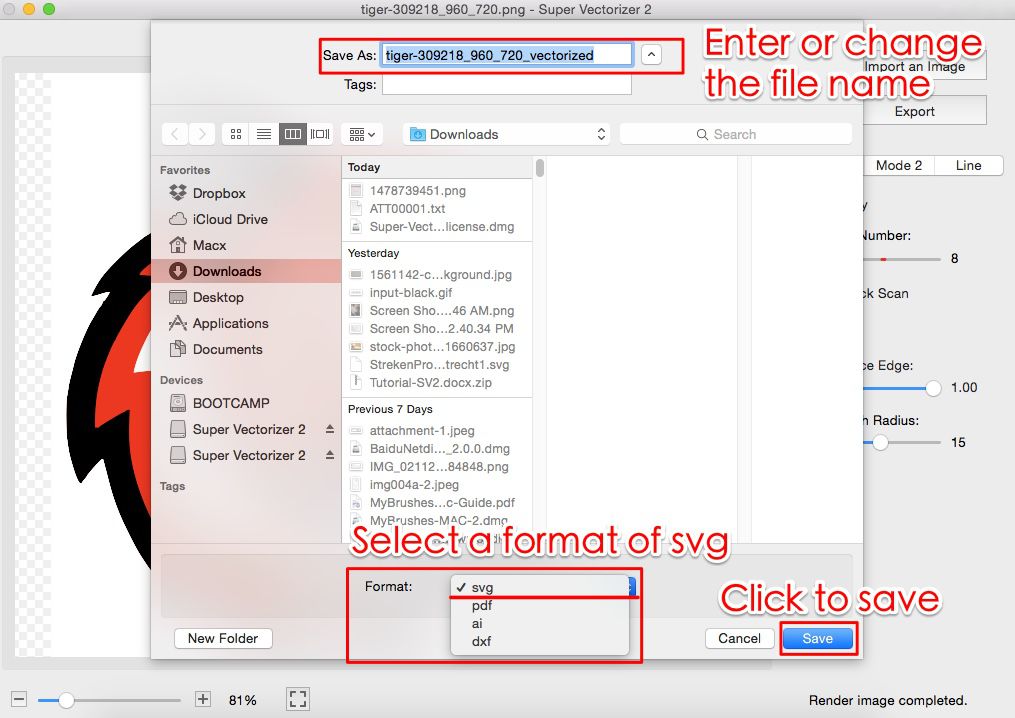
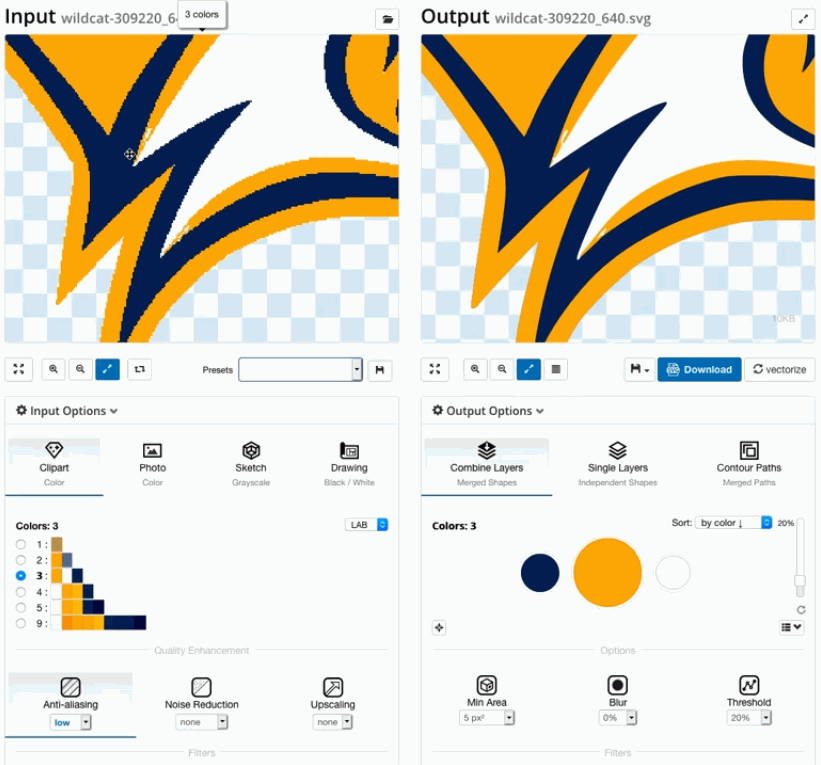
Yes, but it requires a tracing step because the vector data was lost during rasterization. Use a dedicated image-to-SVG converter such as Super Vectorizer Pro: load the BMP, run the vectorization preview on the free trial, then export the result as clean SVG. For logos, icons, and line art, the result is usually excellent.
Related Articles
Try These Free Online Tools
No download required — convert, compress & optimize SVGs right in your browser
PNG to SVG Converter
Convert PNG, JPG, BMP images to scalable vector graphics instantly
PNG to SVG ConverterSVG Compressor (Mini)
Reduce SVG file size by up to 80% without losing quality
SVG Compressor OnlineSVG Optimizer
Clean up SVG code, remove redundant data and optimize for web
SVG Optimizer OnlineJPG to SVG Converter
Turn JPEG photos into crisp vector artwork in seconds
JPG to SVG ConverterEPS to SVG Converter
Convert EPS vector files to web-friendly SVG format
EPS to SVG ConverterAll Free Tools
Browse our complete collection of free online conversion tools
Browse All Free Tools