
SVG (Scalable Vector Graphics) is the best format for logos, icons, and simple illustrations on the web. Because it is mathematically defined, it stays razor-sharp at any size and usually produces tiny files. But there are plenty of situations where you actually need a raster image instead of a vector: social media platforms that refuse to accept SVG uploads, email clients that can't render vectors, Open Graph preview images that must be a fixed-pixel raster, and content management systems with a raster-only pipeline. That is exactly where an SVG to WebP converter earns its place in your workflow. This guide explains what these converters do, why WebP almost always beats PNG for raster output, how resolution scaling lets you pick the exact pixel density you need, and how to get the smallest possible file without losing visible quality.
Need a clean SVG first? Try Super Vectorizer Pro free trial to preview vectorization results.
Compatible with macOS 10.10+ (M1/M2/M3) & Windows 7/8/10/11
Our Verdict
SVG to WebP conversion bridges vector and raster workflows. Choose a tool that preserves transparency and gives you control over output quality.
Best Desktop: Super Vectorizer Pro
- Export SVG to raster formats at custom resolution
- Preserves transparency and color accuracy
- Free trial to preview results
- Works offline on Mac and Windows
Best Online: CloudConvert
- Browser-based conversion
- Supports transparency and quality settings
- Free tier with file limits
- Files uploaded to server
What Is an SVG to WebP Converter?
An SVG to WebP converter is a tool that rasterizes a vector graphic into a WebP image. "Rasterizing" means the software renders the SVG's paths, curves, and gradients onto a flat pixel grid at a resolution you choose, then encodes that pixel grid using Google's WebP compression. The output is no longer scalable — it is a fixed-size bitmap — but it keeps the crispness of the vector at the chosen dimensions while adding the universal compatibility of a raster format.
This is a vector-to-raster conversion, the reverse of the raster-to-vector tracing that tools like Super Vectorizer Pro perform. You typically run it as the final export step: you build or convert an image to SVG, refine the vector, then rasterize to WebP only when a destination genuinely requires pixels.
Why Convert SVG to WebP Instead of PNG?
WebP is a modern image format developed by Google. Multiple independent benchmarks put WebP files at roughly 25–35% smaller than equivalent PNG files at the same visual quality, and about 26% smaller than PNG on complex illustrations. Smaller files translate directly into faster page loads, lower bandwidth bills, and better Core Web Vitals — especially Largest Contentful Paint (LCP). Here is the practical impact most teams see:
- Smaller payloads. A page that serves 200 KB PNGs can instead serve ~140 KB lossless WebPs, or ~60 KB lossy WebPs with imperceptible differences.
- Transparency support. Unlike JPG, WebP keeps an alpha channel, so a transparent SVG becomes a transparent WebP.
- Universal browser support. Chrome, Firefox, Edge, Opera, and Safari (14+, since 2020) all decode WebP — roughly 95%+ of users.
- Lossy and lossless modes. You choose the quality-vs-size trade-off per asset.
| Factor | SVG | WebP | PNG | Winner |
|---|---|---|---|---|
| Scalable to any size | Yes | No (fixed pixels) | No (fixed pixels) | SVG |
| File size at large/fixed display | Can grow with complexity | Smallest | ~26% larger than WebP | WebP |
| Transparency | Yes | Yes | Yes | Tie |
| Accepted by email / social / CMS | Rarely | Yes | Yes | WebP |
When You Should — and Shouldn't — Convert SVG to WebP
Convert to WebP when:
- You are uploading to a platform that blocks SVG (WordPress media library, Shopify product images, most social networks).
- You need an
og:imagefor link previews — Open Graph images must be raster. - You are building email headers or signatures (most email clients cannot render SVG).
- You are generating thumbnails or fixed-size preview images.
- Your SVG has grown heavy with thousands of paths, gradients, and filters, and rendering cost is hurting performance.
Keep SVG when:
- The graphic is a logo, icon, or illustration displayed on a website that already accepts SVG.
- You need infinite scalability (zoomable maps, responsive hero art).
- The destination tool requires editable vectors (cutting machines, print shops that re-trap artwork).
How to Convert SVG to WebP — Step by Step
You have two solid paths: a quick browser-based converter, or a desktop app when you want precise control. Both deliver the same result; pick based on how much control you need.
Option A — Free online converter (fastest):
- Open the SVG to WebP converter in your browser.
- Drag your
.svgfile into the upload zone (or click to browse). Most tools also let you paste from the clipboard or import by URL. - Pick the export resolution (1x, 2x, 3x, or 4x) or a DPI value if offered.
- Preview the result and check the pixel dimensions shown.
- Click download to save the WebP. No account is required.
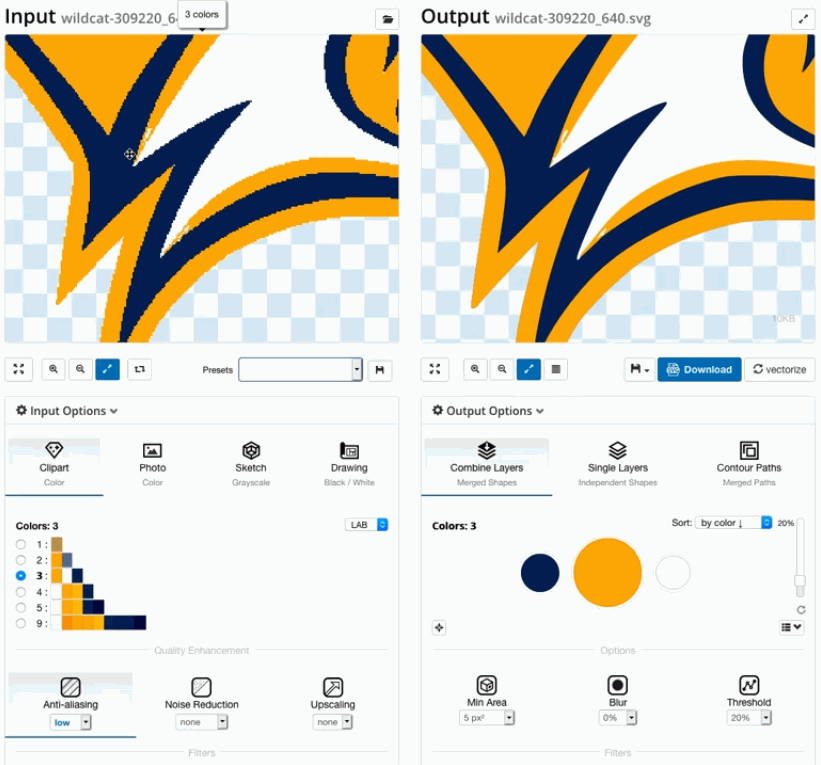
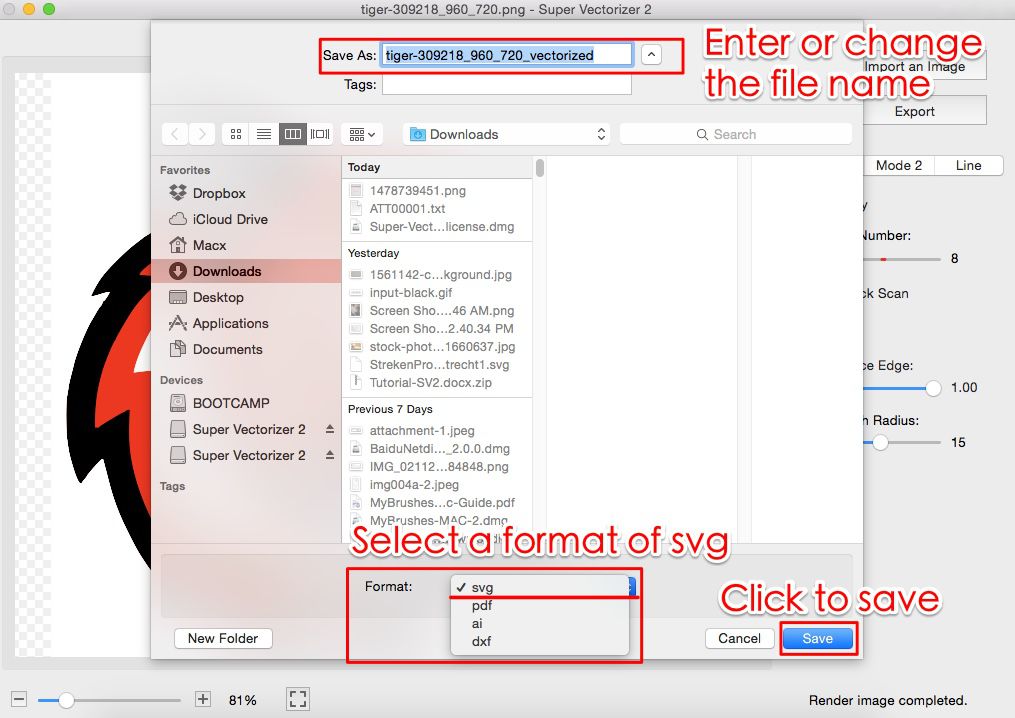
Option B — Desktop app (maximum control): If your SVG came from a photo or scanned artwork, first use a desktop vectorizer such as Super Vectorizer Pro to produce a clean vector — note the free trial lets you preview the vectorization results before you commit. Then rasterize the SVG to WebP inside a design app (Affinity Designer, Illustrator, or a command-line tool like Sharp/ImageMagick) where you can set exact pixel dimensions and quality.
Understanding Resolution & DPI When Exporting
Because SVG is resolution-independent, you choose the pixel density at the moment of conversion. Getting this right is the single biggest factor in output quality and file size.
- 1x (72 DPI): Standard screens, smallest file. Fine for low-traffic pages and internal tools.
- 2x (150 DPI): Retina/HiDPI displays — MacBooks, iPhones, most modern screens. The recommended default for web.
- 3x: High-res mobile, hero images, large social graphics.
- 4x (300 DPI): Print quality, posters, event banners.
For social sharing (Twitter/X cards, Facebook, LinkedIn), export at 2x. For print-adjacent uses, jump to 3x or 4x. If you are unsure, 300 DPI is large enough for any professional print use and can always be downsampled later — but upscaling a low-DPI raster permanently loses detail.
Tips for the Smallest Possible File Size
- Use lossy WebP for photography-style detail. A quality setting of 85–95% is usually visually identical to lossless but far smaller.
- Right-size before exporting. Don't rasterize at 4x if the image displays at 300 px wide.
- Flatten hidden complexity. Remove off-canvas paths and invisible layers from the SVG first; they still add render cost.
- Re-optimize the WebP. Run the exported file through an optimizer to strip metadata if your converter doesn't already.
- Serve WebP to modern browsers, fall back to PNG. Use
<picture>elements or CDN format negotiation so the remaining ~5% of users still get an image.
When to Choose WebP Over Other Formats
WebP is not always the right choice despite its technical advantages. For SVG source files that contain only simple shapes and text, keeping the SVG format itself is better than converting to any raster format — SVG is resolution-independent and typically smaller than even optimized WebP. Convert to WebP only when the SVG is complex enough that rasterization produces a smaller file, or when the target platform does not support SVG rendering.
WebP shines for photographic content embedded in SVGs. If your SVG contains <image> elements with raster photos, extracting those photos and serving them as WebP can reduce their size by 25 to 35 percent compared to JPG, with no visible quality loss. The SVG can then reference the WebP file via the href attribute on the <image> element.
For animated content, WebP supports animation with alpha transparency at smaller file sizes than animated GIF. However, if the animation is purely vector (paths, transforms, opacity), keep it as SVG with SMIL or CSS animation — the file will be smaller and infinitely scalable. Only convert to animated WebP when the animation includes raster frames that cannot be expressed as vector transforms.
Frequently Asked Questions
Does converting SVG to WebP lose quality?
In lossless mode, no — the pixels are encoded without discarding data, so the rendered image matches the SVG exactly at the chosen resolution. In lossy mode, quality depends on the slider you pick; 85–95% is visually indistinguishable for most artwork while cutting file size dramatically. The only thing you permanently "lose" is scalability, because WebP is a fixed-pixel raster.
Will WebP keep my transparent background?
Yes. WebP supports an alpha channel just like PNG, so a transparent SVG exports to a transparent WebP. JPG is the format that drops transparency — that is one reason WebP is the better raster choice for logos and icons.
Is WebP supported everywhere now?
All current major browsers support WebP — Chrome, Firefox, Edge, Opera, and Safari 14+ (released in 2020). That covers about 95%+ of real-world users. For the small remainder, provide a PNG fallback via a <picture> element or your CDN's automatic format negotiation.
What resolution should I export my SVG to WebP at?
It depends on the destination. For web graphics and social media, 2x (around 150 DPI) is the sweet spot for sharp Retina display without bloat. For print, use 300 DPI (4x). If you are unsure, export at 300 DPI — you can always downscale a high-res WebP, but you can't recover detail from a low-res one.
Start With a Clean Vector
Turn any photo or scanned artwork into a crisp SVG, then export it to WebP wherever a raster is required. Download Super Vectorizer Pro free trial to preview vectorization results.
Compatible with macOS 10.10+ (M1/M2/M3) & Windows 7/8/10/11
Related Articles
Try These Free Online Tools
No download required — convert, compress & optimize SVGs right in your browser
PNG to SVG Converter
Convert PNG, JPG, BMP images to scalable vector graphics instantly
PNG to SVG ConverterSVG Compressor (Mini)
Reduce SVG file size by up to 80% without losing quality
SVG Compressor OnlineSVG Optimizer
Clean up SVG code, remove redundant data and optimize for web
SVG Optimizer OnlineJPG to SVG Converter
Turn JPEG photos into crisp vector artwork in seconds
JPG to SVG ConverterEPS to SVG Converter
Convert EPS vector files to web-friendly SVG format
EPS to SVG ConverterAll Free Tools
Browse our complete collection of free online conversion tools
Browse All Free Tools