
PDF (Portable Document Format) is the world's most popular document format, but it's not ideal for web use, scalable graphics, or further editing in vector design tools. SVG (Scalable Vector Graphics), on the other hand, is a web-native vector format that scales perfectly at any size and can be directly embedded in HTML pages.
Converting PDF to SVG allows you to: (1) display vector graphics from PDFs on websites with perfect clarity, (2) edit PDF graphics in vector design tools like Adobe Illustrator or Inkscape, (3) use PDF content in Cricut or laser cutting workflows, and (4) reduce file sizes for web delivery. In this guide, we'll cover the best ways to convert PDF to SVG online for free, explain when to use desktop software like Super Vectorizer Pro instead, and share expert tips for getting the best results.
Have a raster image (PNG/JPG) instead of a PDF? Try Super Vectorizer Pro free trial to preview vectorization results.
Compatible with macOS 10.10+ (M1/M2/M3) & Windows 7/8/10/11
Why Convert PDF to SVG?
1. Web Compatibility
SVGs can be directly embedded in HTML pages and styled with CSS, making them ideal for logos, icons, illustrations, and charts on websites. PDFs require a plugin or viewer and don't render natively in most browsers. SVG files also support animation and interactivity, which PDFs don't.
2. Infinite Scalability
SVG is a vector format, meaning it scales to any size without pixelation or quality loss. PDFs can contain both vector and raster content—when a PDF contains raster images, scaling it up results in blur. Converting to SVG ensures the vector portions remain crisp at any resolution.
3. Smaller File Sizes for Simple Graphics
For simple graphics like logos, icons, and diagrams, SVG files are often significantly smaller than PDFs. PDFs contain structural overhead and metadata that SVGs don't need. A logo that's 150 KB as a PDF might be only 8 KB as an SVG.
4. Editability in Vector Design Tools
SVG is natively supported by all major vector design tools: Adobe Illustrator, Inkscape, Figma, Sketch, and Affinity Designer. While these tools can also open PDFs, the imported result is often messy, with broken paths, incorrect colors, or grouping issues. A clean SVG export avoids these problems.
Method 1: Convert PDF to SVG Online (Free Tools)
Online PDF to SVG converters are the fastest way to convert a PDF without installing software. Here are the best free options:
CloudConvert (Recommended Online Tool)
CloudConvert is a versatile online file conversion platform that supports PDF to SVG conversion. It preserves vector data well and offers adjustable settings for SVG output. The free tier allows up to 25 conversions per day with a file size limit of 100 MB.
How to use: (1) Go to cloudconvert.com, (2) Select "PDF" as source and "SVG" as target, (3) Upload your PDF, (4) Click "Convert", (5) Download the resulting SVG file.
Zamzar PDF to SVG Converter
Zamzar is a long-standing online conversion service that supports PDF to SVG. It's simple to use but has stricter file size limits on the free tier. The conversion quality is decent for basic PDFs, though complex PDFs with gradients or patterns may not convert perfectly.
Online-Convert.com PDF to SVG
This tool offers more advanced settings, including DPI adjustment, color space selection, and width/height scaling. It's a good choice when you need more control over the output SVG dimensions and quality.
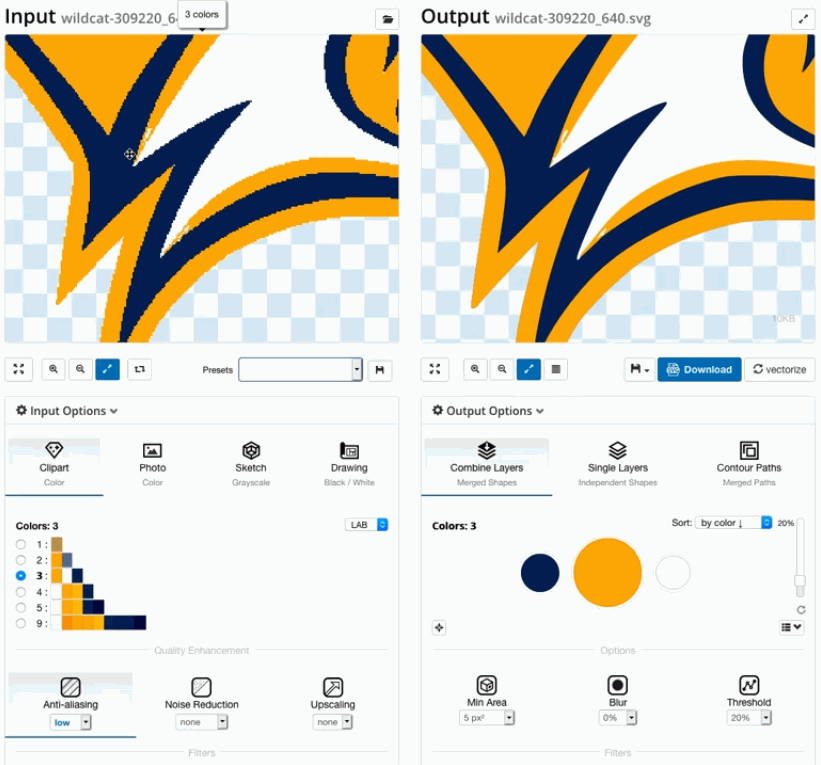
Method 2: Use Inkscape (Free Desktop Software)
Inkscape is a free, open-source vector graphics editor that can open PDF files and save them as SVG. This method gives you the most control over the conversion process and allows you to clean up the result before saving.
Step-by-step: (1) Download and install Inkscape (free, available for Windows, Mac, Linux), (2) Open Inkscape and go to File → Open, (3) Select your PDF file, (4) In the PDF import dialog, choose "Import as vectors" for best results, (5) Review and edit the imported graphic, (6) Go to File → Save As and choose "Plain SVG" as the format.
Inkscape typically produces cleaner SVG output than online converters because it gives you direct control over how the PDF is interpreted. You can manually adjust paths, remove unwanted elements, and simplify complex groups before exporting.
Method 3: Adobe Illustrator (Professional Workflow)
If you have access to Adobe Illustrator, it offers the highest-quality PDF to SVG conversion. Illustrator's PDF import is the most accurate on the market, correctly handling gradients, patterns, transparency, and text rendering.
Step-by-step: (1) Open Illustrator and go to File → Open, (2) Select your PDF file, (3) Choose import settings (typically "Crop to: Media Box" and "Anti-Aliasing: Type Optimized"), (4) Edit and clean up the artwork, (5) Go to File → Export → Export As, (6) Choose "SVG" as the format, (7) Adjust SVG export settings (Styling: Internal CSS, Font: SVG, Images: Preserve), (8) Click "Export".
Comparison: Online vs. Desktop PDF to SVG Conversion in 2026
| Factor | Online Converters | Desktop Software | Best For |
|---|---|---|---|
| Setup Required | None (browser only) | Software installation | Online |
| Privacy | Files uploaded to server | Local processing | Desktop |
| Conversion Quality | Good for simple PDFs | Excellent (full control) | Desktop |
| Batch Processing | Limited or paid | Supported (scriptable) | Desktop |
| Cost | Free (with limits) | Free (Inkscape) or Paid (Illustrator) | Online/Inkscape |
| Complex PDFs | May lose gradients/patterns | Handles complex artwork | Desktop |
When the PDF Contains Only Raster Images: Use Vectorization
Many PDFs—especially those created by scanning paper documents or exporting from presentation software—contain only raster images. Converting such a PDF to SVG using the methods above will produce an SVG file that still contains a raster image, defeating the purpose.
In this case, you need to vectorize the content. Here's the recommended workflow:
- Extract images from the PDF: Use a free tool like PDF24 or Adobe Acrobat to extract images from the PDF.
- Vectorize the images: Use Super Vectorizer Pro (desktop app, free trial available to preview results) or the free online PNG-to-SVG converter to convert the raster images to vector SVG format.
- Optimize the SVG: Use SVG Mini Online to compress the resulting SVG for web use.
This workflow produces a true vector SVG that scales perfectly and has a small file size. It's the best approach for logos, diagrams, and illustrations that were originally saved as raster PDFs.
Tips for Best PDF to SVG Conversion Results
1. Check if Your PDF Contains Vector Data First
Open the PDF in a viewer and zoom in to 500% or more. If the lines and text remain crisp (no pixelation), the PDF contains vector data and can be converted to SVG with excellent results. If the content becomes blurry, it's raster and needs vectorization (not just format conversion).
2. Simplify the PDF Before Converting
If your PDF has multiple pages but you only need one page converted, extract that page first using a free PDF tool (like PDF24 or SmallPDF). This reduces the chance of conversion errors and makes the process faster.
3. Choose "Plain SVG" Over "Inkscape SVG" When Using Inkscape
Inkscape's default SVG format includes Inkscape-specific metadata that increases file size. Unless you plan to re-open the file in Inkscape later, always choose "Plain SVG" when saving for web use or sharing with others.
4. Optimize the Resulting SVG
After converting PDF to SVG, run the file through an SVG optimizer like SVG Compressor Online to remove unnecessary metadata, reduce decimal precision, and minimize file size. This step can often reduce the SVG file size by 40-70%.
Common Problems & How to Fix Them
Problem: Text Converts as Outlines (Not Editable Text)
Most PDF to SVG converters convert text into vector paths (outlines) rather than preserving the actual text characters. This means the text won't be selectable or searchable in the SVG. To preserve editable text, use Adobe Illustrator's SVG export and ensure "Text: SVG" is selected in the export settings. Note that this requires the viewer to have the same fonts installed.
Problem: Gradient or Pattern Fills Don't Convert Correctly
SVG has excellent support for gradients, but some online converters don't handle complex PDF gradients correctly. If your converted SVG has missing or incorrect gradients, try using Inkscape or Illustrator for the conversion, as they have better gradient support.
Problem: The Converted SVG File Is Too Large
PDF-to-SVG conversion can sometimes produce very large SVG files, especially if the PDF contains complex vector artwork. Use an SVG optimizer (like SVG Mini Online) to reduce file size. If the file is still too large, consider simplifying the artwork in a vector editor before exporting.
Frequently Asked Questions
Can I convert a multi-page PDF to SVG?
Most PDF to SVG converters only convert the first page of a multi-page PDF. To convert all pages, you'll need to split the PDF into individual pages first (using a free PDF splitter tool), then convert each page separately. Alternatively, desktop tools like Inkscape and Illustrator can open specific pages from a multi-page PDF, letting you choose which page to convert.
Is there a completely free way to convert PDF to SVG without uploading my files?
Yes—use Inkscape. It's completely free, open-source, and processes files locally on your computer. Your files are never uploaded to any server. Inkscape is available for Windows, macOS, and Linux, making it the best privacy-friendly option for PDF to SVG conversion.
What if my PDF is a scanned document?
Scanned PDFs contain only raster images (no vector data). Converting such a PDF to SVG using standard format converters will simply embed the raster image inside an SVG file, which doesn't provide any scalability benefits. Instead, you need to use OCR (Optical Character Recognition) software to extract text, or use a vectorization tool to trace the graphics. For the image portions, use a tool like Super Vectorizer Pro to trace and convert them to true vector format.
Can I automate PDF to SVG conversion for many files?
Yes. For batch conversion, Inkscape supports command-line usage—you can write a simple script to convert hundreds of PDFs to SVG automatically. For online workflows, CloudConvert offers an API (paid) that supports batch PDF to SVG conversion. If you're working with raster PDFs that need vectorization, Super Vectorizer Pro processes one image at a time; for entire folders, use an Inkscape script or a batch API.
Convert Raster Images & PDFs to True Vector SVGs
When your PDF contains raster images, format conversion isn't enough—you need vectorization. Try Super Vectorizer Pro free trial to preview vectorization results, then unlock full export.
Compatible with macOS 10.10+ (M1/M2/M3) & Windows 7/8/10/11
Related Articles
Try These Free Online Tools
No download required — convert, compress & optimize SVGs right in your browser
PNG to SVG Converter
Convert PNG, JPG, BMP images to scalable vector graphics instantly
PNG to SVG ConverterSVG Mini Compressor
Reduce SVG file size by up to 80% without losing quality
SVG Compressor OnlineSVG Optimizer
Clean up SVG code, remove redundant data and optimize for web
SVG Optimizer OnlineJPG to SVG Converter
Turn JPEG photos into crisp vector artwork in seconds
JPG to SVG ConverterEPS to SVG Converter
Convert EPS vector files to web-friendly SVG format
EPS to SVG ConverterAll Free Tools
Browse our complete collection of free online conversion tools
Browse All Free Tools