
Every artist and designer eventually faces the same challenge: you've created a beautiful sketch on paper (or in Procreate, Photoshop, or Krita), and now you need to turn it into a clean, scalable SVG file. Whether you're preparing artwork for a Cricut cutter, creating logos for clients, or building web graphics, vectorizing a sketch to SVG is an essential skill.
In this guide, we'll walk through every method — from free online tools to professional desktop software — and share pro tips that will save you hours of frustration. By the end, you'll know exactly how to convert your sketches to SVG regardless of your budget or technical skill level.
Ready to vectorize your sketches? Try Super Vectorizer Pro free trial to preview professional-grade vectorization results.
Compatible with macOS 10.10+ (M1/M2/M3) & Windows 7/8/10/11
Why Vectorize a Sketch to SVG?
Before diving into methods, let's clarify why SVG is the ideal format for sketches and drawings:
- Infinite Scalability: SVG files use mathematical paths, not pixels. Your sketch can be scaled from business card size to billboard size without any quality loss.
- Editability: Once vectorized, individual strokes and shapes can be edited in vector design software (Illustrator, Inkscape, Figma).
- Small File Size: For simple sketches, SVG files are often smaller than high-resolution PNGs.
- Crafting Compatibility: Cutting machines (Cricut, Silhouette) require SVG or similar vector formats to cut accurately along paths.
- Web Ready: SVGs load fast on websites and look crisp on any display, including high-DPI "Retina" screens.
Preparing Your Sketch for Vectorization (Crucial Step!)
The quality of your SVG output depends heavily on how well you prepare the source image. Follow these steps before vectorizing:
1. Photograph or Scan Your Sketch Properly
If your sketch is on paper, you need a clean digital image before vectorizing:
- Use a flatbed scanner at 300 DPI or higher for best results.
- If photographing, use natural daylight (not harsh indoor lighting), place the paper on a flat surface, and shoot from directly above.
- Ensure the sketch fills as much of the frame as possible without cropping the edges.
2. Clean Up the Image
Before vectorizing, clean up your digital image:
- Remove the background: Use remove.bg or Photoshop's "Remove Background" tool to get a clean white or transparent background.
- Increase contrast: Make the lines dark and the background light. High contrast = cleaner vectorization.
- Adjust brightness/levels: In Photoshop/GIMP, use Levels (Ctrl+L / Cmd+L) to make white areas pure white and lines pure black.
- Erase smudges: Clean up any stray marks or paper texture that could be mistaken for sketch lines.
3. Choose the Right File Format
Save your cleaned-up sketch as a PNG with transparent background (if possible) or a high-quality JPG. PNG is preferred because it's lossless and supports transparency.
Method 1: Desktop Software (Best Quality & Control)
Desktop applications give you the most control over how your sketch is vectorized. Here are the top options:
Super Vectorizer Pro (Mac & Windows)
Super Vectorizer Pro is specifically designed for converting images (including sketches) to vector formats. It's our top pick for sketch-to-SVG conversion because:
- It handles both simple line sketches and complex shaded drawings.
- You can adjust detail level, color count, and noise removal.
- You can tune the trace settings for each sketch individually.
- The free trial lets you preview the full vectorization result before purchasing.
Step-by-step with Super Vectorizer Pro:
- Download and install Super Vectorizer Pro (Mac or Windows).
- Open your cleaned-up sketch file (PNG/JPG).
- The app auto-detects optimal settings. For sketches, use the "Line Art" or "Sketch" preset if available.
- Adjust the "Detail" slider: higher = more detail captured, but more complex SVG.
- Preview the result. Zoom in to check line quality.
- Export to SVG (after purchasing) or use the free trial to evaluate the result.
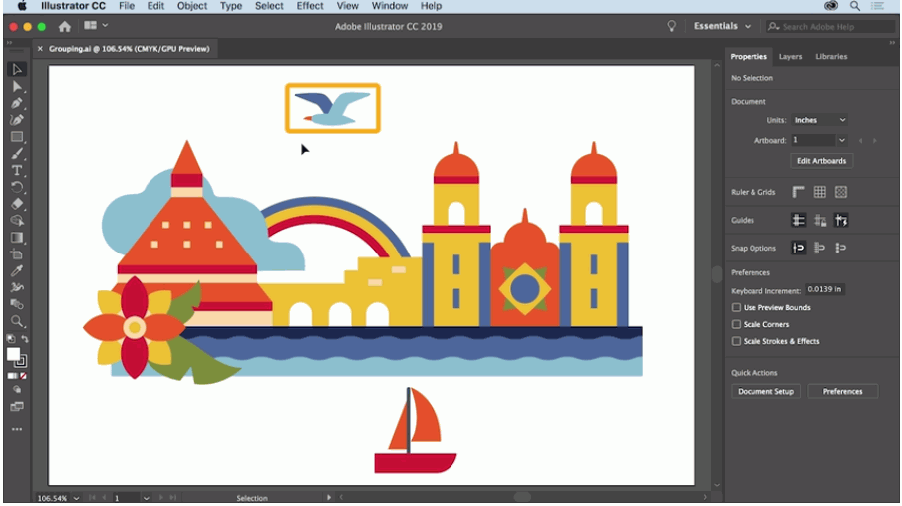
Adobe Illustrator (Industry Standard, Subscription)
Illustrator's "Image Trace" feature is powerful but has a learning curve:
- Place your sketch (File → Place).
- Select the image and click "Image Trace" in the Properties panel.
- Choose a preset: "3 Color," "16 Color," or "Line Art" work well for sketches.
- Click "Expand" to convert the trace to editable vector paths.
- Clean up extra anchor points with the Smooth tool.
- Save as SVG (File → Export → Export As → SVG).
Inkscape (Free, Open Source)
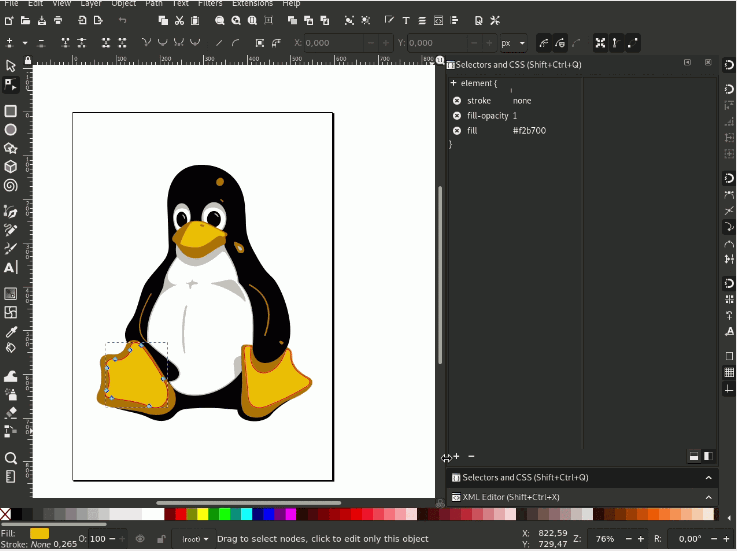
Inkscape is a free alternative to Illustrator with a "Trace Bitmap" feature:
- Import your sketch (File → Import).
- Select the image, then go to Path → Trace Bitmap.
- Choose "Brightness Cutoff" for black-and-white sketches or "Colors" for colored sketches.
- Adjust the threshold/sensitivity and click "OK."
- Delete the original image; the vectorized version will be on top.
- Save as SVG (File → Save As → SVG).
Method 2: Online Converters (Quick & Free)
If you don't want to install software, several online tools can vectorize sketches to SVG:
SVG Mini Online (Free, Browser-Based, Private)
SVG Compressor Online is unique because it processes images entirely in your browser — no file uploads to servers. While it's primarily an SVG optimizer, it also works as a basic converter for simple sketches.
Vectorizer.io (Free Tier + Paid)
Vectorizer.io has a dedicated "Sketch" mode that works well for hand-drawn art. The free tier has a daily limit; paid plans remove restrictions.
Scan2CAD (Free for Basic, Paid for Advanced)
Originally designed for converting CAD drawings, Scan2CAD also handles sketches well. It's particularly good at recognizing lines and arcs in technical sketches.
Comparison: Which Method Should You Use?
| Use Case | Recommended Method | Why |
|---|---|---|
| Simple line sketch (black on white) | Online converter (Vectorizer.io) | Fast, free, decent quality for basic sketches |
| Colored sketch or drawing | Super Vectorizer Pro or Illustrator | Need color control and detail adjustment |
| Detailed illustration with shading | Super Vectorizer Pro (desktop) | Advanced algorithms handle complex artwork better |
| Batch converting many sketches | Super Vectorizer Pro (one at a time) | Desktop apps handle batch processing efficiently |
| No budget / occasional use | Inkscape (free) or online converters | Free options sufficient for basic needs |
| Commercial client work | Illustrator or Super Vectorizer Pro | Professional quality, reliable output |
Common Sketch-to-SVG Problems & Solutions
Problem: The Vectorized Sketch Has Too Many Anchor Points
Solution: Reduce the "Detail" or "Sensitivity" setting in your converter. After conversion, use the Smooth tool in Illustrator/Inkscape to simplify paths. SVG Mini Online can also optimize and reduce anchor points in existing SVGs.
Problem: Fine Lines in My Sketch Disappeared
Solution: Thicken the lines in your source image before vectorizing (Photoshop: Filter → Other → Minimum). Alternatively, increase the sensitivity/detail setting in your converter.
Problem: The SVG Looks "Messy" with Extra Lines/Shapes
Solution: Your source image likely has too much texture or noise. Clean up the image (increase contrast, remove background) before vectorizing. Use the "Noise Removal" setting if your converter has one.
Problem: Colors Look Wrong or "Muddy"
Solution: Reduce the color count in your converter settings. For sketches with flat colors, use 2-8 colors. For photo-realistic colored sketches, you may need 16-32 colors.
Our Verdict: Best Way to Vectorize Sketches in 2026
For professional results, use Super Vectorizer Pro (desktop). For quick, free conversions of simple sketches, use an online converter like Vectorizer.io. For complete control and editing, use Adobe Illustrator's Image Trace.
Super Vectorizer Pro — Best Overall
- Handles sketches, line art, and complex drawings
- Adjustable detail and color settings
- Per-sketch tuning of color count and smoothing
- Free trial to preview results
- Mac and Windows support
Adobe Illustrator — Best for Professionals
- Industry-standard vector editor
- Full control over every path and anchor point
- Subscription required ($22.99/month)
- Steep learning curve for beginners
Optimizing Your SVG After Vectorization
After converting your sketch to SVG, you'll often want to optimize the file:
- Remove redundant anchor points: Use SVG Mini Online or the Simplify function in vector software.
- Combine overlapping paths: In Illustrator: Pathfinder → Unite. In Inkscape: Path → Union.
- Remove metadata: SVG optimizers strip out editor metadata, reducing file size.
- Convert strokes to paths: Some cutting machines require filled paths, not strokes. In Illustrator: Object → Path → Outline Stroke.
Sketch → SVG: Format-Specific Conversion Notes
- Pencil sketches are high-contrast line work — the B&W preset with adaptive binarization isolates strokes from paper.
- Paper texture and smudges read as noise; raise Filter speckles to drop them before tracing.
- A higher corner threshold keeps sharp corners on hatched lines instead of rounding them into blobs.
- Scan at high contrast (black pen, white paper) for the cleanest vector line art.
Frequently Asked Questions
Can I vectorize a sketch on my iPad or phone?
Yes! Apps like Adobe Illustrator for iPad, Affinity Designer, and Vectornator (now Linearity Curve) can vectorize sketches on iPad. For iPhone/Android, apps like "Image to SVG Converter" or "Vector Q" can handle basic sketch-to-SVG conversion. However, for the best quality and control, we recommend using a desktop application.
My sketch has shading and gradients. Can it still be vectorized?
Yes, but the result will be different from a line sketch. Shaded sketches convert to SVGs with many small paths and gradient fills, which can create large file sizes. For shaded artwork, consider using a high color count (16-32) during vectorization, or convert only the outline/line work and add shading back manually in vector software.
What's the ideal DPI for scanning a sketch before vectorizing?
300 DPI is the sweet spot for most sketches. It provides enough detail for accurate vectorization without creating unnecessarily large source files. For very detailed sketches with fine lines, you can go up to 600 DPI. Avoid going below 150 DPI — the vectorization quality will suffer.
Can I vectorize a sketch and then edit it in Figma?
Absolutely! After converting your sketch to SVG, you can import the SVG file into Figma (File → Import). The vector paths will be editable as Figma objects. This is a great workflow for designers who prefer Figma's interface but need to convert hand-drawn sketches to vectors.
Vectorize Your Sketches with Professional Quality
Super Vectorizer Pro gives you advanced sketch vectorization algorithms, precise path control, and support for 50+ formats. Download the free trial to preview your results today.
Compatible with macOS 10.10+ (M1/M2/M3) & Windows 7/8/10/11
Related Articles
Try These Free Online Tools
No download required — convert, compress & optimize SVGs right in your browser
PNG to SVG Converter
Turn PNG images into crisp vector artwork in seconds
Free OnlineSVG Compressor (Mini)
Reduce SVG file size by up to 80% without losing quality
Free OnlineJPG to SVG Converter
Convert JPEG photos to scalable vector format
Free OnlineEPS to SVG Converter
Convert EPS illustrations to scalable vector graphics
Free OnlineAll Free Tools
Browse our complete collection of free online conversion tools