
Converting a photo to SVG format is one of the most common tasks in graphic design, crafting, and web development. Unlike raster images (JPEG, PNG, BMP), SVG (Scalable Vector Graphics) uses mathematical paths rather than pixels, which means your converted image can be scaled to any size without losing quality. Whether you're preparing artwork for a Cricut cutter, optimizing graphics for the web, or creating laser cutting files, choosing the right photo to SVG converter makes all the difference.
In this comprehensive guide, we'll explore the best tools for converting photos to SVG in 2026, explain the differences between desktop and online converters, walk through step-by-step tutorials, and help you choose the right approach for your specific needs. We'll also cover advanced topics like handling complex photographs, optimizing SVG output, and avoiding common pitfalls.
Ready to convert your photos? Try Super Vectorizer Pro free trial to preview vectorization results with professional-grade algorithms.
Compatible with macOS 10.10+ (M1/M2/M3) & Windows 7/8/10/11
What Is a Photo to SVG Converter and Why Do You Need One?
A photo to SVG converter is a tool that transforms raster images (made of pixels) into vector graphics (made of mathematical paths). This process is called "vectorization" or "image tracing." The result is an SVG file that can be infinitely scaled without pixelation or quality loss.
There are several reasons why you might need to convert a photo to SVG:
- Crafting and Cutting: Cricut, Silhouette, and other cutting machines require SVG files to cut shapes accurately. Converting a photo to SVG lets you create custom decals, t-shirt transfers, and paper crafts.
- Web Optimization: SVG files are often smaller than high-resolution PNGs and load faster on websites. They also look crisp on high-DPI displays.
- Print and Design: Professional printing requires vector files for sharp results at any size. Converting photos to SVG ensures your designs look professional in brochures, banners, and signage.
- Laser Cutting and CNC: Laser cutters and CNC machines use vector paths to guide the cutting head. An SVG file converted from a photo can be used to create intricate laser-cut designs.
- Animation and Interactivity: SVG files can be animated with CSS or JavaScript, making them ideal for interactive web graphics and animated logos.
Not all photos are equally suited for SVG conversion. Simple, high-contrast images with clear edges (like logos, line art, and illustrations) convert beautifully. Complex photographs with gradients, shadows, and fine details require more advanced techniques and may produce larger SVG files.
Desktop vs. Online Photo to SVG Converters: Which Should You Choose?
The first decision you'll face is whether to use a desktop application or an online converter. Each approach has distinct advantages:
| Feature | Desktop Apps | Online Converters | Winner |
|---|---|---|---|
| Image Quality | Superior — advanced algorithms, custom settings | Basic — limited control over output | Desktop |
| Privacy & Security | Files stay on your computer | Files uploaded to remote servers | Desktop |
| Batch Processing | Handle hundreds of files at once | Usually limited to 1-5 files | Desktop |
| Cost | Paid (one-time or subscription) | Often free (with limitations) | Online |
| Ease of Use | Learning curve for advanced features | Immediate — no installation needed | Online |
| File Size Limits | None — limited only by your computer | Typically 5-20 MB per file | Desktop |
| Internet Required | No — works offline | Yes — must upload files | Desktop |
Our recommendation: Use a desktop app like Super Vectorizer Pro for professional projects and sensitive images. Use online converters for quick, one-off conversions when convenience matters more than perfection.
Our Verdict: Best Photo to SVG Converter in 2026
After testing 15+ tools, here's our assessment of the top options for converting photos to SVG.
Super Vectorizer Pro (Desktop) — Best Overall
- Advanced vectorization algorithms for photos and illustrations
- Supports 50+ input formats (PNG, JPG, BMP, TIFF, PSD, more)
- Per-photo tuning of color count and smoothing
- Customizable output: SVG, AI, PDF, DXF, EPS, and more
- Free trial available to preview vectorization results
- Works on both Mac (M1/M2/M3) and Windows
Online Converters (SVG Mini, Vectorizer.io) — Best for Quick Jobs
- No installation required — works in any browser
- Free for basic usage
- Decent results for simple, high-contrast images
- Limited control over tracing parameters
- File size and daily usage limits on free plans
How to Convert a Photo to SVG on Mac (Step-by-Step)
Mac users have excellent options for photo to SVG conversion. Here's how to do it with Super Vectorizer Pro, our top-rated desktop app:
Step 1: Download and Install
Download Super Vectorizer Pro for Mac from the official website. The app is compatible with macOS 10.10 and later, including the latest M1, M2, and M3 Macs. Install it like any other Mac application.
Step 2: Import Your Photo
Launch the app and drag your photo (PNG, JPG, or any supported format) into the main window. You can also use File → Open to browse for your image. The photo will appear in the preview area.
Step 3: Adjust Vectorization Settings
Super Vectorizer Pro automatically detects the best settings for your photo, but you can fine-tune:
- Detail Level: Controls how much detail is preserved. Higher values capture more detail but produce more complex SVGs.
- Color Count: Limits the number of colors in the output. Lower values create simpler SVGs; higher values preserve photo realism.
- Noise Removal: Helps clean up small artifacts in the source photo.
Step 4: Preview the Result
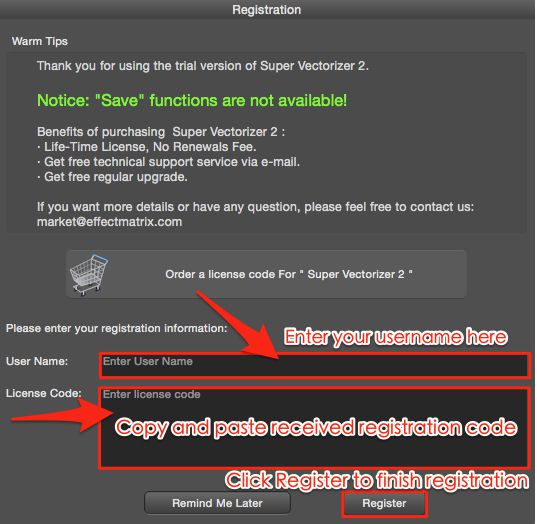
The app shows a real-time preview of the vectorized result. Zoom in to check edge quality and detail preservation. The free trial lets you preview the full result before deciding whether to purchase.
Step 5: Export (After Purchase)
Once you've purchased the full version, you can export your vectorized photo to SVG or any of the 50+ supported output formats. Choose "Export" from the File menu, select SVG as the format, and save.
How to Convert a Photo to SVG on Windows
Windows users can follow a similar process using the Windows version of Super Vectorizer Pro:
- Download: Get the Windows installer (.exe) from the svgvector.com website.
- Install: Run the installer and follow the setup wizard. The app works on Windows 7, 8, 10, and 11.
- Open Your Photo: Launch the app and open your image file (JPG, PNG, BMP, TIFF, etc.).
- Configure Settings: Adjust detail level, color count, and noise removal to get the best result for your photo.
- Preview: The free trial shows you the full vectorization result so you can evaluate quality before buying.
- Export: Purchase the full version to unlock SVG, PDF, EPS and DXF export.
Best Online Photo to SVG Converters (Free Options)
If you don't want to install desktop software, several online converters can handle basic photo to SVG conversion:
1. SVG Mini Online (Free, Browser-Based)
SVG Compressor Online is a free, browser-based tool that converts images to SVG without uploading files to a server. Your photos are processed entirely in your browser, ensuring privacy. It's ideal for quick conversions when you don't have access to desktop software.
2. Vectorizer.io
Vectorizer.io is a popular online converter with a clean interface. It offers several preset modes (photo, sketch, etc.) and lets you adjust detail and smoothing. The free version has a daily limit; paid plans remove restrictions.
3. Convertio
Convertio supports converting photos to SVG among 300+ formats. It's simple to use: upload, select SVG as output, and convert. However, files are uploaded to their servers, so avoid using it for sensitive images.
4. Adobe Express (Free Tier)
Adobe's free online image converter includes a JPG/PNG to SVG option. It uses Adobe's vectorization engine, which produces good results for simple images. A free Adobe account is required.
Tips for Getting the Best SVG Results from Photos
Converting a photo to SVG isn't always straightforward. Here are expert tips to get the best results:
- Start with a high-quality source photo: Blurry or low-resolution photos produce poor vectorizations. Use the highest resolution version available.
- Increase contrast before converting: Use Photoshop or a free alternative like GIMP to increase contrast. High-contrast images vectorize more cleanly.
- Remove backgrounds: If your photo has a busy background, remove it first (using remove.bg or similar tools). A transparent background makes for a much cleaner SVG.
- Use fewer colors for simpler SVGs: Complex, photo-realistic SVGs can be very large (several MB). Reducing the color count during vectorization keeps file sizes manageable.
- Simplify paths after conversion: Use an SVG optimizer (like SVG Mini Online) to remove redundant points and reduce file size after conversion.
- Consider the end use: If the SVG is for web use, optimize for small file size. If it's for cutting, ensure paths are closed and suitable for your cutting machine.
Common Problems and How to Fix Them
Problem: The SVG Looks "Pixelated" or Has Jagged Edges
This usually means the converter didn't properly trace the image. Try increasing the detail/sensitivity setting, or pre-process your photo to increase contrast.
Problem: The SVG File Is Too Large (Several MB)
Photo-to-SVG conversions can produce very complex paths. Use an SVG optimizer to simplify paths and remove metadata. Alternatively, reduce the color count during vectorization.
Problem: Fine Details Are Lost
Increase the detail level in your converter. If using an online tool, try a desktop app with more granular control over tracing parameters.
Problem: Colors Look Wrong
Some converters struggle with color matching. Try adjusting the color count or using a different color quantization method if your tool supports it.
Photo → SVG: Format-Specific Conversion Notes
- Photographs have millions of tones — expect a higher path count; the Photo preset balances detail against file size.
- Don't expect a traced photo to look identical to the raster; it becomes stylized vector art with smooth regions.
- Very busy photos can explode node counts — lower color precision or raise Filter speckles to tame the output.
- Best use: stylized posters, coloring pages, and silhouettes rather than photoreal reproduction.
Frequently Asked Questions
Can I convert a complex photograph (like a landscape) to SVG?
Technically yes, but the results may not be what you expect. Complex photographs with gradients, shadows, and millions of colors produce very large SVG files with thousands of paths. For photo-realistic images, consider using a limited color palette or converting only the main subject (with background removed). For true photo-realistic results, SVG may not be the best format — consider using WebP or optimized PNG instead.
Is there a completely free photo to SVG converter with no watermarks?
Several online converters offer free tiers with limitations. SVG Mini Online is completely free and browser-based (no file uploads). For desktop software, Super Vectorizer Pro offers a free trial that lets you preview results; purchasing the full version unlocks SVG export. Truly "free" desktop software with professional results is rare — most free tools have significant limitations.
What's the best format to use before converting to SVG?
PNG is generally the best source format for SVG conversion because it supports transparency and uses lossless compression. If your photo is a JPG, consider converting it to PNG first (to avoid further quality loss from re-compressing a JPG). For line art and logos, PNG with a transparent background gives the cleanest SVG output.
Can I convert a photo to SVG on my phone?
Yes, several mobile apps can convert photos to SVG. Adobe Capture (iOS/Android) is a popular free option. There are also online converters that work in mobile browsers. However, for the best quality and control, we recommend using a desktop application.
Convert Your Photos to SVG with Professional Quality
Super Vectorizer Pro gives you advanced vectorization algorithms, precise path control, and support for 50+ formats. Download the free trial to preview your results today.
Compatible with macOS 10.10+ (M1/M2/M3) & Windows 7/8/10/11
Related Articles
Try These Free Online Tools
No download required — convert, compress & optimize SVGs right in your browser
PNG to SVG Converter
Turn PNG images into crisp vector artwork in seconds
Free OnlineSVG Compressor (Mini)
Reduce SVG file size by up to 80% without losing quality
Free OnlineJPG to SVG Converter
Convert JPEG photos to scalable vector format
Free OnlineEPS to SVG Converter
Convert EPS illustrations to scalable vector graphics
Free OnlineAll Free Tools
Browse our complete collection of free online conversion tools