
PNG to SVG for Laser Engraving
A laser does not read a picture. It follows a hairline path with the beam switched on, so a PNG has to become geometry before the file is worth sending to the bed — and that tracing runs in a browser tab without uploading the image. The catch is that a laser and a vinyl cutter want opposite things from the same file: a Cricut needs filled shapes with no strokes, while a laser needs thin stroke-only paths to cut and wants whole filled areas only when it is engraving.
Get that distinction wrong and the machine happily does the wrong job: a 2 pt outline on a logo is read as a region to engrave, so the head scans the outline instead of following it.
A laser reads strokes, a vinyl cutter reads shapes
Cutting software such as LightBurn, Glowforge, and xTool splits each file into operations. Stroke-only paths become cut lines; anything with a fill becomes an engrave or score operation. That single rule explains most failed conversions.
| What the file contains | What the laser does | Result |
|---|---|---|
| Closed path, stroke only, no fill | Follows the line at cut power | Cuts through |
| Shape with a solid fill | Raster scans the whole area | Engraves, no cut |
| Open path or 2 pt outline | Treats the stroke as a filled band | Engraves the outline |
| SVG wrapping a base64 PNG | Raster engraves at source resolution | Never cuts |
Row three is the one that wastes material. A traced logo usually arrives with the stroke left at the tracer's default width, and importers convert that band into an outline. Set the stroke to a hairline before the file leaves your machine.
Which PNG works on a laser bed?
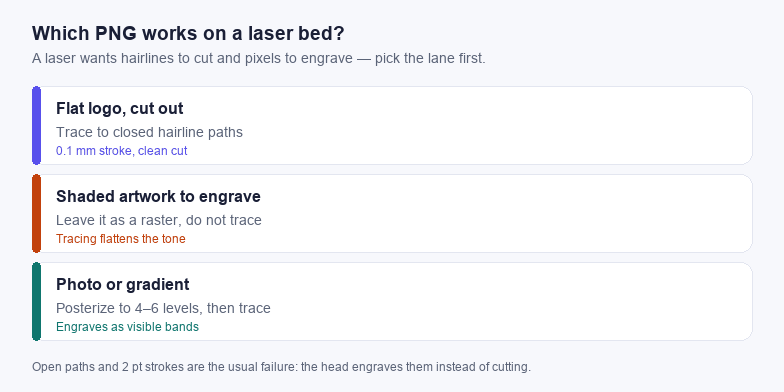
- Flat logo you want to cut out. Trace at eight to sixteen colours, then confirm every contour is closed. This is the only lane where a pure vector replaces the source.
- Shaded artwork you want engraved. Do not trace it. Tracing bins the tonal range into flat patches, and the engraving comes out as blotches. Keep the PNG, or a clean high-contrast JPG, and let the laser raster it.
- Photo or gradient. If you need it engraved as line work rather than a raster, posterize to four to six levels first. Visible banding is the tell that you went one level too far.
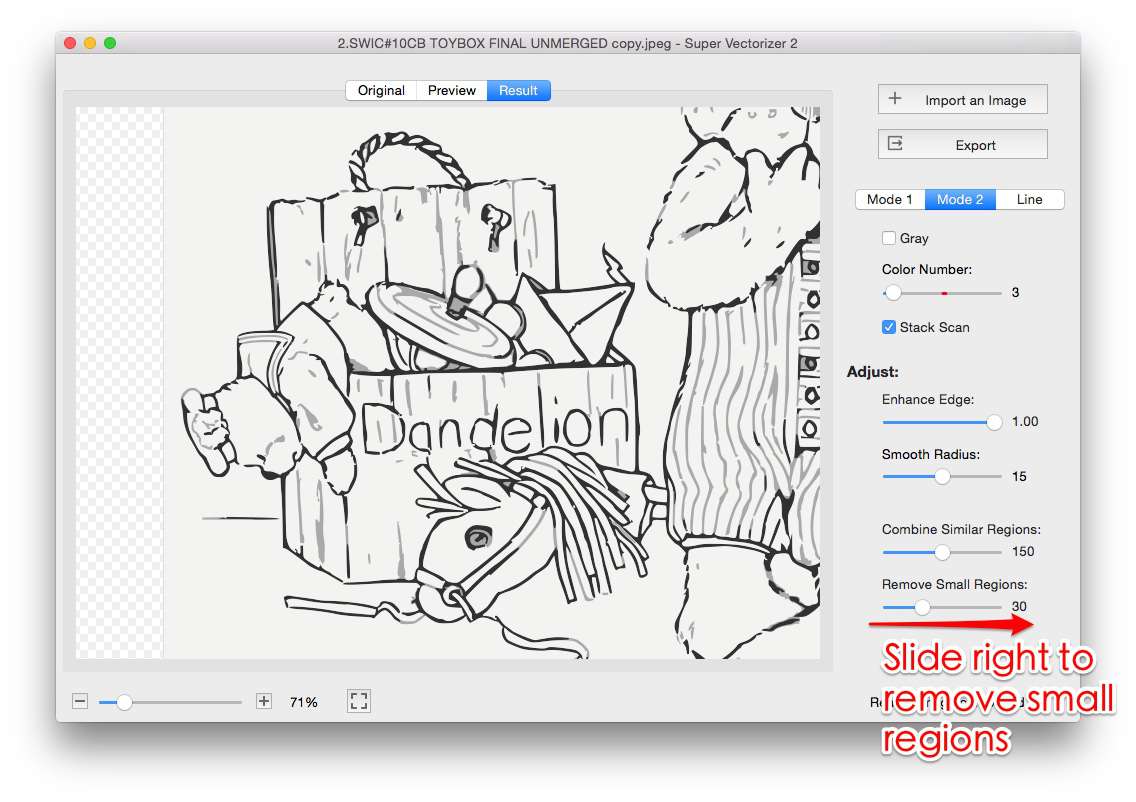
- Pencil sketch or single-colour line art. Use a line trace, not a colour trace, and keep the stroke detail instead of simplifying it away.
Convert it without uploading the file
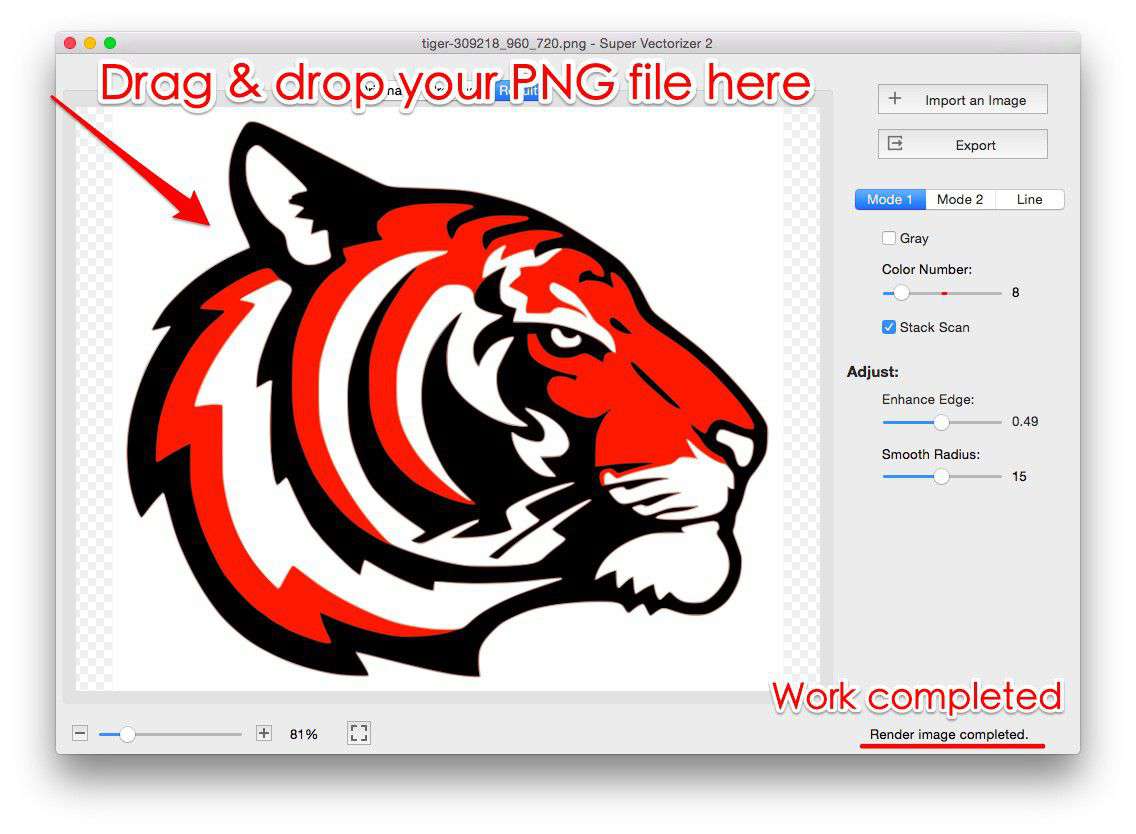
- Open the PNG to SVG converter. It runs on WebAssembly in the tab; the image is read through the browser file API and never posted to a server.
- Set the colour count to match the artwork, not the image. A two-colour logo traced at sixteen colours produces sixteen overlapping shapes that all try to cut.
- Raise path simplification one step at a time. Stop before curves turn faceted — every extra node is a place where the head decelerates and burns a dot.
- Check the output before importing. Search the file for
base64: if it is there, the SVG still contains the bitmap and will only engrave. Real vectorisation leaves<path>elements.
Set line weight and kerf before you send the job
Two numbers decide whether the job fits together. Stroke width controls cut versus engrave; kerf offset controls whether the parts still fit after the beam removes material.
- Hairline stroke. Aim for 0.1 mm, which is about 0.38 user units in an SVG that assumes 96 dpi — roughly
stroke-width="0.4". Anything that reads as a visible outline to the importer is a filled region. - No fill on cut layers. Remove
fillor setfill="none". A shape with both stroke and fill cuts and engraves the same area twice. - Kerf offset after tracing. A typical diode or CO2 beam removes 0.1–0.2 mm of material. For press-fit joints, offset outer contours inward by half the kerf. Engraving needs no offset.
- Real-world units. If the file has no
viewBoxin millimetres, the cutter has to guess a scale. Set the document units before export and verify the first cut on scrap.
Quick test: import the SVG, then look at the layer list. If your cut layer shows a fill swatch instead of a line swatch, the file will engrave. Fix the fill before adjusting power.
When to export DXF instead
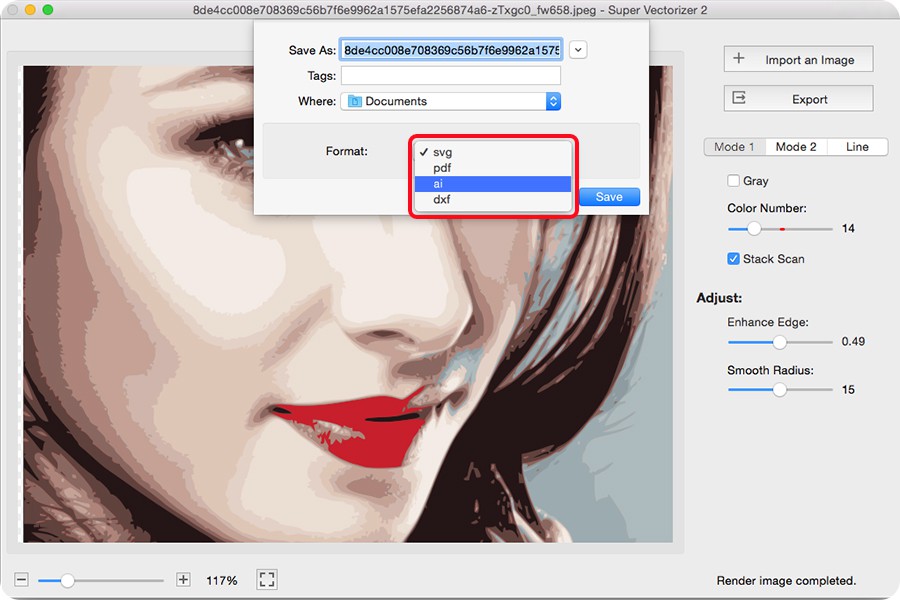
SVG is the better master file, but not every laser accepts it cleanly. Older LightBurn imports, CNC routers, and plasma tables still expect DXF, and some shop software silently drops SVG text, filters, clip paths, and CSS because they have no DXF equivalent. If a design imports with missing parts, flatten it — outline the strokes, expand text to paths in the SVG editor, then export DXF from the same geometry.
Whichever format the machine takes, keep the traced SVG as the source of truth. Re-exporting from a traced SVG is cheap; re-tracing a raster that has already been resampled twice is not. Our laser cutting guide covers material settings, and the laser-ready SVG and DXF page covers the export side.
Frequently asked questions
Can I engrave a PNG directly without converting it?
Yes. Engraving is a raster operation, so a PNG or JPG can go straight into the laser software with no tracing at all. Convert only when you need a cut path, a scalable line drawing, or a file the shop can edit.
Why does my converted SVG engrave instead of cut?
The paths almost certainly carry a fill or a wide stroke, so the software reads them as regions. Set the cut layer to stroke only with a 0.1 mm hairline and remove fill.
Do I need SVG to use LightBurn?
No, LightBurn also imports DXF, AI, PDF, and images. SVG is still the most predictable vector input, because the geometry is explicit and does not depend on a font or a layer effect being present.
Related SVG Workflows
Once the file is on the bed, these pages cover the next decisions.
- SVG for laser cutting guide — the full walkthrough from source art to a finished job.
- Laser-ready SVG and DXF files — what the cutter importer accepts and what it silently drops.
- Image vectorizer for laser cutting — comparing tracing settings for logos and line art.
- PNG to SVG for Cricut — the same conversion for a blade instead of a beam, where fills are required.
- Line Art to SVG — the tracer to use when the PNG is a drawing rather than a logo.
- VTracer online — colour precision and curve fitting controls for detailed artwork.
Trace it in the browser
Free, no upload, no account. Batch conversion and offline tracing with the desktop app.
Related Articles

Try These Free Online Tools
No download required — convert, compress & optimize SVGs right in your browser
PNG to SVG Converter
The trace step on this page, with a colour limit you control.
Open PNG to SVG