
SVG for Silhouette Cameo
Silhouette Studio will not open an SVG unless you are running Designer Edition or higher: the free Basic Edition imports JPG, PNG, BMP, GIF, and TIF only, and traces them inside the program. So the first question for a Cameo is not how to trace the artwork, it is which lane the file is allowed to travel — a vector import on a paid edition, or a raster trace inside Studio itself.
That makes the Cameo the mirror image of a Cricut. Design Space needs filled, closed shapes and will happily take an SVG on a free account; Studio takes a hairline path and refuses the SVG until you pay. Both machines cut on a line, though, and once a file is inside Studio the failures are contour failures: duplicates that cut twice, gaps that leave an island behind, and a design that lands at the wrong size on the mat.
Why Silhouette Studio ignores your SVG
The file is usually fine. The edition is the problem, and Studio does not always say so clearly — an unsupported file either fails to appear in the Open dialog or opens as a flat image with no cut lines.
| Edition | Opens SVG | What else changes |
|---|---|---|
| Basic (free) | No | Imports JPG, PNG, BMP, GIF, TIF for tracing; saves only .studio3 |
| Designer Edition | Yes | Adds PDF import; the usual upgrade for bought cut files |
| Designer Edition Plus | Yes | Adds embroidery formats (PES, DST, EXP, JEF, XXX) |
| Business Edition | Yes | Adds AI, EPS, CDR import and SVG, PDF, PNG export |
If you are on Basic and the design is high-contrast art, you do not need the upgrade to finish the job — you need to trace it in Studio instead of importing a vector. That route is covered below, and it is genuinely good enough for single-colour vinyl.
A Cameo cuts the line, not the fill
Studio has no engrave operation. Every path is a cut line, a score line, or a sketch line, and which one it becomes is decided in the Send panel by the line colour. That single fact removes a whole category of problems that Cricut users have, and introduces a different one.
- Fills are only decoration. A red square with a black fill cuts exactly the same outline as an unfilled one. Do not add fills to make a Cameo cut; it changes nothing.
- Two stacked copies cut twice. This is the Cameo's signature failure. A traced SVG where each shape sits on top of a duplicate produces a double cut, the blade drags through the same channel, and thin vinyl tears. Weld the selection, or delete the duplicates, before you send.
- Open contours leave an island. If a path that should be closed has a 0.2 mm gap, the inside piece stays attached to the sheet. Zoom to the node and close the path rather than adding an offset.
- Stroke width is cosmetic. Unlike a laser, Studio does not turn a 2 pt stroke into a filled band. Set the stroke to a hairline so the screen preview matches the cut, then forget about it.
The one number to check: count contours, not colours. A four-colour logo that should cut as one outline but arrives as nine separate contours will come off the mat in nine pieces.
Which file is worth converting at all
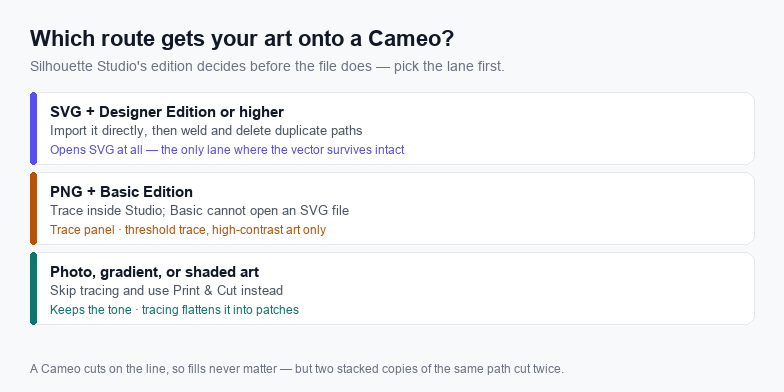
- Flat logo or single-colour line art, Designer Edition or higher. Trace once, weld, and keep the SVG as the master. This is the only lane where the vector survives intact and can be resized without redrawing.
- Same artwork, Basic Edition. Open the PNG in Studio and run the Trace panel: Select Trace Area, drag the threshold until the outline is solid, then Trace or Trace Outer Edge. Turn on high-pass filtering first so faint anti-aliasing does not become a second contour.
- Shaded, photographic, or gradient art. Do not trace it and do not vectorise it. Use Print & Cut: Studio prints the image with registration marks and the blade cuts around it. The tone survives, which a trace never does.
- Text you typed yourself. Set the type in Studio with a system font instead of tracing a screenshot of it. Traced letterforms lose their counters and every curve becomes faceted.
Convert it without uploading the file
When the artwork is flat and you do have a vector-capable edition, the trace itself takes under a minute and never leaves the browser tab.
- Open the PNG to SVG converter. It runs on WebAssembly in the tab; the image is read through the browser file API and is not posted anywhere.
- Set the colour count to the number of vinyl colours you will actually load. Three colours of vinyl means three colours in the file. Extra colours produce extra contours that all try to cut.
- Raise path simplification one step at a time. Stop before curves go faceted. Every extra node is a corner the blade has to negotiate, and on adhesive vinyl a tight corner is where the backing lifts.
- Confirm the file is real vector. Search the output for
base64. If it is there, the SVG still wraps a bitmap and Studio will import a picture with no cut lines. - Clean up before importing. Open the file in the SVG editor, select all, and weld; then delete any path that sits exactly on top of another. Convert text to paths so a missing font cannot silently drop a word.
Scale, blade, and the first test cut
Three things go wrong after a good import, and all three are cheap to catch on scrap vinyl.
- Physical size. If the design lands at the wrong size, the SVG has a
viewBoxbut no units. Addwidthandheightin inches before import; a 12 in mat is the reference most people check against. - Blade depth first, force second. Set the blade for the material, then raise force one step at a time until the vinyl cuts cleanly and the backing stays intact. Changing both at once tells you nothing about which one was wrong.
- Kiss cut versus full cut. Stickers need the top layer cut and the backing left whole; a decal needs both. Assign the two contours to different line colours so the Send panel treats them as separate jobs in one pass.
- Minimum feature size. Below roughly 3 mm an isolated detail will not weed — the piece is smaller than the blade tip can release. Either thicken it or drop it.
When to skip the SVG entirely
An SVG is a master file, not a requirement. If the project is a one-off, if the artwork is photographic, if the design is text you can retype, or if you are on Basic and the art is a clean two-tone logo, tracing inside Studio is faster than converting and cleaning a vector you will never reuse. Convert when you need something the raster cannot do: resize without redrawing, edit node by node, share a vendor-ready file, or drive a second machine from the same geometry.
Our longer walkthrough on making cut-ready SVG files for a Cameo covers weld, offset, and multi-colour layering in detail, and the image-to-Silhouette conversion guide handles photographic sources that need posterising before they are worth tracing.
Frequently asked questions
Can Silhouette Studio open SVG files?
Only on Designer Edition or higher. The free Basic Edition imports JPG, PNG, BMP, GIF, and TIF for tracing, plus .studio3 and .gsd cut files, but not SVG. Exporting an SVG also requires Business Edition.
Do I need to fill shapes for a Cameo, like I do for Cricut?
No. Studio cuts along every path, so a fill is purely visual and an unfilled outline cuts identically. What matters is that each contour is closed, appears once, and is welded to its neighbours where they should cut as one piece.
Why does my SVG cut the same line twice?
The file almost certainly contains two stacked copies of each shape, which is common after tracing a design that already had an outline. Select all and weld; if the duplicate outlines remain, delete one layer before sending the job.
Related SVG Workflows
Once the file opens in Studio, these pages cover the next decisions.
- Silhouette SVG files guide — weld, offset, and layering for a Cameo, start to finish.
- Convert an image to Silhouette SVG — what to do when the source is a photo rather than a logo.
- PNG to SVG for Cricut — the same conversion for a machine that requires fills instead of paths.
- PNG to SVG for laser engraving — where stroke width and kerf matter, and a hairline is not cosmetic.
- SVG editor — weld, close paths, and outline text in the browser before importing.
- PNG to SVG converter — the trace step this page assumes, with no upload.
Trace it in the browser
Free, no upload, no account. Batch conversion and offline tracing with the desktop app.
Related Articles
Try These Free Online Tools
No download required — convert, compress & optimize SVGs right in your browser
PNG to SVG Converter
The trace step on this page, with a colour limit you control.
Open PNG to SVG