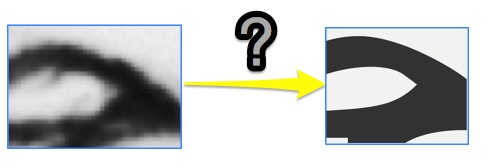
Five Steps to Smooth out Bitmap Line Art
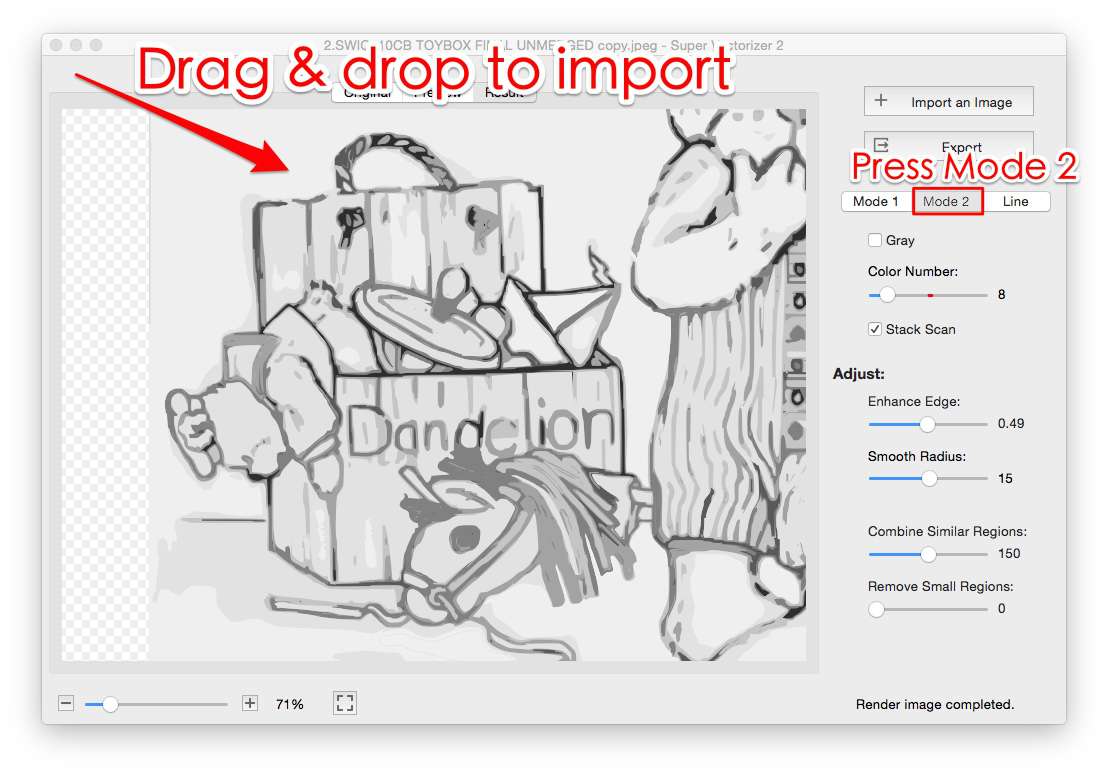
Step 1. Import your image
Start Super Vectorizer and import the bitmap line art into the preview pane. You may use Mode 1 or Mode 2 to vectorize line art, but we do not suggest using Line Mode, because it treats the line as a filled shape rather than a thin stroke. Mode 2 creates fewer regions than Mode 1, so it is usually the better choice for line drawings.
Step 2. Reduce color number
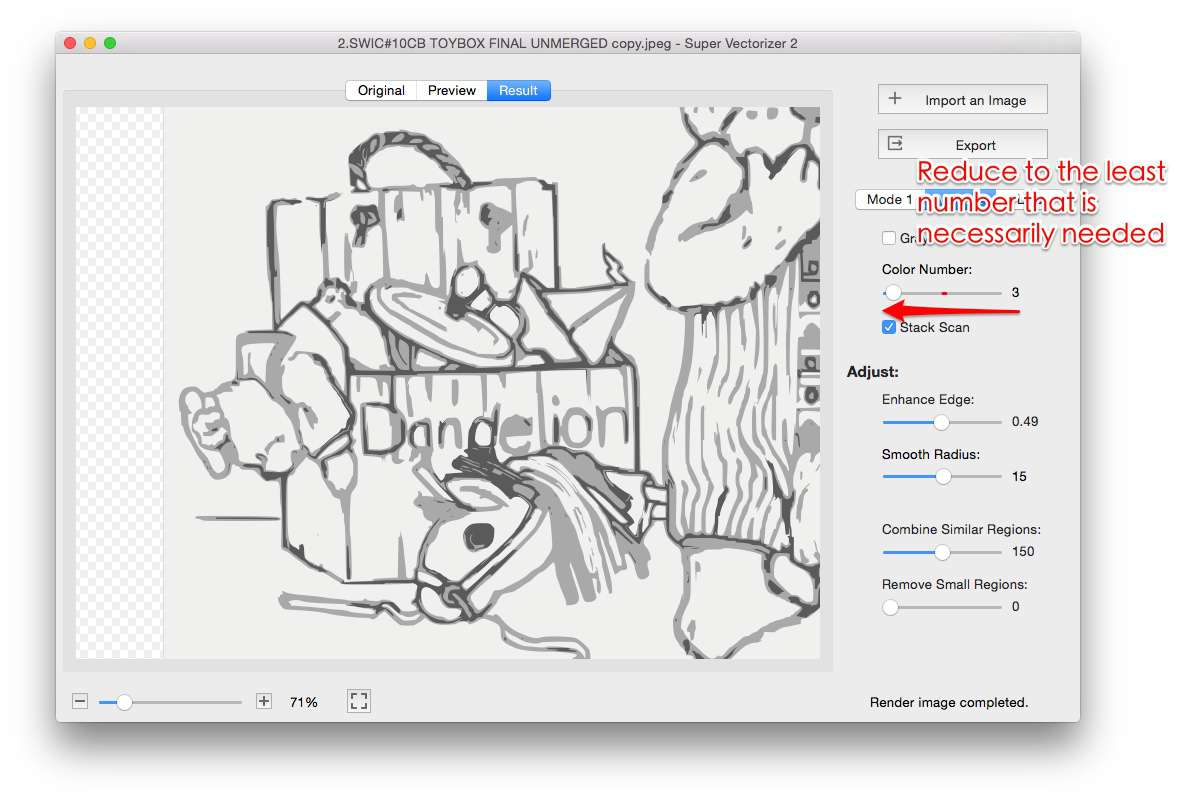
Lower the color count so near-identical tones merge. This removes the speckled noise a scanner leaves behind and turns a ragged bitmap into a few solid regions before tracing.
Step 3. Enhance edge
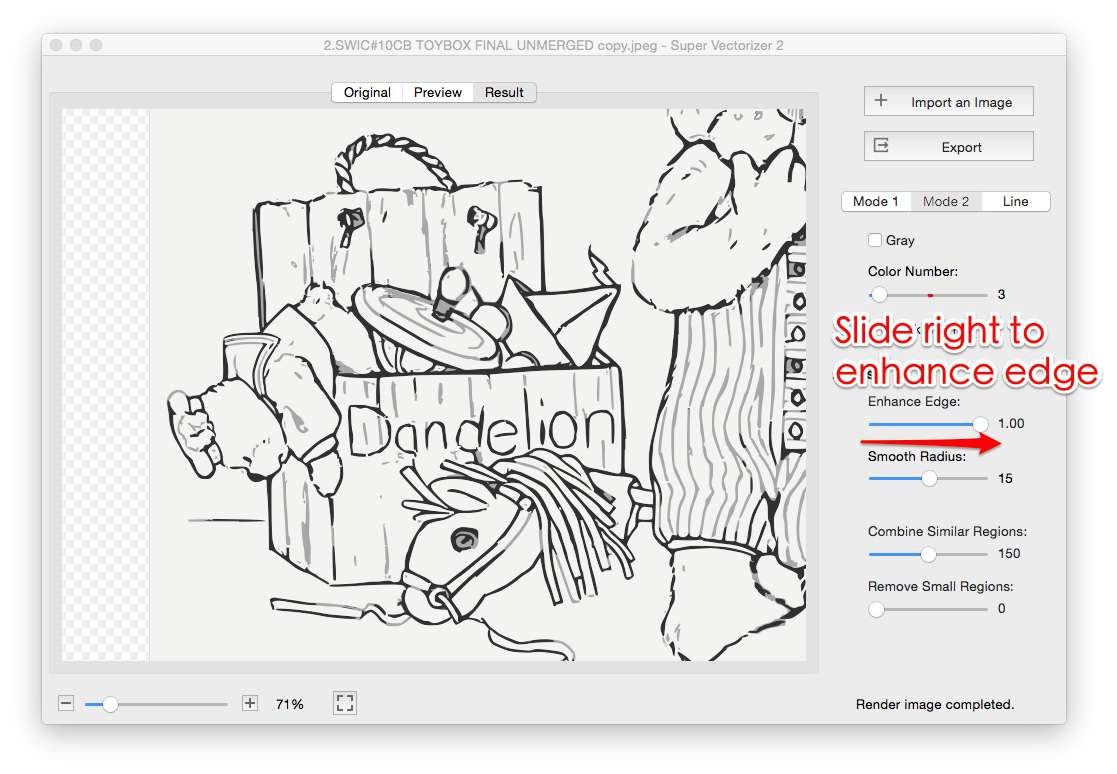
Apply the edge-enhancement step to sharpen and smooth the traced outline. Lines that were broken or fuzzy in the bitmap become continuous, crisp vector strokes that stay sharp at any zoom level.
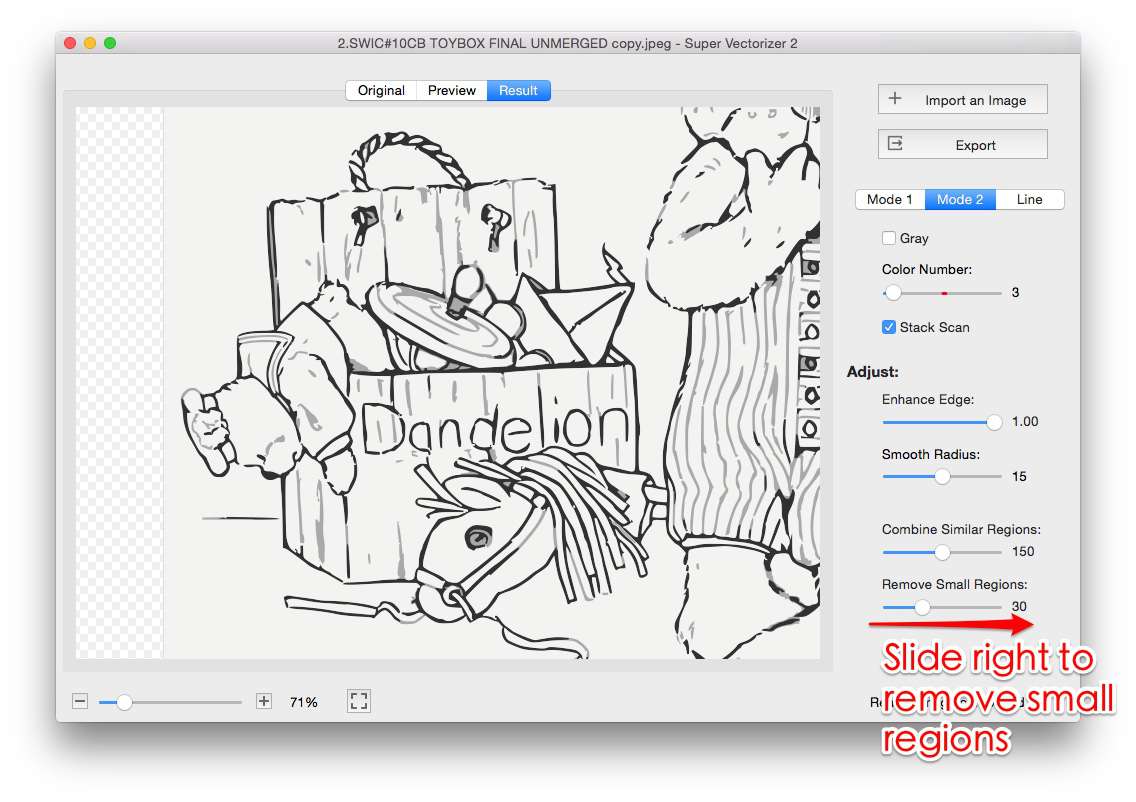
Step 4. Remove small regions
Use the Remove Small Regions control to delete isolated specks and scanning artifacts. This is the final cleanup that keeps the exported artwork free of dust and noise.
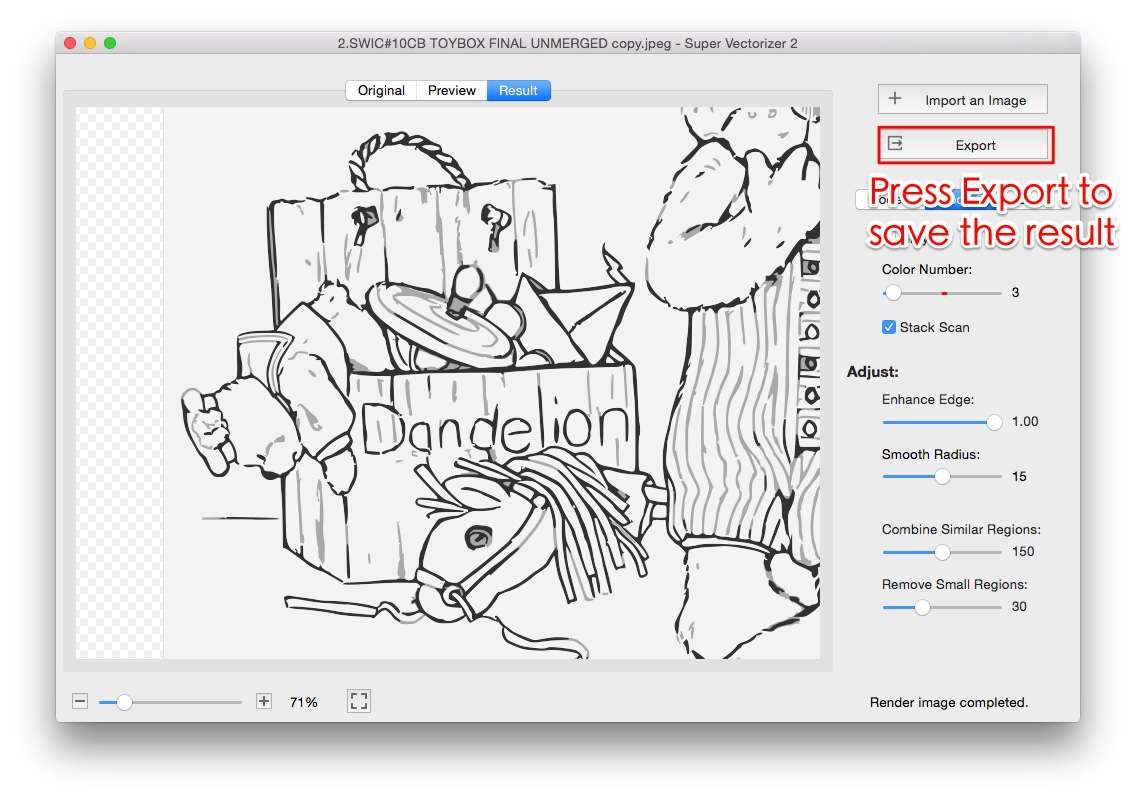
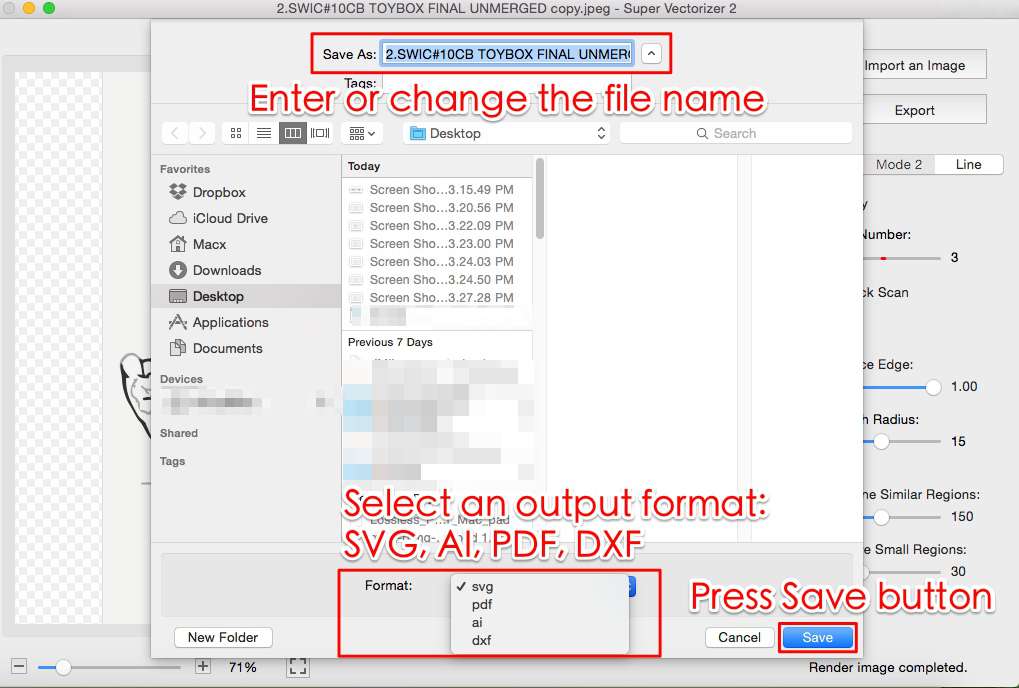
Step 5. Export your result
When the line art looks clean, click Export to save it as SVG, AI, DXF or PDF on Mac or Windows. The finished file opens in Adobe Illustrator, a CAD application, or a cutting-machine workflow.
Download Super Vectorizer Pro
One-time purchase $29.99 · Free trial to preview results (export requires a licence) · Mac + Windows
Frequently Asked Questions
What is the best mode for tracing bitmap line art?
Use Mode 1 or Mode 2, not Line Mode. Line Mode converts each stroke into a filled outline shape instead of a thin vector line. Mode 2 produces fewer regions than Mode 1, which keeps a busy line drawing cleaner.
How do I reduce color noise in a scanned line drawing?
Lower the color number so near-identical gray tones merge into one. This removes the speckled noise that scanners introduce and leaves a solid, clean line.
What does the Enhance Edge step do?
It sharpens and smooths the traced outline so the line art looks crisp at any zoom level. Edges that were broken or ragged in the bitmap become continuous vector strokes.
How do I remove small specks and artifacts?
Use the Remove Small Regions control to delete isolated pixels and dust specks left by the scan. This is the final cleanup before exporting the vector.
Why should I avoid Line Mode for line art?
Line Mode treats a thin stroke as a filled outline shape rather than a single vector line, which inflates the node count and can distort fine details. Mode 1 or 2 trace the line itself.
Does Super Vectorizer run offline on my Mac or Windows?
Yes. It is a desktop application that processes everything locally. Your line art never leaves your device, which makes it a private alternative to cloud-based vectorizers.
Which formats can I export the cleaned line art to?
You can export the result as SVG, AI (Adobe Illustrator), DXF, PDF and EPS, making it easy to keep editing in Illustrator, CorelDRAW, CAD tools, or a cutting-machine workflow.
Can I use the result with Cricut, Silhouette or a laser cutter?
Yes. SVG is the standard cut-ready format for Cricut, Silhouette Cameo and most laser and CNC cutters. Export as SVG, or DXF for CAD-driven cutters, and import it directly.
Is there a free trial to preview the smoothed result?
Super Vectorizer Pro offers a free trial so you can evaluate the tracing and smoothing quality. During the trial the vector preview is shown, but exporting the finished file requires a purchased licence.
What gives the cleanest line-art trace?
Start from a high-resolution scan, use Mode 2, reduce the color number, enhance the edges and remove small regions. That combination removes scan noise while keeping the artwork faithful.