Editable Vector Strokes
Every traced line becomes a real path you can recolor, reshape, and simplify in Illustrator, Inkscape, or our free online SVG editor.
Turn hand-drawn sketches, inked drawings, and scanned line art into clean, scalable vectors. Super Vectorizer Pro traces Line Mode, threshold and skeletonization offline on Mac and Windows with a one-time $29.99 license.
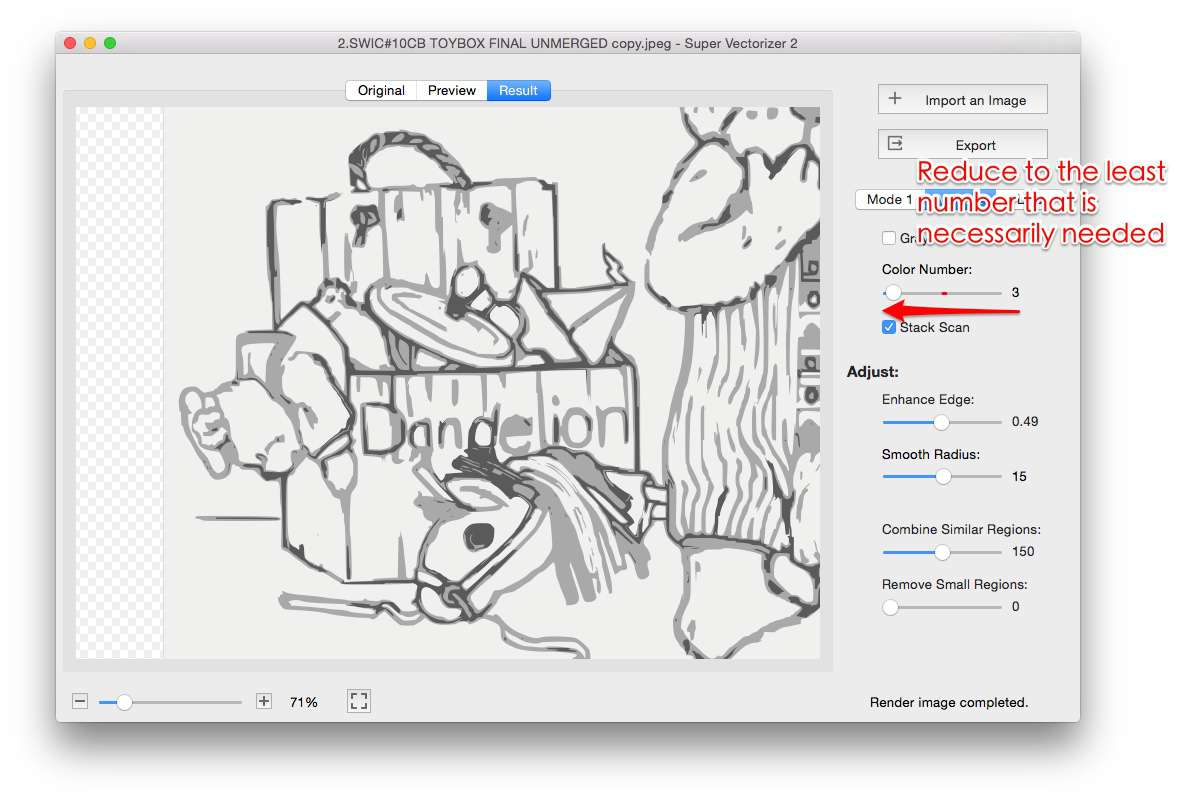
A traced vector gives you editable, infinitely scalable strokes instead of a locked bitmap — the foundation of clean print, web and cut files
Every traced line becomes a real path you can recolor, reshape, and simplify in Illustrator, Inkscape, or our free online SVG editor.
Vector lines stay crisp from a 16px icon to a wall-sized print. No blur, no pixelation, no rescanning the original.
Line Mode ignores fills and captures only the outline, so hand-drawn sketches and technical drawings trace into clean single-color art.
Tracing happens on your Mac or Windows device. Your sketches never leave the computer — no uploads, no cloud, safe for client work.
No manual node editing — just clean, scalable vectors
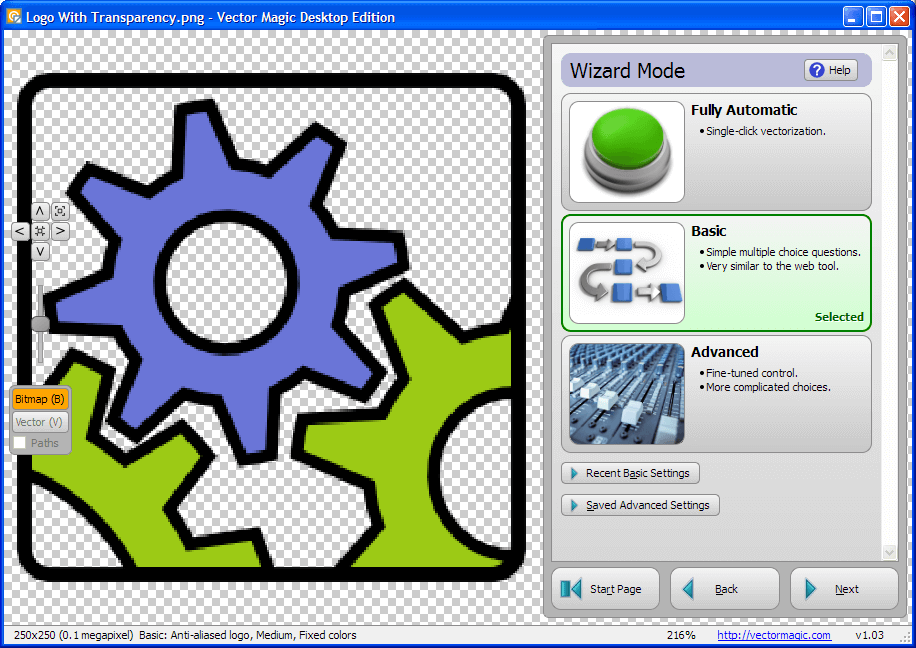
Open a PNG, JPG, BMP, TIFF or scanned sketch. Drag it into the workspace or use File → Import. Super Vectorizer Pro reads 70+ raster formats.
Choose Line Mode, then set Threshold, Smooth Lines, Skeletonization and Reduce Noise. Preview the traced strokes and adjust until they match your drawing.
Save the vector for web, print, laser or plotter. Need a bitmap? Open it back and export a clean high-resolution JPEG or PNG.
Prefer a quick browser tool? Try our free online PNG to SVG converter, or install Super Vectorizer Pro for offline, high-resolution line-art tracing.
Compatible with macOS 10.10+ (M1/M2/M3) & Windows 7/8/10/11
Match the export format to where the artwork lives

Use SVG line art for crisp icons, illustrations and wireframes in headers, favicons, and dark-mode theming. Recolor the strokes in CSS without exporting a new file.
Export PDF or AI for posters, T-shirts and packaging. The artwork scales to any print size with no pixelation and no rescanning.
Export DXF for laser cutters, routers and pen plotters. Clean single-stroke paths cut and draw faster and waste less material than rough bitmap traces.
Everything you need to know about vectorizing line art to JPEG on Mac and PC
Vectorizing line art means converting a raster drawing (PNG, JPG, scanned sketch) into mathematical vector paths that follow the original strokes. The result is a scalable file where every line stays sharp at any size and can be recolored or edited, instead of a locked bitmap that blurs when enlarged.
Yes. Super Vectorizer Pro runs natively on macOS (including Apple Silicon M1/M2/M3) and Windows 7/8/10/11. The same Line Mode tracing, threshold and skeletonization controls are available on both platforms, and the desktop app works completely offline.
Line Mode traces the edges of your artwork in clean black-and-white (or single-color) strokes. It is the best mode for line art, sketches, technical drawings and single-color logos because it ignores fills and captures only the outlines, producing a crisp vector line drawing.
Threshold (ranging from 1 to 100) controls how the software decides what counts as a line versus background. A higher threshold keeps fewer, cleaner lines and drops faint marks; a lower threshold captures more detail, including light pencil strokes. Adjust it until the traced lines match your original drawing.
Skeletonization reduces a shape to its thin centerline — a single-pixel-wide spine that is equidistant from the shape's boundaries. It is useful for thinning double outlines, inked strokes or filled bars into one clean center line, which is ideal for plotters and engraving paths.
Raise the Smooth Lines parameter to round corners and remove micro-jaggies without losing the overall shape. For best results, start from a high-resolution scan, crop away the background, and zoom to 400% after tracing to inspect and clean any remaining rough curves in the vector editor.
Use the Reduce Noise control to suppress speckles and paper texture from scans before tracing. Combine it with a higher threshold and a clean white background so the tracer only follows the real strokes instead of dust, grain or smudges.
Super Vectorizer Pro exports SVG for web and cutting machines, AI for Illustrator, PDF and EPS for print, and DXF for laser cutters, CNC and plotters. You can also open the traced result, recolor the strokes, and save a high-quality JPEG or PNG raster export if you need a bitmap version.
Yes. JPEG scans and photos of line art import directly into Super Vectorizer Pro. Because JPEG is lossy, start from the highest-resolution scan you have, increase contrast, and enable Reduce Noise so compression artifacts do not become extra traced paths.
No. The desktop app traces entirely on your own Mac or Windows machine, so client sketches and confidential artwork never leave your computer. A free trial lets you preview the vectorized result before you decide to purchase a license.
Join 50,000+ designers and engineers who trust Super Vectorizer Pro.
30-day money-back guarantee.
More raster-to-vector pipelines built into Super Vectorizer Pro