
If you have ever enlarged a JPG only to watch it turn into a blurry mess, you already know why people want to convert JPG to SVG without losing quality. A JPG stores pixels; an SVG stores paths. When you convert a JPG to SVG the right way, the result is a redrawn, mathematically defined graphic that stays razor-sharp from a thumbnail to a poster. In this guide we explain how vectorization preserves detail, walk through the settings that matter, and show the mistakes that quietly ruin output. You can preview the whole process yourself with Super Vectorizer Pro (free trial to preview results) before exporting from the full version.
Ready to convert your images? Try Super Vectorizer Pro free trial to preview vectorization results.
Compatible with macOS 10.10+ (M1/M2/M3) & Windows 7/8/10/11
Our Verdict
A free online converter is enough for simple, small JPGs. For detailed artwork, large source files, or cut- and print-ready paths, a desktop app with fine controls protects quality far better. Preview online, then refine on the desktop.
Super Vectorizer Pro (Desktop)
- Full-resolution imports — no upload size caps
- Precise color count and edge-threshold control
- Speckle filtering for clean, closed paths
- Re-open and re-edit the vector anytime
Free Online Converter
- Instant, no-install JPG to SVG conversion
- Good for logos and icons with few colors
- Helpful for a fast quality preview
- Lighter controls on detail and paths
Why Converting JPG to SVG Without Losing Quality Matters
Quality is not just about looking nice — it drives whether your file is usable. A crisp SVG means:
- Sharp output everywhere. The same file is clean on a 16px favicon and a 6-foot banner.
- Smaller, faster web assets. Simple vector logos are often smaller than high-res JPGs and load instantly.
- Editable artwork. Every shape is a path you can recolor or reshape in any vector editor.
- Cut- and print-ready files. Cutting machines and plotters need clean vector paths, not pixels.
When you convert JPG to SVG without losing quality, you keep all of those benefits instead of trading them away for a muddy trace.
How Vectorization Keeps Quality Intact (Raster vs Vector)
The key is that vectorization is tracing, not re-saving. A JPG is a bitmap: a grid of pixels created with lossy compression, so some detail is already gone the moment it was saved. When you convert JPG to SVG without losing quality, a vectorizer analyzes those pixels and redraws the image as curves and shapes in the SVG format. Because the output is defined by math, it never "loses" resolution the way a stretched pixel grid does.
That said, vectorization cannot recover detail the original JPG threw away. What it does is preserve the redrawn result perfectly at any scale. Think of it as inking a sketch: you get a clean line, but you are not magically regaining pencil strokes the eraser took.
Step-by-Step: Convert JPG to SVG Without Losing Quality
Follow these steps for the cleanest result, whether you use a free online tool or the Super Vectorizer Pro desktop app:
- 1. Start with the best source. Use the largest, highest-resolution JPG you have. Vectorization favors detail you actually give it.
- 2. Boost contrast and clean the edges. A subject with clear separation from the background traces far more accurately.
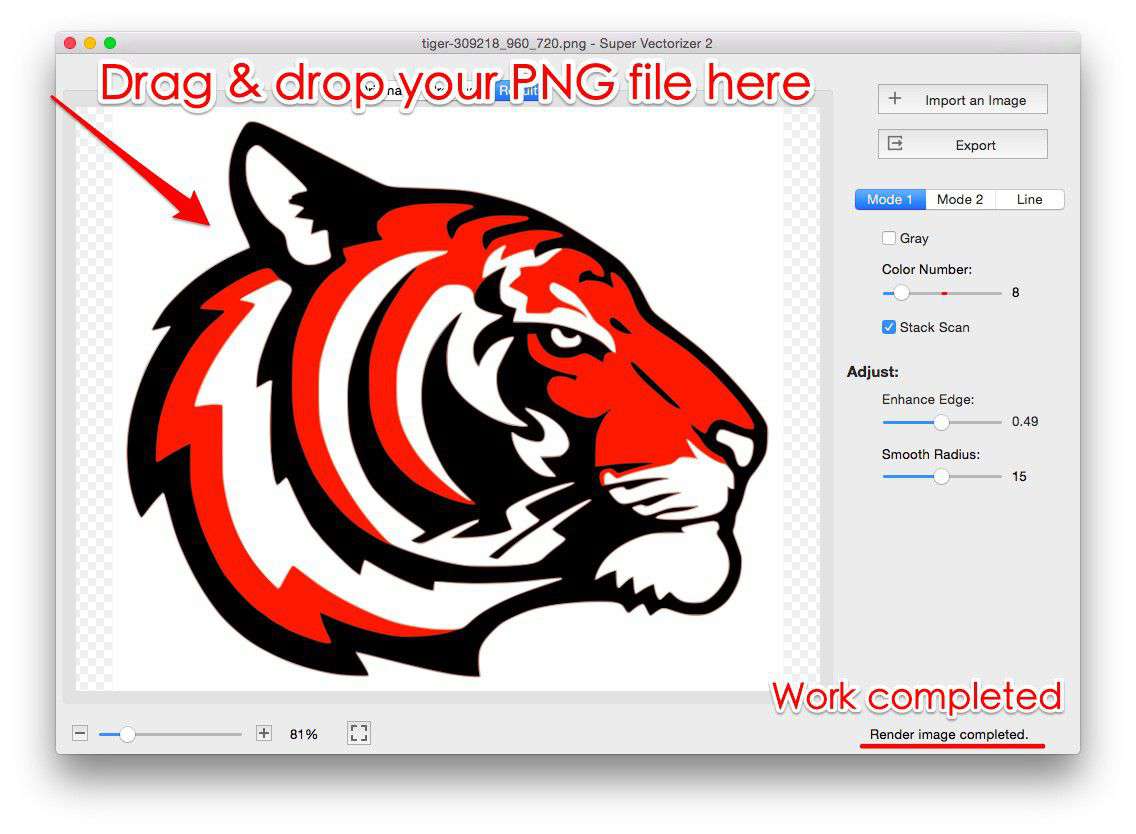
- 3. Import the JPG. In a desktop app you drag the file in; online, you drop it on the upload zone.
- 4. Set the color mode. Choose black-and-white for line art and logos, or full color for photos and illustrations.
- 5. Tune detail and smoothing. Raise detail for fine features; add light smoothing to remove pixel stair-steps without losing shape.
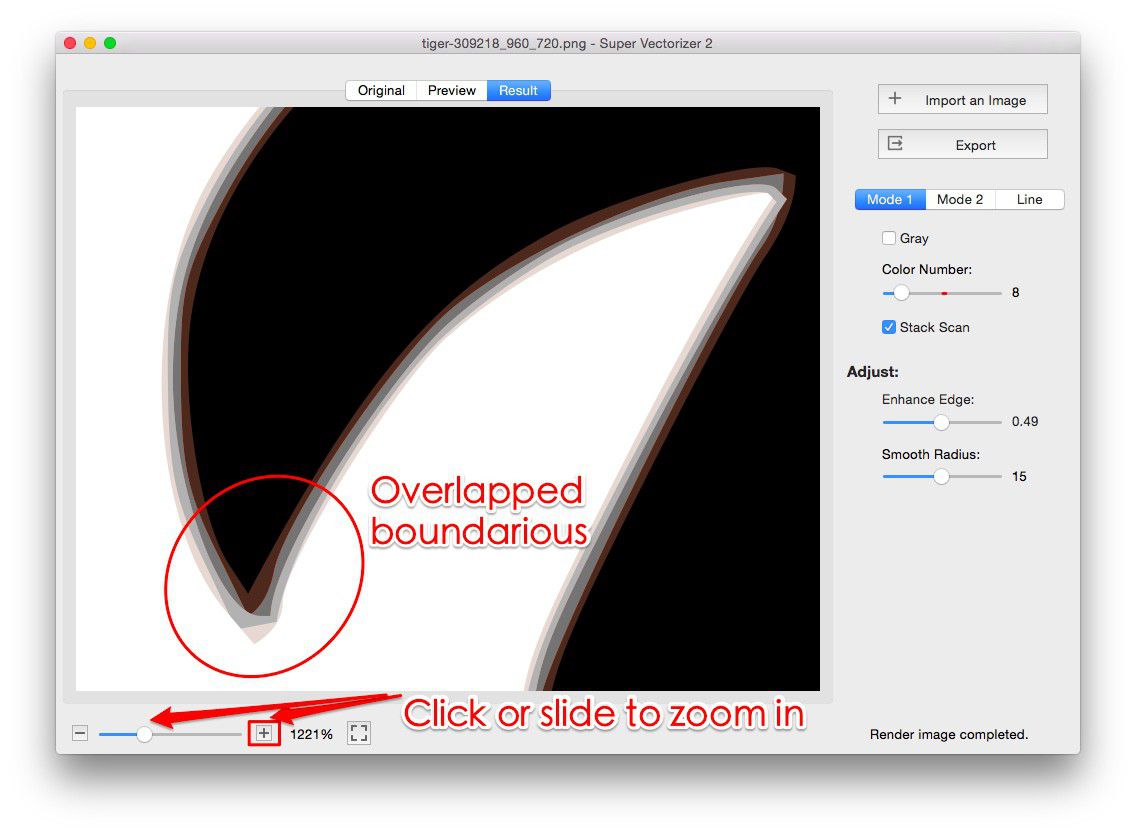
- 6. Preview the result. Zoom in to check corners and small features. With Super Vectorizer Pro you can use the free trial to preview vectorization results and adjust before exporting from the full version.
- 7. Export the SVG. Save a clean, standard SVG you can open in any editor or send to a cutter or printer.
Before and After: What Good Quality Looks Like
A clean conversion keeps the shape and color of the original while replacing pixel edges with smooth vector paths. Compare the raster source with its vectorized result:
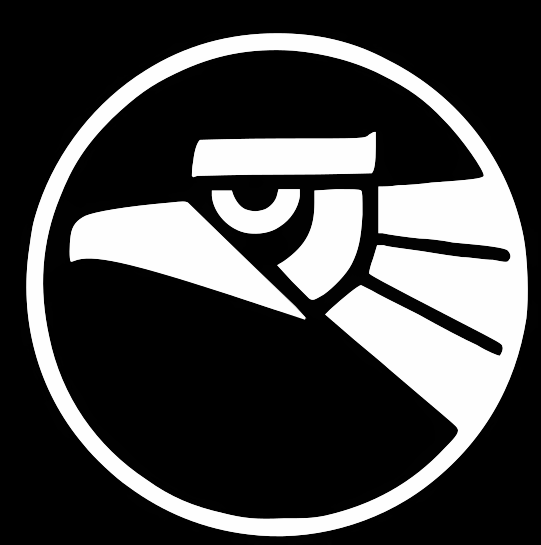
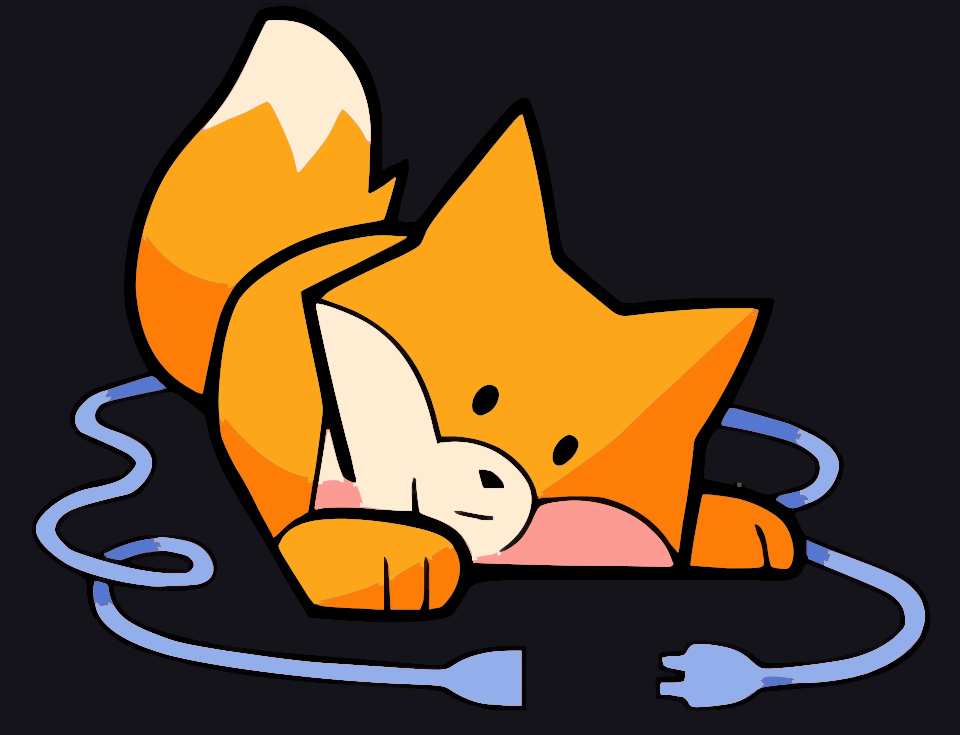
The after image is the same artwork expressed as paths — so when you convert JPG to SVG without losing quality, enlarging it never introduces blur.
Settings That Protect Quality
| Setting | What it does | Recommended for quality |
|---|---|---|
| Color count | Controls how many flat colors the tracer keeps | Match source — fewer for logos, more for photos |
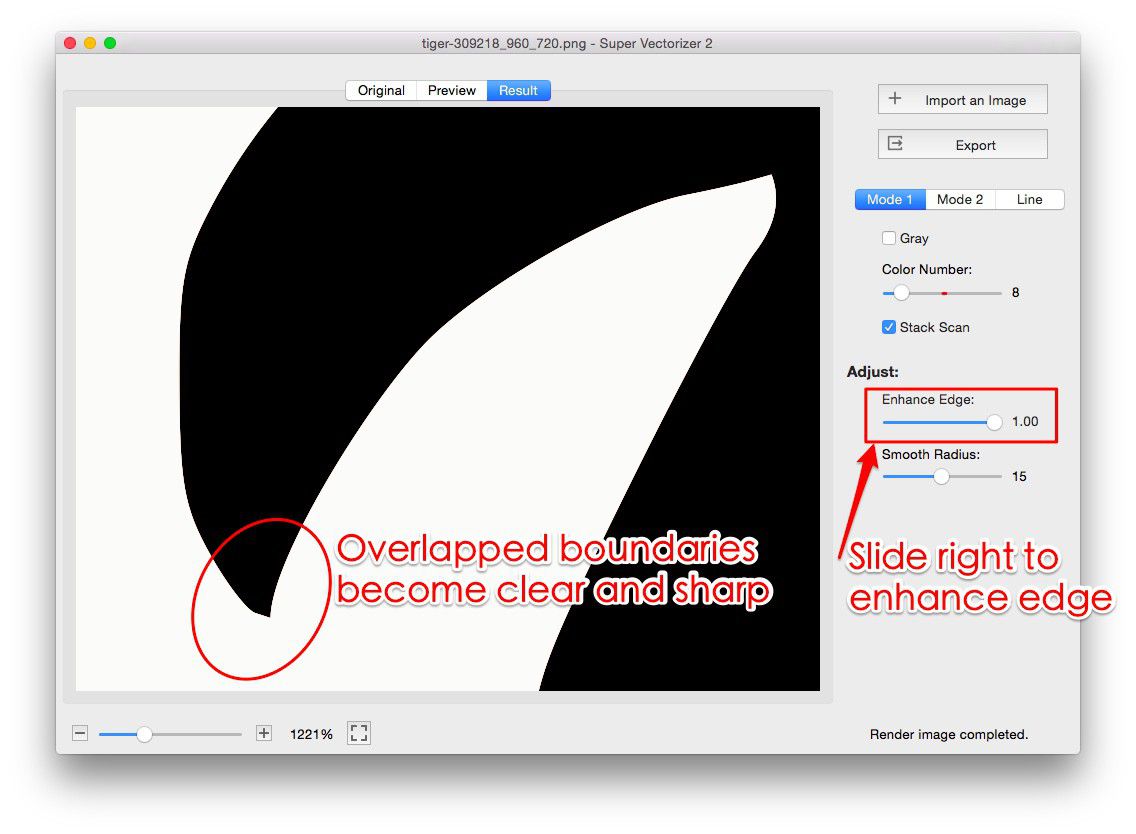
| Edge / corner threshold | Decides how sharply corners are kept | Higher for crisp logos and text |
| Path smoothing | Rounds jagged pixel steps into curves | Light — avoid over-smoothing detail away |
| Speckle filter | Removes tiny noise specks | On for clean, closed paths |
| Anti-aliasing | Softens path edges | On for photos, off for hard-cut shapes |
Quality Target by Use Case
What "without losing quality" means depends on where the SVG goes:
- Logos and branding. Aim for 2–6 flat colors and sharp corners; the file must stay editable for recoloring.
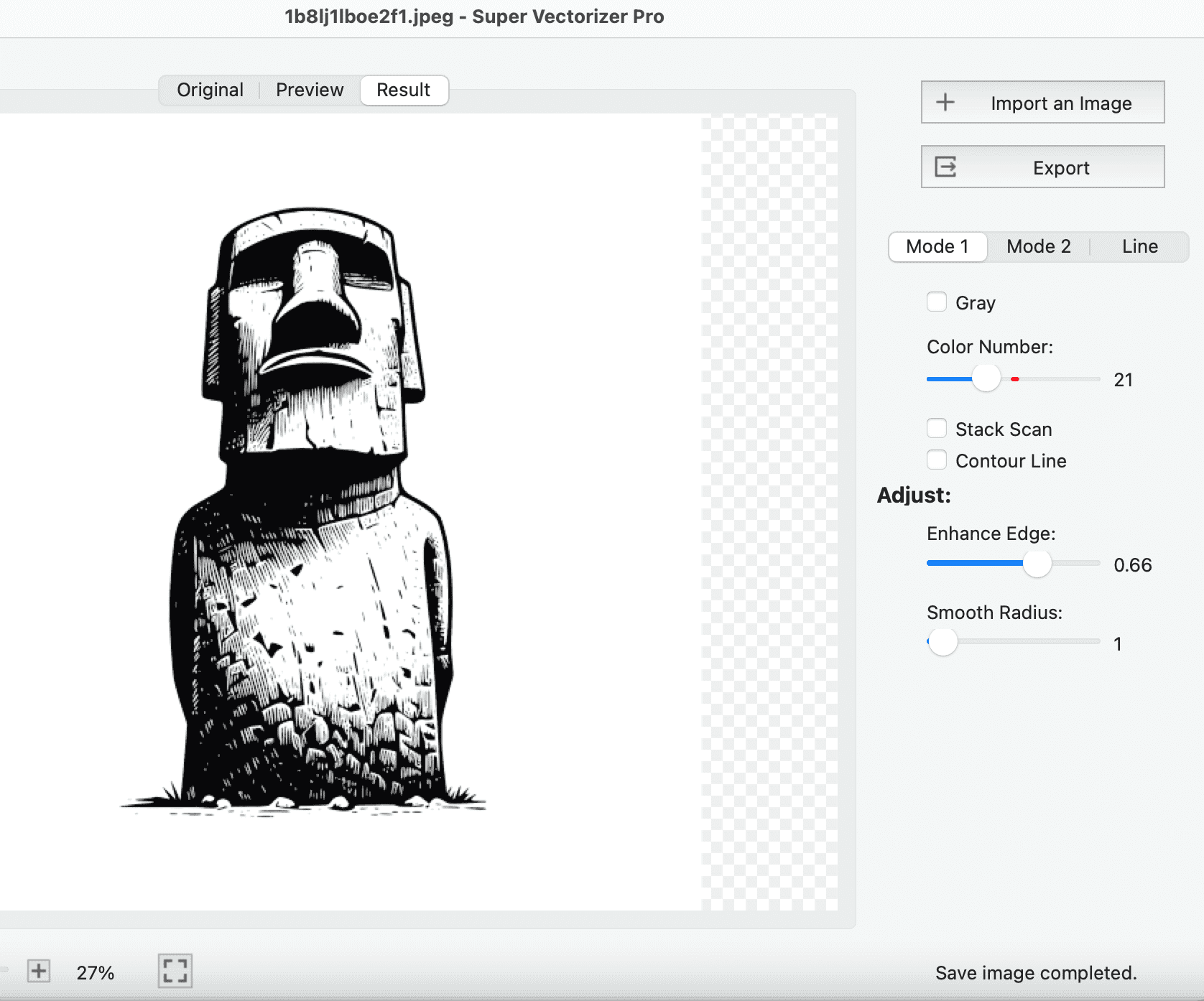
- Line art and sketches. Use a smooth or centerline mode so strokes stay thin and unbroken; keep anti-aliasing off for crisp cuts.
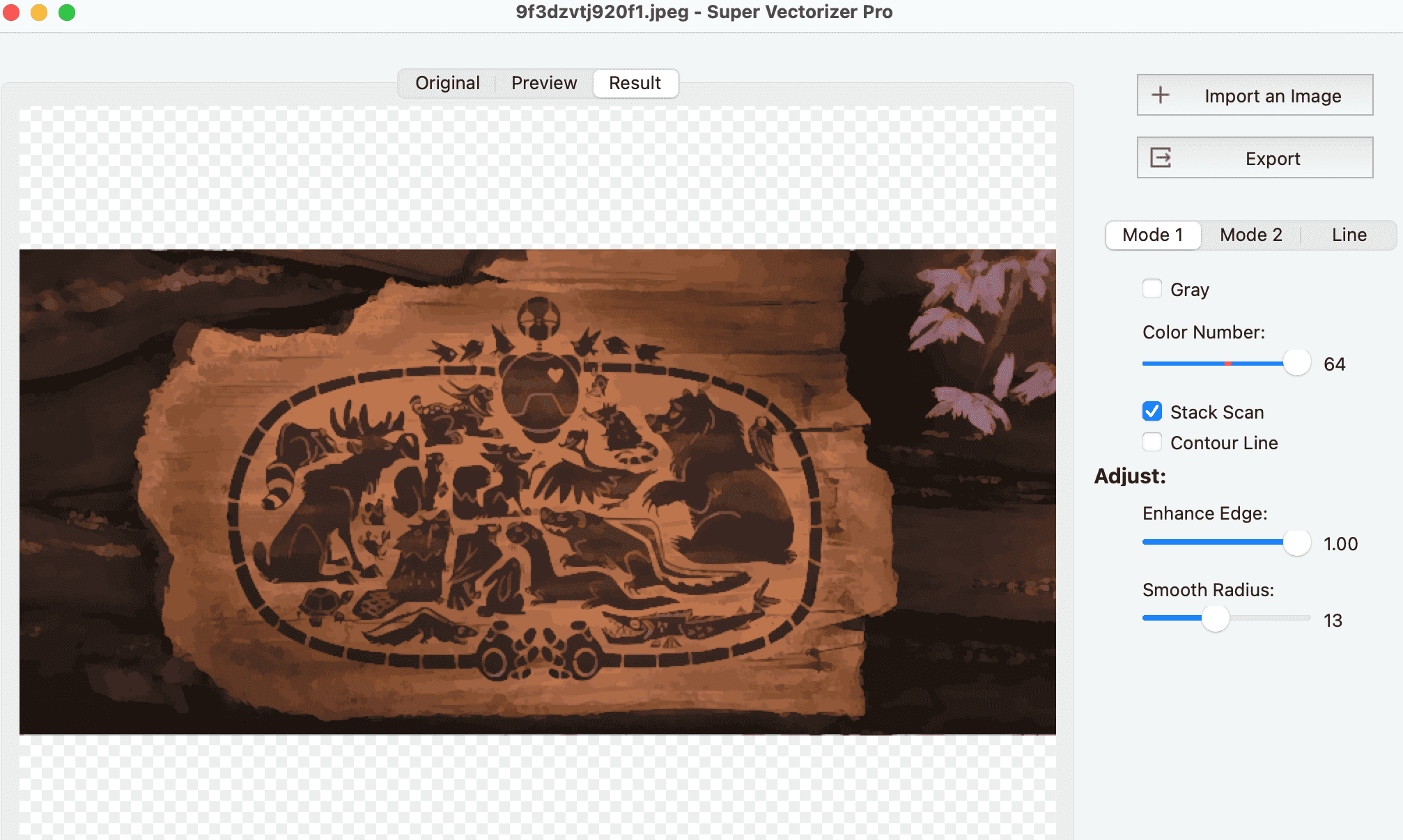
- Photos. Accept stylized, posterized color layers rather than a pixel-perfect copy — that is the honest ceiling of JPG to SVG quality.
- Cutting and print. Prioritize closed, speckle-free paths so machines trace clean outlines without hesitation.
When SVG Is Not the Right Choice
Vectorization shines on artwork with clear shapes, but a complex photograph with smooth gradients is better left as a high-res JPG, PNG, or WebP. Forcing a photo into SVG produces a heavy, busy file that looks worse than the original at large sizes. Use SVG when you need scalability, editing, or cutting paths — not as a way to "upgrade" a photograph.
Common Mistakes That Ruin Quality
- Starting from a tiny JPG. There is no detail to trace. Upscale the source first if you can.
- Letting the tool pick too many colors. More colors means noisier, heavier SVGs with stray specks.
- Over-smoothing. Too much smoothing erases the fine features that made the image worth vectorizing.
- Ignoring the background. A busy backdrop becomes extra paths. Remove or isolate the subject first.
- Skipping the preview. Always zoom in — small defects are easy to miss at thumbnail size.
Frequently Asked Questions
Does converting JPG to SVG actually improve quality?
It preserves sharpness at any scale and removes pixel blur, but it cannot restore detail a low-res JPG never had. The real win is resolution independence plus editable, smaller files — not magic upscaling.
Will I lose color when I convert?
Not if you choose full-color mode. Modern vectorizers handle 32-bit color and transparency. For logos and line art, a limited palette (2–16 colors) actually produces cleaner, more accurate results than forcing full color.
Can I convert JPG to SVG for free without losing quality?
Yes for simple images. SVGVector's free converter handles PNG, JPG, BMP, and WebP to SVG at no cost. For detailed or large JPGs, Super Vectorizer Pro (free trial to preview results) gives you finer controls that protect quality on tricky artwork.
Why does my traced SVG look messy?
Usually too many colors, no speckle filtering, or a low-contrast source. Reduce the color count, turn on speckle filtering, boost contrast, and preview at high zoom before exporting.
To recap: when you convert JPG to SVG without losing quality, you are really redrawing the artwork as paths — so start with a clean source, tune color and smoothing, and always preview at high zoom. Done right, your SVG stays sharp everywhere and is ready for web, print, and cutting.
Preview Your JPG to SVG Conversion Free
See crisp, scalable SVG results from your own JPGs with Super Vectorizer Pro — free trial to preview vectorization results on both Mac and Windows.
Compatible with macOS 10.10+ (M1/M2/M3) & Windows 7/8/10/11
Related Articles
Try These Free Online Tools
No download required — convert, compress & optimize SVGs right in your browser
JPG to SVG Converter
Turn JPEG photos into crisp vector artwork in seconds
JPG to SVG ConverterPNG to SVG Converter
Convert PNG, JPG, BMP images to scalable vector graphics instantly
PNG to SVG ConverterSVG Compressor (Mini)
Reduce SVG file size by up to 80% without losing quality
SVG Compressor OnlineSVG Optimizer
Clean up SVG code, remove redundant data and optimize for web
SVG Optimizer OnlineEPS to SVG Converter
Convert EPS vector files to web-friendly SVG format
EPS to SVG ConverterAll Free Tools
Browse our complete collection of free online conversion tools
Browse All Free Tools