
An online vectorizer lets you turn a raster image — a JPG, PNG, BMP, or WebP photo — into a scalable SVG vector graphic without installing any software. Whether you need a logo for a website, cuttable art for a Cricut, or clean line work for print, an online vectorizer handles the raster-to-vector conversion right in your browser. In this guide we compare the best online vectorizers, explain how image vectorization actually works, and show when a desktop tool like Super Vectorizer Pro (free trial to preview results) is the better fit.
Ready to convert your images? Try Super Vectorizer Pro free trial to preview vectorization results.
Compatible with macOS 10.10+ (M1/M2/M3) & Windows 7/8/10/11
Our Verdict
For a quick, one-off logo or icon, a free online vectorizer is the fastest path. For high-resolution source files, batch jobs, or editable, print-ready SVGs, a desktop app gives you finer control. Use both: trace online to preview, then refine on the desktop.
Super Vectorizer Pro (Desktop)
- Handles full-resolution imports with no upload limits
- Advanced color, edge, and path-tuning controls
- Batch vector tracing across whole folders
- Editable Bézier paths you can re-open later
- Files stay on your machine — better privacy
Online Vectorizer (Web)
- Zero install — runs in any browser
- Free tier for small, one-off images
- Instant access from any device
- Great for a fast preview before committing
What Is an Online Vectorizer?
An online vectorizer is a web tool that performs vectorization — the process of converting a bitmap (raster) image made of pixels into a vector image made of mathematical paths. The output SVG format stores shapes, curves, and colors as instructions rather than a fixed grid of dots, so it stays sharp at any size.
The difference matters the moment you scale up. Enlarge a JPG and it turns blocky and blurry because you are stretching pixels. Enlarge an SVG and the curves are simply recalculated, so a favicon and a billboard use the same file. That resolution independence is why designers reach for an online vectorizer when they need logos, icons, infographics, and cut-ready artwork.
How an Online Vectorizer Converts Bitmap to Vector
Modern auto-tracing is more than a single click. Behind the scenes a good online vectorizer runs several stages to turn your photo into clean vector art:
- Pre-processing. The tool reduces noise, normalizes contrast, and optionally crops to the area you want traced.
- Edge and region detection. It finds boundaries between colors and brightness levels, grouping similar regions together.
- Path fitting. Detected edges are smoothed into Bézier curves and straight segments instead of jagged pixel stair-steps. This is the heart of vector tracing.
- Color quantization. The engine decides how many flat colors to keep, balancing detail against file simplicity.
- SVG output. The fitted paths and palette are written as an SVG format file you can open in any vector editor.
AI-assisted engines go further, modeling whole shapes (circles, stars, rounded rectangles) and cleaning corners so the result looks hand-tuned rather than mechanically traced.
The Best Online Vectorizers Compared (2026)
We tested the most popular web vectorizers on logos, line art, and photos. Here is how they stack up on the things that actually affect your output.
| Feature | Vectorizer.AI | SVGVector Free Tool | Super Vectorizer Pro |
|---|---|---|---|
| Install required | None (web) | None (web) | Desktop |
| Input formats | PNG, JPG, GIF, BMP, WebP | PNG, JPG, BMP, WebP | PNG, JPG, BMP, GIF, TIFF, more |
| True full-color tracing | Yes | Yes | Yes |
| Batch / folder mode | Limited | No | Yes |
| Free tier | Preview only | Free | Free trial to preview |
| Editable Bézier export | Yes | SVG download | Full control |
Choosing the Right Online Vectorizer for Your Project
Match the tool to the job. A simple black-and-white logo and a detailed photo need very different handling:
- Logos and icons. Few colors, hard edges — almost any online vectorizer nails these. Aim for 2–8 colors and sharp corners.
- Line art and drawings. Pen strokes trace best with a "centerline" or smooth-spline mode so lines stay thin and continuous.
- Photos. These are hardest. An AI vectorizer posterizes them into stylized color layers; expect simplification, not a pixel-perfect copy.
- Cutting and print. You want clean, closed paths with no stray specks. A desktop app with speckle filtering gives the most reliable results.
File Formats an Online Vectorizer Should Handle
Not every tool accepts the same inputs, and the output format matters as much as the input. Most modern web vectorizers accept PNG, JPG, BMP, GIF, and WebP, while a few also take TIFF or HEIC. On output, SVG is the universal default, but if your workflow needs cutting paths or print files you may also want DXF, EPS, or PDF. A desktop app like Super Vectorizer Pro covers the widest input range and exports the broadest set of vector formats, which is why many users trace online for a quick look and finish on the desktop.
Privacy and Security: What Happens to Your Image?
Because an online vectorizer uploads your file to a remote server, it is worth checking the tool's privacy stance — especially for client logos, unreleased designs, or personal photos. Reputable services process images in memory and delete them after a short window; others keep files longer for caching. If confidentiality matters, run the conversion locally with desktop software so the artwork never leaves your machine. Either way, avoid uploading anything you would not want stored, and read the privacy note before you drag a sensitive file into the browser.
AI Tracing vs Classical Auto-Tracing
Older vectorizers relied on classical edge-detection algorithms that produced decent results on simple art but struggled with photos. Newer AI-assisted engines model whole shapes and corners, recovering detail classical methods miss. For line art and logos the difference is subtle; for photographs it is dramatic. If your source is a detailed image, prefer an AI-powered online vectorizer or a desktop app with AI tuning, and always preview before exporting.
Tips for Crisp, High-Quality Vectorization
Good output starts with a good source. Before you hit convert, try these:
- Use the highest-resolution source you have. Vectorization cannot invent detail a tiny image lacks.
- Boost contrast. Clear separation between shapes helps the tracer draw accurate edges.
- Limit colors intentionally. Fewer colors means simpler, smaller, easier-to-edit SVGs.
- Remove backgrounds you don't need. A clean transparent subject traces far better than a busy scene.
- Preview before you commit. With Super Vectorizer Pro you can run the free trial to preview vectorization results and tune settings before exporting from the full version.
Browser-Based vs Desktop Vectorization
Online vectorizers are convenient but have inherent limitations. Browser-based tools are constrained by the browser's memory and processing power, which means very large or complex images (above 4000x4000 pixels) may crash the tab or produce incomplete results. Desktop applications like Super Vectorizer Pro do not have this limitation and can process high-resolution scans without truncation.
Privacy is another key difference. When you upload an image to an online converter, that image leaves your device and is processed on a remote server. For personal photos, client work, or copyrighted designs, a desktop tool that processes everything locally is the safer choice. Super Vectorizer Pro runs entirely offline, so no image data ever leaves your computer.
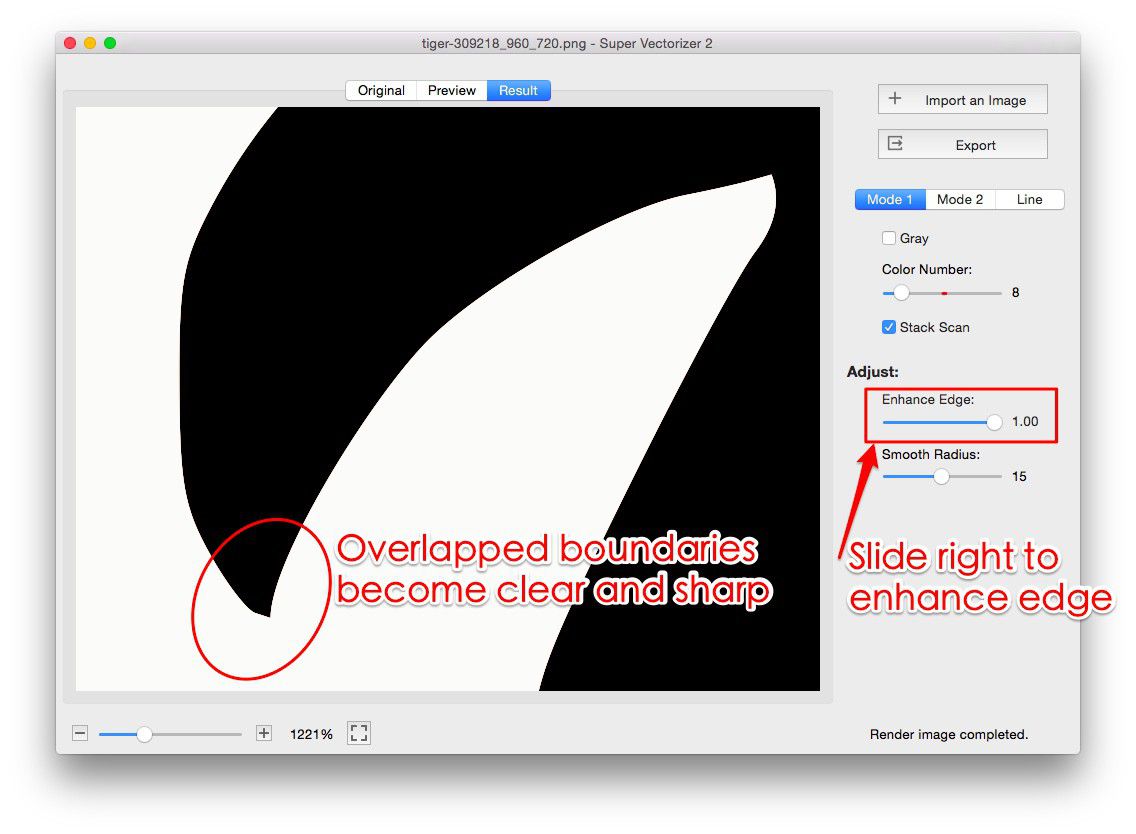
Finally, online tools typically offer fewer controls over the vectorization process. You usually get a few sliders at most, while desktop applications provide multiple tracing modes, color separation options, and path smoothing controls. For quick one-off conversions this does not matter, but for production work where consistent quality matters, the additional control is essential.
Frequently Asked Questions
Is an online vectorizer really free?
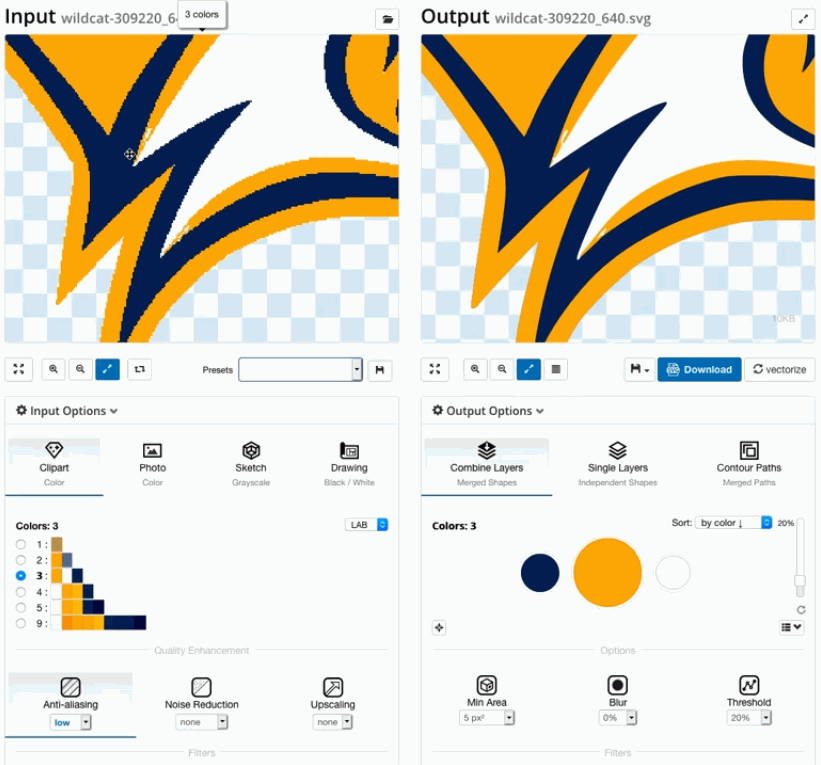
Many offer a free tier. SVGVector's free converter handles PNG, JPG, BMP, and WebP to SVG at no cost, while premium engines like Vectorizer.AI typically let you preview for free and charge to download the high-res file. For unlimited, offline one-at-a-time tracing, a desktop app such as Super Vectorizer Pro (free trial to preview results) is the upgrade path.
Will vectorizing a JPG improve its quality?
Vectorization preserves sharpness at any scale, but it does not restore detail a low-resolution JPG never had. Think of it as redrawing the image with clean paths, not magically adding pixels. Start with the best source you can.
Can I edit the SVG after converting?
Yes. SVG is text-based XML, so every shape is an editable path. Open the file in Illustrator, Inkscape, Figma, or even a code editor to recolor, reshape, or animate it. Desktop tools give you the most control over those underlying paths.
Online vectorizer or desktop software — which should I use?
Use an online vectorizer for quick, small, one-off images where convenience wins. Choose desktop vector tracing software when you need full-resolution imports, batch processing, precise color control, or confidential files that shouldn't leave your machine.
Preview Your Vectorization for Free
See crisp, scalable SVG results from your own images with Super Vectorizer Pro — free trial to preview vectorization results on both Mac and Windows.
Compatible with macOS 10.10+ (M1/M2/M3) & Windows 7/8/10/11
Related Articles
Try These Free Online Tools
No download required — convert, compress & optimize SVGs right in your browser
PNG to SVG Converter
Convert PNG, JPG, BMP images to scalable vector graphics instantly
PNG to SVG ConverterSVG Compressor (Mini)
Reduce SVG file size by up to 80% without losing quality
SVG Compressor OnlineSVG Optimizer
Clean up SVG code, remove redundant data and optimize for web
SVG Optimizer OnlineJPG to SVG Converter
Turn JPEG photos into crisp vector artwork in seconds
JPG to SVG ConverterEPS to SVG Converter
Convert EPS vector files to web-friendly SVG format
EPS to SVG ConverterAll Free Tools
Browse our complete collection of free online conversion tools
Browse All Free Tools