
A scanned signature is a dead end. It blurs the moment you enlarge it, refuses to sit cleanly on a contract line, and can't be recoloured or cut on a machine. A signature to SVG converter fixes that by turning your handwritten mark into vector paths — geometry that scales to any size without losing a single curve. Whether you need a crisp mark for PDF contracts, a brand asset for letterheads, or a cut file for a personalized gift, converting your signature to vector makes it reusable everywhere. In this guide we'll show the three practical ways to do it, and where a desktop tool like Super Vectorizer Pro fits when you're starting from a photo. You can try Super Vectorizer Pro with a free trial to preview vectorization results before you commit.
Ready to convert your images? Try Super Vectorizer Pro free trial to preview vectorization results.
Compatible with macOS 10.10+ (M1/M2/M3) & Windows 7/8/10/11
Our Verdict
Digitizing a signature requires clean tracing that preserves the natural stroke variation. The right tool makes the difference between a vector and a usable digital signature.
Best for Signatures: Super Vectorizer Pro
- Traces scanned or photographed signatures into SVG
- Preserves stroke thickness variation
- Free trial to preview results
- Outputs clean, scalable paths
Best Free Option: Inkscape Trace Bitmap
- Free and open source
- Manual cleanup after auto-trace
- Good for simple signatures
- Requires more post-processing
Desktop App vs Browser-Only Signature Tools
Both turn a signature image into SVG — the difference is privacy, control, and what happens to sensitive handwriting.
Super Vectorizer Pro (Desktop)
- Processes the signature locally — nothing leaves your machine
- Fine control over smoothing and detail for clean strokes
- Handles faint pencil and high-contrast marker equally well
- Exports SVG plus PNG/PDF/JPG for every use case
- Ideal for legal, financial, and branded signatures
Browser-Only Signature Tools
- No install — upload and download in seconds
- Great for non-sensitive personal marks
- Often free with no signup
- Convenient on a phone or shared computer
- Uploads your signature to a third-party server
Why Convert Your Signature to Vector
A signature is one of the most personal assets you own, and you'll use it in more places than you expect: contracts and proposals, email footers, invoices, wedding suites, merchandise, and Cricut-cut gifts. A raster image (PNG or JPG) only works at the size you captured it. Blow it up and the edges turn to jelly; shrink it and it vanishes. When you convert signature to vector, the mark becomes a set of Bézier curves that stay perfect at any dimension and can be recoloured, thickened, or combined with other artwork.
The same principle applies to any hand-drawn mark — see our guides on vectorizing sketches and converting a logo to vector. The underlying craft is vector tracing: reading the dark strokes of a source image and rebuilding them as editable paths in the SVG format.
Step 1: Capture a Clean Source Signature
Vectorization quality depends almost entirely on the source. Spend five minutes here and save an hour of cleanup later:
- Paper: use bright white, unlined paper so grid lines don't get traced.
- Pen: a black Sharpie or felt-tip marker gives the highest contrast; avoid light pencil.
- Size: sign larger than final need — a 3-inch signature captures far more detail than a 1-inch one.
- Scan or photo: a flatbed scan at 300–600 DPI is best; a phone photo in even daylight works if you shoot straight down and avoid shadows.
- Crop: trim tightly around the signature and remove the background before converting.
Step 2: Use a Signature to SVG Converter
With a clean image ready, a signature to SVG converter does the heavy lifting. Browser tools let you drop in the PNG or JPG and download an SVG in seconds — handy for a quick, non-sensitive mark. They typically trace dark strokes on a light background into vector paths and let you tweak noise removal and smoothing.
For anything sensitive, prefer a desktop app that keeps the file on your machine. The trade-off is the same across every method: simple, high-contrast signatures trace cleanly, while faint or messy strokes need a little post-editing in a vector editor to look their best.
Step 3: Trace and Refine with Super Vectorizer Pro
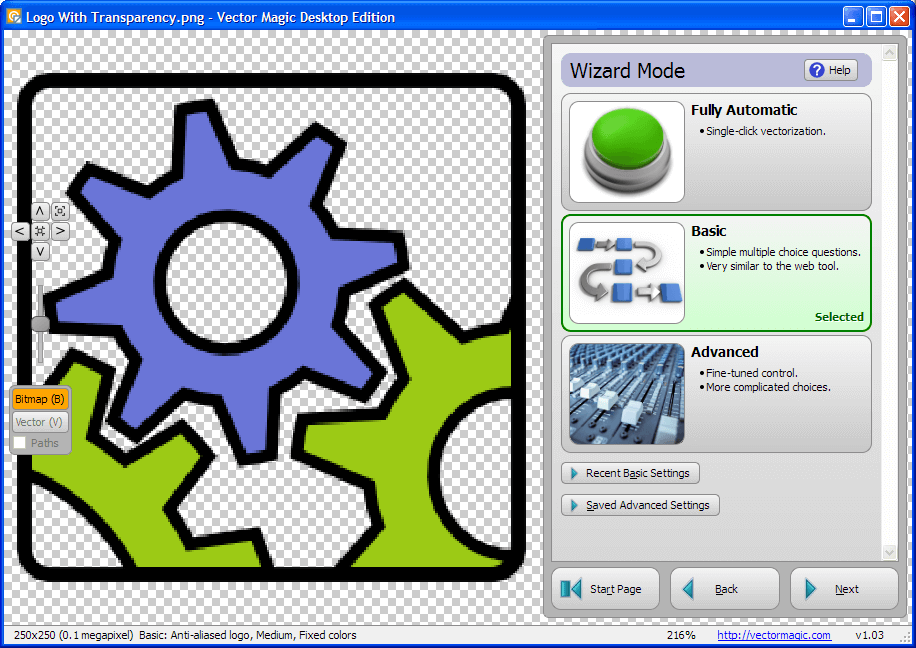
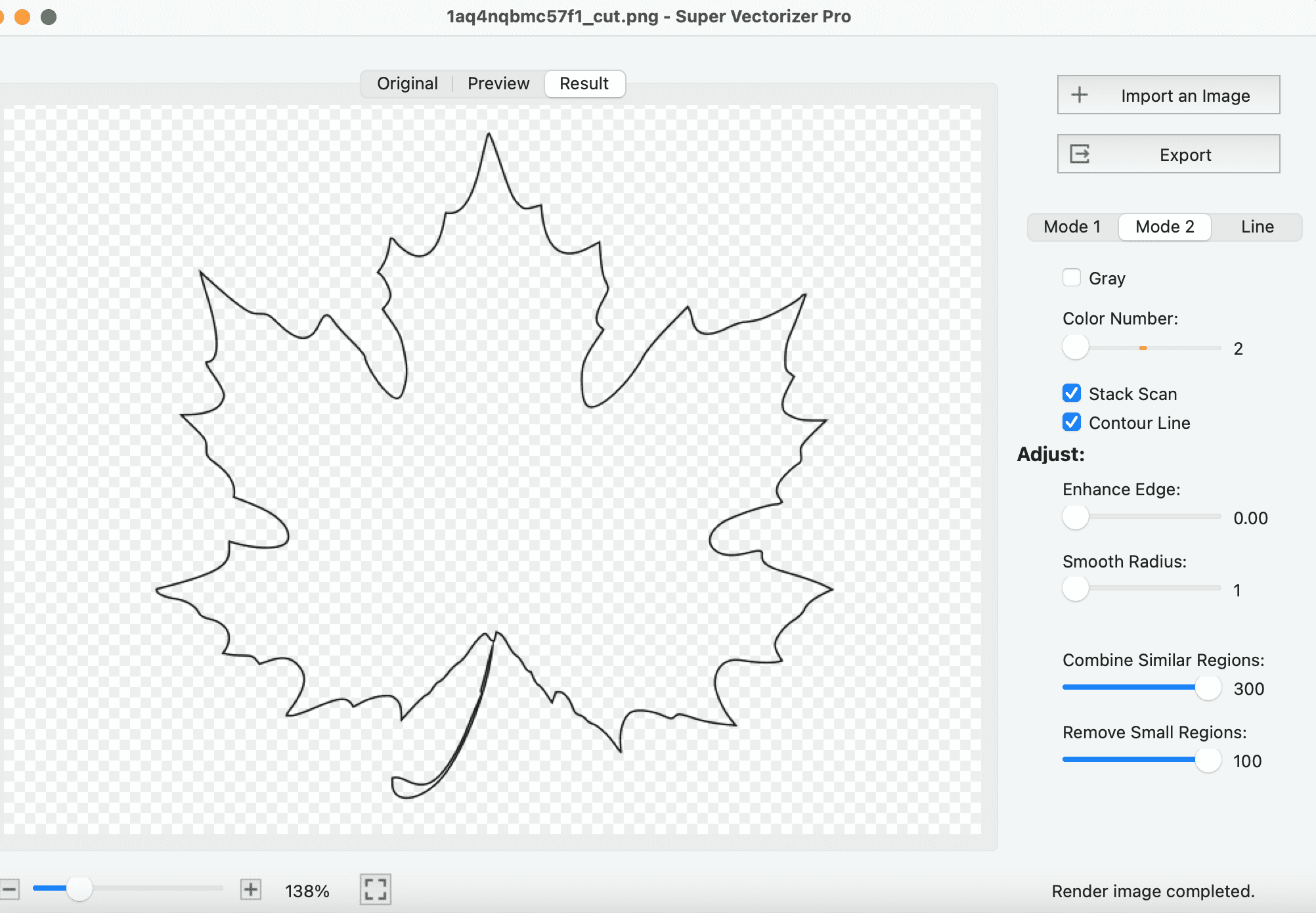
When your signature lives inside a photo or scan, Super Vectorizer Pro treats it as a raster to vector job. Open the app, drag in the cropped signature, and the engine separates the ink strokes from the paper, reconstructing each line as a smooth vector path. You can then adjust detail and smoothing so bold downstrokes stay confident while delicate connectors don't shatter.
After tracing, open the SVG in Illustrator, Inkscape, or Figma to delete stray specks, even out stroke width, and normalize the colour. Try Super Vectorizer Pro with a free trial to preview vectorization results and confirm the traced signature reads true to your hand before you use it anywhere.
Where Your Vector Signature Goes Next
Once you have a clean SVG, deployment is easy:
- Documents: insert the SVG (or a 2x PNG exported from it) onto contract signature lines in Word, Google Docs, or PDF editors.
- Email: most clients won't render SVG inline, so export a high-res PNG and reference it in your HTML signature block.
- Branding: drop the vector mark onto letterheads, cards, and packaging for sharp, scalable identity.
- Cricut & laser: a signature SVG makes a beautiful cut file for personalized mugs, notebooks, and gifts — set a single black stroke and let the machine follow the path.
For Cricut specifically, import the SVG into Design Space and attach or weld overlapping letters so the machine treats each word as one continuous cut. For laser engraving, export a second filled version alongside the outlined one — use the outline for cutting and the fill for engraving detail. And because an SVG is resolution-independent, you only need to make the file once; resize it freely for a business card, a letterhead, or a poster without ever re-tracing.
| Option | Privacy | Best for | Output control |
|---|---|---|---|
| Scanned PNG (unedited) | Local | Quick insert only | None — blurs when scaled |
| Browser signature tool | Uploads to server | Non-sensitive marks | Basic |
| Super Vectorizer Pro | Local | Legal, brand, crafts | Fine |
Troubleshooting a Messy Traced Signature
Even with a clean source, auto-tracing can misbehave. Here's how to fix the usual suspects:
- Jagged or broken strokes: the source had low contrast or shadows. Re-shoot in flat, even light, or raise the smoothing slider so small gaps close into continuous curves.
- Speckles and paper texture: faint grid lines or paper grain got traced as paths. Turn up noise removal before exporting, then delete any leftover specks in a vector editor.
- Strokes too thin or too thick: adjust the detail setting — less detail thickens faint lines, more detail preserves delicate connectors. Aim for a weight that matches your real pen.
- Letters that double-cut: overlapping strokes in the source create duplicate paths. In your cutter software, use a weld or unite operation so each stroke cuts only once.
- A background rectangle appears: you traced a photographed signature on a full page. Crop tightly to the ink before converting, or use a background-removal step so only the mark becomes vector.
If the result still looks off, the fastest fix is usually a better photo — dark ink on plain white paper, shot straight down — rather than fighting the trace afterwards. A few minutes of capture beats an hour of node editing every time.
Signature → SVG: Format-Specific Conversion Notes
- Phone photos of signatures have shadows and uneven lighting; adaptive threshold separates ink from paper automatically.
- A low Filter speckles keeps thin stroke detail while dropping background speckle.
- B&W mode gives a single clean ink path — perfect for engraving, embossing, or logo use.
- Shoot straight-on with even light to avoid skewed, hard-to-trace signatures.
Frequently Asked Questions
Is a vector signature legally valid for documents?
The file format isn't what makes a signature legal — your actual, genuine mark is. A vectorized SVG of your real signature is treated the same as a scanned image of it in most jurisdictions (under laws like the U.S. ESIGN Act and EU eIDAS). The key is that it represents your authentic signature. For high-stakes documents, layer the SVG with a certified e-signing platform that adds identity verification and an audit trail.
Can I edit the signature after converting it to SVG?
Yes. Because the output is a true vector, every stroke is an editable path. In Illustrator, Inkscape, or Figma you can delete stray specks, smooth rough nodes, thicken or thin the line, and change the colour. You can't "retype" it, but you can reshape it — which is exactly what you want for cleanup.
Will my signature look the same at large sizes?
That's the whole point of converting your signature to vector. Unlike a PNG that pixelates when enlarged, the SVG describes curves mathematically, so it stays identically sharp on a business card and on a poster. Export a 2x PNG from the SVG for any raster-only context to keep it crisp there too.
Do I need Super Vectorizer Pro to make a signature SVG?
Only if you're starting from a photo or scan of your signature. If you drew it directly in a vector editor, you already have vector paths. If you have a paper signature, a browser tool can convert it, but it uploads your handwriting to a server. Super Vectorizer Pro is the private, high-control option for tracing a scanned or photographed signature into clean SVG — try the free trial to preview the result first.
Digitize Your Signature Today
Turn a scanned or photographed signature into a clean, scalable vector. Try Super Vectorizer Pro free trial to preview vectorization results, then use your mark anywhere.
Compatible with macOS 10.10+ (M1/M2/M3) & Windows 7/8/10/11
Related Articles
Try These Free Online Tools
No download required — convert, compress & optimize SVGs right in your browser
PNG to SVG Converter
Turn PNG images into crisp vector artwork in seconds
Free OnlineSVG Compressor (Mini)
Reduce SVG file size by up to 80% without losing quality
Free OnlineJPG to SVG Converter
Convert JPEG photos to scalable vector format
Free OnlineEPS to SVG Converter
Convert EPS illustrations to scalable vector graphics
Free OnlineAll Free Tools
Browse our complete collection of free online conversion tools