
Whether you're building a logo, cutting vinyl on a Cricut, or shipping a UI component, plain text rarely survives the journey intact. System fonts render differently across machines, embedded web fonts add page weight, and small type turns to mush the moment you scale it up. A text to SVG converter solves all three problems at once by turning letters into vector paths — mathematical curves that stay razor-sharp at any size and can be edited in any design tool. In this guide we'll walk through the three practical ways to convert text to SVG, show where each method shines, and explain how a desktop tool like Super Vectorizer Pro fits in when your text already lives inside an image. You can try Super Vectorizer Pro with a free trial to preview vectorization results before you commit.
Ready to convert your images? Try Super Vectorizer Pro free trial to preview vectorization results.
Compatible with macOS 10.10+ (M1/M2/M3) & Windows 7/8/10/11
Our Verdict
Text-to-SVG conversion depends on whether you need font outlines, custom lettering, or programmatic generation. Each approach serves a different workflow.
Best for Hand-Lettering: Super Vectorizer Pro
- Traces hand-drawn or scanned text into SVG
- Preserves stroke character and detail
- Free trial to preview results
- Works with photos and scans
Best for Typography: Inkscape Path Operations
- Converts live text to paths with precision
- Full control over Bezier handles
- Boolean operations for custom letterforms
- Free and open source
Desktop App vs Online Text-to-SVG Tools
Both approaches produce clean SVG text, but they start from different inputs. Pick the one that matches the source you actually have.
Super Vectorizer Pro (Desktop)
- Best when your text is baked into a PNG, JPG, or screenshot
- Traces rendered letterforms into editable Bézier paths offline
- Handles multi-colour logos and stylised display type
- Full control over detail, smoothing, and colour modes
- Works without uploading sensitive files to a server
Online Text-to-SVG Tools
- Best when you type live text and pick a font in the browser
- No install — paste a word, download the path instantly
- Ideal for quick headings, icons, and code snippets
- Usually free for low volume with no signup
- Requires an internet connection and a file upload
What a Text to SVG Converter Actually Does
A text to SVG converter changes how your lettering is stored. Normal text is a reference to a font file — the screen draws "A" using whatever Arial or Helvetica the viewer happens to have. That reference breaks the moment the font is missing, replaced, or rendered on a phone that never shipped with it. SVG text, by contrast, is geometry: a set of points, lines, and curves (the SVG format describes shapes, not pixels). The result is resolution-independent — the same file looks identical on a smartwatch and a billboard.
This distinction matters most in three places: branding (a logo that depends on a font is fragile), cutting machines (Cricut and laser software can't "see" font glyphs — they need outlines), and the web (vector text loads faster and never blurs on high-DPI screens). The process of turning type into geometry is sometimes called vectorizing text or outlining fonts, and it sits right next to the broader craft of vector tracing used for line art and logos.
Method 1: Outline Fonts in Design Software
If your text is still live type in Illustrator, Inkscape, Figma, or Affinity Designer, the cleanest route is to convert the text object to paths (sometimes labelled "Create Outlines" or "Convert to Path"). This is the gold standard because the software already knows the exact Bézier curves of every glyph — no guessing, no stray nodes, perfect fidelity.
- Illustrator: select the text, then Type → Create Outlines (Cmd/Ctrl + Shift + O).
- Inkscape: select the text, then Path → Object to Path.
- Figma: right-click the text layer and choose Outline Text.
- Affinity Designer: select the text, then Layer → Convert to Curves.
Once outlined, each letter is a closed vector shape you can recolour, kern, and even distort individually. The only downside is that the text is no longer editable as words — so keep an original, live-type copy alongside the outlined version.
Method 2: Use an Online Text to SVG Converter
When you don't have design software handy, an online text to SVG converter is the fastest shortcut. You type a word or sentence, choose a typeface, set the colour and size, and download the resulting SVG path — no install required. These browser tools are perfect for quick headings, social graphics, and developer assets, and many export directly to React/JSX for code use.
The catch: free tiers are often limited to the fonts the tool bundles, and you're uploading your text to a third-party server. For a one-off headline that's fine; for a confidential brand name, prefer the desktop route. An online converter also pairs well with our PNG to SVG workflow when you need to vectorize an image that already contains text.
Method 3: Trace Rendered Text with Super Vectorizer Pro
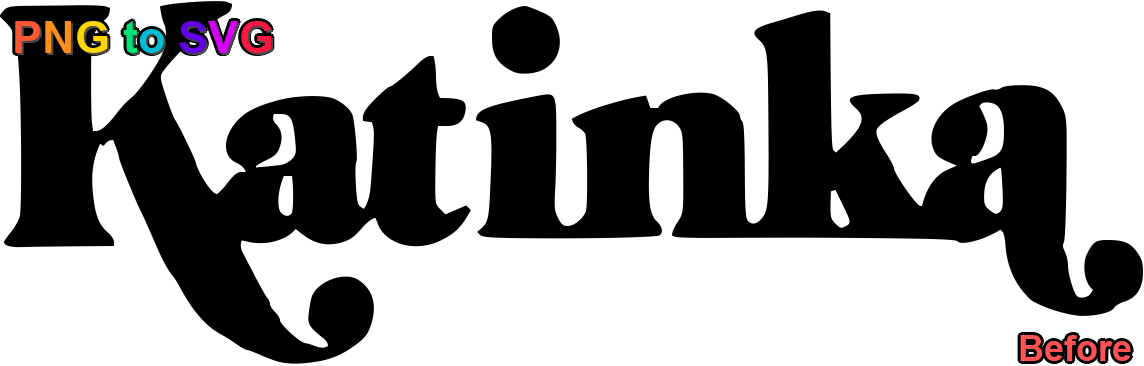
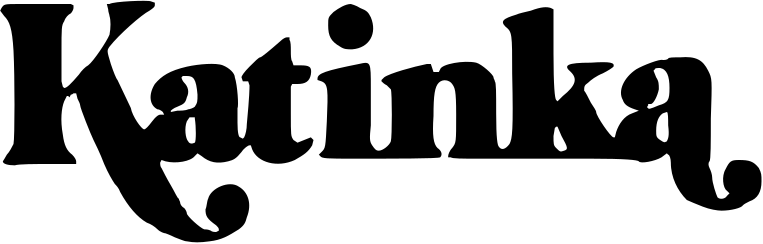
Sometimes the text you need isn't live type at all — it's a PNG logo someone emailed you, a screenshot of a headline, or a stylised quote baked into a JPG. That's a raster to vector job. Here a text to SVG converter based on auto-tracing earns its keep: Super Vectorizer Pro reads the rendered pixels and reconstructs the letterforms as clean vector paths.
The workflow is simple. Open the app, drop in your image, and let the engine analyse edges and colour regions. You then tune detail and smoothing so thick display lettering stays bold while thin serifs don't shatter into noise. Because the output is a genuine SVG, you can open it in any editor afterwards to nudge nodes or change fills. Try Super Vectorizer Pro with a free trial to preview vectorization results and confirm the traced text reads the way you want before exporting.
Text to SVG for Cricut, Laser, and Print
Cutting and engraving machines don't understand fonts — they follow paths. So any text you send to a Cricut, Silhouette, Glowforge, or xTool has to be outlined first. A text to SVG converter is therefore the bridge between "a nice quote in a font" and "a cut-ready file." Two practical tips:
- Bold beats thin. Thick sans-serif letterforms cut and weed far more reliably than delicate scripts, which can break or lift off the mat.
- Set fill to none, stroke to black. Most cut software reads a black stroke as the cut line. Export with a single clean stroke and minimal nodes for the smoothest result.
For print, vector text means your business cards, packaging, and posters stay crisp at any resolution — and you avoid the halo artifacts that show up when a rasterized headline is enlarged.
| Factor | Font Outline (Design App) | Online Text-to-SVG Tool | Super Vectorizer Pro (Tracing) |
|---|---|---|---|
| Best input | Live type in a editor | Typed text in browser | Text baked into a PNG/JPG |
| Path accuracy | Perfect | Good | Very good (tunable) |
| Needs install | Yes (editor) | No | Yes (desktop app) |
| Privacy | Local | Uploads to server | Local |
| Handles logo images | No | No | Yes |
Frequently Asked Questions
Is converting text to SVG the same as embedding a font?
No. Embedding a font ships the actual typeface file inside the document so the original glyphs can be drawn — the text is still "live" and editable as words. Converting text to SVG instead turns each letter into a permanent vector shape. The benefit is that the file no longer depends on any font being installed; the trade-off is that you can no longer retype the words. For logos and cut files, outlined SVG is almost always the safer choice.
Can I still edit the letters after converting to SVG?
Yes — but as shapes, not as text. Once a word is vectorized you can move, scale, recolor, and reshape individual letters with the node/pen tools in any vector editor such as Illustrator, Inkscape, or Figma. You just can't change the wording by typing. That's why it's smart to keep an original live-text version alongside the SVG export.
Will my SVG text look the same on every device?
That's the main reason to vectorize it. Because the letters are stored as geometry rather than a font reference, they render identically everywhere — no missing-font substitution, no platform differences. This is especially important for brand logos, favicons, and any text destined for cutting machines or high-DPI screens.
Do I need Super Vectorizer Pro just to convert text to SVG?
Only if your text already exists as an image. If you have live type in a design app, the built-in "outline" command is all you need and is free. If you just want to type a word and grab an SVG, an online text-to-SVG tool is enough. Super Vectorizer Pro is the right tool when the text is trapped inside a PNG, JPG, or screenshot and you need to trace it into clean vector paths — try the free trial to preview the result first.
Turn Your Text into Scalable Vectors
Have a logo, headline, or quote stuck inside an image? Try Super Vectorizer Pro free trial to preview vectorization results, then export clean, editable SVG text.
Compatible with macOS 10.10+ (M1/M2/M3) & Windows 7/8/10/11
Related Articles
Try These Free Online Tools
No download required — convert, compress & optimize SVGs right in your browser
PNG to SVG Converter
Convert PNG, JPG, BMP images to scalable vector graphics instantly
PNG to SVG ConverterSVG Compressor (Mini)
Reduce SVG file size by up to 80% without losing quality
SVG Compressor OnlineSVG Optimizer
Clean up SVG code, remove redundant data and optimize for web
SVG Optimizer OnlineJPG to SVG Converter
Turn JPEG photos into crisp vector artwork in seconds
JPG to SVG ConverterEPS to SVG Converter
Convert EPS vector files to web-friendly SVG format
EPS to SVG ConverterAll Free Tools
Browse our complete collection of free online conversion tools
Browse All Free Tools