
Emoji are universal — until they are not. The same emoji renders as a cheerful face on one device, a flat outline on another, and a box with an X on a system that lacks the font entirely. That inconsistency breaks design systems, ruins print layouts, and frustrates anyone trying to use emoji as actual graphics rather than throwaway text. When you convert emoji to SVG, you trade a font-dependent character for a set of standalone vector paths that look identical on every browser, every operating system, and every printer. In this guide we compare three ways to do it — text-based lookup, browser image tracing, and desktop vectorization with Super Vectorizer Pro — and show you which method fits each use case. You can try Super Vectorizer Pro with a free trial to preview vectorization results before you commit.
Ready to convert your images? Try Super Vectorizer Pro free trial to preview vectorization results.
Compatible with macOS 10.10+ (M1/M2/M3) & Windows 7/8/10/11
Our Verdict
Emoji-to-SVG conversion is a niche task. Pick the method that matches how many emoji you need and how clean the vectors must be.
Best for Quality: Super Vectorizer Pro
- Traces raster emoji into scalable SVG paths
- Handles complex multi-color emoji
- Free trial to preview results
- Desktop app for Mac and Windows
Best Quick Method: Online Emoji SVG Sources
- Pre-built SVG emoji sets available
- No conversion needed
- Open source licenses (Noto, Twemoji)
- Limited to existing emoji library
Text Lookup vs Image Tracing vs Desktop Vectorization: 2026 Comparison
All three produce an SVG — the difference is whether you need a standard emoji, a specific style, or full control over the traced paths.
Super Vectorizer Pro (Desktop)
- Traces any emoji image — screenshots, custom styles, stickers
- Full control over colour count and path detail
- Editable Bézier paths you can modify in any vector editor
- Works offline — your images never leave your machine
- Per-icon tuning so each emoji traces cleanly
Online Emoji-to-SVG Tools
- Text-based lookup gives instant standard emoji (Twemoji, OpenMoji)
- No install — paste and download in seconds
- Multiple emoji styles available (Noto, Fluent, etc.)
- Great for standard Unicode emoji
- Limited to existing emoji sets — no custom styles
Why Convert Emoji to SVG
An emoji is not really an image — it is a Unicode character rendered by your system's emoji font. On an iPhone you get Apple Color Emoji; on Windows, Segoe UI Emoji; on Android, Noto Color Emoji. Each platform draws the same code point differently, and older systems may not have the font at all, showing a blank box instead. When you convert emoji to SVG, you decouple the graphic from the font: the emoji becomes a standalone vector file that renders identically everywhere.
That matters in several scenarios. A web developer building an icon system wants emoji as inline SVG so they load fast and style consistently. A designer making sticker packs needs editable vector paths, not a flattened PNG. A marketer creating print collateral cannot rely on emoji fonts at all — most print pipelines rasterize text, and emoji glyphs often come out wrong. And anyone building for accessibility benefits from SVG, because you can add ARIA labels and control colour for high-contrast modes. For the broader context on why vectors outperform raster, see our guide on SVG vs PNG and when to use each.
Method 1: Text-Based Emoji to SVG (Twemoji / OpenMoji)
The fastest way to convert emoji to SVG is not tracing at all — it is looking up an existing vector source. Open-source emoji projects like Twemoji (Twitter's set), OpenMoji, and Noto Emoji (Google's set) publish every emoji as a ready-made SVG file. Several online tools let you paste an emoji character and instantly download the corresponding SVG from these libraries.
This method is ideal when you need a standard Unicode emoji in a known style. It is fast, free, and the output is clean, hand-tuned vector art — not a machine-traced approximation. The limitation is that you are constrained to the emoji those projects have already drawn. If you need a custom emoji, a specific platform's style, or an emoji from a screenshot, text-based lookup will not help.
- Best for: standard Unicode emoji in web icons, UI elements, and documentation.
- Limitation: only covers existing emoji sets — no custom or screenshot emoji.
- Output: clean, hand-authored SVG paths ready to inline or style with CSS.
Method 2: Image Tracing (Upload an Emoji PNG, Get SVG)
When you need an emoji that text lookup cannot provide — a specific platform style, a custom sticker, or an emoji from a screenshot — image tracing is the next step. You upload a PNG or JPG of the emoji, and a tracing engine reads the pixel shapes and rebuilds them as vector paths. Several browser-based emoji to SVG converter tools offer this pipeline alongside text lookup.
The quality depends heavily on the source image. A crisp, high-resolution emoji screenshot at 512 pixels or larger traces far better than a tiny 32-pixel one. Complex emoji with gradients and many colours produce large SVGs with hundreds of paths, while simple single-colour emoji trace into clean, lightweight files. After tracing, you can open the SVG in a vector editor to clean up stray paths and simplify the geometry.
Method 3: Desktop Vectorization with Super Vectorizer Pro
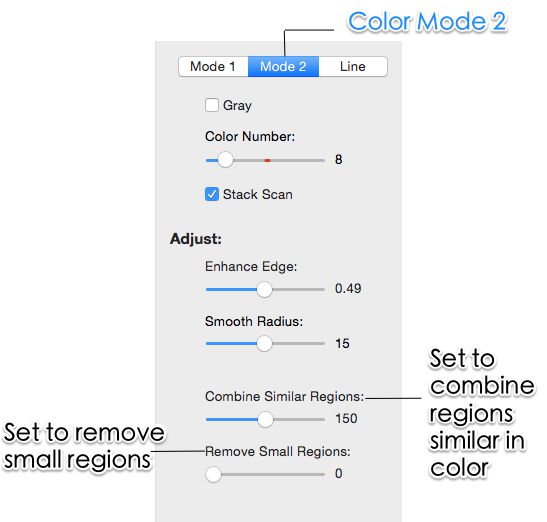
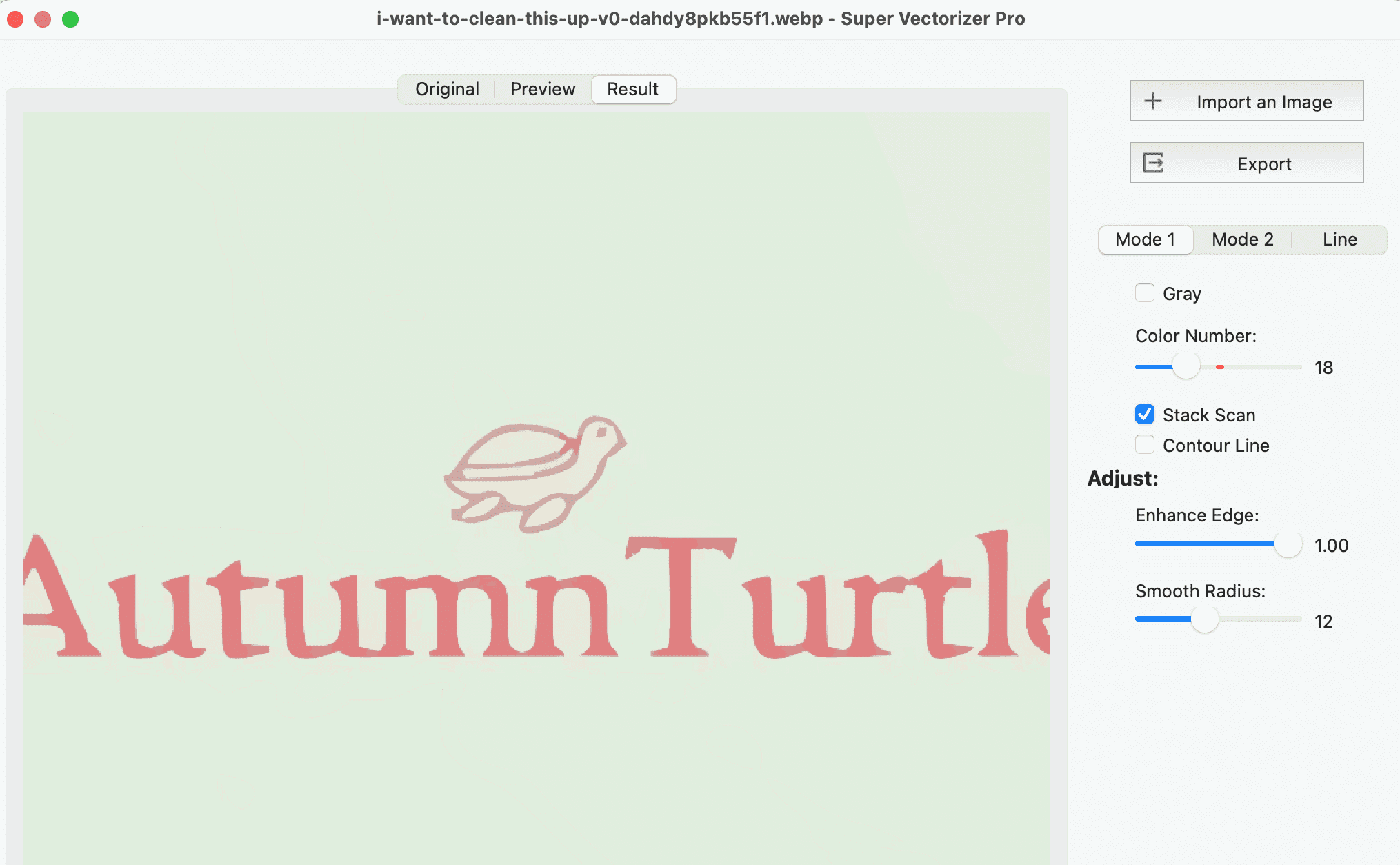
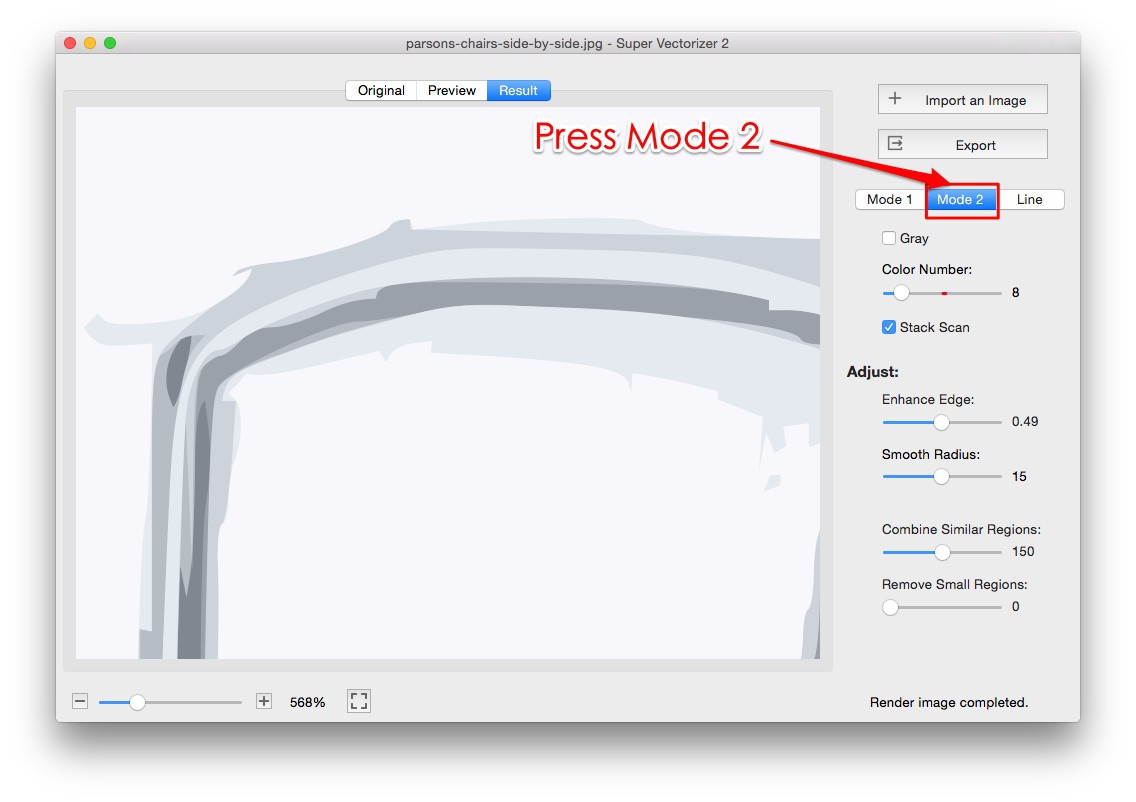
For the most control over the result, a desktop tracer is the answer. Super Vectorizer Pro treats an emoji image as a standard raster to vector job: drag in the emoji PNG or screenshot, and the engine separates colours and rebuilds each region as smooth Bézier paths. You can tune the colour count — set it low for a flat, icon-style emoji, or high to preserve gradients and shading — and adjust detail so fine features like facial expressions survive the trace.
The advantage over browser tools is control and privacy. Your emoji images stay on your machine, and you get editable paths you can refine in Illustrator, Inkscape, or Figma afterwards. Super Vectorizer Pro processes one image at a time, so you can convert each emoji screenshot individually with consistent settings. Try Super Vectorizer Pro with a free trial to preview how your emoji will look as a vector before you commit. For the general workflow, see our guide on how to create an SVG from an image.
| Method | Speed | Custom Styles | Path Quality |
|---|---|---|---|
| Text lookup (Twemoji) | Instant | No — preset sets only | Hand-tuned, excellent |
| Browser image tracing | Fast | Yes — any image | Good, may need cleanup |
| Super Vectorizer Pro | Fast | Yes — full control | Best, editable |
Where Your Emoji SVG Goes Next
Once you have a clean emoji SVG, deployment is straightforward:
- Web and apps: inline the SVG directly in HTML or import it as a React/Vue component. It renders identically across all browsers and devices, with no font dependency.
- Design systems: drop the SVG into Figma or Sketch as an icon asset. Because it is true vector, it scales to any size and inherits colour via CSS
fillorcurrentColor. - Sticker packs and merchandise: an emoji SVG makes a perfect cut file for Cricut or laser cutting. Set a single colour and let the machine follow the outline. See our SVG for stickers guide for the cutting workflow.
- Presentations and print: insert the SVG (or a high-res PNG exported from it) into slides, PDFs, and print layouts. Unlike font-based emoji, it will never render as a missing-glyph box.
For monochrome use cases — icons, UI badges, engravings — convert the colour emoji to a single-fill outline after tracing. In your vector editor, select all paths, unify them, and apply a single fill colour. This gives you a clean line-art version that works as a favicon, a stamp, or a laser-engraving path.
Troubleshooting Common Emoji-to-SVG Issues
- The traced emoji looks blocky: the source image was too small. Re-capture at 512 pixels or larger — higher resolution gives the tracer more data to build smooth curves.
- Too many tiny paths: complex colour emoji produce hundreds of fragments. Reduce the colour count in your tracer, or simplify the paths in a vector editor using a path-simplify tool.
- Gradients look banded: the tracer converted smooth gradients into flat colour regions. Increase the colour count, or accept the posterized look for a stylized, icon-style result.
- The emoji renders differently than expected: you may have traced a platform-specific style. If you need a standard look, switch to text-based Twemoji lookup instead of image tracing.
- Complex emoji (skin tones, ZWJ sequences) break: these combine multiple code points and may not exist as a single SVG in open-source sets. Trace a screenshot of the rendered composite emoji instead.
Frequently Asked Questions
Can I use converted emoji SVGs commercially?
It depends on the source. Emoji from open-source projects like Twemoji (CC-BY 4.0) and OpenMoji (CC-BY-SA 4.0) carry their own licences — check the terms before commercial use. If you trace an emoji from your own screenshot, the SVG is derived from a copyrighted platform design, so use it for personal projects only. For commercial merchandise, draw original emoji-style graphics or licence them from a stock provider.
Is it better to use Twemoji SVGs or trace my own?
For standard Unicode emoji, Twemoji and OpenMoji SVGs are almost always better — they are hand-tuned by professional designers, lightweight, and free to use with attribution. Trace your own only when you need a custom style, a specific platform's look, or an emoji that the open-source sets do not cover. The traced result will need more cleanup but gives you full control.
Will the SVG look the same on all devices?
Yes — that is the main reason to convert emoji to SVG. Unlike font-based emoji, which each operating system renders differently, an SVG file contains explicit paths and colours that every modern browser and vector editor displays identically. The only exception is if a target platform does not support SVG at all, which is rare for modern web and design tools.
Do I need Super Vectorizer Pro to convert emoji to SVG?
Only if you are tracing emoji from images or screenshots. For standard Unicode emoji, free online tools that look up Twemoji or OpenMoji sources are faster and produce cleaner results. Super Vectorizer Pro is the right choice when you need to trace custom emoji styles, process an entire pack one image at a time, or keep your images private on your own machine. Try the free trial to preview the result on your own emoji first.
Convert Your Emoji to SVG Today
Turn any emoji screenshot or custom design into a clean, scalable SVG you can use in web, print, and cutting projects. Try Super Vectorizer Pro free trial to preview vectorization results.
Compatible with macOS 10.10+ (M1/M2/M3) & Windows 7/8/10/11
Related Articles
Try These Free Online Tools
No download required — convert, compress & optimize SVGs right in your browser
PNG to SVG Converter
Convert PNG, JPG, BMP images to scalable vector graphics instantly
PNG to SVG ConverterSVG Compressor (Mini)
Reduce SVG file size by up to 80% without losing quality
SVG Compressor OnlineSVG Optimizer
Clean up SVG code, remove redundant data and optimize for web
SVG Optimizer OnlineJPG to SVG Converter
Turn JPEG photos into crisp vector artwork in seconds
JPG to SVG ConverterEPS to SVG Converter
Convert EPS vector files to web-friendly SVG format
EPS to SVG ConverterAll Free Tools
Browse our complete collection of free online conversion tools
Browse All Free Tools