
PNG to SVG for Print on Demand
The big print-on-demand platforms do not accept SVG as an upload file. Printful, Printify, Redbubble and Amazon Merch on Demand all ask for a transparent PNG sized to the print area, so in a print-on-demand workflow the SVG is not the upload at all — it is the master file that every upload is rendered from.
That inverts the usual reason for tracing. For a single product, a PNG that is already 300 DPI at print size is the correct file and vectorising it gains nothing. Across a catalogue it is a different story: the same design goes on a tee, a mug, a tote and a poster, the print areas differ in shape, and the pixel counts differ by a factor of four. One flat PNG cannot be re-laid out for those shapes. A vector master can, because the artwork is stored as curves and rasterised at whatever size each product needs.
What print-on-demand asks for at upload
The table below lists what the large platforms publish for a direct-to-garment upload. Specs move, so confirm on the current help page before a large batch. What has not moved for years is the format: PNG, transparent, sRGB.
| Platform | Upload format | Canvas usually asked for | What it decides for your file |
|---|---|---|---|
| Printful | PNG, transparent, sRGB | Print area in inches, 150 DPI minimum, 300 DPI recommended | The DTG software builds a white underbase from your alpha channel |
| Printify | PNG, transparent | 300 DPI at each provider's print area | Providers differ, so one export rarely fits a whole catalogue |
| Amazon Merch on Demand | PNG only | 4500 × 5400 px | A fixed canvas: any other ratio is letterboxed or cropped |
| Redbubble | PNG, transparent | Largest you have; roughly 2400 px on the short edge | They downscale, so a larger source is always the safer one |
| Etsy (POD listings) | Whatever your POD app accepts | Set by the app, not by Etsy | The listing takes PNG or JPG previews, never the SVG |
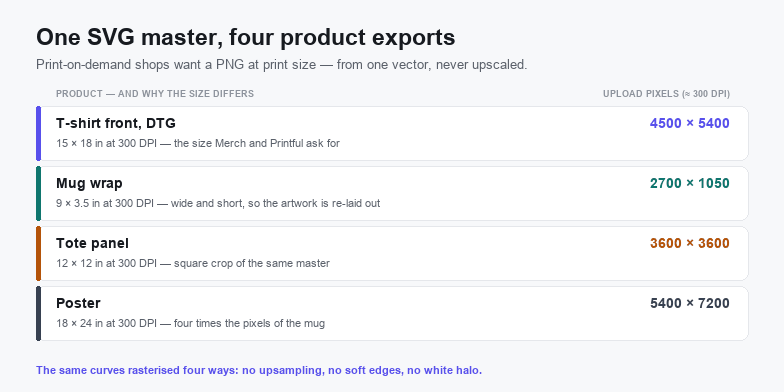
Two consequences follow. First, the pixel size is set by the product, not by the artwork: a 12 × 16 inch print area at 300 DPI is 3600 × 4800 px, and the same design on an 18 × 24 inch poster is 5400 × 7200 px. Second, transparency is load-bearing rather than cosmetic — the printer reads the alpha channel to know where to lay white ink.
Why keep an SVG master at all
If you only ever make one product, skip this section — a good PNG is enough. The master pays off from the second product onward.
- Re-export instead of re-trace. Trace the artwork once. Every new product after that is an export at a different pixel size, not a new conversion with a new set of wobbles.
- Re-layout, not just rescale. A mug wrap is roughly 9 × 3.5 inches: wide and short. The design has to be rearranged for that shape, which only works if the elements are separate paths rather than one merged bitmap.
- Edits stay single-source. Changing one fill in the master and re-exporting forty listings takes minutes. Editing forty flattened PNGs by hand is the job that never gets done, so the catalogue quietly drifts out of brand.
- Text survives poster size. Outlines scale to any print area. A 300 DPI text raster that looks sharp on a tote is already at its limit when the same art is printed 18 × 24 inches.
- The thing you back up stays small. A 12 KB SVG replaces a folder of 30 MB PNGs as the file worth archiving. The exports can always be regenerated; the trace cannot.
The DPI trap: upscaling is not tracing
A 2000 px PNG stretched to 4500 px gains pixels but no information. Every edge becomes an interpolation between two samples, so the contour that prints is a soft gradient several pixels wide rather than a line. On a dark garment this matters more than it does on screen, because the white underbase is derived from that same alpha channel: a soft edge produces a soft underbase, and the white peeks out around the artwork as a pale halo that no colour profile will remove.
Rasterising a vector at final size does not interpolate anything — the renderer evaluates the curve at that resolution, so the alpha edge is as hard as the pixel grid allows. That is the whole reason the master is worth keeping.
Check before you upload. View the export at 100% at print size on a black background. If a light fringe is visible around the artwork, the edge is soft, and no platform setting will fix it after the fact.
Gradients are the other half of the trap. A RIP screens gradients into halftone dots at print time, which reads as smooth on fabric. Trace the gradient into bands first and those bands are baked into the file, so the printer faithfully reproduces the steps. Keep real <linearGradient> definitions in the master and let the RIP do the screening.
Line weight has a floor too. A 1 pt line is about 4 px at 300 DPI, but fabric wicks ink: below roughly 2 px at final size a hairline breaks up on a shirt while still looking fine on a mug. Set the minimum in the master and judge it at print size, not fit-to-window.
A master-file workflow that survives a catalogue
The order matters: get the source right, trace once, then let exports be mechanical.
- Start from the largest source you have. 2000–3000 px on the long edge is the working minimum. Under 1000 px the tracer records softness as shape, and no setting afterwards removes it.
- Clear the background to real transparency. Run the file through the background remover first. A flattened white plate becomes a white rectangle on the garment, and on dark colours it also blocks the underbase.
- Trace at your ink count. Open the PNG to SVG converter and set the colour limit to the number of inks the design actually uses. For flat vector-style art, VTracer gives finer control over curve fitting.
- Set the artboard to the print area. Make the
viewBoxmatch the product ratio — 4:5 for a tee, square for a tote — so nothing is letterboxed by the platform later. Artwork that already has the right ratio never needs re-layout on upload. - Export per product at 300 DPI. One export per canvas: 4500 × 5400 for the tee, 2700 × 1050 for the mug, 5400 × 7200 for the poster. Name the files after the product so a hundred exports stay sortable.
- Inspect on a dark mockup, then shrink the master. Zoom to 100% on black, check the fringe, check the hairline. Then compress the SVG so the archive copy stays small — a one-colour design should land well under 10 KB.
What looks fine on screen and fails on a shirt
- A white background instead of transparency. The most common upload error. It shows up as a printed rectangle on every dark product in the catalogue.
- Semi-transparent edges. Anti-aliasing from the old bitmap becomes a translucent ring when traced at high colour counts. The underbase picks it up and the white shows.
- JPEG ringing. A design saved as JPG grows a pale halo along every high-contrast edge, and the tracer faithfully copies it as an extra colour. Save design sources as PNG.
- Live text instead of outlines. The platform's preview renders
<text>in whatever font the server has, so the design you approve is not the design they print. - Hairlines and one-pixel gaps. Detail that survives on a mug disappears on jersey. Keep the smallest feature at 2 px or more at final size.
- CMYK files. POD is sRGB. A CMYK export shifts every colour on the way in, and the mockup will look nothing like the file you approved.
- Oversized uploads. A 5400 × 7200 PNG can be 40 MB. If the platform caps the size, an indexed PNG with the same pixels lands far smaller without touching the artwork.
When a PNG is already the right answer
Vectorising is not a default. These cases are better served by the raster you already have:
- One product, one size, already at 300 DPI. Nothing will be resized, so nothing is lost by staying bitmap.
- All-over photographic prints. A trace destroys the tonal detail that the product is being sold for. Keep the photo, export it large.
- Mesh and multi-stop gradients. If the RIP screens them better than a trace can approximate them, do not trace.
- Artwork only ever sold as a PNG download. Then the PNG is the product, and the Etsy workflow is the closer match.
For apparel specifically, the print area, DTF transfer and colour-separation detail lives on the SVG for T-shirts page. For dye-sublimation on polyester and coated mugs, the sublimation guide covers bleed and colour limits.
Frequently asked questions
Do print-on-demand platforms accept SVG files?
Not the large ones. Printful, Printify, Redbubble and Amazon Merch on Demand all take a transparent PNG, and Merch accepts PNG only. A few specialist printers accept vector PDF. Either way, keep the SVG as your master and upload a PNG exported from it at the print area's pixel size.
What size PNG do I need for a t-shirt on print on demand?
4500 × 5400 px covers the common 15 × 18 inch canvas at 300 DPI, which is the size Amazon Merch on Demand asks for. Printful prints at 150 DPI but recommends 300, so the same file satisfies both. A mug wrap needs roughly 2700 × 1050 instead — same master, different export.
My source PNG is only 1200 px wide. Will tracing fix it?
No. A trace reproduces the softness it finds: you get mathematically clean curves following blurry contours, plus more nodes than the artwork deserves. A larger original, a redraw, or an AI upscale before tracing are the only real fixes — upscaling after the trace does nothing.
Related SVG Workflows
A print-on-demand catalogue is one output of the same tracing engine. These pages cover the neighbouring jobs.
- SVG for T-shirts — print areas, DTF transfers and separation for apparel.
- PNG to SVG for Etsy — when the SVG itself is the file you sell.
- SVG for sublimation printing — colour and bleed for mugs and polyester.
- PNG to SVG for logo — brand marks that also have to survive at 16 px.
- PNG to SVG converter — the trace step, with a colour limit you control.
- VTracer online — finer curve fitting for flat, geometric artwork.
- SVG compressor — keep the master under 10 KB so the archive stays usable.
Trace it in the browser
Free, no upload, no account. Batch conversion and offline tracing with the desktop app.
Try These Free Online Tools
No download required — convert, compress & optimize SVGs right in your browser
PNG to SVG Converter
The trace step on this page, with a colour limit you control.
Open PNG to SVGBackground Remover
Kill the white plate before it becomes a printed rectangle.
Remove Background