
SVG for Glowforge
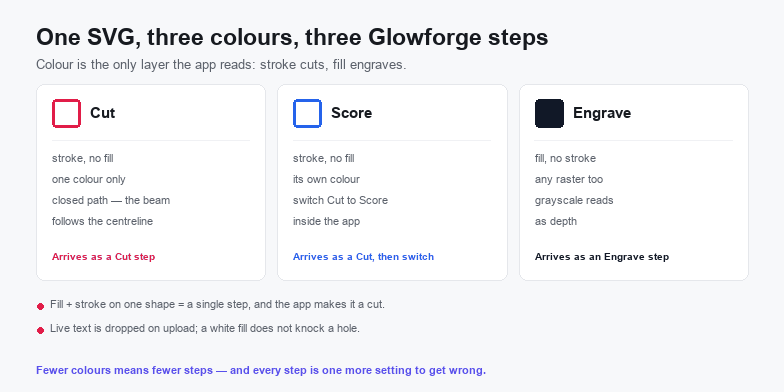
Glowforge reads an SVG as a set of instructions, not as a picture: every stroked path arrives as a cut, every filled shape as an engrave, and each distinct colour becomes its own step with its own settings. Learn that one rule and you can predict what any file will do before you upload it. Ignore it and a single design arrives as nine operations, with the artwork you meant to engrave set to cut straight through the material.
The same rule explains why a PNG cannot cut. A bitmap dropped on the bed can only be engraved, because the beam has no contour to follow. Cutting needs real vector outlines, so the job is always two steps: convert the artwork, then map its colours onto operations.
What the app does with each line of your file
There is no layer panel in the Glowforge app. Colour is the layer. Everything below follows from that, and none of it depends on how the design looks on screen.
| What the file contains | What it becomes | What you can change after upload |
|---|---|---|
| Path with a stroke, no fill | Cut | Switch it to Score, or turn that step off |
| Shape with a fill, no stroke | Engrave | Speed, power, lines per inch, engrave depth |
| Shape with both a stroke and a fill | One step, treated as a cut | Not both: the app assigns a single operation to the shape |
| Embedded JPG or PNG | Engrave, as a raster | Position and size only, never a cut |
| Live text element | Nothing — dropped on upload | Nothing; convert the lettering to paths first |
| Open or unclosed path | Cut or score along the line | Fine as a score, wrong as a cut boundary |
The two rows that catch people are the third and the fifth. A stroke left on a filled shape silently demotes an engrave to a cut, and live text disappears because the app does not carry your desktop fonts.
Why a file that looks right uploads wrong
Every failure below renders correctly in a design program, passes a visual check, and then misbehaves on upload. Each one is fixed in the file, and each fix takes less time than a wasted sheet of material.
- A stroke left on a filled shape. The most common cause of an engrave arriving as a cut. Design programs happily draw a 0.5 pt outline around a fill; the app reads the stroke first and assigns one operation. Strip the stroke, keep the fill, and the shape engraves.
- A white shape that was meant to be a hole. White is still a colour. A small white shape stacked on a larger dark one does not knock a hole in it — the app sees two fills and engraves both, so the finished piece is a solid block. Use a compound path with a real hole, and delete the duplicate.
- Live text. Text uploads as text, then vanishes, because the app does not have the font it was set in. Convert lettering to outlines before export; the file then carries the shapes and nothing can substitute them.
- Duplicate and overlapping cut paths. A second copy of the same outline, often left behind by an edit, makes the head travel that line twice. The result is a widened kerf and a scorched edge. Union overlapping outlines and delete exact duplicates before uploading.
- Thick or stylised strokes. Glowforge's own documentation warns that designs with heavy or decorated strokes may not load as expected. Convert the stroke to an outline path if you need the weight to print as drawn, or rasterise that element and accept that it can only engrave.
Count the colours before you upload. Every colour in the file becomes a step you configure on the bed. If that count is higher than the number of operations you have in mind, the file has leftovers — a stray grey from a gradient, a second red, a white you forgot. Delete colours until the count matches the job.
A three-colour file that cuts, scores and engraves
Three operations, three colours, nothing else in the file. That convention survives revisions if you also name the layers, because the next person to open the artwork will not guess which red was the cut.
- Draw at final size. Set the document to inches or millimetres and match the page to your material, up to the printable area of the machine. Scaling after upload works, but parts that have to fit together lose their exact dimensions.
- Cut lines: one dedicated colour, stroke only, no fill. Pure red is a safe habit. Every cut path must be closed unless you genuinely want a slit rather than a cut-out.
- Score lines: a second colour, stroke only. Same anatomy as a cut line. An open path is perfectly acceptable here, because scoring only draws.
- Engrave areas: a third colour, fill only, no stroke. Different fills give you separate engrave steps if the depth or the finish has to differ. Grayscale fills are useful when you want the engrave to vary in tone.
- Order the steps on the bed. The app loads colours in a fixed sequence and lets you drag steps to reorder them. Put engraves first, scores next and cuts last, so nothing shifts before the detail work is done.
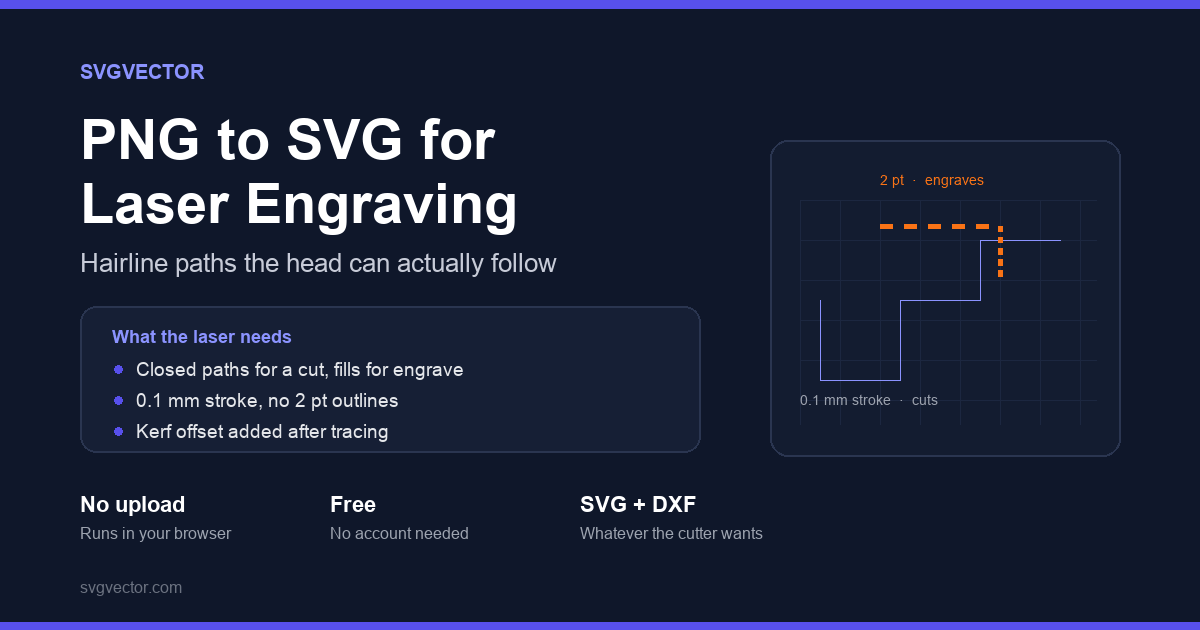
Stroke width is cosmetic on this machine. The beam follows the centreline of the path, so a 0.25 pt line and a 5 pt line cut identically — there is no hairline requirement to satisfy, unlike some other laser software. What does matter is geometry: closed contours, no self-intersections, and overlapping outlines unioned so the head never travels the same line twice.
Scoring has no SVG equivalent. In the file a score line is just another stroked path in its own colour; you switch its operation from Cut to Score inside the app. Design for that from the start — a separate colour earns a separate step, and a separate step is one click to convert.
Size, kerf, and the bed
The printable area depends on the machine: 11 × 19.5 in on the Performance Series, 12 × 12 in on Aura, and a 12 × 20 in canvas when no machine is selected in the app. Design inside that box and you never fight a clamped import; the Pro's pass-through slot handles longer stock, but the file still has to fit the width.
Units are the other half of the problem. An SVG saved with a bare number in width and height has no physical size, so the app has to assume one and the design lands at a scale you did not choose. Export with millimetres or inches in the attributes, or import first and type the finished dimension into the toolbar, then check it against the ruler on the bed view before you press print.
Kerf is the width of material the beam destroys. The laser does not compensate for it, so slots and tabs cut to nominal size come out loose by roughly the kerf — typically a tenth or two of a millimetre per side, and different for plywood, acrylic and draftboard. Inset or outset interlocking parts by that amount, and cut a small test comb in the actual material before committing a full sheet.
From a PNG to a cut file without uploading it
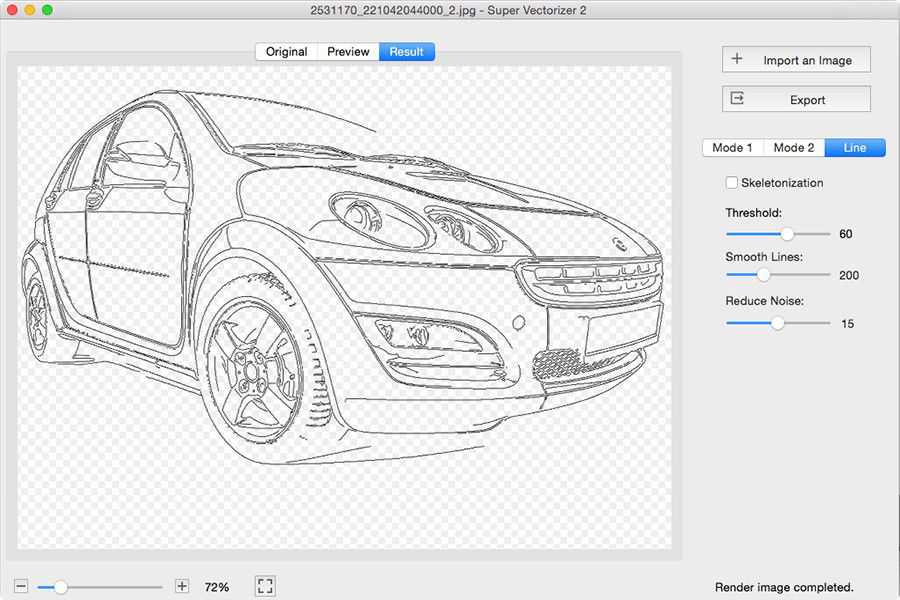
A photograph, a scanned drawing, a screenshot of a logo: none of them can be cut, and all of them can become something that can. The whole route below runs in the browser, reading the file through the local file API, so the artwork is never posted to a server — which is the point when the file is a client's or the only copy you have.
- Start from the largest source you own. A trace reproduces the softness it finds. Under about 1,000 px on the long edge, the wobbly edge is baked in and no setting removes it.
- Remove the background. The background remover turns a flattened white box into real transparency, so a stray rectangle does not end up as an engrave step.
- Trace to contours. Open the PNG to SVG converter and limit the palette to the number of inks you actually want to handle. If the edges have to be exact, the VTracer page exposes the curve fitting and corner threshold separately.
- Reduce the output to three colours. In the SVG editor, recolour every path onto your cut, score and engrave colours. This is the step that decides how many operations you configure later.
- Close and clean the cut contour. Delete specks, union overlapping outlines, and make sure the outer boundary is a single closed path. A 3 px hole in the contour becomes a 3 px leak in the finished part.
- Compress before you send it. Compressing the SVG strips editor metadata without touching geometry, and a smaller file uploads faster on a slow connection.
If the artwork is heading to CAD or a CNC router rather than a laser, DXF is the better handoff: the PNG to DXF converter page covers where DXF wins and where it loses detail.
What still catches people out
- A raster hidden inside the SVG. Embedding a photo in a vector file does not make it cuttable. The bitmap is still a bitmap, and the app can only engrave it.
- DXF needs a paid plan. The app accepts JPG, PNG, SVG and PDF; DXF is limited to Premium members. Export SVG unless the design came from CAD in the first place.
- Gradients. A gradient fill will not separate into inks and will not cut. If the design depends on one, engrave it as a raster and cut a separate outline.
- Hidden and locked layers. They still upload. Hide a construction line rather than delete it and it arrives as a cut you did not plan.
- Two near-identical colours. Two greys are two steps. That is useful for engrave depth and fatal for a cut line you meant to be a single operation.
Frequently asked questions
Does Glowforge accept SVG files?
Yes, and SVG is the format to use for anything that cuts. SVG and PDF carry vector paths for both cutting and engraving; JPG and PNG are accepted for engraving only. DXF imports are limited to Premium members.
Why is my SVG showing as a cut instead of an engrave?
Because the shape has a stroke. The app treats any stroked path as a cut and assigns one operation per shape, so a fill with an outline around it is read as a cut. Remove the stroke and keep the fill; if you need the outline visible, convert it to an outline path on its own colour.
Can I cut a PNG on a Glowforge?
No. A PNG can only be engraved because there is no path for the beam to follow. Trace it to vectors first, then map the resulting colours to cut, score and engrave steps. The PNG to SVG for laser engraving page covers the trace settings that keep a contour closed.
Related SVG Workflows
Glowforge is one machine on the same laser workflow. These pages cover the rest of it.
- SVG for laser cutting — stroke colour, kerf and path rules that apply to any laser, Glowforge included.
- SVG for laser cutting guide — the longer walkthrough, including power and speed testing.
- PNG to SVG for laser engraving — what changes when the source is a bitmap rather than artwork.
- Image vectorizer for laser cutting — separating an image into cut and engrave layers.
- SVG for wood signs — the material side of the same job, from grain to finishing.
- PNG to DXF — when the next machine is a CNC router rather than a laser.
- SVG editor — recolour paths onto cut, score and engrave before the upload.
Make the file in your browser
Free, no upload, no account. Batch conversion and offline tracing with the desktop app.
Related Articles
Try These Free Online Tools
No download required — convert, compress & optimize SVGs right in your browser
PNG to SVG Converter
The trace step above, with a colour limit you control.
Open PNG to SVGBackground Remover
Kill the white plate before it becomes an engrave step.
Remove Background