
The best image vectorizer in 2026 is Super Vectorizer Pro for privacy-first desktop use, Vectorizer.AI for photo-grade AI color tracing, and Adobe Illustrator for full editing control — but the real answer depends on whether your priority is local conversion, AI quality, or a free open-source tool. This guide compares six top picks side by side, with an honest breakdown of price, platform, offline support, batch capability, and best use case. Super Vectorizer Pro is intentionally a one-at-a-time desktop workflow, so it is marked accordingly in the comparison table below. If you are choosing the best image vectorizer for a one-off task or a recurring weekly workflow, the comparison table and the verdict above should give you enough to decide in under five minutes.
Skip the cloud queue. Super Vectorizer Pro converts one image at a time, locally on your machine — no upload, no account.
Compatible with macOS 10.10+ (M1/M2/M3) & Windows 7/8/10/11
Our Verdict
After testing six raster-to-vector tools on the same set of PNG and JPG inputs, the short answer is that desktop tools win on privacy, AI tools win on photo realism, and open-source editors win on flexibility. The "best image vectorizer" is whichever one matches the workflow you actually run. Whether you need high-fidelity vector tracing of a photograph or a quick raster to vector pass on a flat logo, the right tool depends on the input file, your tolerance for upload, and whether you want AI inference or classical tracing.
Desktop Apps Win on Privacy & Control
- File never leaves your computer
- Predictable node counts and palette size
- Works without an internet connection
- One-time purchase, no subscription
Cloud AI Vectorizers Win on Photo Realism
- Highest color fidelity on photographs
- No install, runs in any browser
- Often gated behind email or subscription
- Requires uploading the source image
What "Best Image Vectorizer" Actually Means in 2026
The phrase "best image vectorizer" is doing a lot of work. People searching for it usually mean one of three things: the most accurate color tracer for photographs, the cleanest line-mode vectorizer for logos and Cricut work, or simply the easiest raster to vector tool that runs on the device they already own. There is no single winner across all three, which is why every roundup on this topic eventually settles into a shortlist of two or three tools rather than one absolute pick.
A real best image vectorizer comparison needs to weigh at least four things: the engine type (AI inference vs classical vector tracing), the runtime model (local desktop, browser PWA, or cloud server), the cost model (free, one-time, or subscription), and the file types supported. Skipping any one of those dimensions is how a "best of" list ends up recommending a $20/month cloud service for a user who needs a one-off Cricut SVG, or a free open-source editor to a designer who needs color-accurate photo tracing on a deadline.
For this comparison, we treat "best" as the tool that scores highest on the factors that matter for the specific artwork: file type, color complexity, privacy expectations, and the device you are working on. A Cricut hobbyist who traces one logo per week has different needs than a designer who traces a hundred client photos per day, and the table below makes that distinction visible. Super Vectorizer Pro, for example, is deliberately optimized for the privacy-first local workflow rather than bulk raster to vector conversion or AI auto-everything.
The 6 Best Image Vectorizer Picks for 2026
Each card below lists a tool, its realistic pricing tier, and the category it actually fits. Tags indicate whether the option is genuinely free, has caveats, or is a paid desktop app. Read the cards in order or jump straight to the comparison table below if you want the numbers first. The mix is intentional: we cover one AI raster to vector engine, two traditional vector tracing engines, one open-source editor, and one browser-only option, so the table below reflects the real choice users face when picking the best image vectorizer. Together they cover every credible category the best image vectorizer conversation reaches in 2026.
1. Super Vectorizer Pro
One-time purchase Mac & Windows app. Processes one image at a time locally, no account, no upload. Free trial to preview results.
Learn more →2. Vectorizer.AI
Web-based AI tracer with photo-grade color fidelity. Free preview, but full-resolution SVG export requires sign-up and a paid plan.
See full review →3. Adobe Illustrator
The professional standard for vector editing with a powerful Image Trace panel. Subscription-based, runs offline as a desktop app.
4. Inkscape
Open-source vector editor for Mac, Windows, and Linux. Built-in Trace Bitmap panel handles color, grayscale, and line art with no quota.
5. Vector Magic
Desktop and web vectorizer aimed at logo and stencil work. Subscription pricing, paid perpetual desktop license also available.
6. SVGVector Online
Browser-based raster-to-SVG converter on this site. No account, no upload beyond the conversion endpoint, designed for quick one-off tasks.
Try it now →Best Image Vectorizer: Side-by-Side Comparison
This table compares the same six tools on the factors that matter when you actually have to pick the best image vectorizer for your task. The batch-support column refers to converting many files in one session; Super Vectorizer Pro is intentionally a one-at-a-time workflow, so it is marked accordingly. Output quality is judged against a standard set of PNG and JPG inputs that exercise both vector tracing on line art and raster to vector conversion on full-color photographs. The "best for" column reflects the typical user rather than the absolute ceiling of the engine.
| Tool | Price | Platform | Offline? | Batch | Output Quality | Best For |
|---|---|---|---|---|---|---|
| Super Vectorizer Pro | $29.99 one-time | Mac / Win (desktop) | Yes | No (one at a time) | Excellent (color + line) | Privacy-first local vectorization |
| Vectorizer.AI | From $9.95 / month | Web (cloud AI) | No | Yes (paid plans) | Outstanding (photos) | Photo-grade AI color tracing |
| Adobe Illustrator | $22.99 / month | Mac / Win (desktop) | Yes | Yes (Actions) | Excellent (logos + line) | Full vector editing & print |
| Inkscape | Free (open source) | Mac / Win / Linux | Yes | Yes (scripted) | Good (line + simple color) | Logos, line art, full editing |
| Vector Magic | From $9.95 / month | Mac / Win / Web | Yes (desktop) | Yes (paid plans) | Excellent (logos + photos) | Cricut, laser, stencil workflows |
| SVGVector Online | Free | Web (browser) | No | No | Good (general use) | Quick one-off conversions |

Why a Desktop App Is Often the Best Image Vectorizer for Privacy
Every cloud AI vectorizer processes your file on a remote server. The strongest privacy policies say uploaded files are deleted within minutes and are not used for training, but you are still sending the original raster — and any EXIF metadata it contains — to a third party. For an unreleased product photo, a client logo, a medical diagram, or a copyrighted illustration that is not an acceptable tradeoff.
This is the single biggest reason privacy-focused users treat desktop apps as the default "best image vectorizer" pick. A local desktop app or a browser PWA that runs WebAssembly cannot accidentally leak your file because the bytes never leave your machine. Super Vectorizer Pro is designed for exactly that workflow: install once, drag a PNG or JPG onto the window, pick a tracing mode (color, grayscale, line), and export the SVG to a folder of your choice. The free trial lets you preview results before you buy. For users who need a clean raster to vector output without ever hitting a remote API, the desktop route is the most reliable answer.
No upload, no quota, no subscription. Super Vectorizer Pro runs locally on Mac or Windows and processes one image at a time.
Compatible with macOS 10.10+ (M1/M2/M3) & Windows 7/8/10/11
When Cloud AI Vectorizers Earn Their Spot
For photograph-to-vector conversion, no local engine in 2026 matches the color fidelity of a cloud AI tracer. Vectorizer.AI in particular is tuned for the photographic use case — skin tones, gradients, subtle textures — and produces SVGs that look surprisingly close to the source image at small color counts. For one-off hero images, blog illustrations, or print art derived from a photograph, that realism matters and beats classical vector tracing on the same input. That is exactly the use case the best image vectorizer in the cloud category was built for: convert a single photograph and accept the upload.
The trade-off is the upload, the subscription, and the per-file cost once you exceed the preview limit. For designers who trace one photograph a week, the math is easy. For users who need to vectorize dozens of client photos a day, the per-file pricing and the upload round-trip quickly add up. That is the line where a local AI-capable desktop tool like Super Vectorizer Pro starts to look like the better long-term answer — it gives you the same raster to vector capability without the recurring subscription, and the file never leaves the laptop. For agency-scale photo tracing, the best image vectorizer choice is almost always a desktop install for the same reason.
Open-Source Picks: Inkscape and VTracer
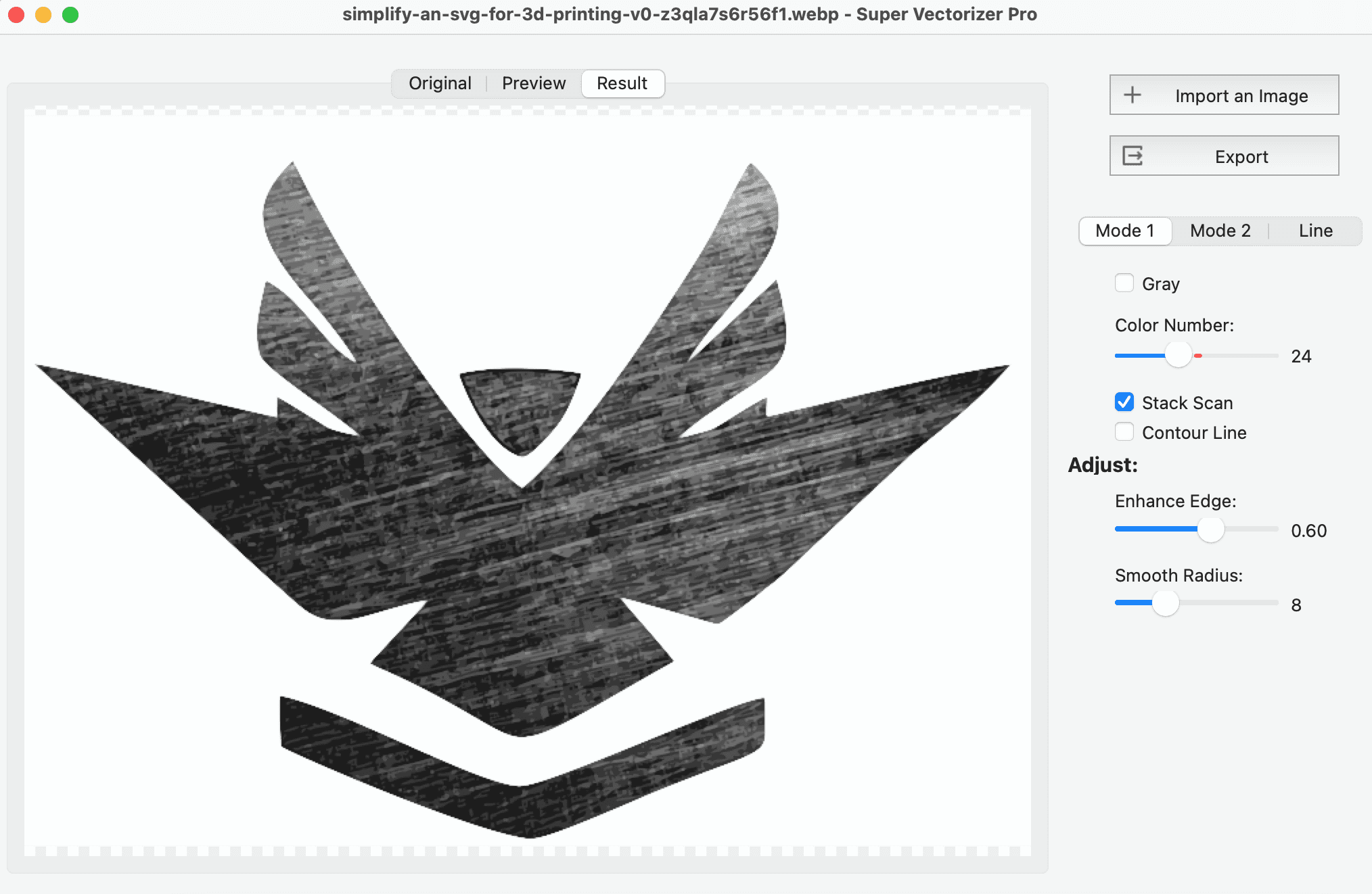
If your priority is "free forever, no login, no quota," the only category that genuinely delivers is open-source. Inkscape is a full desktop vector editor with a Trace Bitmap panel that handles color, grayscale, and line art via its built-in Potrace vector tracing engine; it runs on Mac, Windows, and Linux. VTracer is a lighter command-line tool written in Rust that focuses on raster to vector conversion and can be scripted to convert an entire folder without opening a window.
Both are free, both are local, and neither requires an account. The trade-off is effort: Inkscape has a steeper learning curve than a one-click web tool, and VTracer requires comfort with a terminal. For designers who already know Inkscape it is the obvious pick; for developers, VTracer is a clean complement to a build pipeline. The table above lists Inkscape's batch capability as "yes (scripted)" because the GUI does not expose bulk, but a script can automate it. As open-source vector tracing engines go, they remain the reference implementation the commercial tools are measured against.
How to Pick the Best Image Vectorizer for Your Workflow
The exact steps depend on what you are tracing and how often, but the decision is the same regardless of which tool wins. Treat the framework below as a five-question checklist before you commit to a subscription or a desktop install. The goal is to land on the best image vectorizer for your specific raster to vector workload, not to pick whichever tool ranks first on someone else's blog post.
- Decide whether the file ever leaves your computer. If the answer is no, you need a desktop app such as Super Vectorizer Pro or an open-source editor like Inkscape. If you are okay with a remote server handling the conversion, a web AI vectorizer such as Vectorizer.AI is faster to try. This single question eliminates half of the best image vectorizer candidates before you start comparing.
- Match the tool to the artwork. Photos and complex color art do best on an AI tracer or a color-mode desktop engine. Logos and line art usually look cleaner on a traditional tracer with line or poster mode.
- Check the export format you need. All tools on this list export SVG, but only some preserve editable paths or layer structure. If you intend to refine the file in Illustrator or Affinity, pick a tool that exports editable SVG, not flattened paths.
- Test before you commit. Most desktop apps and web tools offer a free trial or free preview. Run one representative image through the candidate tool before you pay, and compare the result against the table on this page.
- Lock in the tool that fits your weekly volume. Casual one-off conversions are fine on a free browser tool. Daily professional work usually pays for itself with a one-time desktop purchase that runs offline and processes files one at a time on your machine. After this checklist, the best image vectorizer for your workflow is usually obvious — and if it is not, you have at least narrowed the shortlist to two.
Related SVG Workflows
Once you have picked the best image vectorizer for your case, the next step is usually editing, compressing, or preparing the SVG for a specific workflow. These guides cover the most common follow-ups.
- Best Free Image Vectorizer Tools 2026 — a broader roundup focused on the free tier.
- Best Free AI Vectorizer Tools 2026 — side-by-side review of every AI vectorizer we could test.
- Image to Vector AI Free Without Login: 6 Truly No-Signup Tools — privacy-first shortlist.
- PNG to SVG Figma Guide — using Figma as part of the vectorization pipeline.
- SVG Compressor Online — shrink the SVG output before shipping it.
- Image Trace Online Free Guide — five truly free tools for quick browser-based traces.
- PNG to SVG Online
- Super Vectorizer Pro vs Vectornator (Linea) 2026: Offline Vectorizer vs Free Design App — head-to-head: one-time offline vectorizer vs the free Vectornator design app.
- Super Vectorizer Pro vs CorelDRAW 2026: One-Time Offline Vectorizer vs Full Design Suite — head-to-head: one-time offline vectorizer vs the CorelDRAW subscription suite.
- Best Free Image Vectorizer Reddit 2026: What the Communities Actually Recommend — what Reddit communities actually upvote for free image vectorizers.
- Vectorizer AI Free Download 2026: What You Can Actually Install for $0 — what you can actually install for free versus browser-only Vectorizer.AI.
Frequently Asked Questions About the Best Image Vectorizer
The questions below are the ones we hear most often when people are comparing the best image vectorizer for their specific workflow. If yours is not here, the workflow section above walks through the decision in five steps.
What is the best image vectorizer in 2026?
The best image vectorizer in 2026 depends on the workflow. For privacy-first local conversion, Super Vectorizer Pro is the most reliable desktop pick. For photo-grade AI color tracing, Vectorizer.AI leads the web category. For full editing control, Adobe Illustrator remains the professional standard. For free, unlimited, offline use, Inkscape is the obvious open-source choice. For quick one-off conversions, SVGVector Online handles the same task in your browser. If you have to pick a single best image vectorizer and you care about file privacy, install Super Vectorizer Pro — it is the only option on this list that combines local processing, full export, and a one-time price.
Should I use an AI vectorizer or a traditional one?
AI vectorizers excel at photos and complex color art because they infer shapes, while traditional engines give precise, predictable control over path counts and smoothing. For logos and line art, a traditional vector tracing engine often matches or beats AI on quality. Super Vectorizer Pro bridges both with automatic and manual modes, so you can preview an AI-style result and refine it with classical controls if needed. If the best image vectorizer for your workflow has to handle both a flat logo and a full-color photograph, look for a tool that exposes both engines — most do not.
Do any image vectorizers work fully offline?
Yes — desktop apps such as Super Vectorizer Pro and the open-source Inkscape run entirely on your machine, so they work offline with no upload and no quota. Browser-based vectorizers typically require a first-time connection to load the WebAssembly engine, then continue to function without the network. Pure cloud AI vectorizers cannot work offline at all. For the best image vectorizer experience on a plane, train, or in a secure facility, a desktop app is the only reliable category.
Which image vectorizer is best for Cricut, laser cutting, or vinyl?
For Cricut, vinyl cutters, and laser engravers, the best image vectorizer is one that produces clean single-path or low-color SVGs with predictable node counts. Super Vectorizer Pro and Inkscape both offer line-art and poster presets that strip out stray pixels before exporting. Vectorizer.AI works well for photos that need to become decals, but for stencil-style output the local desktop tools give tighter control. For a hobbyist asking what the best image vectorizer is for a weekend Cricut project, the answer is almost always a desktop app — you will trace once, export once, cut once, and never want to deal with a sign-up wall mid-flow.
Can a free vectorizer really replace a paid one?
For one-off conversions and casual use, a free tool such as Inkscape or SVGVector Online is often enough. The trade-off shows up at scale: free tools rarely include batch processing, full-resolution AI tracing, or dedicated color palettes. A paid desktop app pays for itself when you convert dozens of files a week or need commercial-grade output. If "the best image vectorizer" on your shortlist is free, treat the free pick as your everyday tool and keep a paid option on standby for the workload that justifies it.
Will the best image vectorizer keep my files private?
Only desktop apps and browser PWAs that run locally keep your files private. Any cloud AI vectorizer uploads the original raster — including EXIF metadata — to a remote server. For sensitive work such as client logos, product photos, or unreleased designs, a local desktop vectorizer like Super Vectorizer Pro is the safer choice. That is also the reason the best image vectorizer for agency work, medical diagrams, and copyrighted illustrations is almost always a desktop install rather than a browser tab.
Skip the Queue — Install the Best Image Vectorizer Locally
Super Vectorizer Pro is a one-time purchase that runs on Mac or Windows, processes one image at a time on your machine, and never uploads your file. Free trial to preview results before you buy.
Compatible with macOS 10.10+ (M1/M2/M3) & Windows 7/8/10/11
Related Articles


Try These Free Online Tools
No download required — convert, compress & optimize SVGs right in your browser
PNG to SVG Converter
Convert PNG, JPG, BMP images to scalable vector graphics instantly
PNG to SVG ConverterSVG Compressor (Mini)
Reduce SVG file size by up to 80% without losing quality
SVG Compressor OnlineSVG Optimizer
Clean up SVG code, remove redundant data and optimize for web
SVG Optimizer OnlineJPG to SVG Converter
Turn JPEG photos into crisp vector artwork in seconds
JPG to SVG ConverterEPS to SVG Converter
Convert EPS vector files to web-friendly SVG format
EPS to SVG ConverterAll Free Tools
Browse our complete collection of free online conversion tools
Browse All Free Tools