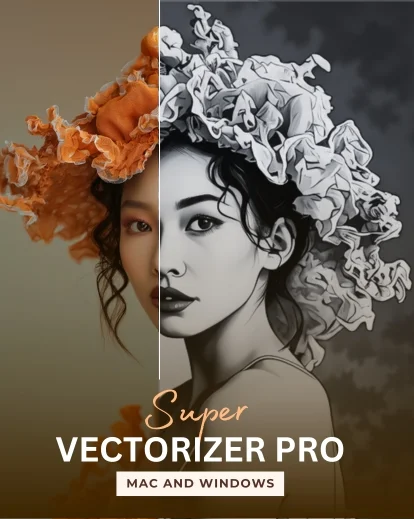
The only way to convert an image to vector AI free without login in 2026 is to use a tool that runs locally on your machine or entirely in your browser: open-source desktop software like Inkscape and VTracer, browser-based PWAs like SVGcode, or paid desktop apps like Super Vectorizer Pro that need no account at all. Most "free" AI vectorizers advertised online still demand an email after one or two conversions, so they fail the no-login test even when they look free. Below is a curated list of six tools that genuinely require zero sign-up, plus a short comparison and a workflow you can follow without ever creating an account.
Want zero login and zero upload? Super Vectorizer Pro runs locally — no account, no email, no server.
Compatible with macOS 10.10+ (M1/M2/M3) & Windows 7/8/10/11
Our Verdict
If "without login" is non-negotiable, skip the AI-vectorizer land grab and pick a tool that runs locally. Desktop apps and open-source projects are the only category that can guarantee a truly anonymous workflow, because nothing leaves your computer.
Local / Offline Tools Win on Privacy
- No upload to a third-party server
- No account, email, or sign-in
- Unlimited use with no quota
- Works without an internet connection
Web AI Vectorizers — Use With Caution
- Faster to try in a browser
- Often gated by email after 1-2 conversions
- Files pass through a remote server
- Free tier is usually low resolution
What Does "Image to Vector AI Free Without Login" Actually Mean?
Search results for this phrase mix three very different promises. A genuine no-login vectorizer is one that lets you convert a raster image (PNG, JPG, BMP, WebP, GIF) to SVG without creating an account, entering an email, or authenticating with Google, Apple, GitHub, or any social provider. The conversion happens either in your browser through WebAssembly or on your machine as native code, so the tool never has to identify you.
By contrast, many tools that say "free" still ask for an email after the first conversion. They use a freemium model: the first preview is free, but exporting the full-resolution SVG requires an account. Those are not no-login tools — they are teaser pages that funnel you into a sign-up wall. If preserving your privacy matters, the moment a tool asks for your email you have already lost the anonymous workflow, because your address is now tied to the file you uploaded.
For this guide we use the stricter definition: open the tool, drop in your image, get an SVG, save the file, close the tab. No email, no account, no third-party server storing the original.
The 6 Best Image to Vector AI Free Without Login Tools in 2026
Each card below lists the tool, the realistic login requirement, and how it handles your file. Tags indicate whether the tool is genuinely free, has caveats, or is a paid offline option.
1. Inkscape (Desktop)
Full open-source vector editor with a built-in bitmap tracer. Runs offline on Mac, Windows, Linux. No login, no quota, unlimited use.
2. VTracer (CLI / Open Source)
Command-line raster-to-SVG tracer from the image-tracing community. 100% local, no account. Best for developers comfortable with a terminal.
3. SVGcode (Browser PWA)
Progressive web app that runs in your browser via WebAssembly. Install once, then vectorize offline. No sign-up; the original file never leaves your device.
4. Autotracer.org (Web)
Online vectorizer that processes standard raster formats without an account, but uploads to a remote server for conversion. Read the privacy note.
5. Vectorizer.AI (Web)
High-quality AI tracer with a limited free preview. Full-resolution export requires sign-up and a paid plan, so it does not meet the strict no-login bar.
6. Super Vectorizer Pro (Mac/Win)
One-time purchase desktop app. Processes one image at a time locally, no account, no email, no server. Free trial to preview results.
Free vs Login-Required vs Offline: Side-by-Side Comparison
This table compares the same six tools on the factors that matter when "no login" is the deal-breaker. The batch-support column applies to converting many files in one run; Super Vectorizer Pro is intentionally one-at-a-time, so it is marked accordingly.
| Tool | Price | Platform | Login? | Offline? | Batch | Best For |
|---|---|---|---|---|---|---|
| Inkscape | Free (open source) | Mac / Win / Linux | None | Yes (desktop) | Yes (one-by-one or scripted) | Logos, line art, full editing |
| VTracer | Free (open source) | Mac / Win / Linux (CLI) | None | Yes (local) | Yes (scripted) | Developers & batch jobs |
| SVGcode | Free | Any modern browser (PWA) | None | Yes (after first load) | No | Quick offline vectorization |
| Autotracer.org | Free | Web | None | No | No | Casual one-off conversions |
| Vectorizer.AI | Free preview / paid plans | Web | Required for export | No | No | Photo-grade AI color tracing |
| Super Vectorizer Pro | One-time purchase | Mac / Win (desktop) | None | Yes (desktop) | No (one at a time) | Privacy-first local vectorization |
"Free" Tools That Still Ask for an Email
Even some of the most popular AI vectorizers hide an email gate after the first conversion. Vectorizer.AI lets you preview one image without an account, but exporting the full-resolution SVG requires sign-up. Several Canva-style "AI image to SVG" tools look free but redirect you to a workspace login once you try to download. These sites are not bad products — they simply do not match the strict no-login brief, so they are listed for transparency.
If your goal is to convert a single image quickly and never create an account, treat the word "free" on a landing page as the first sentence of a longer story. Look for a "Privacy" or "Data" link before you upload; if the policy says "files are stored for X hours" you are not in a no-login workflow, you are in a delayed-deletion one.
Privacy Risks: What Happens to Your Image on a "Free" AI Server
Every cloud vectorizer processes your file on a remote server. The strongest privacy policies say uploaded files are deleted within minutes and are not used for training, but you are still sending the original raster — and any EXIF metadata it contains — to a third party. For a public meme that is harmless; for an unreleased product photo, a client logo, a medical diagram, or a copyrighted illustration it is a different story.
This is the single biggest reason privacy-focused users insist on no-login tools. A local desktop app or a browser PWA that runs WebAssembly cannot accidentally leak your file because the bytes never leave your machine. For sensitive work, treat "offline" and "no login" as the same requirement.
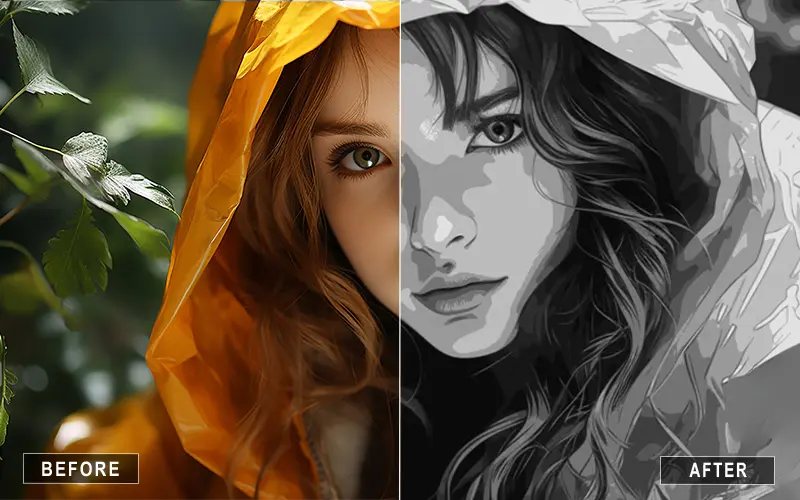
No login, no upload, no quota — Super Vectorizer Pro processes one image at a time, entirely on your Mac or PC.
Compatible with macOS 10.10+ (M1/M2/M3) & Windows 7/8/10/11
Why a Desktop App Is the Easiest Way to Stay No-Login
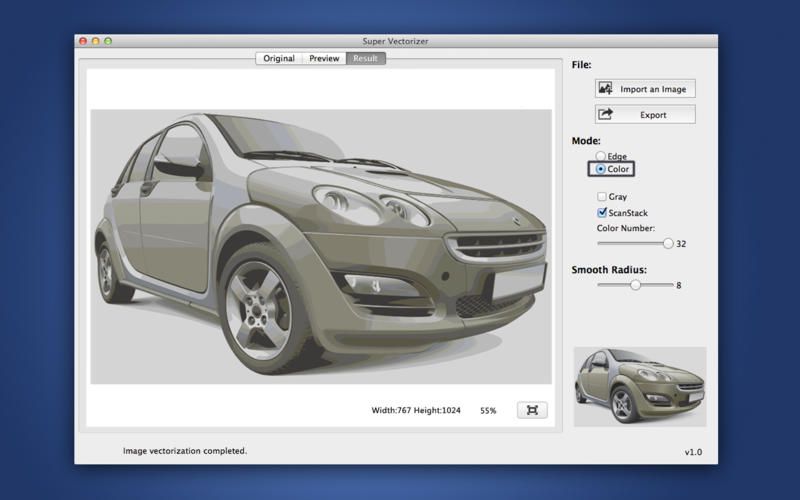
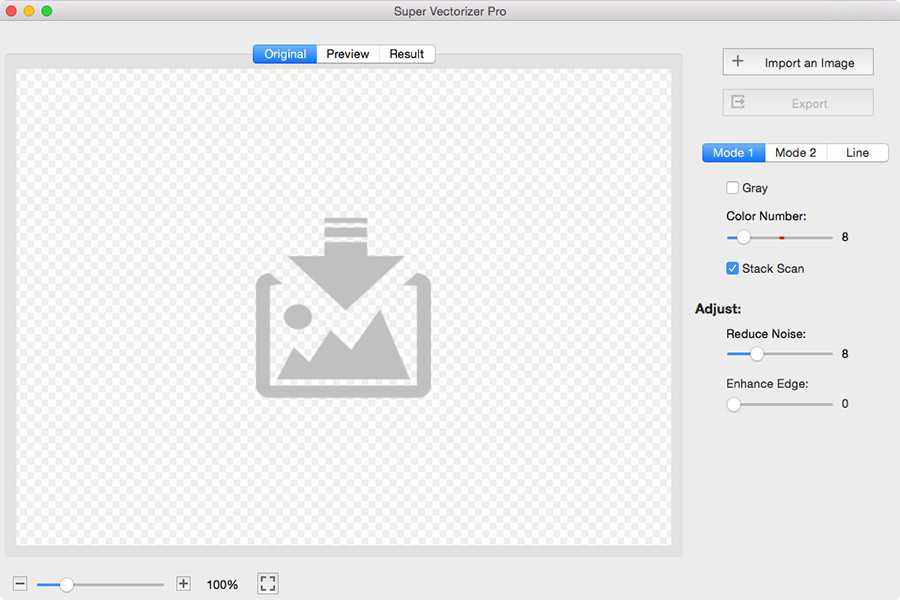
Browser PWAs like SVGcode are great in theory, but they still depend on a browser cache and a working WebAssembly build, and they cannot easily process hundreds of images. A native desktop app like Super Vectorizer Pro removes every browser dependency: you install it once, drag a PNG or JPG onto the window, pick a tracing mode (color, grayscale, line), and export the SVG to a folder of your choice. The free trial lets you preview raster-to-vector results before you buy.
For users who need a no-login vectorizer without the terminal and without a browser, a paid desktop app is the most reliable option. It costs more than a free tool but it eliminates account friction, server uploads, and usage caps. If you process sensitive or client work, that tradeoff is usually worth it.
Open-Source Alternatives: Inkscape and VTracer
If you prefer a community-maintained tool, Inkscape and VTracer are the two open-source projects that consistently appear in any no-login vectorizer roundup. Inkscape is a full desktop vector editor with a Trace Bitmap panel that handles color, grayscale, and line art. VTracer is a lighter command-line tool written in Rust that focuses on raster-to-SVG and can be scripted to convert an entire folder without opening a window. Both are free, both are local, and neither requires you to create an account.
The tradeoff is effort. Inkscape has a steeper learning curve than a one-click web tool, and VTracer requires comfort with a terminal. For designers who already know Inkscape it is the obvious pick; for developers, VTracer is a good complement to a build pipeline.
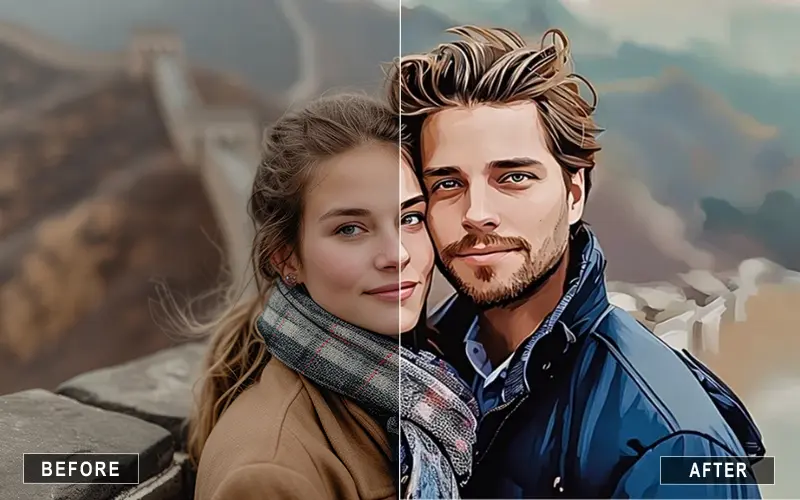
How to Vectorize an Image Without Login or Sign-Up
The exact steps depend on the tool, but the workflow is similar across every option that genuinely requires no account.
- Pick a tool that truly requires no account. Choose an offline-capable browser PWA such as SVGcode, an open-source desktop app such as Inkscape or VTracer, or a paid desktop app such as Super Vectorizer Pro. Avoid web tools that ask for an email after the first conversion — that is a freemium gate.
- Import your image. Open the tool and drop in a PNG, JPG, BMP, or another raster format. Because you are not uploading to a remote server, the file never leaves your machine.
- Pick a tracing mode and preview. Color mode works best for photos and brand art; grayscale for monotone work; line mode for logos and line art. Adjust the color count or smoothing slider if the tool exposes one.
- Export the SVG. Save the SVG locally. If the preview is not clean enough, lower the node cleanup, raise the path detail, or re-trace from a larger source image.
Related SVG Workflows
Once you have a clean SVG, the next step is usually editing, compressing, or preparing it for a specific workflow. These guides cover the most common follow-ups.
- Image Trace Online Free: 5 Truly Free Tools in 2026
- PNG to SVG High Quality in 2026
- PNG to SVG with Color: Keep Color When Converting
- Best Free Image Vectorizer Tools 2026
- SVG Compressor Online — Reduce SVG file size before exporting.
- SVG Editor Online Free: Edit & Modify SVG Files
- PNG to SVG AI Reddit Community Guide
- PNG to SVG Online — Convert PNG images to SVG directly in your browser.
- Best Free Image Vectorizer Reddit 2026: What the Communities Actually Recommend
- Photo to SVG Converter — Vectorize photos and portraits for engraving or print.
- Register Super Vectorizer for Mac — Step-by-step activation guide for the Mac edition.
- Vectorizer AI Free Download 2026: What You Can Actually Install for $0
Frequently Asked Questions
What does "image to vector AI free without login" actually mean?
It means a tool that converts raster images to SVG without asking you to create an account, hand over an email address, or sign in via Google or Apple. The truly anonymous tools either run entirely in your browser (PWA or WebAssembly) or are local desktop software. Many tools that advertise themselves as free still pop up an email gate after one or two free conversions — those do not count as "without login" in this guide.
Is there an AI vectorizer that is 100% free, no sign-up, and unlimited?
Only open-source projects such as VTracer and Inkscape qualify as both 100% free and unlimited. They run locally on your machine with no server calls, so there is no quota. Commercial AI vectorizers usually meter free use or hide full-resolution output behind a login. For unlimited personal use, a local desktop tracer like Super Vectorizer Pro or Inkscape is the most reliable option.
Do "free" online image to vector AI tools keep my images?
Most free web vectorizers process your file on a remote server. The strongest privacy policies say files are deleted within minutes, but you are still uploading the original raster — and any metadata it contains — to a third party. For product photos, client work, or anything sensitive, a local desktop tool that never sends the file anywhere is the safer choice.
Can I vectorize a PNG or JPG without an account on mobile?
On a phone, your best no-login option is an offline-capable browser app that installs as a PWA, such as SVGcode, or a true native app that runs locally. Most mobile browsers block file uploads without a network connection, so web tools that truly work offline are rare. For repeated mobile vectorization, install a desktop-class tool on your computer and AirDrop or transfer files instead.
Will AI vectorization work as well as a traditional desktop tracer?
AI tracers excel at photos and complex color art because they infer shapes, while traditional engines give precise, predictable control over path counts and smoothing. For logos and line art, a traditional engine often matches or beats AI on quality. Super Vectorizer Pro bridges both with automatic and manual modes, so you can preview an AI-style result and refine it with classical controls if needed.
The Shortcut to No-Login Vectorization
Install Super Vectorizer Pro once and skip the email gates forever. One-time purchase, free trial to preview results, processes one image at a time locally on Mac or Windows.
Compatible with macOS 10.10+ (M1/M2/M3) & Windows 7/8/10/11
Related Articles


Try These Free Online Tools
No download required — convert, compress & optimize SVGs right in your browser
PNG to SVG Converter
Convert PNG, JPG, BMP images to scalable vector graphics instantly
PNG to SVG ConverterSVG Compressor (Mini)
Reduce SVG file size by up to 80% without losing quality
SVG Compressor OnlineSVG Optimizer
Clean up SVG code, remove redundant data and optimize for web
SVG Optimizer OnlineJPG to SVG Converter
Turn JPEG photos into crisp vector artwork in seconds
JPG to SVG ConverterEPS to SVG Converter
Convert EPS vector files to web-friendly SVG format
EPS to SVG ConverterAll Free Tools
Browse our complete collection of free online conversion tools
Browse All Free Tools