
Getting a PNG to SVG in Figma means turning a bitmap image into editable vector paths you can recolor, scale, and reuse inside your design files. Figma is a brilliant interface and prototyping tool, but it was never built to be a raster-to-vector tracer — its tracing relies on third-party plugins that often produce messy, overlapping paths. The workflow that consistently works is simple: vectorize the PNG with a dedicated AI tracer first, then import the finished SVG into Figma. Below we explain why, compare Figma's plugins against desktop AI vectorizers, and walk through the exact steps so your icons and illustrations stay crisp at any size.
Ready to prepare assets for Figma? Try Super Vectorizer Pro free trial to preview AI vectorization results on your own machine.
Compatible with macOS 10.10+ (M1/M2/M3) & Windows 7/8/10/11
Can Figma Convert a PNG to SVG Directly?
Figma can place a PNG and even outline a traced version through community plugins, but it does not ship a robust built-in PNG-to-SVG engine. When you drop a PNG onto the canvas, Figma stores it as a bitmap — it stays pixel-based no matter how far you zoom. Tracing plugins attempt to fix this, but they tend to struggle with:
- Complex color regions: Photos and gradients come out as hundreds of tiny, tangled paths.
- Transparent edges: Anti-aliased edges often trace as a hard halo instead of a smooth boundary.
- Consistency: Two runs of the same plugin can produce different path structures, which hurts design-system reuse.
For production UI work, designers get more reliable results by tracing the PNG outside Figma and importing a clean SVG. If you want a deeper look at high-quality tracing in general, see our PNG to SVG high quality guide.

Why You Need a Real PNG to SVG for Figma
A true vector SVG changes how you work inside Figma. Once a logo or icon is traced into paths, you can:
- Recolor on the fly: Swap a brand color across every instance by editing the fill, not by re-exporting bitmaps.
- Scale without blur: Resolution-independent geometry stays sharp on retina screens and in presentation mode.
- Keep files small: A path-based SVG is often a fraction of the size of a high-DPI PNG.
- Edit geometry: Tweak a corner or merge a shape directly in Figma's vector tools.
This is exactly why teams building design systems prefer path-based SVGs over embedded PNGs. If your source is a screenshot or a raster export, tracing it first is the step that unlocks all of the above.
How to Convert PNG to SVG for Figma (Offline with Super Vectorizer Pro)
The most controllable workflow is to trace on your own machine. Super Vectorizer Pro is a desktop app for macOS and Windows that uses AI-powered tracing with adjustable color count, corner threshold, and smoothing. Because it runs offline, your artwork never leaves your computer — useful when you are handling client logos or unreleased product art.
- Prepare the PNG. Export the cleanest possible PNG: transparent background where you can, cropped to the artwork, at the highest resolution available. High contrast traces into far fewer paths.
- Choose a tracing mode. Use line art for icons and logos, color for illustrations with flat regions, and skeletonization for thin strokes. Super Vectorizer Pro processes one image at a time, so you can tune each trace precisely.
- Export as SVG. Save a path-based SVG (not an SVG that simply wraps the PNG inside an image tag). A free trial lets you preview the result before exporting.
- Import into Figma. Drag the SVG onto the canvas or use Place Image. Figma renders the vector paths as editable, native objects.
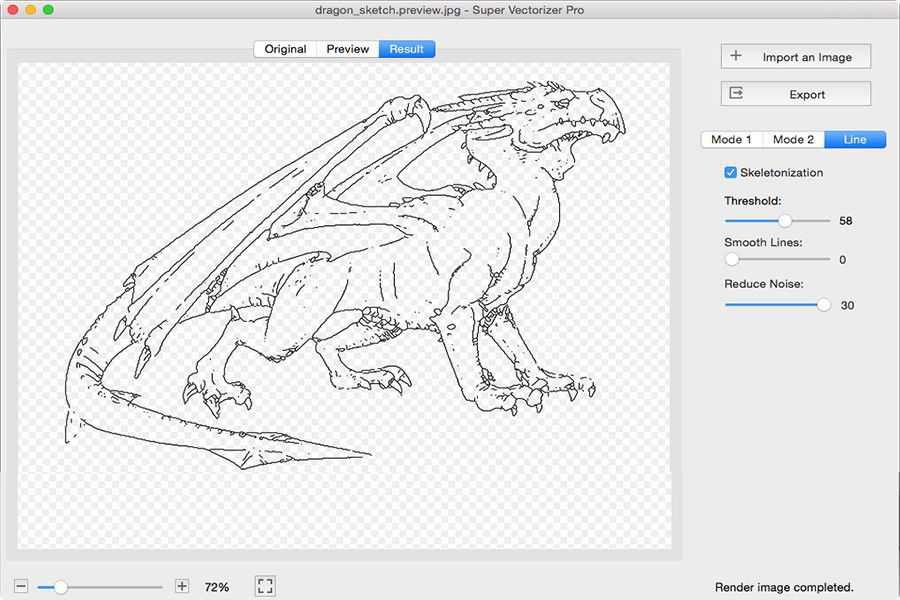
PNG to SVG in Figma: Importing Your SVG
Once you have a clean SVG, getting it into Figma is quick:
- Drag and drop: Drop the .svg file straight onto the Figma canvas.
- Place Image: Use the menu to place the file, then it appears as an editable frame.
- Ungroup: Right-click the imported SVG and choose "Ungroup" to edit individual paths and fills.
- Flatten to component: Turn a repeated icon into a component so every instance stays in sync.
If the imported SVG looks like a single flat image you cannot ungroup, your tracer most likely embedded the PNG instead of exporting paths. Re-trace with path output enabled. For color work, our PNG to SVG with color guide covers preserving palettes during tracing.

PNG to SVG Figma: AI Tracing vs Figma Plugins (Compared)
Here is how the common approaches stack up for UI and prototype assets:
| Tool | Price | Platform | Offline | Batch | Output Quality | Best For |
|---|---|---|---|---|---|---|
| Super Vectorizer Pro | $29.99 one-time (free trial to preview) | Mac & Windows | Yes | No (one at a time) | Clean, editable paths with tunable settings Best Control | Private, high-quality icon & logo SVGs |
| Figma tracing plugins | Free / freemium | Web (inside Figma) | No | No | Variable; often messy paths | Quick rough traces inside Figma |
| Vectorizer.AI | Free credits, then paid | Web | No | No | Strong AI quality | Online one-off conversions |
| Adobe Illustrator | Subscription | Mac, Windows | Yes | Possible, but awkward | Excellent (Image Trace) | Teams already on Creative Cloud |
| Inkscape | Free (open source) | Mac, Windows, Linux | Yes | No | Good with manual tuning | Fully free desktop workflow |
Super Vectorizer Pro is the pick when you want offline privacy and per-image control without a subscription. Figma plugins are convenient for a throwaway trace, but they rarely match a dedicated tracer for clean geometry.

Best Free PNG to SVG Tools for Figma Users (2026)
If budget is the priority, here are the realistic free routes:
- Inkscape — fully free, open source, with a Trace Bitmap feature. Great quality once you learn the settings, but it is manual rather than AI-driven.
- Vectorizer.AI free credits — strong AI quality online; limited free credits before it asks for payment.
- Figma community plugins — free to install, fine for quick prototypes, weaker on complex art.
- Super Vectorizer Pro free trial — preview AI tracing offline on your Mac or Windows machine with no upload; export requires a license.
For a broader roundup of free converters, see our best PNG to SVG converters guide and the online image vectorizer for instant browser trials.
The Bottom Line for 2026
Figma is where you design and prototype, not where you should trace raster art. Vectorize your PNG first with a dedicated AI tracer, then import the SVG — you get editable, scalable, lightweight assets instead of tangled plugin output.
Desktop AI Vectorizer (Super Vectorizer Pro)
- Offline — no upload, full privacy for client art
- Tunable color, corner, and smoothing settings
- Clean, path-based SVG ready for Figma
- Free trial to preview results before buying
- One-at-a-time workflow for precise per-asset tuning
Figma Tracing Plugins
- No extra app — works inside Figma
- Free or freemium to start
- Fast for simple, high-contrast art
- Often messy, overlapping paths
- Less control over tracing parameters
Frequently Asked Questions
Can Figma convert a PNG to SVG directly?
Figma does not have a strong built-in raster-to-vector engine. You can import a PNG and use community plugins that trace it, but the results are often rough and produce messy paths. The most reliable workflow is to vectorize the PNG first with a dedicated AI tracer, then import the finished SVG into Figma.
Why convert PNG to SVG before importing into Figma?
SVGs are resolution-independent and editable. Once a PNG is traced into vector paths, you can rescale it to any size without blur, recolor individual shapes, and keep file sizes small. A raw PNG pasted into Figma stays a bitmap and cannot be edited as geometry.
Does Super Vectorizer Pro have a batch mode for Figma assets?
No — Super Vectorizer Pro processes one image at a time. It does not include a batch mode. For UI designers this is usually fine because each icon or logo needs its own tuned trace, and the one-at-a-time workflow gives you precise control over every export.
What is the best free way to get a PNG to SVG for Figma?
For a quick online attempt, Figma community tracing plugins and free web converters can work on simple, high-contrast images. For cleaner, private results with no upload, Super Vectorizer Pro offers a free trial to preview AI tracing on Mac and Windows, and Inkscape is fully free with its Trace Bitmap feature.
Will Figma keep my SVG editable after import?
Yes — if the SVG contains real vector paths, Figma imports them as editable geometry you can ungroup and recolor. The key is to make sure your tracer exported path-based SVG rather than an SVG that simply wraps the original PNG inside an image tag.
Prepare Clean SVG Assets for Figma
Download Super Vectorizer Pro and preview AI tracing on your Mac or Windows machine — no upload, no account, no internet required.
Compatible with macOS 10.10+ (M1/M2/M3) & Windows 7/8/10/11
Related SVG Workflows
- PNG to SVG AI Converter Guide
- PNG to SVG Converter (Tool Page)
- PNG to SVG High Quality Guide
- PNG to SVG with Color Guide
- Best PNG to SVG Converters 2026
- Vectorizer.AI Alternative
- Super Vectorizer Pro vs Figma
- PNG to SVG Online
Try These Free Online Tools
No download required — convert, compress & optimize SVGs right in your browser
PNG to SVG Converter
Convert PNG, JPG, BMP images to scalable vector graphics instantly
PNG to SVG ConverterSVG Compressor (Mini)
Reduce SVG file size by up to 80% without losing quality
SVG Compressor OnlineSVG Optimizer
Clean up SVG code, remove redundant data and optimize for web
SVG Optimizer OnlineJPG to SVG Converter
Turn JPEG photos into crisp vector artwork in seconds
JPG to SVG ConverterEPS to SVG Converter
Convert EPS vector files to web-friendly SVG format
EPS to SVG ConverterAll Free Tools
Browse our complete collection of free online conversion tools
Browse All Free Tools