
Every browser tab, bookmark, and search result shows your favicon — a tiny 16×16 pixel icon that represents your brand. The problem is that most favicons are still delivered as ICO or PNG files, which are raster (bitmap) formats. On a retina or 4K display those tiny squares turn soft and blurry. The modern fix is to convert favicon to SVG: the SVG format is vector-based, so it renders perfectly at 16 pixels, 160 pixels, or any size in between. Whether you start from a Windows .ico file, a PNG logo, or a hand-drawn mark, the goal is the same — clean vectorization that produces an editable, infinitely scalable SVG favicon.
In this guide we compare the two realistic ways to get there: a free online ICO-to-SVG converter for quick one-off jobs, and a desktop vector tracing app like Super Vectorizer Pro when you need polished, editable paths from a detailed logo. You'll learn exactly when each approach wins, how to do the conversion on Mac and Windows, and the common mistakes that leave designers with a favicon that still looks fuzzy.
Ready to turn your icon into clean vector paths? Try Super Vectorizer Pro free trial to preview vectorization results.
Compatible with macOS 10.10+ (M1/M2/M3) & Windows 7/8/10/11
Our Verdict: Desktop Vectorizer vs Online ICO-to-SVG Tool
Use a desktop vectorizer when your source is a detailed logo, a multi-color mark, or a low-resolution ICO that needs real cleanup. Use a free online converter for a simple, already-clean icon you just need wrapped in SVG. Both produce a scalable result — the difference is how much control you get over the final paths.
Super Vectorizer Pro (Desktop)
- Traces detailed logos into clean, editable vector paths
- Color-grouping and anchor-point control for crisp edges
- Batch handling of multiple icon sizes in one session
- Runs fully offline on macOS and Windows
Online ICO-to-SVG Tool
- No install — paste a URL or drop a file in the browser
- Instant for simple, high-contrast icons
- Great for a quick favicon cleanup or one-off job
- Free tier covers most basic conversions
What Is a Favicon, and Why Convert Favicon to SVG?
A favicon (short for "favorite icon") is the small graphic browsers show in tabs, history, bookmarks, and mobile home screens. Traditionally it ships as favicon.ico — a container that bundles several fixed bitmap sizes (16×16, 32×32, 48×48) so the icon looks acceptable on older displays. The catch is that each size is a separate raster image; there is no single source of truth, and none of them scale.
An SVG favicon flips that model. Because SVG is a vector format built from mathematical paths rather than pixels, one file serves every device and pixel density. When you convert favicon to SVG, you replace a stack of blurry bitmaps with a single scalable vector graphic that stays razor-sharp from a 16-pixel tab icon to a 180-pixel Apple Touch icon. Modern browsers — Chrome, Edge, Firefox, and Safari — all support SVG favicons, so the format is no longer experimental; it is the sensible default for new projects.
Method 1 — Convert ICO to SVG Online (Fastest Path)
If your source is already a clean, simple icon, an online ICO-to-SVG converter is the quickest route. The workflow is nearly identical across tools:
- Upload your
.icoor.pngfavicon — drag it into the page or paste an image URL. - Preview the extracted icon. Most tools let you pick the highest-resolution layer inside the ICO container.
- Convert. The tool either embeds the bitmap inside an SVG wrapper or runs a light vector tracing pass to rebuild it as paths.
- Download the resulting
.svgand drop it into your site root or reference it from your HTML.
The phrase "convert favicon to SVG" in these tools usually means one of two things: a true vector (paths you can edit) or an embedded SVG that simply wraps the original pixels. The embedded version is lossless but does not become editable — so if you need to change colors or simplify the shape later, you'll still want a desktop vectorizer.
Method 2 — Convert PNG or Logo to SVG with Super Vectorizer Pro
When your favicon source is a detailed logo, a gradient mark, or a low-res PNG, browser converters tend to produce muddy edges. That is where raster to vector desktop software earns its place. Super Vectorizer Pro reads the bitmap and rebuilds it as smooth Bézier paths with adjustable detail and color count.
Important: the free trial lets you preview vectorization results so you can inspect path quality, anchor points, and color separation before committing. It is the right way to confirm a favicon will look clean at small sizes. The desktop app also groups colors into layers, which matters for favicons — you want the fewest possible colors so the icon reads clearly when shrunk to 16 pixels.
Step-by-Step: Convert Favicon to SVG on Mac & Windows
Here is the desktop workflow, which works the same on both platforms:
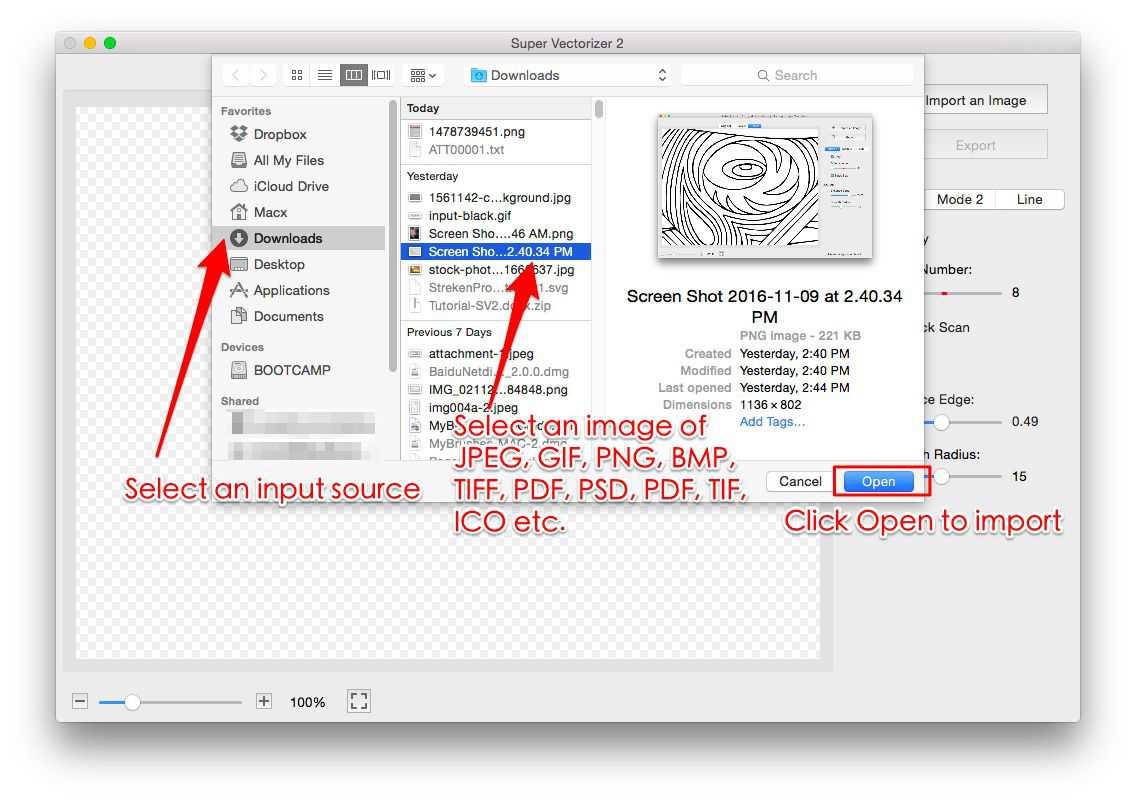
- Prepare the source. Export the largest, cleanest version of your icon you have — a 256×256 or 512×512 PNG, or the source ICO. Avoid upscaling a 16×16 file; you'll only vectorize blur.
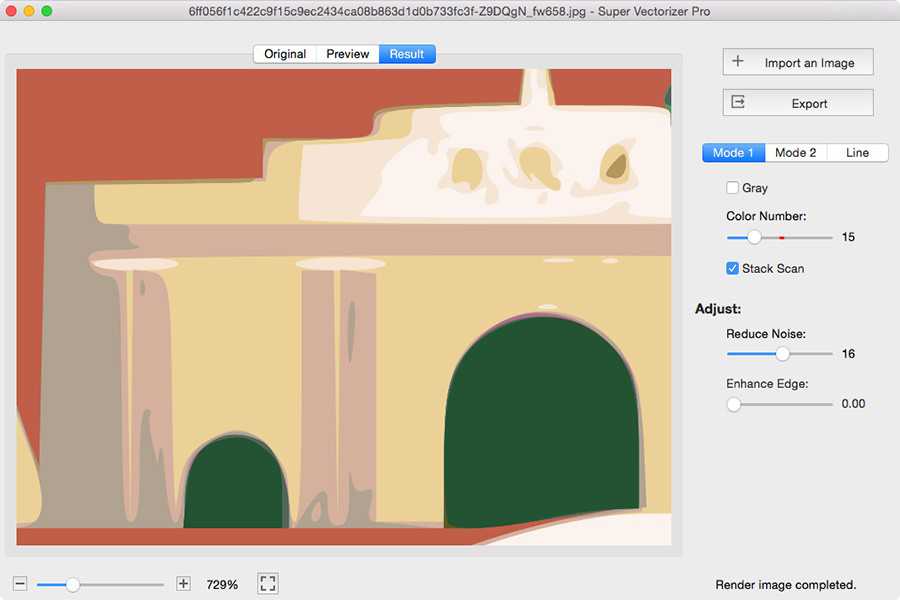
- Open it in the vectorizer. Drag the image into the app. The preview shows the traced result in real time.
- Choose a tracing mode. For a favicon, pick a mode that favors smooth edges and limited colors. Too much detail becomes noise at small sizes.
- Reduce colors. Aim for 1–4 solid colors. Flat, high-contrast marks survive scaling far better than gradients.
- Preview at 16px. Zoom the preview way down. If the icon is unreadable at favicon size, simplify the shape before exporting.
- Export SVG. Save as
.svg. (Remember: the trial previews results; full export is part of the licensed app.) - Link it in your HTML. Add
<link rel="icon" type="image/svg+xml" href="/favicon.svg">and you're done.
ICO vs SVG Favicon: Which Should You Ship?
| Feature | ICO / PNG Favicon | SVG Favicon | Winner |
|---|---|---|---|
| Scalability | Fixed sizes only | Infinite scaling | SVG |
| Retina / 4K sharpness | Needs 2x/3x copies | Always crisp | SVG |
| File count | Multiple sizes bundled | Single file | SVG |
| Editable paths | Pixel editing only | Vector editing in code/design tools | SVG |
| Legacy browser support | Universal | All modern browsers | ICO |
When an SVG Favicon Is — and Isn't — the Right Call
Converting to SVG is almost always the better choice for new sites, but a few edge cases matter:
- Use SVG when: you control the site, target modern browsers, and want one file that looks perfect everywhere. This covers the vast majority of 2026 web projects.
- Keep an ICO fallback when: you must support very old browsers or specific enterprise intranets. You can ship both — link the SVG for modern clients and keep
favicon.icoin the root for legacy ones. - Reconsider complex art: photorealistic or extremely detailed marks don't survive being shrunk to 16 pixels, SVG or not. Simplify the design first, then convert.
Frequently Asked Questions
Can I really convert favicon to SVG for free?
Yes. Free online ICO-to-SVG converters handle simple icons at no cost, and Super Vectorizer Pro offers a free trial to preview vectorization results on more complex logos. The trial is for previewing paths and quality; exporting the final SVG is part of the licensed desktop app. For a basic, already-clean icon, a free browser tool is usually enough.
Will an SVG favicon work in all browsers?
SVG favicons are supported in all current versions of Chrome, Edge, Firefox, and Safari, including on mobile. The only holdouts are very old browsers that never implemented the standard. If you need to cover those, keep a classic favicon.ico in your site root as a fallback — browsers that understand SVG will prefer it, and the rest will use the ICO.
My favicon looks blurry after conversion — why?
Blur almost always comes from the source, not the conversion. If you start from a 16×16 ICO and "convert favicon to SVG," the vectorizer is tracing tiny pixels, so the result is still fuzzy at size. Start from the largest, cleanest version of your icon you can find, simplify the design, and limit colors — then the SVG will read clearly even at tab size.
Embedded SVG vs true vector — does it matter?
It matters if you plan to edit the icon later. An "embedded" SVG just wraps your original bitmap pixels in an SVG container; it scales without new blur but isn't editable. A "true vector" rebuilds the icon as mathematical paths you can recolor and reshape in any vector editor. For a favicon you'll maintain over time, true vector is the better long-term choice.
Turn Your Icon Into a Crisp SVG Favicon
Download Super Vectorizer Pro and use the free trial to preview clean, scalable vector paths from any logo or ICO — then export production-ready SVG favicons.
Compatible with macOS 10.10+ (M1/M2/M3) & Windows 7/8/10/11
Related Articles

Try These Free Online Tools
No download required — convert, compress & optimize SVGs right in your browser
PNG to SVG Converter
Convert PNG, JPG, BMP images to scalable vector graphics instantly
PNG to SVG ConverterSVG Compressor (Mini)
Reduce SVG file size by up to 80% without losing quality
SVG Compressor OnlineSVG Optimizer
Clean up SVG code, remove redundant data and optimize for web
SVG Optimizer OnlineJPG to SVG Converter
Turn JPEG photos into crisp vector artwork in seconds
JPG to SVG ConverterEPS to SVG Converter
Convert EPS vector files to web-friendly SVG format
EPS to SVG ConverterAll Free Tools
Browse our complete collection of free online conversion tools
Browse All Free Tools