
If you've ever wondered how to auto trace image to SVG without spending hours manually tracing with the pen tool, you're in the right place. Auto tracing is the process of converting a raster image (PNG, JPG, BMP, etc.) into a scalable vector graphic (SVG) using automated algorithms. The right tool and settings can make the difference between a clean, professional SVG and a jagged mess with thousands of unnecessary nodes.
In this guide, we'll cover everything you need to know about auto tracing: how the technology works, the best software tools for Mac and Windows, online alternatives, and the settings that matter most for getting clean results.
Ready to auto trace your images? Try Super Vectorizer Pro free trial to preview vectorization results instantly.
Compatible with macOS 10.10+ (M1/M2/M3) & Windows 7/8/10/11
What Does "Auto Trace Image to SVG" Actually Mean?
Auto tracing is a computational process that analyzes a raster image's pixel data and mathematically reconstructs it using vector paths. Unlike manual tracing — where a human places each anchor point with the pen tool — auto tracing uses edge detection, color region identification, and curve fitting algorithms to generate vector paths automatically.
How Auto Tracing Algorithms Work
Modern auto trace image algorithms follow these general steps:
- Edge Detection: Identify boundaries between different colors or brightness levels in the image
- Region Filling: Group contiguous pixels of similar color into distinct regions
- Curve Fitting: Approximate the region boundaries using Bezier curves (cubic or quadratic)
- Node Optimization: Remove redundant nodes while preserving the shape's appearance
- Output Generation: Write the resulting paths to SVG, PDF, DXF, or other vector formats
The quality of an auto trace image to SVG tool depends heavily on steps 3 and 4 — how well it fits curves and optimizes nodes. Poor algorithms produce jagged paths with thousands of unnecessary nodes, while good ones produce smooth curves with minimal points.
Best Desktop Software to Auto Trace Image to SVG
Desktop applications offer the most control and highest quality for auto tracing. Here are the top options for 2026:
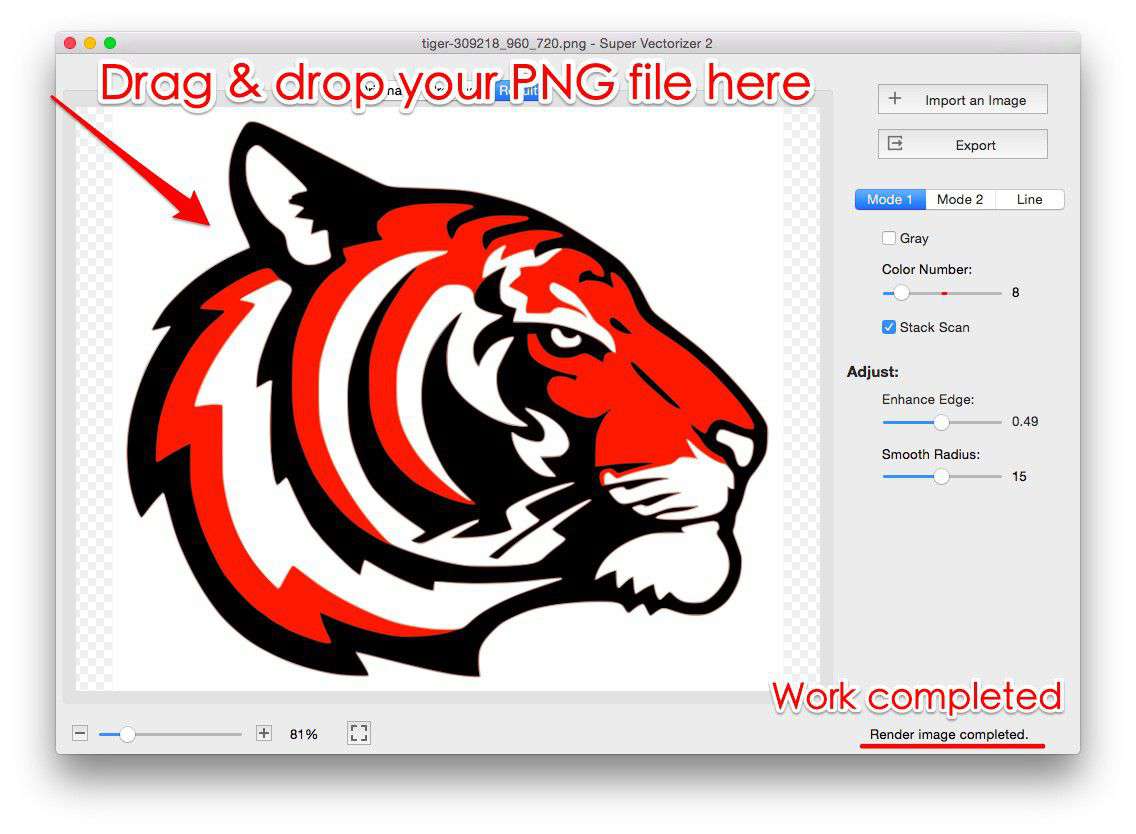
1. Super Vectorizer Pro (Mac & Windows)
Super Vectorizer Pro is our top recommendation for users who need to auto trace image to SVG on Mac or Windows. It uses advanced edge detection and curve-fitting algorithms that produce exceptionally clean results.
Key features for auto tracing:
- 10+ tracing presets for different image types (logo, photo, line art, sketch)
- Adjustable path tolerance — control how closely the vector follows the original
- Color matching with customizable sensitivity
- Per-image control — tune the trace for each file
- Multiple export formats: SVG, PDF, DXF, AI, EPS, SKETCH
- Real-time preview — see results before final export
Best for: Users who need professional-quality vectorization with minimal effort, especially for logos, icons, and graphics intended for production (print, CNC, Cricut). The free trial lets you preview results before purchasing.
2. Adobe Illustrator (Image Trace)
Illustrator's Image Trace feature is the industry standard for auto trace image workflows, but it comes with a subscription cost and a steep learning curve.
Pros: Deep integration with CC ecosystem, excellent color handling, fine-grained control over tracing parameters.
Cons: Expensive subscription, resource-heavy, overkill for simple tracing tasks.
3. Inkscape (Path > Trace Bitmap)
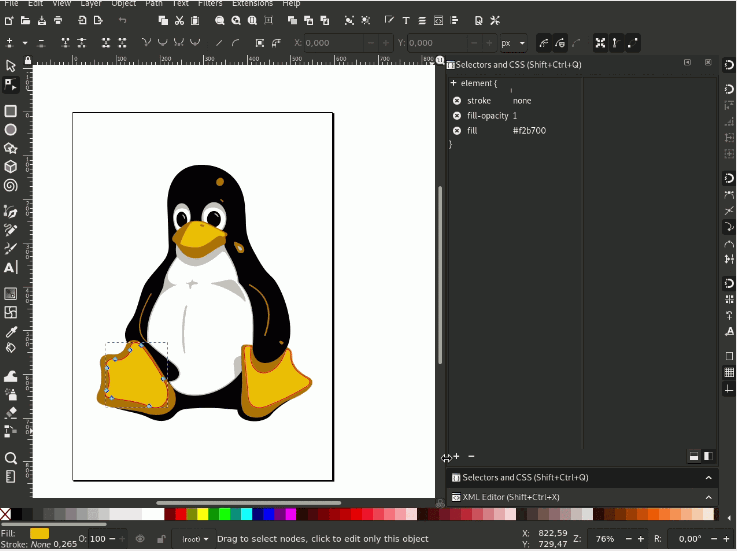
Inkscape is a free, open-source vector editor with a capable auto tracing feature. It uses the Potrace algorithm for black-and-white tracing and a separate color tracing engine.
Pros: Completely free, good for simple black-and-white graphics, active open-source community.
Cons: Interface is dated, color tracing produces bloated paths, limited batch processing.
Best Online Tools to Auto Trace Image to SVG
If you can't install desktop software, several online tools let you auto trace image to SVG in your browser:
1. SVGVector Free Online Converter
Our free online tool at svgvector.com lets you convert PNG, JPG, and other formats to SVG instantly. No registration required.
Limitations: Online tools typically produce less optimized paths than desktop software. Best for quick previews and simple graphics.
2. Vectorizer.io
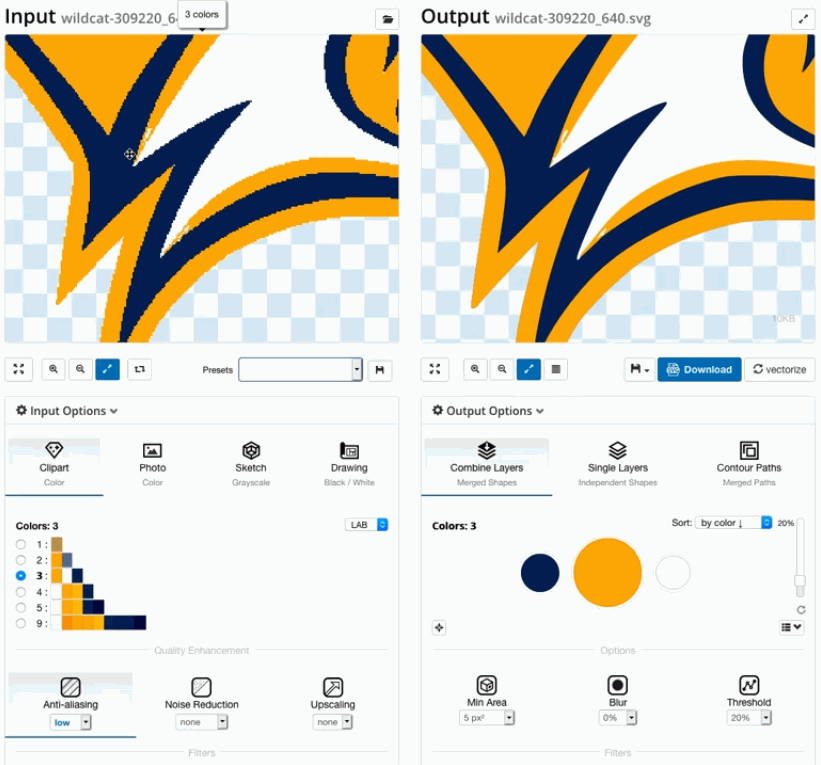
Vectorizer.io is a popular online auto tracing tool with good color handling. Free for basic use with a watermark; paid plans remove limitations.
3. Convertio & Similar Cloud Converters
Cloud-based file converters that support raster-to-SVG conversion. Convenient but send your files to external servers — not suitable for sensitive or proprietary images.
Step-by-Step: How to Auto Trace Image to SVG with Super Vectorizer Pro
Here's the recommended workflow to auto trace image to SVG with professional results:
Step 1: Prepare Your Source Image
Auto tracing works best with high-contrast, clean source images. Before tracing:
- Use the highest resolution version of your image available
- Remove backgrounds if possible (transparent PNGs work best)
- Increase contrast if the image is washed out
- Crop tightly around the subject to remove empty space
Step 2: Choose the Right Tracing Preset
Super Vectorizer Pro includes presets for common image types:
- Logo: Optimized for clean edges and minimal nodes
- Photo: Handles gradients and complex color transitions
- Line Art: Preserves fine lines and detail
- Sketch: Handles pencil/pen sketches with variable line weight
Step 3: Adjust Path Tolerance
Path tolerance controls how closely the vector path follows the original pixels:
- Lower values (tighter): More accurate but more nodes — larger file size
- Higher values (looser): Fewer nodes but may lose detail — smaller file size
For most logos and graphics, a medium setting produces the best balance of quality and file size.
Step 4: Preview and Refine
Use the preview window to inspect the traced result at 100% and 400% zoom. Check that:
- Curves are smooth (not jagged)
- Small details are preserved
- Colors match the original
- The node count is reasonable (<1000 for most logos)
Step 5: Export as SVG
Once satisfied with the preview, export the result as SVG. Super Vectorizer Pro also supports PDF, DXF, AI, EPS, and other formats if needed for your workflow.
Common Auto Tracing Problems and How to Fix Them
Problem 1: Jagged or Stair-stepped Curves
Cause: Path tolerance set too low, or the algorithm isn't fitting curves properly.
Fix: Increase path tolerance slightly to allow the algorithm to use smoother curves.
Problem 2: Too Many Nodes (Bloated File)
Cause: Source image has noise or compression artifacts.
Fix: Clean up the source image first (remove noise in Photoshop/GIMP), then re-trace with a higher path tolerance.
Problem 3: Colors Don't Match Original
Cause: Color sensitivity setting is too strict or too loose.
Fix: Adjust the color matching threshold. For logos with flat colors, use a stricter match. For photos with gradients, use a looser match.
Problem 4: Fine Details Are Lost
Cause: Path tolerance is too high, simplifying away small features.
Fix: Lower the path tolerance and re-trace. Alternatively, trace at a higher resolution.
Our Verdict: Best Way to Auto Trace Image to SVG
For professional results, we recommend using desktop software. Here's our comparison:
Super Vectorizer Pro (Recommended)
- One-time purchase (no subscription)
- Clean, optimized SVG output
- Works offline — no file uploads
- Separate settings for every file you trace
- Free trial to preview results
- Mac & Windows support
Online Auto Trace Tools
- No installation required
- Free for basic use
- Files uploaded to external servers
- Limited batch processing
- Less control over output quality
- Requires internet connection
Image → SVG: Format-Specific Conversion Notes
- Automatic tracing infers a sensible preset from the image — flat graphics get Poster, photos get Photo — so you often start from a good result.
- Unlike Illustrator Image Trace or Inkscape, the in-browser tracer needs no desktop install and keeps the source on-device (no upload).
- For mixed images, manually switch presets to compare; the preview updates live so you can pick the cleanest output.
- Adaptive binarization (B&W mode) is ideal for scans and sketches where you want pure black-on-white paths.

Frequently Asked Questions
Can I auto trace image to SVG for free without watermarks?
Yes. Inkscape is completely free and open-source with no watermarks. For commercial software, Super Vectorizer Pro offers a free trial that lets you preview the auto trace results. The trial does not export, but it lets you verify quality before purchasing. Online tools like SVGVector's free converter also produce watermark-free output for basic use.
What image formats can I auto trace to SVG?
Most auto tracing tools support PNG, JPG/JPEG, BMP, GIF, TIFF, and WebP as input formats. The output is typically SVG, though many desktop tools also support PDF, DXF, AI, and EPS export. Super Vectorizer Pro supports all major raster formats as input and exports to 6+ vector formats.
Why does my auto-traced SVG have so many nodes?
Excessive nodes are usually caused by noise or compression artifacts in the source image. Before auto tracing, clean up your source image: increase contrast, remove backgrounds, and denoise if necessary. Also try increasing the path tolerance setting in your tracing software to allow more simplification.
Is auto traced SVG good enough for Cricut or laser cutting?
Yes, but with caveats. Auto traced SVGs intended for cutting applications need clean, closed paths with minimal nodes. Super Vectorizer Pro's "Logo" preset typically produces suitable output. Always inspect the traced result to ensure paths are closed and there are no tiny islands that could cause cutting problems.
Auto Trace Your Images to Clean SVG Today
Super Vectorizer Pro makes auto tracing simple with smart presets and real-time preview. Try the free trial to preview your results, then unlock full export for production-ready SVGs.
Compatible with macOS 10.10+ (M1/M2/M3) & Windows 7/8/10/11
Related Articles
Try These Free Online Tools
No download required — convert, compress & optimize SVGs right in your browser
PNG to SVG Converter
Turn PNG images into crisp vector artwork in seconds
Free OnlineSVG Compressor (Mini)
Reduce SVG file size by up to 80% without losing quality
Free OnlineJPG to SVG Converter
Convert JPEG photos to scalable vector format
Free OnlineEPS to SVG Converter
Convert EPS illustrations to scalable vector graphics
Free OnlineAll Free Tools
Browse our complete collection of free online conversion tools