
Figma SVG viewBox Fix: Why the Canvas Is Bigger Than the Artwork
A Figma SVG export almost always has the right geometry and the wrong canvas. The paths are correct, the colours are correct, and the file still lands in Illustrator, Inkscape, or Cricut Design Space as a tiny shape in the corner of a huge white page — or as a shape with its right and bottom edges cut off. Both symptoms come from the same attribute: viewBox.
The fix is not a Figma setting you have been missing. The viewBox Figma writes is the bounding box of whatever you exported, so the way to change it is to change what you export — or to rewrite four numbers in the file. This guide covers both, with the measurements that tell you which case you are in.
What Figma puts in the file
An exported SVG root looks like this, give or take a few attributes:
<svg width="400" height="300" viewBox="0 0 400 300" fill="none"
     xmlns="http://www.w3.org/2000/svg">
  <rect width="120" height="80" fill="#5850EC"/>
</svg>
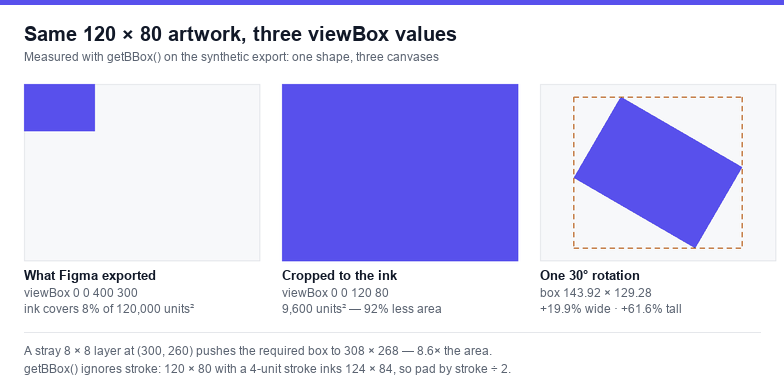
The viewBox is four numbers: min-x min-y width height, in user units. It says "this rectangle of coordinate space is what you should show". width and height then say how big that rectangle is on screen. The artwork above is a 120 × 80 rectangle sitting in the top-left corner of a 400 × 300 canvas, so 92% of the canvas is empty — measured on exactly this file, the ink covers 9,600 of 120,000 square units, or 8%.
That is not a bug. Figma exported the frame, and the frame is 400 × 300. The problem is that the frame is not what you wanted; the artwork is.
Three failures, three different causes
| What you see | What the viewBox contains | Cause |
|---|---|---|
| Artwork is a small island in a large empty page | The frame, or the union of a wide selection | You exported the container instead of the content |
| Right or bottom edge is cut off | Smaller than the visible artwork | Frame clipping, or a clipped group left on |
| Artwork is offset, or negative coordinates appear | min-x or min-y below zero | Rotation, or layers placed outside the frame origin |
Read the first line of your file and you can classify it in five seconds. A viewBox of 0 0 400 300 with one 120 × 80 path is row one. A viewBox like -11.96 -24.64 143.92 129.28 is row three, and it means something rotated.
Cause 1: one stray layer sets the canvas
When you export a selection or use "Copy as SVG", the bounds are the union of everything selected. A single 8 × 8 spacer, a stray guide-like rectangle, or an old element parked at the far corner is enough to stretch the canvas. Measured on a test file: a 120 × 80 shape plus one 8 × 8 element at (300, 260) produces a required box of 308 × 268 — 8.6× the area the artwork actually needs.
Inside Figma the check is mechanical: select the frame, then look at what is selected with it. Layers sitting outside the frame but still inside the group are the usual culprits. Delete them, or move them into an "archive" child frame that you exclude from export.
Cause 2: rotation expands the box
A rotated rectangle does not have a rotated bounding box. Its box is the axis-aligned rectangle that contains the rotated shape, so it is always larger than the original. Measured: a 120 × 80 rectangle rotated 30° about its centre has a bounding box of 143.92 × 129.28 — 19.9% wider and 61.6% taller, which is 1.94× the area.
This matters in two directions. If you rotate a layer and then export the frame, the shape may now extend past the frame and get clipped. If you export the selection, the canvas grows to fit the rotated bbox and the surrounding padding changes. Either way the numbers change after a rotation, so re-check the file rather than assuming last week's settings still apply.
Cause 3: negative min-x and min-y
Rotating that same rectangle also pushed its bounds to x = -11.96 and y = -24.64. Negative origins are legal SVG and every browser handles them, but a surprising number of downstream tools do not: they treat the viewBox as a size and assume the origin is 0 0, which shifts the artwork up and left, sometimes entirely off the page.
If your file has a negative min-x or min-y and the target app shows an offset or empty canvas, translate the content instead of relying on the negative origin. Wrapping everything in a group translated by that same offset, then setting the viewBox back to 0 0 143.92 129.28, is equivalent output with none of the compatibility risk.
Fix inside Figma: change what you export
The viewBox follows the exported node, so the reliable fixes are structural:
- Export the frame, not the page or a loose selection. Frame export uses frame bounds; selection export uses the union. If the frame is already the right size, exporting the frame removes the whole class of stray-layer problems.
- Size the frame to the content. Select the artwork, then resize the frame to match. A frame that is exactly the artwork's bounds gives you a tight viewBox without touching code.
- Export the artwork node, not its container. If the artwork is a single group, exporting that group gives you its bounds even when it sits inside a larger frame — the fastest fix for "my icon is in the corner of a big page".
- Turn off clipping before you diagnose. A clipped group can hide the content that the bounding box is based on, which produces a viewBox that looks too small. Toggle clip on the frame and re-export to see the difference.
- Flatten rotations before export when the target is a cutter. Rotating the frame instead of the layer keeps the bbox equal to the frame, so the numbers stay predictable.
Fix after export: rewrite the four numbers
If you cannot get a tight frame in Figma — nested components, a client's file, a batch of forty exports — measure the ink and write the viewBox yourself. Paste this into the browser console with the SVG open as a file, then copy the resulting attribute back into the file. It is the same measurement Figma's own exporter uses, only applied to the content:
const svg = document.querySelector('svg');
// bounding boxes ignore display:none elements, but a
// fill="none" stroke="none" backdrop rect is still measured
svg.querySelectorAll('[fill="none"][stroke="none"]').forEach(el => el.style.display = 'none');

const b = svg.getBBox();
const pad = Math.max(1, Math.max(b.width, b.height) * 0.02);   // 2% breathing room
const round = n => +n.toFixed(2);

svg.setAttribute('viewBox', [b.x - pad, b.y - pad, b.width + pad * 2, b.height + pad * 2].map(round).join(' '));
console.log(svg.getAttribute('viewBox'));
Two details in that snippet matter more than they look. First, getBBox() measures geometry, not paint: it ignores stroke width, markers, and filters. A 120 × 80 rectangle with a 4-unit stroke centred on its edge has a bbox of exactly 120 × 80 but inks 124 × 84, so the viewBox needs at least stroke-width / 2 of padding or the edges get shaved. Measured on that file: bbox 120 × 80 at x = 2, actual ink 124 × 84, outer edge at 0.
Second, an invisible backdrop rectangle is measured even though it paints nothing. A <rect fill="none" stroke="none"> at full canvas size will hold the viewBox at full canvas size forever, and the only clue is that cropping "does not work". Hiding those elements before measuring is the fix.
width, height and viewBox: the four combinations
| Attributes on the root | How it renders | When to use it |
|---|---|---|
Both width/height and viewBox | Fixed pixel size, scales with CSS if you override | Cut files and print, where physical size matters |
viewBox only | Fills the container, scales freely | Web icons — the safest default |
width/height only, no viewBox | No scaling relationship; content clips instead of shrinking | Never, for an exported asset |
| Neither | Browser falls back to 300 × 150 and clips | Never |
For cutting and print, keep both attributes and make them agree with the viewBox aspect ratio. A 400 × 300 viewBox on a 1,000 × 1,000 element stretches the artwork, which is a separate and much more confusing bug than a cropped canvas. If you need a different real-world size, change width and height by the same factor and leave the viewBox alone.
Checking the result in thirty seconds
- Open the SVG directly in a browser — the artwork should fill the window with a small margin, not sit in a corner.
- Look at the first line:
min-xandmin-yshould be zero or a small negative from stroke padding, never -200. - Compare the viewBox aspect ratio to
width ÷ height. Any mismatch means stretching. - Zoom to 3,200% and check that the stroke edges are not shaved at the top and left.
- Open it in the destination app, not just the browser. Illustrator, Inkscape and cutters each interpret the same file differently.
If the viewBox is right and the file is still awkward, the problem has usually moved to the markup itself — hundreds of pointless groups, live text, or filters. The SVG optimiser removes the wrappers Figma leaves behind, and the SVG editor lets you nudge the canvas and re-save without a desktop app.
The one-line rule: a Figma SVG's viewBox is the bounding box of the node you exported. Change the node and you change the canvas; if you cannot change the node, measure the ink with getBBox() and write the four numbers yourself.
Frequently asked questions
Why is my Figma SVG so much bigger than the artwork?
Because you exported a container whose bounds are larger than the content — usually the frame, or a selection that includes a stray layer. The markup is correct; 92% of the canvas is simply empty. Export the artwork group itself, or rewrite the viewBox to the content bounds.
Why does my exported SVG have negative coordinates?
Rotation and off-origin layers push the bounding box past zero. A 120 × 80 rectangle rotated 30° measures 143.92 × 129.28 at x = -11.96, y = -24.64. Browsers handle it; some editors and cutters do not, so translate the content and start the viewBox at 0 0.
Should I delete width and height from the SVG?
Only for web use. Removing them makes the file fill its container, which is what you want for icons. Keep both attributes for print and cutting, where the file needs a defined physical size, and make sure the ratio matches the viewBox.
Does cropping in Figma change the exported viewBox?
Not by itself. Cropping a frame changes what is visible, but the export bounds still come from the frame or selection. If the visible area shrinks and the canvas does not, the content is clipped rather than the canvas resized.
Related SVG Workflows
Canvas problems are usually the first thing you fix and rarely the last. These pages cover the neighbouring failures in a Figma-to-production pipeline.
- Figma SVG export not working — blank files, greyed-out export, and the rectangle-only export.
- PNG to SVG in Figma — getting real paths into Figma before you export them again.
- SVG crop, flip and rotate — crop to the content without recalculating anything by hand.
- SVG Validator — catches dangling ids and references that survive a viewBox edit.
- SVG Optimiser — drop the per-layer groups that make a Figma export three times larger.
- Free SVG editor guide — what a browser editor can fix and what needs a desktop tool.
- SVG for laser cutting — why physical size and viewBox have to agree before a cut.
Related Articles
Try These Free Online Tools
No download required — convert, compress & optimize SVGs right in your browser
SVG Crop, Flip, Rotate
Crop to the content and re-save with a tight viewBox.
Open Crop Tool