
Figma SVG Export Not Working: Empty, Blank, or Unusable Files
If a Figma SVG export downloads but shows nothing, the artwork is usually still in the file — it is hidden behind a mask, set to 0% opacity, blended into invisibility, or simply outside the frame you exported. Deleting the cache, switching browsers, or reinstalling the desktop app almost never helps, because the cause is in the layer tree, not in Figma's exporter.
"Figma SVG export not working" covers four different failures, and each has its own cause. Sorting your symptom into the right group first saves the most time: one group is a rendering problem, one is a permissions or download problem, one is a structural problem, and one is not an export problem at all — the artwork was never vector to begin with.
Start here: which failure do you actually have?
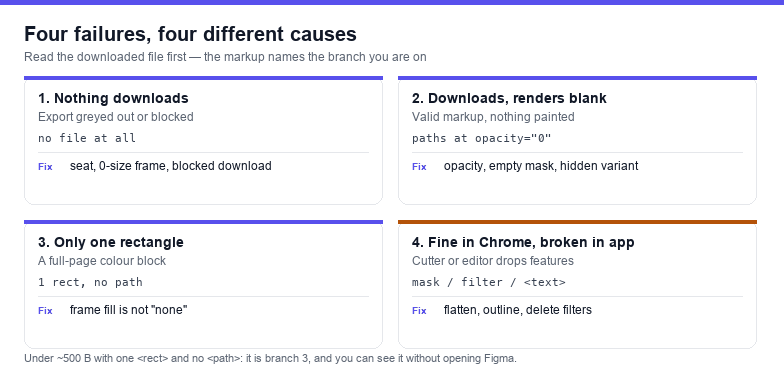
Open the downloaded file in a text editor before you change anything in Figma. An SVG is text, and its contents tell you which branch you are on. A 250-byte file with one <rect> is not the same problem as a 2 MB file full of <image> tags.
| What you see | What the file contains | Where the fix lives |
|---|---|---|
| Nothing downloads at all, or the Export button is greyed out | No file | Seat permissions, frame size, browser download settings |
| File downloads, opens as a blank page | Valid markup, but the visible content has opacity="0", sits inside a mask, or is clipped away | Layer tree |
| File downloads, shows only a coloured square | One full-size <rect>, nothing else | Frame background fill and layer visibility |
| File looks right in Chrome, breaks in Illustrator or your cutter | Masks, filters, live <text>, or base64 images | The target application's SVG support |
Rows two and three account for most reports. Both are layer problems, which is why the first useful move is not a Figma setting but a look at what is selected.
Failure 1: the file downloads but renders blank
Figma exports what is currently rendered. Anything that does not render does not appear in the SVG, and that includes elements that are technically present but visually suppressed. Here are the six causes in the order they turn up.
- Layer or group opacity is at 0. A 0% fill, a 0% layer opacity, or a parent group at 0% all export as
opacity="0". The markup is valid, the shape is there, nothing is painted. Select the layer and read the opacity field in the Design panel — it is easy to inherit from a group you did not touch. - A mask with an empty or misplaced path. If a group carries a mask, everything outside the mask shape is discarded, not stored. An empty mask shape exports a group with a
<mask>that paints nothing. Uncheck the mask, re-export, and see whether the content reappears — that is the fastest confirmation. - The children are hidden in this variant. Component instances often ship with children toggled off for one variant. The instance looks correct on canvas because a sibling variant is showing; the export of the instance you selected is genuinely empty.
- Blend mode plus an isolation group. Figma writes blend modes as CSS
mix-blend-modeon the element. In a browser the result depends on what is behind it. Inside a standalone SVG there is nothing behind it, so a multiply or screen layer can render as a flat wash or vanish. - The fill is an image that failed to embed. Image fills become
<image>with a base64 data URI. If the consuming app strips data URIs — many print and cutting pipelines do — you get a blank frame with a correct bounding box. - You exported a layer, not the frame that contains it. Exporting a single child exports the child's own bounds. If that child is a group whose visible content lives in a nested frame outside those bounds, the export is a well-formed empty canvas.
A quick discriminator: if File → Export of the whole frame is correct but the individual layer is blank, the problem is scoping (item 6) or masking (item 2), not the exporter. If both are blank, look at opacity and blend modes first.
Failure 2: nothing downloads, or the Export button is greyed out
This branch is not about the file at all. Check these in order:
- Your seat. View-only access can browse a file without exporting it. If the Export section in the right sidebar is missing rather than greyed out, you are almost certainly on a view seat or a restricted team.
- Admin export restrictions. Organisations can disable export for a team or for external files. Nothing you do on the canvas will turn it back on; ask the file owner.
- A zero-size frame. A frame with 0 width or 0 height has no export bounds, so there is nothing to write. Nudge the size, or use "Resize to fit" on the frame.
- Browser download blocking. Chrome and Safari both block repeated programmatic downloads silently after the first one. The download icon in the toolbar shows a blocked-save prompt that is easy to miss.
- The export preset was never added. The Export section needs a preset row (SVG, 1x) before the Export button appears. Adding the preset once fixes it for that layer only — presets are per-node.
Note that "Export" and "Copy as SVG" are two different code paths. If one works and the other does not, you already know the layer content is fine and you can use the working path to get your file out today.
Failure 3: the file is one big rectangle
A frame with a background fill exports that fill as a full-size <rect> behind everything else. When the actual artwork is masked out or transparent, the rect is all that is left — which is also why some cutters produce a page-sized square outline instead of your logo.
Two fixes, one inside Figma and one after export. Inside: set the frame's fill to none, or delete the background rect before exporting. After: open the SVG, find the <rect> whose width and height match the viewBox exactly, and delete it. If your cutter has an "ignore full-page rectangle" option, that also works, but editing the file is more predictable than trusting a checkbox.
Check the byte count first. An SVG under about 500 bytes that contains a single rect and no path is the "frame background only" case. You do not need to open Figma to diagnose it — the markup says so.
Failure 4: it looks right in a browser and wrong everywhere else
Browsers implement the entire SVG spec, including filters, masks, and CSS. Illustrator, Affinity, Inkscape, Cricut Design Space, and LightBurn implement subsets, and each one fails differently. The four features that break most often after a Figma export:
| Feature in the export | What breaks | Fix |
|---|---|---|
<text> with a font-family | Font missing on the other machine, so the type reflows or disappears | Outlined text, or convert the text to paths before export |
<mask> | Ignored by some cutting tools, so masked content prints at full size | Flatten the masked group, or convert the mask into a clipping path |
<filter> for drop shadows and blurs | Dropped silently, or rasterised at the wrong resolution | Delete filters for cut work; keep them only for screen output |
<image> with base64 data | Stripped by sanitizers and print preprocessors | Replace with real paths — a raster in an SVG wrapper is not a vector |
When you need a clean file for a cutter, the reliable sequence is: export, open in a vector editor, then flatten groups, outline text, and remove filters. On the web side, the SVG Validator will list the specific constructs in your file — masks, filters, external references — before you ship it to a machine that cannot render them.
Copy as SVG versus Export: use the right one
Right-clicking a layer gives you "Copy as SVG", which puts markup on the clipboard. The Export panel writes a file. They are not equivalent:
- Copy as SVG uses the union bounds of whatever you selected. Select three scattered objects and you get one canvas that contains all of them plus the empty space between. Good for pasting into code, bad for tight graphics.
- Export → SVG uses the bounds of the node you exported and adds a scale multiplier. This is the one you want when the file has to be 400 × 300 and nothing else.
- Both include the frame's background fill as a rectangle if the frame has a fill.
The most common self-inflicted wound is copying a selection, pasting into an editor, and then wondering why a 120 × 80 icon arrived on a 600 × 400 canvas. Nothing was lost — the canvas is simply the union of everything you selected, including an invisible spacer you forgot about.
A 60-second checklist before you export
- Frame has a real width and height, not 0 and not "hug contents" with an empty child.
- Frame fill is either intentional or none — you know whether that rectangle should be in the file.
- No layer in the selection sits at 0% opacity, and no parent group does either.
- Masks are visible on canvas and their shape covers the content you expect.
- The selected node is the frame, not a child of the frame.
- Text that must survive on another machine is outlined, or you have accepted the font dependency.
- The file you downloaded is more than a few hundred bytes and contains at least one
<path>.
That last item catches most of the remaining cases, because a file with paths in it cannot be the "blank export" problem. If it has paths and still looks wrong, you are in the viewBox conversation — the canvas is bigger than the artwork, or offset from it. That is a separate fix, covered in Figma SVG viewBox fix.
When no export setting will help
If the artwork is a photograph or a screenshot placed as an image fill, the export is honest: Figma embeds the bitmap as base64 and calls the result an SVG. It will scale forever, but it will never be cuttable, colourable per layer, or small. That is not an export bug; the vector never existed.
The route out is tracing. Use PNG to SVG for flat logos with hard edges, and Image to SVG for artwork with gradients and shading. Both run in the browser, and the file never leaves the machine. The longer workflow — tracing first, then importing the result into Figma — is written up in PNG to SVG in Figma.
Cleaning up after a successful export
A file that exports correctly is rarely a file that ships correctly. Three passes fix almost everything: validate it (missing xmlns, duplicate ids, dangling references), optimise it (Figma leaves per-layer groups, unused defs, and long decimals), and check the result visually at 100% and at 32 px. For the optimise step, the SVG optimiser strips the wrapper groups without touching geometry; if you want to hand-edit instead, the SVG editor opens the file with a live preview and a path list.
The short version: a blank Figma SVG is nearly always a layer that does not render — 0% opacity, an empty mask, a hidden variant child, or a selection that did not include the artwork. Diagnose it by reading the markup, not by re-exporting with different settings.
Frequently asked questions
Why does my Figma SVG export show nothing?
Because nothing was rendered at export time. The three usual reasons are a layer or parent group at 0% opacity, a mask whose shape does not cover the content, and a component instance whose children are hidden in the selected variant. Open the SVG in a text editor: if it has paths with opacity="0", it is the first case.
Why is my exported SVG file so small?
A few hundred bytes means the file contains little more than the frame's background rectangle. Either the artwork was masked or transparent, or you exported the wrong node. Compare the file size before and after toggling masks — the difference tells you which one.
Why can't I export at all?
Check your seat first — view-only access cannot export. Then check whether the frame has zero width or height, whether the export preset was added to that node, and whether your browser blocked a repeated download. Organisation-wide export restrictions look identical to a missing button.
Does Figma export raster or vector SVG?
Vector, for vector layers — real <path> elements. Image fills and screenshots are embedded as base64 rasters inside the SVG, which makes the file technically SVG and practically a bitmap. If you need cuttable geometry, trace those layers.
Related SVG Workflows
Once the file exists, the next problem is usually what it contains. These pages cover the follow-ups that come up most often after a Figma export.
- Figma SVG viewBox fix — cropping, offset and oversized canvases after a clean export.
- PNG to SVG in Figma — tracing first, then importing clean editable paths.
- SVG Validator — find the masks, filters and duplicate ids before a cutter does.
- SVG Optimiser — strip the per-layer groups Figma leaves behind.
- SVG Editor — open the export, delete the background rect, re-save.
- Reduce SVG file size — what Figma's export leaves in that can be deleted.
- SVG for laser cutting — which exported features a cutter will ignore.

Try These Free Online Tools
No download required — convert, compress & optimize SVGs right in your browser
SVG Validator
List the masks, filters and duplicate ids before a cutter does.
Validate an SVGPNG to SVG
When the artwork was a bitmap all along — real paths, no upload.
Convert PNG to SVGCrop, Flip, Rotate
Crop to the ink so the canvas stops being bigger than the art.
Open Crop Tool