
An SVG background layer is a shape, not a setting: ninety-nine times out of a hundred it is a <rect> whose bounds equal the viewBox and whose fill is white, exported automatically by Figma, Illustrator, Canva or Inkscape. Because it is a real node, the fix is one deletion, and the file that comes out is smaller, transparent and still fully editable.
What counts as a background in this tool
The rule is geometric, not a guess about intent. A node is offered as a background candidate when three things are true: it is a leaf shape (rect, path, circle, ellipse, polygon, polyline, image or use), its bounding box covers at least 90% of the canvas, and it is painted — a shape with fill="none" and no stroke is a layout helper, not a background. Coverage is measured with getBBox() on the parsed file, so a slightly oversized rect (the usual case) still qualifies while a big illustration does not.
| What the exporter wrote | What it looks like in the file | What this page does |
|---|---|---|
| Artboard fill | <rect width="800" height="600" fill="#fff"/> as the first child | Lists it at 100% coverage, deletes it on Apply |
| Gradient backdrop | A rect whose fill is url(#paint0_linear) | Same treatment; repainting replaces the gradient with one flat colour |
| Raster backdrop | <image> spanning the canvas | Listed and deletable; the bitmap goes with it |
| Bleed or safe-area rect | A second rect, identical bounds, sometimes clipped | Also listed, so remove both in one Apply |
| CSS background on the root | <svg style="background:#fff"> | Not a node — delete the property by hand; the page warns you when it sees one |
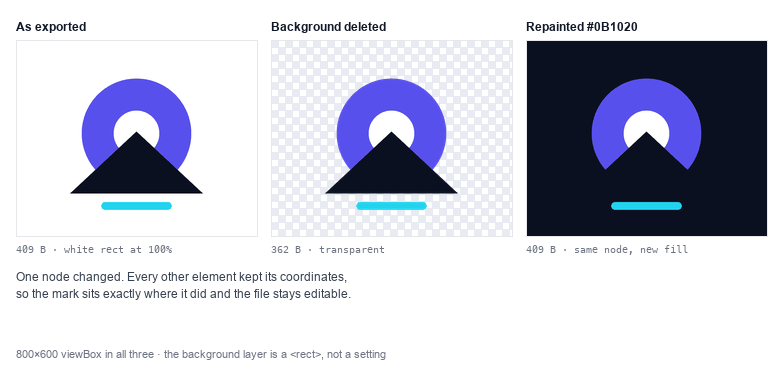
Delete it, or repaint it
Deleting is the right answer when the SVG will sit on a page whose colour you do not control, when it is destined for a favicon, an icon set or a logo lockup, or when the same file has to work on light and dark. Transparent means the surrounding surface shows through, and that is almost always what you want.
Repainting is the right answer when the file needs to look finished on its own — a social card, a PDF, a slide — and the background is part of the design. It is also the cheapest way to test contrast: paint the background dark, look at the artwork, and decide whether the file needs a light version as well. The byte size barely moves either way, because a fill colour is a few characters; the difference is what the pixels do, not what the file weighs.
Why other fixes do not stick
Three workarounds look like they solve this and do not survive contact with the next tool. A transparent PNG export loses the vector, so the file stops scaling and stops being editable. A CSS background-color on the page only hides the rect — the white shape is still inside the file, waiting to reappear the moment it is opened in an editor or used as a favicon. And a recolour tool will happily change the background's fill to your brand colour, which is a fix only if you wanted a coloured rectangle instead of no rectangle.
Deleting the node is the fix that survives: any consumer of the file — a browser, a laser cutter, a CMS, a build step — sees an SVG with no background because there is no background in it.
When the background is not a rectangle
Rounded cards, die-cut stickers and badge shapes often carry their background as a <path> or a <use> that references a symbol. Both are covered: the check is on the bounding box, not on the tag name, so a squircle that spans the canvas is listed exactly like a rect. What is not covered, and is listed as a warning instead, is a background painted by the root element's style attribute or by a rule inside a <style> block that targets svg or :root. Those are CSS, not nodes, and deleting CSS is a different operation.
If your list is empty, the artwork itself probably has a filled shape running to the edges — a scanned trace, or a logo on a coloured plate. There is nothing to delete in that case: the plate is part of the drawing, and removing it means editing paths, which the SVG Editor is for.
After the background is gone
The file usually gets smaller, so the next stop is SVG Compressor to trim the decimals in the remaining path data, then SVG Validator if the file is going to a cutter or a build pipeline that is strict about ids and references. To use the result as a site icon, Favicon Generator turns it into 16 to 512 px PNGs and a real favicon.svg. If you need a flat bitmap instead — for a marketplace listing that refuses SVG — SVG to PNG exports it with the transparency intact.
Working the other way round, SVG Background Generator does the inverse: it builds waves, blobs or a mesh gradient as a background layer you can put behind the artwork on purpose.