
Converting an SVG to WebP, BMP or GIF is two jobs stacked: the browser first draws the vector onto a canvas at the pixel size you ask for, then a codec packs those pixels into a file. Because the drawing happens at the final size, edges stay sharp — the lossy part is only the codec, and each codec throws away a different thing.
What each format keeps and what it throws away
| Format | Transparency | Colours | Compression | Pick it when |
|---|---|---|---|---|
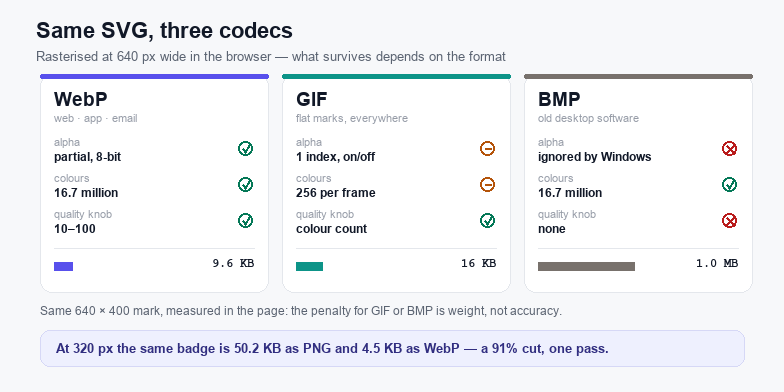
| WebP | Full 8-bit alpha, in both lossy and lossless modes | 24-bit | VP8 lossy or VP8L lossless, roughly 25–35% smaller than JPG at the same quality | The raster goes on a web page or into an app |
| GIF | One palette index only, so alpha is on or off | 256 per frame | LZW over an indexed palette | Flat logos, stickers, tiny icons, places that reject WebP |
| BMP | 32-bit files carry alpha bytes that Windows ignores | 24-bit | None — rows are padded, not compressed | Old Windows software, embroidery or machine tooling input |
Measured in this page, one 640 × 400 badge lands at 9.6 KB as WebP, 16 KB as GIF, about 750 KB as a 24-bit BMP and 1.0 MB as 32-bit. That gap is the codec, not the artwork — the pixels are identical.
How to convert an SVG to WebP, BMP or GIF
- Load the SVG. Drop the file, choose it, or paste the markup — the sample badge loads on its own so you can try the controls before you commit a file.
- Pick the format. WebP for the web, GIF for flat art that has to open everywhere, BMP only when a desktop program demands it.
- Set the pixel width. The height follows the source aspect ratio, so nothing stretches. The readout under the preview shows the exact output size and file weight.
- Choose a background. Transparent works for WebP and for 32-bit BMP; GIF gets a single transparent index. A solid colour is the safe choice when the raster sits on an unknown page.
- Download. The file is named after your source plus the width, for example
logo-1280.webp.
WebP: the default choice for the web
WebP is the only one of the three that combines partial transparency with real compression. At quality 80–85 a flat vector logo is visually identical to the PNG it replaces and typically a third of the size, which is why it is the sensible default here. Quality below 60 starts to smear thin strokes and small type; above 90 the file grows fast for no visible gain on flat artwork. Every current browser ships WebP support, including Safari 14 and later, so the only reason to avoid it is a downstream tool that still rejects the format.
GIF: 256 colours and one transparent index
GIF is a palette format: each frame points at a table of at most 256 colours, so the encoder has to decide which 256 represent your artwork. This tool builds that palette with a median cut over the pixels that survive rasterisation, then maps every pixel to its nearest entry. Use 32–64 colours for two-tone marks and 128–256 for anything with a gradient or an anti-aliased edge. Two limits are structural and cannot be tuned away: transparency is one index (a pixel is either fully transparent or fully opaque, so soft shadows get a hard rim), and gradients band. If either matters, export WebP instead.
BMP: uncompressed, and alpha-blind on Windows
BMP stores pixels raw, bottom row first, with each row padded to a four-byte boundary. Nothing is compressed, so the file is roughly width × height × 3 bytes plus a header. The format was designed before alpha mattered: a 24-bit BMP has no transparency channel at all, and the 32-bit variant carries alpha bytes that GDI, Paint and Office ignore, painting those pixels black. That is why the transparent toggle turns on a warning here — for Windows, always pick a background colour.
Choosing the export width
An SVG has no native pixel size. Its viewBox describes coordinates, and width/height are only a suggestion, so the number you type in this tool becomes the literal width of the output bitmap. Export at the largest size the image will ever be displayed and multiply by two for high-density screens: a logo shown at 240 CSS pixels wants 480 px, and a hero shown at 640 wants 1280. Going far beyond that adds bytes and no visible detail, because the raster is already fixed at that point.
What this tool does not do
- It does not animate. An animated SVG with SMIL or CSS keyframes exports as a single frame.
- It does not fetch fonts. Text is rendered with fonts installed on your machine; if the SVG relies on a webfont it may fall back to a different face. Convert text to paths first if the exact face matters.
- It does not embed external files. An SVG that links to a raster image, or to a font on a CDN, will render with those parts missing.
- It does not batch. One file at a time, by design — the whole pipeline stays in the tab.
If a raster export renders blank, the usual cause is missing xmlns, a stray <script>, or an external reference; the SVG Validator pinpoints those in one pass. To trim empty margins before export, use SVG Crop, Flip & Rotate; for plain PNG at 1x–4x with a file upload, the SVG to PNG converter is the shorter path.