
Figma SVG Stroke Fix: Why Borders Export Too Thin
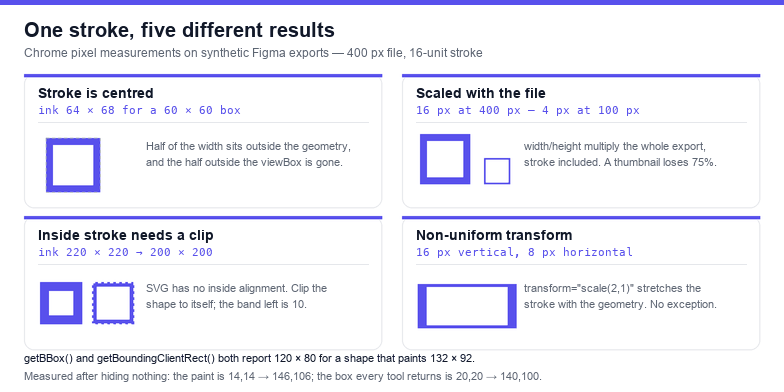
A Figma SVG that opens with hairline borders is not a broken export. The stroke is in the file, at the width you set — the file is simply being displayed at a different scale than the frame it was drawn in, and SVG scales strokes along with everything else. Measured on a synthetic export: the same 16-unit stroke renders 16 px wide at 400 px and 4 px wide at 100 px, an exact 4× loss with no attribute changed.
That single fact explains most "my borders disappeared" reports. The rest of them come from three other places: the stroke is centred on the path so half of it sits outside the shape, SVG has no inside or outside stroke alignment at all, and neither getBBox() nor getBoundingClientRect() counts the stroke when it reports a size. This guide covers each case with the measured numbers, then the fixes — inside Figma first, in the markup second.
What Figma writes for a stroke
A stroked rectangle exports about as plainly as you would expect:
<svg width="400" height="400" viewBox="0 0 400 400" fill="none"
     xmlns="http://www.w3.org/2000/svg">
  <rect x="100" y="100" width="200" height="200"
        stroke="#5850EC" stroke-width="16"/>
</svg>
Three attributes decide everything that happens next: the root width/height, the viewBox, and stroke-width on the shape. stroke-width is in user units, not pixels. The root width and height decide how many pixels one user unit gets. A 400-unit viewBox shown in a 100 px box gives each unit a quarter of a pixel, and the stroke follows.
Cause 1: the export is displayed smaller than it was drawn
This is the common case, and it is arithmetic rather than a bug. Chrome measurement on the file above:
| Rendered at | Scale | Visible stroke |
|---|---|---|
| 400 px (the frame's own size) | 1.0 | 16 px |
| 200 px (half) | 0.5 | 8 px |
| 100 px (a quarter) | 0.25 | 4 px |
Nothing is lost from the file — the drawing is complete at every size. What changes is how much of the screen one unit of stroke covers. At a quarter scale a 16-unit stroke is 4 px, which is what people describe as "it looks thin" or "the border is gone" when the page also renders it on a 2× display.
Two fixes, and they are not interchangeable. If the artwork must keep a constant on-screen thickness — icons in a toolbar, a logo in a header — add vector-effect="non-scaling-stroke". Measured: the same file at 100 px keeps a 16 px stroke instead of collapsing to 4. If the artwork should scale as a picture — a badge, an illustration, anything printed — leave the attribute off and simply export at the size you will display, or correct the stroke-width for the target scale.
Cause 2: the stroke is centred, so half of it is outside
SVG strokes are centred on the path. A 60 × 60 rectangle with an 8-unit stroke paints a ring 64 wide, four units outside the geometry on every side. Measured on a shape placed at x = 0: the ink spans 0 → 63 horizontally, and the four units that fell at negative coordinates are gone, because the viewBox clips at its edge.
That matters when the export is tight to the artwork. If the viewBox is exactly the shape's bounds, the outer half of every stroke is clipped, and the border looks half as thick as designed — with a hard, flat edge where you expected a curve. The fix is padding: give the canvas at least stroke-width ÷ 2 on each side, or let Figma export a frame that is slightly larger than the artwork.
Cause 3: SVG has no inside or outside alignment
Figma lets you align a stroke inside, centre or outside. SVG has one behaviour — centre — so an inside stroke becomes a centred stroke that straddles the edge. Sometimes that is invisible. Often it is not: a 20-unit inside stroke on a 200 × 200 button becomes a 220 × 220 painted box, and the button silently grows.
You can reconstruct inside alignment with a clip path, which is what most exporters do:
<defs>
  <clipPath id="inside"><rect x="20" y="20" width="200" height="200"/></clipPath>
</defs>
<rect x="20" y="20" width="200" height="200"
      fill="none" stroke="#000" stroke-width="20"
      clip-path="url(#inside)"/>
Measured: without the clip the paint occupies 220 × 220 at (10, 10); with it, exactly 200 × 200 at (20, 20), and the visible band inside the edge is 10 units — half of the stroke. That is what "inside" means in SVG: draw centred, then throw away the outer half. For an outside stroke the clip path is inverted, either with a larger rect plus clip-rule or by doubling the stroke width under the same clip.
Cause 4: a transform scales the stroke in one direction
Strokes are not exempt from transforms. transform="scale(2,1)" on a group doubles the vertical edges and leaves the horizontal ones alone: measured 16 px on the left and right sides, 8 px on the top and bottom. A rotated layer does the same thing in a less obvious way — a non-uniform parent scale is the usual reason a stroke looks heavier on two sides of a shape.
Two ways out. Flatten the transform into the geometry before export (Figma's "Flatten" does this), or accept the deformation and account for it. If a transform has to stay, put vector-effect="non-scaling-stroke" on the stroked element: the stroke then ignores the parent transform and stays uniform.
Strokes are invisible to every size-reporting API
This is the part that bites when you script a fix. Ask a browser for the size of a shape with a stroke and you get the geometry, not the paint:
| Question | Answer for a 120 × 80 rect with stroke 12 |
|---|---|
getBBox() | 120 × 80 at (20, 20) |
getBoundingClientRect() | 120 × 80 at (20, 20) |
| Actual painted pixels | 132 × 92 at (14, 14) |
Both APIs returned identical numbers in Chrome, and both were 12 units too small in each direction. So any "crop to the content" routine has to pad by at least stroke-width ÷ 2, or the edges it just measured get shaved off. This is the same trap that makes a viewBox computed from getBBox() clip perfectly on three sides and shave the fourth; if you have not read the viewBox fix guide, the padding rule there is the one to apply here.
Fix inside Figma: five steps
- Decide whether the border is part of the geometry. If the stroke is decoration on a filled shape, keep it a stroke. If it defines the silhouette — a badge outline, an icon on a coloured background — outline it, so the file has one geometry and no width to lose.
- Use inside alignment for boxes that must not grow. Inside alignment survives export as a centred stroke plus a clip; centre alignment does not, and the shape gets bigger in every other tool.
- Export at the size you will display. A 400 px frame shown at 100 px is a 4× loss. Export a 100 px slice, or plan to set
width/heightyourself after export and check the stroke. - Flatten before export when a transform is involved. Non-uniform scale on a parent group deforms the stroke and no SVG attribute will undo it afterwards.
- Give the frame breathing room. Two units of padding on each side cost nothing and prevent the clipped half-stroke on tight exports.
Fix after export: one console line per case
When the file is already out — a client's asset, a batch of forty icons — correct it in the markup. For a constant on-screen border, add the attribute to every stroked element:
document.querySelectorAll('[stroke]:not([stroke="none"])')
  .forEach(el => el.setAttribute('vector-effect', 'non-scaling-stroke'));
For a file that will be shown at a known fraction of its design size, scale the widths instead — this keeps the drawing proportional and needs no per-element decisions:
const svg = document.querySelector('svg');
const shown = 100;                                  // px it will occupy on the page
const designed = +svg.getAttribute('width');        // px Figma exported
const k = designed / shown;                        // 4 for a 400 px file at 100 px

svg.querySelectorAll('[stroke]:not([stroke="none"])').forEach(el => {
  const w = parseFloat(getComputedStyle(el).strokeWidth) || 1;
  el.setAttribute('stroke-width', +(w * k).toFixed(2));
});
svg.setAttribute('width', shown);
svg.setAttribute('height', +(shown * svg.viewBox.baseVal.height / svg.viewBox.baseVal.width).toFixed(1));
Both snippets only touch paint attributes; neither changes geometry, so a file that rendered correctly before still renders correctly after. If the stroke is the only thing in the artwork — an outline icon — outlining it into a filled path removes the problem permanently, at the cost of a slightly larger path data string.
Checking a stroke in thirty seconds
- Open the file in a browser at 100% and at the size it will be used. If the border thins at the smaller size, you need
non-scaling-strokeor a rescaled width. - Look for a flat, shaved edge on the outer side of the border: that is the clipped half of a centred stroke.
- Search the markup for
transform="scale(with two different numbers — that is a deformed stroke. - Check
stroke-widthin user units against the viewBox:16in a0 0 400 400box is 4% of the width, which is bold; the same 16 in a 24-unit icon box is impossible. - Or paste the file into the SVG validator first — a dangling
clip-pathid after a hand edit is a common way to lose half a stroke.
The one-line rule: a Figma stroke is centred on the path and measured in user units, so it shrinks with the file, grows past the canvas at the edges, and never appears in getBBox(). Fix the width, not the colour.
Frequently asked questions
Why does my Figma SVG have no border at all?
Usually the stroke is there but the file is displayed small: a 16-unit stroke in a 400-unit viewBox shown at 100 px is 4 px, and on a busy background that reads as no border. Check the markup for stroke and stroke-width before assuming the export dropped it. If the element really has no stroke attribute, the layer was probably a vector with its stroke hidden, or the stroke colour matched the fill.
Should I use vector-effect="non-scaling-stroke" on every export?
No. It is right for UI icons that must keep a constant on-screen weight, and wrong for illustrations and anything printed, where the stroke has to scale with the artwork. It is also inconsistently supported by older editors and cutters, so a file that must survive a trip through a third-party tool is safer with explicitly scaled widths.
How thick is the stroke after export, in numbers?
Multiply the designed width by the scale factor. A 16-unit stroke in a 400-unit viewBox rendered at 100 px is 16 × (100 ÷ 400) = 4 px. If the file is also transformed, multiply by the transform as well — scale(2,1) doubles the width on the vertical edges only.
Why does the border look thicker on two sides?
A non-uniform transform. scale(2,1) measured 16 px on left and right against 8 px on top and bottom for a nominal 8-unit stroke. Flatten the transform into the geometry before export, or apply vector-effect="non-scaling-stroke" if the transform has to stay.
Related SVG Workflows
Stroke problems rarely travel alone. These pages cover the neighbouring failures in a Figma-to-production pipeline.
- Figma SVG export not working — blank files, greyed-out export, and the rectangle-only export.
- Figma SVG viewBox fix — why the canvas is bigger than the artwork, and how to rewrite it.
- SVG crop, flip and rotate — crop to the ink without clipping half a stroke.
- SVG editor — nudge geometry and re-save without a desktop app.
- SVG optimiser — drop the per-layer groups a Figma export leaves behind.
- SVG for laser cutting — strokes are not cut lines; convert them to paths first.
- SVG to PNG — render at 2× to see whether the stroke edge is really shaved.
Related Articles
Try These Free Online Tools
No download required — convert, compress & optimize SVGs right in your browser