
Figma SVG Gradient Fix: Flat, Missing or Wrong Fills
A Figma gradient that arrives flat, banded, or not at all is almost never a colour problem. The stops survive the export byte for byte; what changes is the coordinate system they are interpreted in. Measured in Chrome on a 200 × 50 box, the same corner-to-corner gradient fills 45% of its ramp inside the first two pixels of the left edge in objectBoundingBox units, and only 5% in userSpaceOnUse units — two drawings from one set of stops.
There are five ways this shows up in a Figma export, and they have five different fixes: the fill follows a bounding box that changed shape, a shape has no bounding box to follow at all, the direction is baked into a gradientTransform matrix, two exports collide on the same gradient id, or the gradient is being painted on a stroke that has no area. Below, each one with the numbers and the markup that resolves it.
What a Figma gradient looks like in the file
Figma writes the gradient into <defs>, gives it a generated id, and paints the shape with fill="url(#…)". A rotated gradient looks like this:
<defs>
  <linearGradient id="paint0_linear_12_4" x1="0" y1="0" x2="1" y2="0"
      gradientTransform="translate(0.5 0.5) rotate(90) translate(-0.5 -0.5)">
    <stop offset="0" stop-color="#5850EC"/>
    <stop offset="1" stop-color="#22D3EE"/>
  </linearGradient>
</defs>
<rect x="40" y="120" width="200" height="50" fill="url(#paint0_linear_12_4)"/>
Two details matter. The gradient has no gradientUnits attribute, which means it defaults to objectBoundingBox — coordinates 0 to 1 relative to the filled shape's box. And the direction is not on the shape: it sits in gradientTransform, as a matrix that rotates the gradient around the centre of that unit box.
Both choices are correct SVG and both are the reason a file that looked right in Figma looks different somewhere else.
Cause 1: the gradient is stretched with the bounding box
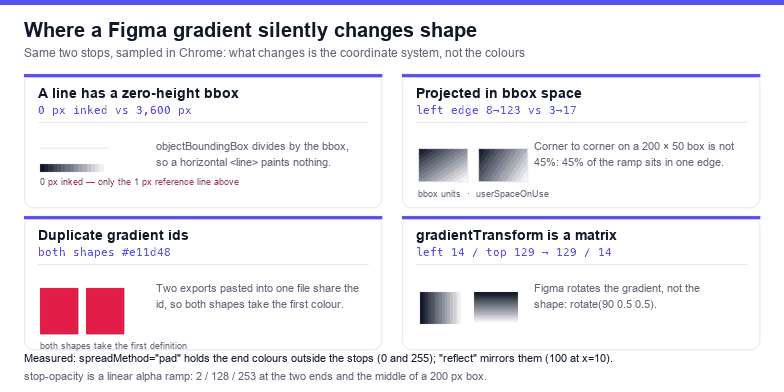
In objectBoundingBox units, a gradient from (0,0) to (1,1) is not a 45° gradient. It is a gradient from one corner of the box to the opposite corner, and the projection happens in the unit square before the box's shape is applied. On a 200 × 50 box the visual result is close to vertical, not diagonal, and the numbers show it plainly:
| Sample | objectBoundingBox | userSpaceOnUse |
|---|---|---|
| Left edge, top → bottom (luminance 0–255) | 8 → 123 | 3 → 17 |
| Centre row, left → right | 67 → 191 | 11 → 245 |
Read the first row twice. In bounding-box units, two pixels into the left edge the fill has already travelled 45% of the ramp; in user-space units it has travelled 5%. Same stops, same shape, visibly different gradient.
This is what "my gradient rotated after export" usually means. Change the shape — crop a frame, resize a group, export a different node — and the bounding box changes with it, so the gradient re-maps. If the shape's box becomes zero in one direction, see the next cause: the fill stops rendering entirely.
Cause 2: a shape with no height paints nothing
A horizontal <line> has a zero-height bounding box. Divide by that box and the gradient is undefined, so the element is not painted at all — not grey, not transparent-but-present: zero pixels. Measured on a 20-unit line across a 200 × 100 canvas: objectBoundingBox produced 0 inked pixels, the identical gradient in userSpaceOnUse produced 3,600.
This is the most confusing failure of the five, because the stroke colour is right, the file is valid, and the line simply is not there. It also hits thin rectangles that collapse when a parent group is scaled flat, and paths that Figma exported as an open line rather than a filled shape.
The fix is one attribute: give the gradient explicit gradientUnits="userSpaceOnUse" and coordinates in the shape's own space.
Cause 3: the direction lives in gradientTransform
Setting gradientTransform="rotate(90 0.5 0.5)" on a horizontal gradient turns it vertical, and the measurement is unambiguous: the plain gradient reads luminance 14 at the left edge and 129 at the top, the rotated one reads 129 at the left and 14 at the top. The axis is swapped, the shape is untouched.
That is fine until you edit one number. Change x2 on a gradient that carries a 90° transform and you rotate your edit; change the shape's box and the whole gradient re-maps around a different centre. If a gradient has a non-identity gradientTransform, treat the direction as "baked" and compute it explicitly instead of guessing from the stops:
// 读出真实方向:把 gradientTransform 与用户的 box 一起算
const grad = document.querySelector('#paint0_linear_12_4');
const m = grad.getAttribute('gradientTransform') || '';
const rot = (m.match(/rotate\(\s*(-?[\d.]+)/) || [0, 0])[1] | 0;
const vertical = Math.abs(rot % 180) === 90;
console.log(vertical ? 'gradient runs top to bottom' : 'gradient runs left to right');
For a static asset, the durable fix is to drop the transform and write the four coordinates you actually mean, in user space:
<linearGradient id="hero" gradientUnits="userSpaceOnUse"
    x1="40" y1="120" x2="240" y2="120">
That is the same drawing with nothing left to reinterpret: the axis is the shape's own coordinates, so cropping the canvas no longer reshuffles the colours.
Cause 4: two exports, one gradient id
Figma names gradients after the layer and the file, so two exports from the same file often carry the same id — paint0_linear_12_4. Paste both into one page or one SVG sprite and the ids collide. Measured with two gradients under one id, the first fills #e11d48 and the second #1d4ed8: both shapes rendered #e11d48. Renaming the second to a unique id gave the pair back its two colours.
The same collision produces a grey or black fill when one of the two gradients is a plain solid or a mask fill: the shape picks up whichever definition the renderer found first, which may be a gradient with no visible stops on that shape.
Fix by suffixing the id, and by rewriting the url(#…) references in the same pass — a renamed definition with an unrenamed reference is worse than the collision:
const SUFFIX = '-b';                              // one suffix per pasted export
document.querySelectorAll('linearGradient, radialGradient, pattern, clipPath, filter')
  .forEach(def => {
    const old = def.id, now = old + SUFFIX;
    def.id = now;
    document.querySelectorAll(`[fill="url(#${old})"], [stroke="url(#${old})"]`)
      .forEach(el => el.setAttribute('fill', `url(#${now})`));
  });
Cause 5: the gradient is on a stroke, or under a filter
Two smaller cases with the same symptom. A gradient painted on a stroke is clipped to the stroke's width, so a 1-unit hairline shows one colour from the whole ramp — usually the first stop, which reads as "the gradient did not apply". And a shape inside a filter region can lose its gradient when the filter's area is smaller than the effect: the gradient is defined on the shape, the filter samples a padded rectangle, and the part that falls outside comes back transparent.
Two attributes cover most of it: spreadMethod and stop-opacity. Measured on a gradient defined from x = 50 to x = 150 in a 200 px box, spreadMethod="pad" holds the end colours outside the stops (luminance 0 before, 255 after), while "reflect" mirrors the ramp (100 at x = 10, 202 at x = 170). And stop-opacity is a plain linear alpha ramp — 2, 128, 253 across a 200 px box — so a transparent-to-solid gradient is not a lighter colour, it is a fade, and it disappears entirely over a white page.
Fix inside Figma
- Check the fill type before anything else. A gradient that is 100% one stop, or whose two stops are the same hex, exports as a flat fill. It looks identical in the canvas and nothing downstream can recover the intent.
- When you crop, re-check the gradient. Bounding-box gradients re-map with the box, so a crop changes the colours as well as the size.
- Prefer a rotated group over a rotated gradient. Rotating the shape keeps the gradient in its own coordinates; rotating the gradient bakes a matrix into the definition.
- Do not put gradients on hairlines. If a 1 px divider needs to fade, use a 1 px rectangle with a gradient fill or two overlay rectangles — a stroked line has almost no area to paint.
- Flatten one export at a time. Two exports from the same file in one page will collide on ids unless you rename them.
Checking a gradient in thirty seconds
- Grep the file for
url(#and count how many definitions share a name — anything above one is a collision waiting to happen. - Look for
gradientUnits. If it is missing, the gradient is in bounding-box units and will move when the shape moves. - Look for
gradientTransform. If present, the direction is a matrix; do not try to read it offx1/x2. - Check whether the painted element is a
<line>or has zero width or height in one axis — that gradient paints nothing. - Render at 2× with the SVG to PNG converter to see banding and clipping that a 1× preview hides.
The one-line rule: a Figma gradient keeps its stops and loses its coordinates — bounding-box units re-map when the shape changes, a zero-height box paints nothing, and the direction may be locked inside a gradientTransform. Rewrite the geometry in user space and the fill stops moving.
Frequently asked questions
Why is my Figma SVG gradient flat?
Usually because the gradient survived but its two stops are effectively one colour, or because it is painted on a stroke too thin to show the ramp. Check the <stop> values first: a gradient whose stops are the same hex exports as a flat fill that looks exactly like the original in Figma.
Why did the gradient direction change after export?
Because the direction is not stored on the shape. Figma writes a gradientTransform matrix — often rotate(90 0.5 0.5) — and the visual angle depends on both that matrix and the shape's bounding box. Measured: rotating the gradient 90° reads 129 at the left edge where the unrotated one reads 14.
Why does the gradient disappear on a line?
A line has a zero-height bounding box, and a objectBoundingBox gradient cannot be resolved against it, so nothing is painted: measured 0 inked pixels, against 3,600 for the same gradient in userSpaceOnUse. Convert the line to a thin rectangle, or switch the gradient to user-space units.
Can I keep objectBoundingBox and still crop the artwork?
You can, but the gradient will re-map to the new box, so the colours at the edges change. If the crop is permanent, convert the gradient to userSpaceOnUse coordinates computed from the original box, then crop — that keeps the ramp where you drew it.
Related SVG Workflows
Gradients are the second thing to break in a Figma export, after the canvas. These pages cover the rest of the pipeline.
- Figma SVG stroke fix — why borders export thin, and how to keep the width.
- Figma SVG viewBox fix — the canvas that is bigger than the artwork.
- Figma SVG export not working — blank files and greyed-out exports.
- CSS to SVG gradient — generate an SVG gradient with explicit user-space coordinates.
- SVG validator — catch duplicate ids and dangling
url(#…)references. - SVG optimiser — remove the per-layer groups that make a Figma export heavy.
- SVG editor — edit stops and coordinates in the browser.


Try These Free Online Tools
No download required — convert, compress & optimize SVGs right in your browser
CSS to SVG Gradient
Generate a gradient with explicit user-space coordinates.
Open Gradient Tool