
SVG Stroke Width Scaling: Why It Changes at Every Size
stroke-width is not a pixel measurement. It is a length in the SVG's own coordinate system, and the browser multiplies it by whatever scale the viewport applies before it draws anything. I put one 60×40 rectangle with stroke-width="4" into boxes of 50, 100, 200 and 400 CSS pixels, screenshotted each at a device pixel ratio of 3 and counted the ink: the stroke measured 2.0, 4.0, 8.0 and 16.0 pixels. The same file, the same attribute, four different strokes. Adding vector-effect="non-scaling-stroke" pinned all four at 4.0.
That is the entire bug behind “my icon looks too heavy at 2×” and “the strokes disappeared when I shrank the logo”. This page measures it in 21 renders, then covers the four fixes and the cases where each one is wrong.
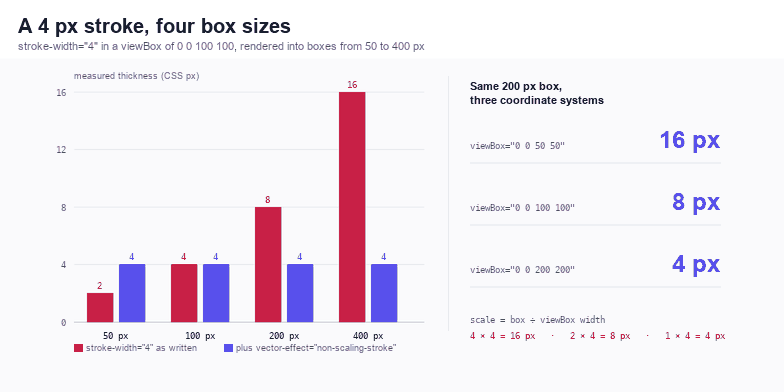
One rectangle, four boxes
The test file is deliberately boring: a viewBox of 0 0 100 100, one rectangle from x=20 to x=80 and y=30 to y=70, no fill, stroke-width="4". The box it is rendered into is the only thing that changes between rows, and thickness is measured by summing the ink coverage across the top and bottom edges on a vertical scan through the middle of the drawing.
| Box | Scale (box ÷ viewBox) | Plain stroke | + non-scaling-stroke |
|---|---|---|---|
| 50 px | 0.5× | 2.0 px | 4.0 px |
| 100 px | 1× | 4.0 px | 4.0 px |
| 200 px | 2× | 8.0 px | 4.0 px |
| 400 px | 4× | 16.0 px | 4.0 px |
Two things in that table are worth more than the numbers. First, the relationship is exactly linear — 4 × 0.5 = 2, 4 × 2 = 8, 4 × 4 = 16 — so you can predict any size without measuring. Second, non-scaling-stroke is not “thinner”: at 50 px it is thicker than the scaled stroke (4.0 against 2.0), because it pins the stroke to the number you wrote.
The formula, and the three inputs
Rendered thickness is stroke-width × (box width ÷ viewBox width) × group scale. The first ratio is the viewport transform, the second is any transform you applied inside the file. Both are visible in the DOM, and neither is in the stroke-width attribute, which is why the attribute is never the answer to “how thick will this look”.
The inline case behaves identically to the image case, which is the part people doubt: an inline <svg> at 200 px with the same viewBox measures 8.0 px, exactly like the <img> at 200 px. Whatever your editor's DOM shows you, this is a scale arithmetic problem, not a mounting problem. The viewBox versus width and height measurement covers the geometry side of the same transform.
The same box, three coordinate systems
This is the quiet version of the bug. Three files, all rendered into a 200 px box, all declaring stroke-width="4":
| viewBox | Scale | Stroke measured | Drawing width |
|---|---|---|---|
0 0 50 50 | 4× | 16.0 px | 240 px, clipped |
0 0 100 100 | 2× | 8.0 px | 120 px |
0 0 200 200 | 1× | 4.0 px | 60 px |
Same element, same width and height attributes, same stroke number, and a factor of four between the thinnest and the thickest. If someone “fixed” the layout by changing the viewBox, the strokes moved with it.
CSS does not opt out
The obvious next idea is to set the stroke in CSS, where everything else is in pixels. It does not work: a stylesheet declaring stroke-width: 4 on the path, rendered into a 200 px box, measured 8.0 px — the same as the attribute. In SVG, CSS lengths for geometry properties are resolved in user units, so 4 means four of the coordinate system's units, not four device pixels, and 4px means the same thing.
The one-attribute fix
vector-effect="non-scaling-stroke" tells the renderer to stroke the path after the transform rather than before, so the width you wrote is the width you get on screen. In all four boxes the measured stroke was 4.0 px, and the difference is visible in the ink bounding box as well: at 200 px the plain stroke occupied 128×88 px around a 120×80 path, the non-scaling one 124×84.
It is one attribute on the shape, it survives CSS sizing, it works inside an <img>, and it needs no extra markup. The trade is that the stroke no longer communicates with the rest of the drawing: your 4 px is a screen measurement, so a printed or PDF export keeps 4 units of whatever the print pipeline decides, and a very small rendering gets a stroke that is proportionally heavy. It is a display fix, not a document fix.
Scaling a group is a different problem
A transform inside the file multiplies on top of the viewport scale. One <g transform="scale(2)"> around the same rectangle, in a 200 px box, measured 16.0 px — 4 × 2 × 2. The geometry doubled too, as it should, and the drawing now runs off the edge of its own viewBox: the path is 240×160 units inside a 100-unit box, and only 128 px of it was inside the render.
Two fixes, both measured. Divide the stroke by the group scale — stroke-width="1" inside scale(2) at 2× — which measured 4.0 px and leaves the geometry where it was. Or add non-scaling-stroke, which also measured 4.0 px but does nothing about the overflow: the ink bounding box was 122×82 px, still clipped. Use the division when you meant to scale a group of objects and want their strokes to follow the design; use the attribute when the stroke is a screen-space decision.
When the scaling is not uniform
preserveAspectRatio="none" stretches the coordinate system differently on each axis, and the stroke follows each axis separately. The same rectangle in a 400×200 box measured 8.0 px across the top edge and 16.0 px down the side — one shape, two stroke widths, because the horizontal scale was 4 and the vertical scale 2. Browsers do not warn about this; the drawing simply looks slightly wrong in a way that is hard to name.
With non-scaling-stroke the same box measured 4.0 px in both directions. This is the one case where the attribute is not a preference but the only sane answer: a stroke that has to be uniform on a non-uniformly scaled drawing cannot be expressed as a single number of user units.
Half the stroke is outside the path
A stroke is centred on the geometry, so half of it sits outside. The bounding boxes show it exactly: 120×80 of path at 200 px with an 8 px stroke gives 128×88 — four pixels of stroke added on each side — and with a 4 px stroke, 124×84. At 400 px the plain stroke adds eight pixels a side.
Two practical consequences. A drawing whose artwork touches the edge of its viewBox will lose the outer half of its stroke at large sizes unless the viewBox has a margin — a 4 px stroke needs 2 units of padding at 1× and 8 units at 4×. And when you measure a stroke by its bounding box, subtract the half-stroke before you conclude anything about the geometry: the path did not grow, the ink did.
Predict it instead of measuring it
The arithmetic in one function, with the same numbers this page measured:
function drawnStroke({ strokeWidth, viewBoxWidth, boxWidth, groupScale = 1, nonScaling = false }) {
  if (nonScaling) return strokeWidth;
  return Math.round(strokeWidth * (boxWidth / viewBoxWidth) * groupScale * 100) / 100;
}
It returns 2, 4, 8 and 16 for the four boxes, 16 for a scale(2) group in the 200 px box, 4 for viewBox 0 0 200 200 in the same box, and the declared width whenever nonScaling is true. Wire it to the values you already have — svg.getBoundingClientRect().width, the viewBox width, and the product of any group scales — and the question “how thick will this look” stops needing a screenshot.
Going the other way: write the number that lands on 4 px
When the design says “4 px stroke at this size” and the geometry is scaled, invert the formula:
function strokeToWrite({ targetPx, viewBoxWidth, boxWidth, groupScale = 1 }) {
  return Math.round((targetPx * viewBoxWidth) / (boxWidth * groupScale) * 1000) / 1000;
}
For a 4 px stroke, a viewBox of 100, a 200 px box and a group scale of 2, it returns 1 — and stroke-width="1" in exactly that arrangement measured 4.0 px. That is the whole fix for the Figma-style problem where a scaled icon exports with hairline strokes: the exporter scales the geometry and leaves the stroke number alone, and the number has to be divided by the same factor. The Figma stroke export measurements cover the export-side half of that story.
Which fix for which case
| Situation | What happens | Fix |
|---|---|---|
Icon in an <img>, sized by CSS at several widths | Stroke follows the box: 2, 4, 8, 16 px | non-scaling-stroke |
| Inline SVG that users zoom | Same scaling, and the zoom multiplies it | non-scaling-stroke, or accept the scaling as intentional |
<g transform="scale(2)"> inside the file | Double stroke, and geometry may overflow the viewBox | Divide stroke-width by the scale |
preserveAspectRatio="none" | Two different stroke widths on one shape | non-scaling-stroke only |
| Print or PDF output | User units are the right unit again | Leave it alone; pick the number for the physical size |
| Stroke-width set in CSS | Still user units: 4 becomes 8 at 2× | CSS cannot opt out; use non-scaling-stroke |
One last check that costs nothing: put the file at the smallest and largest size it will ever be shown at, side by side, and look at the stroke rather than the drawing. The SVG editor lets you change the root attributes and watch the render, and the SVG to PNG tool renders at an exact pixel size, which is the only way to compare a 50 px and a 400 px stroke honestly.
Related SVG Workflows
Stroke scaling is one of four numbers that decide how a drawing reads at size. These pages cover the others.
- Figma SVG Stroke Fix — why an exported stroke arrives thinner than the canvas showed.
- SVG viewBox vs width and height — the box and the coordinate system, measured in four containers.
- Figma SVG viewBox Fix — what the exporter writes into the root element.
- SVG Resizer Guide — changing size without re-exporting the artwork.
- Figma Outline Text — another place where user units and pixels get confused.
- SVG vs PNG — when a format that scales is the wrong choice.
- SVG to PNG — render at an exact size to compare strokes.
Related Articles
Try These Free Online Tools
No download required — convert, compress & optimize SVGs right in your browser