
Figma SVG Clipping Mask Fix: Why the Mask Eats the Artwork
A mask in SVG is not a shape that reveals what is inside it. It is a picture whose brightness becomes the alpha channel of the element it is applied to. Almost every "my mask exported wrong" case follows from that sentence: the mask is fine, the picture inside it is the wrong shade, or the frame around the picture is smaller than the artwork.
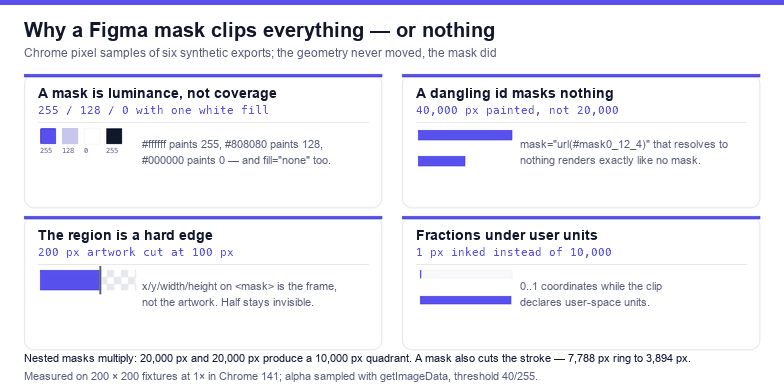
Each case below was reproduced in Chrome with a synthetic Figma-style export — a 200 × 200 artboard, a mask frame, one painted shape — and measured by reading the alpha channel back pixel by pixel after rasterising. The numbers are what the browser painted, not what the markup suggests it should paint. On a white mask the result is 255; on a mid grey it is 128; on black it is 0. That single table explains more Figma exports than any other page on this site.
What Figma writes when you choose "Use as mask"
Select a shape, run Use as mask, and the layer above it becomes the mask content. On export, Figma writes that pair into a <defs> block and points the artwork at it:
<defs>
  <mask id="mask0_12_4" style="mask-type:luminance"
        maskUnits="userSpaceOnUse" x="0" y="0" width="200" height="200">
    <rect width="200" height="200" fill="#ffffff"/>
    <circle cx="100" cy="100" r="60" fill="#ffffff"/>
  </mask>
</defs>
<g mask="url(#mask0_12_4)">
  <!-- the artwork that was under the mask layer -->
</g>
Three details matter, and each one is a failure mode later on. The first white rectangle is not decoration: it is the part of the artboard you keep. The circle adds to it. Where neither of them paints, nothing of the artwork survives. Second, the x/y/width/height attributes are the mask region — a hard rectangle outside which the mask is treated as black. Third, mask-type decides whether colour or alpha is read, and the default is luminance.
Cause 1: a mask is luminance, not coverage
The most common report is "the mask hid everything". It usually did exactly what the file asked. Measured on a 200 × 200 rect filled #5850ec and masked by a solid 200 × 200 rectangle, changing only the fill of the mask content:
| Mask content fill | Resulting alpha | What you see |
|---|---|---|
#ffffff | 255 | Artwork fully visible |
#808080 | 128 | Artwork at 50% |
#000000 | 0 | Nothing at all |
fill="none" | 0 | Nothing at all |
#000000 + mask-type:alpha | 255 | Artwork fully visible |
Two conclusions, both measured. Black in a luminance mask is a hole, and a shape with fill="none" paints no pixels, so it is a hole as well — a mask layer whose fill was switched off is indistinguishable from a mask layer that was deleted. And once mask-type:alpha is in play, colour stops mattering: the same black rectangle that hid everything now hides nothing, because only its alpha channel is read.
This is why "the mask is inverted" is usually the wrong diagnosis. Nothing is inverted; the mask content is dark where you needed it light, or the mask is being read in alpha mode where you assumed luminance. Figma has no invert switch for masks, so an inverted result means the fills were swapped — a white shape on a black frame instead of a black shape on a white frame.
Cause 2: an id that resolves to nothing masks nothing
Rename an id, paste two exports into one file, or run a minifier that shortens ids, and the artwork's mask="url(#mask0_12_4)" can end up pointing at a definition that no longer exists. Chrome does not treat that as an error and it does not hide the element. Measured on the same 200 × 200 fixture: a dangling reference paints 40,000 pixels — exactly the same count as no mask at all — while the correctly referenced mask paints 20,000.
The clip-path case behaves the same way: a dangling clip-path="url(#clip0_12_4)" also paints 40,000 pixels, and a real one paints 20,000. So "the mask stopped working after I optimised the file" is usually a broken reference, not a rendering difference. The fix is mechanical: count the ids you reference and the ids you define.
// paste in the console with the file open in the browser
const ids = new Set([...document.querySelectorAll('[id]')].map((n) => n.id));
const dangling = [...document.querySelectorAll('[mask],[clip-path]')]
  .flatMap((n) => ['mask', 'clip-path'].map((a) => n.getAttribute(a)))
  .filter(Boolean)
  .map((v) => v.match(/#(.+)\)/)[1])
  .filter((id) => !ids.has(id));
console.log(dangling);   // any entry here is a mask that is doing nothing
Cause 3: the region behind the mask is a hard edge
The x/y/width/height attributes on <mask> are not hints. They are the rectangle the mask is allowed to exist in; outside it, alpha is zero. Take a 200-pixel-wide artwork that is white all the way across and a mask region of 100 pixels:
| Mask region width | Painted pixels | Ink box | Alpha at x = 150 |
|---|---|---|---|
| 200 | 40,000 | 200 × 200 | 255 |
| 100 | 20,000 | 100 × 200 | 0 |
The edge lands exactly on 100 and is perfectly straight, which is the giveaway: curves that end in a straight line, or artwork that stops at a clean vertical seam, are region problems. Figma fills those attributes from the bounds of the mask frame at export time, so moving or resizing the artwork afterwards — or exporting a different node than the one the mask was drawn on — leaves the numbers stale. Recomputing them from the root viewBox restores the full 40,000 pixels; that is what the snippet later in this article does.
Cause 4: one pixel survives, because the units disagree
Here is a failure that looks like a corrupted file and is only a units mismatch. A clip path carries clipPathUnits, and its coordinates are read in those units. Write 0..1 fractions while declaring user-space units, and the clip collapses to a single unit:
| Markup | Painted pixels |
|---|---|
clipPathUnits="userSpaceOnUse", rect width="100" | 10,000 |
clipPathUnits="userSpaceOnUse", rect width="1" | 1 |
clipPathUnits="objectBoundingBox", rect width="0.5" | 10,000 |
One pixel. Not zero, which is why it reads as a rendering bug rather than a clipping bug: a thin line of colour survives at the top-left, or the artwork simply is not there while the file size and the layer list look normal. Any tool that "normalises coordinates" to a 0..1 range has to flip clipPathUnits in the same edit; when it does not, this is the result.
Cause 5: a clip cannot fade
A clip path is a stencil and a mask is a ramp, and the two are not interchangeable. Sample the alpha of the same gradient-shaped stencil five times across a 200-pixel width:
| Applied as | Alpha at 1 / 50 / 100 / 150 / 198 px |
|---|---|
mask with a white-to-transparent gradient | 2 · 64 · 128 · 192 · 253 |
clip-path with the same geometry | 255 · 255 · 255 · 255 · 255 |
So when a soft edge exports as a razor cut, the file is clipping, not masking. The reverse also happens: a mask used where a binary cut was intended leaves an unintended 50% band along the edge, which shows up as a grey outline on a dark background and gets blamed on anti-aliasing.
Cause 6: nested masks multiply
Two masks on one element do not add up, they intersect. Measured on the same fixture: a mask that keeps the left half paints 20,000 pixels, a mask that keeps the top half paints 20,000 pixels, and both together paint 10,000 — one quadrant, which is exactly 50% of either mask's area.
This is why "I removed the mask and it is still cut" is a real experience: Figma can emit a mask on the group and another on a child inside it, and each one is a separate multiplication. Flatten the mask layers before exporting, or accept the intersection deliberately.
Cause 7: masks cut strokes and shadows too
A mask multiplies the alpha of everything the element paints, not just its fills. A ring — a circle with fill="none" and a 20-unit stroke — masks in half like a solid disc: 7,788 painted pixels become 3,894, and the surviving ink box is 70 × 140 instead of 140 × 140. If a border disappears while its fill survives, this is the mechanism, and a drop shadow or blur inside the masked group is cut the same way.
What is not the problem: the element transform
It is tempting to blame the transform — "the mask did not follow the shape when I scaled it". It did. Applying transform="scale(2)" to the masked element takes the painted area from 11,436 pixels to 45,500 and the ink box from 120 × 120 to 240 × 240, which is four times the area, matching the circle's own area growth (11,310 at r = 60). Mask content lives in the same user space as the element that references it, so it scales with it.
What does not follow is the viewBox. Change the root viewBox and every user-space coordinate, mask regions included, is reinterpreted against the new canvas — which is the subject of the viewBox fix article rather than this one.
Fixing it in Figma before export
- Check the mask frame covers the artwork. The frame's bounds become the mask region; if it is smaller than the art, the art is cut with a straight edge no matter how white the mask is.
- Give the mask layer a visible white fill. A frame with the fill switched off exports as
fill="none", which paints 0 and hides everything. - Keep mask opacity at 100%. Layer opacity on the mask layer becomes grey in the export, and grey is a partial reveal — 50% opacity measures 128, not 255.
- One mask per group. Nested masks intersect; if the artwork is cut twice, remove the inner one instead of adjusting it.
- Flatten strokes you want to keep whole. Outlining a stroke before masking makes the mask cut a shape rather than a paint operation, which is easier to reason about.
- Export, then grep.
grep -c 'url(#' file.svgandgrep -c '<mask id' file.svgshould agree, or know which references are gradients.
Fixing it in the file
If the artwork is right and the region is stale, rewrite the region from the root viewBox. This six-line snippet, run with the file open in a browser, measured 20,000 painted pixels before and 40,000 after on the fixture above:
const svg = document.querySelector('svg');
const vb = svg.viewBox.baseVal;
svg.querySelectorAll('mask').forEach((m) => {
  m.setAttribute('maskUnits', 'userSpaceOnUse');
  m.setAttribute('x', vb.x);
  m.setAttribute('y', vb.y);
  m.setAttribute('width', vb.width);
  m.setAttribute('height', vb.height);
});
If the mask content is solid white — no fades anywhere — the same drawing survives as a clip path, which is cheaper and immune to the luminance rules. A clip is also what you want when the answer to "should this edge be hard?" is yes. If a gradient stops halfway across and turns into a hard cut, the mask was replaced by a clip somewhere in the pipeline; put the gradient back and keep it as a mask.
A thirty-second check
- Does the mask content have a fill?
fill="none"hides everything. - Is the fill white? Grey is a partial reveal; black is a hole.
- Is
mask-typeset?alphaignores colour entirely. - Do the ids referenced by
mask=andclip-path=exist in the file? - Does the mask region cover the whole artwork, or does the ink end in a straight line?
- Are there two masks on the same element? They intersect, not merge.
The one-line rule: a mask is a greyscale picture used as alpha — white reveals 255, grey reveals 128, black reveals 0 — so a mask that hides everything is usually a mask whose content is dark or missing its fill, and a mask that cuts in a straight line has a region smaller than the artwork.
Frequently asked questions
Why does my Figma mask hide the whole artwork?
Because the mask content is dark or empty. A mask is read as luminance by default: measured, a white fill reveals 255, mid grey 128, black 0, and fill="none" also 0. Check the fill of the mask layer — Figma exports a frame with its fill switched off, which hides everything.
Why is only part of the artwork visible, with a straight edge?
The mask region is smaller than the artwork. The x/y/width/height attributes are a hard rectangle: with a 100-pixel region on a 200-pixel artwork, measured ink stops at 100 pixels and alpha at x = 150 is 0. Reset the region to the root viewBox.
Why did the mask stop working after optimising the SVG?
An id was renamed. A mask reference that resolves to nothing is silently ignored in Chrome: measured, the element paints 40,000 pixels — the same as no mask — instead of 20,000. Clip paths behave identically. Count the ids you define against the ids you reference.
Can I use clip-path instead of a mask?
Only when the edge should be hard. A clip is a stencil: measured alpha across a gradient stencil is 255 everywhere, while the same stencil as a mask ramps 2 to 253. For solid cut-outs a clip is smaller and safer; for fades, keep the mask.
Related SVG Workflows
Masks are the third thing to break in a Figma export, after the canvas and the borders. These pages cover the rest of the pipeline.
- Figma SVG export not working — blank files, greyed-out buttons and empty exports.
- Figma SVG viewBox fix — the canvas that is bigger than the artwork.
- Figma SVG stroke fix — why borders export thin, and how to keep the width.
- Figma SVG gradient fix — gradients that go flat, move or disappear.
- SVG validator — catch dangling
url(#…)references and duplicate ids. - SVG editor — edit mask regions and ids in the browser.
- SVG optimiser — shrink the file without renaming the ids a mask depends on.
Related Articles

Try These Free Online Tools
No download required — convert, compress & optimize SVGs right in your browser
SVG Validator
Catch dangling url(#…) references and duplicate ids before a mask silently stops working.
Open validatorSVG to PNG
Render at 2× to see a clipped or half-hidden file the way a page will.
Convert to PNGBackground Remover
Drop a full-bleed plate and keep the transparent pixels around the artwork.
Remove backgroundSVG Optimiser
Minify a Figma export without renaming the ids your masks depend on.
Open optimiser