
Figma SVG Transparent Background: Where the White Box Comes From
An SVG file has no background to set. The canvas starts empty, and any pixel nobody paints stays transparent — which is why "export with a transparent background" is not a setting you turn on but a rectangle you remove. When a Figma export arrives with a white box behind the logo, something in the file is painting that box, and it is almost always one of five things.
All five were reproduced and measured in Chrome: the same 200 × 200 drawing, exported six different ways, sampled through the canvas backing store. The drawing itself occupies 11,436 of the 40,000 pixels — 28.6%. Everything else is somebody else's paint.
What "transparent background" means in an SVG file
Transparency is the absence of paint, not a colour. A root <svg> with no children claiming the full canvas is transparent by definition: corner alpha 0, measured. A root element with a full-bleed <rect>, or with a CSS background, is opaque: corner alpha 255, and all 40,000 pixels carry paint.
That is the entire model. There is no background-color: transparent to add, and no attribute on the root that switches a plate off — the plate is either a separate element or a style, and both are removable. Note also that the checkerboard you see in Figma or in an image editor is a viewer's convention: nothing in the file represents it, and exporting "with the checkerboard" is not a thing that can happen.
Cause 1: the frame fill is exported as a real rectangle
A Figma frame with a fill colour exports that fill as a child rectangle, usually the first one:
<svg viewBox="0 0 200 200" width="200" height="200">
  <rect width="100%" height="100%" fill="#ffffff"/>   <!-- the frame fill -->
  <circle cx="100" cy="100" r="60" fill="#5850ec"/>
</svg>
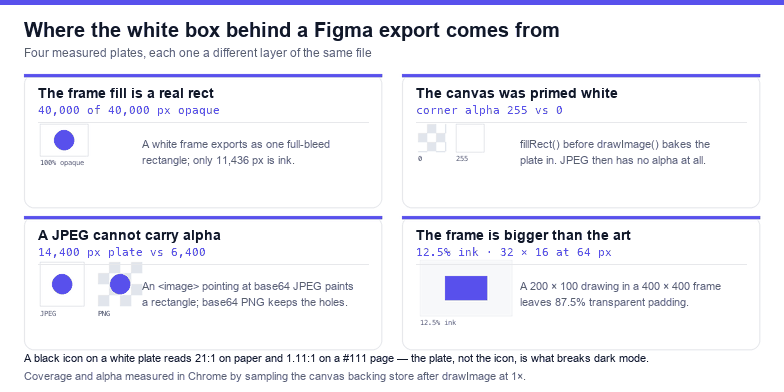
Measured, that first rectangle makes every pixel opaque: 40,000 of 40,000 against 11,436 for the same drawing without it — 28,564 pixels of plate, a 3.5× increase in painted area, all of it white. On a white page nobody notices; on a dark page, in a dark-mode app, or in a slide deck with a coloured backdrop, the logo arrives in a white box.
The fix is one line: set the frame fill to none, or delete the rectangle after export. If the fill was there to check contrast while designing, remove it just before exporting rather than keeping a second copy of the frame.
Cause 2: the canvas was primed white before drawing
The second plate is created by the exporting script, not by Figma. Drawing an SVG into a canvas that was filled white first bakes the white in permanently:
const ctx = canvas.getContext('2d');
ctx.fillStyle = '#ffffff';              // <-- this is the plate
ctx.fillRect(0, 0, canvas.width, canvas.height);
ctx.drawImage(svgImage, 0, 0, canvas.width, canvas.height);
// canvas.toDataURL('image/png')          keeps alpha
// canvas.toDataURL('image/jpeg')         cannot keep alpha
Measured: a corner pixel of the cleared canvas reads alpha 0, the primed canvas reads 255. The PNG that comes out of toBlob() still reports image/png and keeps the transparency; the same canvas saved as JPEG reports image/jpeg and its corner comes back at alpha 255 after a round trip. If a script offers a "background colour" option, its default should be nothing at all — and "transparent" has to mean skipping the fillRect, not filling with a colour that looks transparent in a preview.
Cause 3: a JPEG inside the SVG has no alpha channel
An embedded raster can carry its own plate. A 120 × 120 <image> whose href is a base64 PNG measures 6,400 painted pixels — the circle only, corners at alpha 0. The identical drawing embedded as base64 JPEG measures 14,400 painted pixels, corners at alpha 255: the whole square, including the 8,000 pixels around the circle.
| Embedded data | Painted pixels of a 120 × 120 image | Corner alpha |
|---|---|---|
| base64 PNG with transparency | 6,400 | 0 |
| base64 JPEG | 14,400 | 255 |
The same rule applies outside the file: every "why is my SVG white on a dark page" report that mentions a photo or a screenshot ends here. JPEG has no alpha channel; converting to WebP or PNG and re-embedding restores the holes.
Cause 4: a CSS background on the root element
Less common but harder to spot, because nothing in the markup looks like a rectangle: a style on the root <svg> that sets a background.
<svg viewBox="0 0 200 200" style="background:#ffffff">Measured, that file paints 40,000 pixels and its corner reads alpha 255, exactly like a full-bleed rectangle — but there is no <rect> to delete. Search the file for background and style= before concluding the plate came from a shape. The same applies to <image> elements and to <foreignObject> blocks that carry their own CSS.
Cause 5: it is padding, not transparency
A frame drawn 400 × 400 around artwork that is 200 × 100 will export the frame's full canvas. The pixels outside the artwork are genuinely transparent — alpha 0 — but the file still behaves like a square: 20,000 of 160,000 pixels are ink, 12.5% coverage, and the rest is air.
That is not a background bug, and it still ruins layouts. Rendered at 64 pixels, the artwork inside that file measures 32 × 16; the icon you placed at 64 pixels is a quarter of the size you expected, sitting in the middle of an invisible box. Crop the viewBox to the ink before exporting — or use a tool that measures the ink box for you.
Cause 6: transparent, and invisible anyway
A plate is often added on purpose, because a transparent export of a black icon is unusable on a dark surface. Measured with the WCAG contrast formula, black on white is 21:1, and black on #111111 is 1.11:1 — effectively nothing. So "make the background transparent" and "make the logo visible in dark mode" are two different requests, and the second one is solved with currentColor or two fills, not with a plate.
If the file must work on both, ship it transparent and recolour at the point of use: fill="currentColor" on the paths lets the page decide. That is a one-attribute change and it keeps the export honest.
Verifying alpha in ten seconds
Do not trust a viewer's checkerboard. Read the pixels: load the file into an image, draw it on a cleared canvas, and sample the corner.
const img = new Image();
img.src = 'logo.svg';
await img.decode();
const c = document.createElement('canvas');
c.width = img.naturalWidth; c.height = img.naturalHeight;
const ctx = c.getContext('2d');       // no fillRect: the canvas starts clear
ctx.drawImage(img, 0, 0);
const d = ctx.getImageData(0, 0, c.width, c.height).data;
console.log('corner alpha', d[3]);    // 0 = transparent, 255 = plate
Corner alpha 0 means the file is genuinely transparent. Corner alpha 255 with an empty-looking margin means something is painting there — go back to causes 1, 3 and 4. A file can also be transparent in the corner and still carry a plate in the middle; sample a few points or compute the ratio of opaque pixels, which for the reference drawing above is 28.6%.
Exporting it right from Figma
- Set the frame fill to none before exporting, or delete the first full-bleed rectangle afterwards.
- Do not use a background rectangle as a "safety" layer. It survives the export and cannot be distinguished from artwork by a viewer.
- Flatten photos to PNG, not JPEG, if they need transparent corners; JPEG cannot carry alpha.
- Crop the frame to the artwork. Frame bounds become the viewBox, and empty space becomes invisible padding.
- Export PNG at 2× for raster uses and keep the SVG for vector uses; do not upscale a 1× PNG to fake sharpness.
- Check the corner alpha with the snippet above before uploading.
Removing the plate in the file
If the plate is a full-bleed rectangle, delete the rectangles that cover the canvas and keep the rest. Measured on the reference drawing: 40,000 painted pixels before, 11,436 after — the artwork exactly, with the corner back at alpha 0.
const svg = document.querySelector('svg');
const vb = svg.viewBox.baseVal;
svg.querySelectorAll(':scope > rect').forEach((r) => {
  const w = r.getAttribute('width') || '0';
  const h = r.getAttribute('height') || '0';
  const covers = (v, span) => v === '100%' || parseFloat(v) >= span;
  if (covers(w, vb.width) && covers(h, vb.height)) r.remove();
});
Two cautions. Only remove rectangles that are first in paint order — a full-size rectangle on top is a scrim, and deleting it changes the design rather than the background. And if the file is used as an app icon or favicon, check the platform's own background rule before removing a plate that was there for a reason.
A thirty-second check
- Is there a
<rect>withwidth="100%"early in the file? That is the frame fill. - Does the root
<svg>carrystyle="background:…"? - Does any
<image>point at JPEG or WebP-without-alpha data? - Is the drawing much smaller than the
viewBox? Then the file is mostly padding. - Does the corner alpha read 0 after rasterising on a cleared canvas?
The one-line rule: an SVG has no background — transparency means nothing painted the pixel — so a white box is always a rectangle, a CSS background or a JPEG that travelled with the file, and deleting that one element makes the export transparent.
Frequently asked questions
Why is my Figma SVG background white?
Because the frame fill was exported as a real rectangle, usually the first child: <rect width="100%" height="100%" fill="#ffffff"/>. Measured, it makes all 40,000 pixels opaque instead of the 11,436 the artwork needs. Set the frame fill to none, or delete that rectangle.
How do I make a transparent PNG from an SVG?
Draw the SVG onto a canvas that has not been filled, then export with toBlob(…, 'image/png'). Measured, a cleared canvas keeps corner alpha 0 through the PNG, while JPEG forces it back to 255 — the format, not the code, decides whether alpha survives.
Why does my SVG show a white box only on a dark page?
Because the plate was always there and matched the page. The same file that looks clean on white reads as a box on #111, where black artwork also measures only 1.11:1 contrast. Remove the plate and recolour with currentColor instead.
Does viewBox affect transparency?
No, but it affects what looks like padding. A drawing of 200 × 100 inside a 400 × 400 viewBox covers 12.5% of the canvas, so the file is mostly transparent air and the artwork renders at 32 × 16 when the image is 64 pixels wide.
Related SVG Workflows
The plate is the fourth thing to break in a Figma export, after the canvas, the borders and the masks. These pages cover the rest of the pipeline.
- Figma SVG export not working — blank files, greyed-out buttons and empty exports.
- Figma SVG clipping mask fix — when the mask hides everything or cuts a straight edge.
- Figma SVG viewBox fix — the canvas that is bigger than the artwork.
- Figma SVG gradient fix — gradients that go flat, move or disappear.
- SVG to PNG converter — rasterise at 2× and check the corner alpha.
- SVG background remover — drop a plate and keep the transparency.
- SVG optimiser — remove the empty groups a Figma export leaves behind.
Related Articles
Try These Free Online Tools
No download required — convert, compress & optimize SVGs right in your browser
SVG Validator
Catch dangling url(#…) references and duplicate ids before a mask silently stops working.
Open validatorSVG to PNG
Render at 2× to see a clipped or half-hidden file the way a page will.
Convert to PNGBackground Remover
Drop a full-bleed plate and keep the transparent pixels around the artwork.
Remove backgroundSVG Optimiser
Minify a Figma export without renaming the ids your masks depend on.
Open optimiser