
Figma SVG currentColor: Making One Export Follow Your CSS
Figma does not know the word currentColor. It exports the colour you picked on each layer as a literal hex value, so an icon that should take the colour of its surroundings arrives as a black file with the colour decision already made. The fix is one attribute per shape — but six different things in a Figma export can stop that attribute from taking effect, and they fail in ways that look identical on screen. (If the file is blank or empty rather than mis-coloured, that is a different problem: start with the export checklist.)
Each case below was reproduced in Chrome with a synthetic Figma-style export — a 200 × 200 canvas, shapes carrying the same three kinds of fill a real export uses — and measured by drawing the result onto a canvas and reading the pixels back. The numbers in the tables are what the browser painted, in R,G,B, not what the markup suggests. On a fixture with two 80 × 180 shapes, the same fill="currentColor" measures 88,80,236 when the surrounding color is #5850ec, 225,29,72 when it is #e11d48, and 0,0,0 when nothing sets it at all.
What currentColor actually means
currentColor is not a colour. It is a reference to the computed value of the CSS color property on the same element, resolved at paint time. That has two consequences worth holding onto: it inherits like any other CSS value, so setting color once on the root is enough for every shape that does not override it; and it resolves inside the SVG document, so nothing from the surrounding page can reach it. The second consequence is where most "it works in my editor and not on my site" reports come from.
Because it is a keyword rather than a value, case does not matter in CSS terms — fill="currentcolor" measures the same 225,29,72 as the camel-case spelling. What does matter is where the keyword is written, because in a Figma export the same shape often carries a fill three times over: as a presentation attribute, as an inline style, and through a .cls-N rule in a <style> block.
Cause 1: every node carries a hardcoded hex
The default export looks like this — a fill per shape, including a #000000 that was never chosen deliberately, just inherited from the default swatch:
<svg viewBox="0 0 24 24" width="24" height="24">
  <path d="M12 2 2 22h20L12 2Z" fill="#000000"/>
  <path d="M9 17h6" fill="none" stroke="#000000" stroke-width="2"/>
</svg>
Setting color on that file changes nothing, and this is measurable rather than theoretical: a black rectangle with a hardcoded fill, wrapped in an element whose color is #e11d48, still paints 0,0,0. The color property is inherited and available; there is simply no declaration asking for it. Both the fill and the stroke have to be rewritten, and they are separate properties — a script that only touches fill leaves every line icon black.
This is also why the file looks right in Figma and wrong in a design system: Figma is showing you the hex it wrote, which is the hex the browser will paint.
Cause 2: an inline style beats your stylesheet
Suppose you leave the export alone and add one rule to the page: svg path { fill: currentColor }. Whether that wins depends entirely on how the colour was written in the file, and the four cases are not interchangeable:
| How the export declares the fill | Painted with color:#5850ec | Who wins |
|---|---|---|
fill="#000000" attribute | 88,80,236 | Your CSS rule |
style="fill:#000000" | 0,0,0 | The inline style |
style="fill:#000000" + !important rule | 88,80,236 | Your CSS rule, if important |
class="cls-1" with .cls-1{fill:#1d4ed8} | 29,78,216 | The class rule |
The pattern is that a presentation attribute is the weakest way to say a colour — it sits below every author stylesheet — while an inline style is the strongest short of !important. So the same visual result in Figma produces three different cascade behaviours on export, and which one you get depends on whether you used a fill in the properties panel, a style, or a manual override.
The practical reading: if a theming rule "sometimes works", stop looking at the rule and look at the diff between the files. A single style="fill:…" left over from an override is enough to make one icon in a set ignore the theme while its neighbours follow it.
Cause 3: Figma's class rules outrank a type selector
When a document uses colour styles, the export switches from attributes to a stylesheet: a <style> block of .cls-1, .cls-2, .cls-3 rules, with each shape carrying the matching class. Measured on that shape with color:#5850ec and a page rule rect{fill:currentColor}, the painted pixel is 29,78,216 — the class rule's colour, not the theme's.
That is correct CSS: a class selector has higher specificity than a type selector, so .cls-1 wins before the cascade even looks at order. Two ways out. Raise your own selector — svg .cls-1, svg [class^="cls-"]{fill:currentColor} — or delete the class rules from the file, which is what the rewrite script further down does. The trap in the second approach is that the classes may also carry strokes, and replacing the whole rule block loses them; replace only the colour inside each declaration.
Cause 4: inside an <img>, currentColor is black
This is the failure that survives every correct edit. An SVG placed with <img src="icon.svg"> is a separate document: the host page's CSS does not cascade into it, and color is not an exception. Measured with an <img> that has color:#e11d48 inline: an SVG whose shape says fill="currentColor" paints 0,0,0, while the same shape with a hardcoded fill="#5850ec" paints 88,80,236. The keyword did not fail; it resolved to the initial value of color inside its own document, which is black.
So the choice is structural, not a matter of syntax:
- Inline the SVG when the icon must follow the theme. Then
currentColorresolves against your page and everything in the tables above applies. - Keep
<img>when the file must be cacheable and identical for every visitor. Then ship two files, or recolour withfilter, or use the file as amask-imageand paint the element's own background — the mask takes the element's colour, the file just supplies the shape.
The same rule explains why a sprite sheet stops working after being moved into a CSS background: no inline document, no inherited color.
Cause 5: gradients and strokes are separate properties
A shape filled with a gradient has fill="url(#paint0_linear_1_2)", not a colour, so a script that looks for hex values skips it — correctly, because currentColor is not a valid URL. To make a gradient follow the theme you have to move the keyword to the stops:
<linearGradient id="g" x1="0" y1="0" x2="1" y2="0">
  <stop offset="0" stop-color="currentColor"/>   <!-- follows color -->
  <stop offset="1" stop-color="#ffffff"/>
</linearGradient>
Measured on a horizontal ramp sampled near its left edge, the stop with stop-color="currentColor" reads 93,85,236 against 8,8,8 for a stop hardcoded to #000000, on the same fixture and the same color:#5850ec. The small offset from the pure brand value is the ramp itself — the sample sits three percent along the gradient — but the point stands: the stop resolved the theme colour, and the hardcoded one did not move at all.
Strokes need their own pass for the same reason fill does: a 20-unit ring stroked with stroke="currentColor" measures 88,80,236 and 9,092 painted pixels, and its fill="none" stays none. Leave a stroke out of the rewrite and a line-icon set ends up with a coloured body and black outlines, which reads as a rendering bug rather than a missed attribute.
What currentColor cannot do
Three limits are worth knowing before promising a design system that icons are "fully themeable":
- It carries one colour. A two-colour logo cannot be recoloured with
currentColoralone; you need two custom properties or two separate files. Duotone icons usually fold to a single colour and afill-opacity. - It does not reach filters.
feDropShadow flood-colorandfeFlooddo not followcolor; Figma writes literal values there, and they have to be rewritten separately if the shadow should follow the theme. - It does not survive
<img>. Repeating this one because it is the single most common support question on the topic.
Inheritance is otherwise generous: a root <svg fill="currentColor"> with color:#16a34a paints 22,163,74 on a child that declares no fill of its own, and a child that does declare fill="#000000" stays black. So a single root attribute plus a cleanup pass covers whole icon sets, and exceptions keep working through ordinary specificity.
Rewriting a real export
The script below was run against a fixture that mirrors a real export: three shapes carrying a fill three different ways, one fill="url(#g)" gradient, one fill="none" line, and a .cls-1 rule in a style block. With color:#5850ec on the root, the three shapes painted 0,0,0, 15,23,42 and 129,140,248 before, and 88,80,236 three times after; the gradient stayed at 121,54,148 and the fill="none" shape was left alone. Three attribute rewrites — two fills and one stroke — plus one stylesheet substitution did it.
const svg = document.querySelector('svg');
const solid = (v) => /^#([0-9a-f]{3,8})$/i.test((v || '').trim()) || /^rgba?\(/i.test((v || '').trim());

svg.querySelectorAll('[fill]').forEach((el) => {
  if (solid(el.getAttribute('fill'))) el.setAttribute('fill', 'currentColor');
});
svg.querySelectorAll('[style]').forEach((el) => {
  if (solid(el.style.fill)) { el.style.removeProperty('fill'); el.setAttribute('fill', 'currentColor'); }
});
svg.querySelectorAll('[stroke]').forEach((el) => {
  if (solid(el.getAttribute('stroke'))) el.setAttribute('stroke', 'currentColor');
});
svg.querySelectorAll('style').forEach((s) => {
  s.textContent = s.textContent.replace(/fill:\s*(#[0-9a-f]{3,8}|rgba?\([^)]*\))/gi, 'fill:currentColor');
});
Then set color on the element that contains the SVG, not on the SVG's own fill, and check the result with the pixel test below. Two things the script deliberately does not do: it does not touch url(#…) fills, and it does not touch fill="none", because both are structural rather than colour choices. If you would rather click than paste, the browser SVG editor applies the same three passes to a file you drop in.
Where it pays off: sprites, dark mode, two themes
Once the fills are keywords, one definition serves many colours. Measured on a single <g id="i"> referenced twice with <use>, the first instance painted 88,80,236 and the second 225,29,72, with 28,800 painted pixels between them — one sprite, two themes, no duplicated path data. That is the real reason to convert: not the file size of one icon, but the fact that a dark-mode icon set stops being a second directory.
It also fixes a design problem that has nothing to do with CSS. A black icon on a white plate is 21:1 contrast and looks fine; the same icon on a #111 page is 1.11:1 and disappears. With currentColor, the icon inherits whatever the surface gives it, and the plate stays where it belongs — in the layout, not in the file. If a plate already travelled with the export, the transparent background fix removes it first.
A thirty-second check
- Is the SVG inline in the page, or behind
<img>? Only the first one can followcolor. - Does any shape still carry
fill="#…",style="fill:…"or a.cls-Nrule? - Do strokes carry
stroke="currentColor", or are the outlines still black? - Is the theme colour set as
coloron an ancestor, not as a fill on the SVG? - Does a gradient stop say
stop-color="currentColor"where the theme should apply?
The one-line rule: currentColor resolves to the inherited CSS color inside the SVG's own document — so write it on the shapes, set color on an ancestor, and be aware that an inline style, a .cls-N rule or an <img> wrapper will each silently beat it.
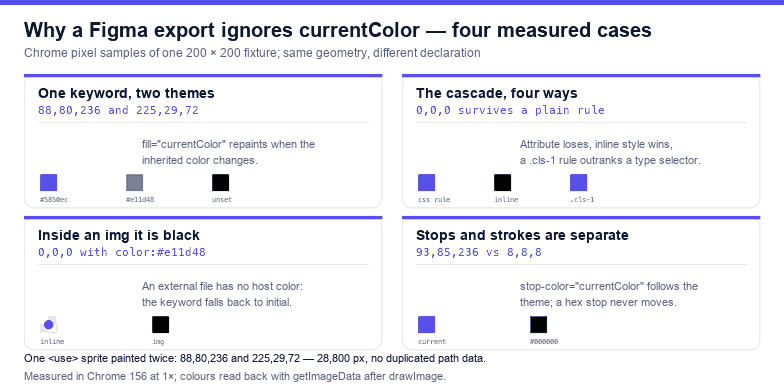
currentColor fails in a Figma export — and the one case where it simply cannot work.Frequently asked questions
Why does my Figma SVG ignore the CSS color property?
Because the export writes a literal colour on each shape. Setting color does nothing unless some declaration reads it: measured, a black fill stays 0,0,0 while the ancestor's color is #e11d48. Replace the fill with currentColor, or add a rule that sets fill from it.
Does currentColor work in an img tag?
No. An <img> is a separate document, so the keyword resolves to the initial color — measured 0,0,0 — even when the image element itself carries color:#e11d48. Inline the SVG, or use it as a mask-image and paint with the element's background.
Why does my CSS rule lose to the fill in the file?
Specificity, not order. A presentation attribute is weaker than any author rule, an inline style is stronger than a plain rule, and a .cls-1 rule beats a type selector: measured, the class colour 29,78,216 survived a rect{fill:currentColor} rule. Use !important or rewrite the file.
Can currentColor recolour a gradient?
Only through the stops. fill="url(#g)" is a reference, so the keyword has to move to stop-color: measured, a stop with stop-color="currentColor" painted 93,85,236 where a hardcoded #000000 stop painted 8,8,8.
Related SVG Workflows
Colour is the fifth thing to break in a Figma export, after the canvas, the borders, the gradients and the masks. These pages cover the rest.
- Figma SVG export not working — blank files, greyed-out buttons and empty exports.
- Figma SVG duplicate id collision — when two exports share a gradient name, and the second one turns the wrong colour.
- Figma SVG transparent background — remove the white plate that ruins dark mode before you theme the icon.
- Figma SVG viewBox fix — the canvas that is bigger than the artwork.
- SVG editor — replace fills with
currentColorand check the result in the browser. - SVG validator — catch duplicate ids and dangling
url(#…)references first. - SVG optimiser — minify a themed file without folding the colours back into hex.
Related Articles


Try These Free Online Tools
No download required — convert, compress & optimize SVGs right in your browser
SVG Validator
Check for duplicate ids and dangling url(#…) references before theming.
Open validatorBackground Remover
Drop the white plate a Figma export carried with it, so dark mode works.
Remove backgroundSVG to Data URI
Inline a themed file as one data URI when an <img> tag cannot follow color.
Build data URISVG Optimiser
Minify the file without folding currentColor back into hex values.
Open optimiser