
Super Vectorizer Pro vs Figma comes down to one question in 2026: do you need to convert an existing raster image into a vector, or do you need to design new vector artwork from scratch? Super Vectorizer Pro is the better choice if you want to turn an existing PNG, JPG or BMP into an editable SVG, PDF, EPS, DXF or AI file on your own Mac or Windows PC, privately and for a one-time $39.99 licence with no monthly seats. Figma is the better choice if you are building UI, icons and illustrations on a canvas and exporting clean SVG from shapes you draw yourself, because that is exactly what its collaborative design suite is built for. If your daily task is "I have this logo, make it a vector," the offline desktop vectorizer wins on cost and privacy; if your daily task is "design me a screen and hand me production SVG," Figma wins. Below we compare both across the factors that actually decide the purchase.
Both tools emit the SVG format, but they start from opposite ends. Figma is a design canvas that outputs SVG from vector shapes you create; Super Vectorizer Pro is a converter that turns bitmap artwork you already own into those vector shapes. If you want a broader look at dedicated tracers first, our roundup of the best free AI vectorizer tools in 2026 covers eight options side by side, and our PNG to SVG in Figma guide walks through Figma's own export workflow step by step.
Want to test offline vectorization on your own artwork? Try Super Vectorizer Pro free trial to preview vectorization results.
Compatible with macOS 10.10+ (M1/M2/M3) & Windows 7/8/10/11
The Short Verdict
Both tools produce SVG files, but they solve different problems. Figma is a collaborative design suite that exports SVG from vector shapes you build on its canvas. Super Vectorizer Pro is a dedicated converter for artwork that already exists as a raster file. The honest split is: design new vectors versus convert existing bitmaps.
Super Vectorizer Pro Advantages
- One-time licence from $39.99 — no per-seat subscription
- Runs offline on macOS 10.10+ (M1/M2/M3) and Windows 7–11
- Five modes: color, grayscale, black and white, line, skeletonization
- Live sliders for colour count, smoothing, noise and corners
- Exports SVG, PDF, EPS, DXF and AI
- Files never leave your computer
Figma Advantages
- Full design suite: frames, components, auto-layout, prototyping
- Real-time multiplayer collaboration on the same file
- Pixel-perfect SVG export from vector shapes you draw
- Nothing to install for the web app — runs from any browser
- Free Starter plan for individuals and small teams
- Huge plugin and community-resource ecosystem

Super Vectorizer Pro vs Figma: Head-to-Head Comparison
Here is the direct comparison across the factors that decide most purchases. Figma prices below are the publicly listed rates as of August 2026 and change over time.
| Factor | Super Vectorizer Pro | Figma | Better for most users |
|---|---|---|---|
| Price model | One-time: $39.99 Mac or Win lifetime, $49.99 Universal, $29.99 one-year | Free Starter; Professional ~$12/mo per editor; Organization from ~$45/mo per seat | Super Vectorizer Pro Cheaper |
| 5-year cost (single user) | $39.99 total | ~$720+ on the Professional plan alone | Super Vectorizer Pro Lower |
| Core job | Dedicated raster-to-vector converter | Collaborative UI and graphic design suite | Depends on your task |
| Platform | Native macOS 10.10+ (M1/M2/M3) and Windows 7/8/10/11 | Browser, Windows, macOS, Linux desktop app, iOS | Super Vectorizer Pro Modern Mac |
| Offline / online | Fully offline after install | Cloud-first; editing and sync need a connection | Super Vectorizer Pro Local |
| Batch support | No (one at a time) | No batch tracing; one object or frame at a time | Tie |
| Output quality — existing logos & scans | Excellent; five tunable modes plus manual sliders | Not applicable — no bitmap tracing engine | Super Vectorizer Pro Fidelity |
| Output quality — new artwork | Not applicable (it traces existing files) | Excellent SVG from vector shapes you design | Figma Design |
| Editing after trace | Manual parameter tuning (colour, smoothing, noise, corner) | Full vector editing on canvas, but only of shapes you create | Depends on source |
| Export formats | SVG, PDF, EPS, DXX, AI | SVG, PDF, PNG and other raster exports | Super Vectorizer Pro Formats |
| Privacy | Local processing, nothing uploaded | Cloud files; collaboration requires sharing online | Super Vectorizer Pro Local |
| Try before you buy | Free trial to preview results; saving needs a licence | Free Starter plan; paid plans for teams and libraries | Tie |
| Best for | Converting existing raster art into production SVG, PDF, EPS, DXF, AI | Designing UI, icons and illustrations and exporting clean SVG from them | — |
Pricing in 2026: $39.99 Once vs a Per-Seat Subscription
Figma moved to per-seat subscriptions years ago. The published rates when this page was written in August 2026 looked like this.
| Plan | Price (billed annually) | Best for |
|---|---|---|
| Starter | $0 | Individuals and small trials; limited file history and team features |
| Professional | ~$12/mo per editor | Working designers and freelancers who need version history and libraries |
| Organization | From ~$45/mo per seat | Teams needing central IT, SSO and design-system governance |
| Enterprise | Custom quote | Large companies with security and compliance requirements |
Compare that against a one-time purchase. A lifetime Super Vectorizer Pro licence for a single platform is $39.99, and the universal licence covering one Mac plus one Windows PC is $49.99. Even the cheapest Figma paid tier passes $39.99 in well under four months of annual billing, and keeps charging after that. Full pricing is on the Super Vectorizer Pro pricing page.
Platform and Mac Compatibility
This is a clear win for the desktop app if you live on Apple hardware and value local control. Super Vectorizer Pro is built for modern macOS: it runs natively on macOS 10.10 and later, including Apple Silicon M1, M2 and M3 chips, and it works fully offline. That means no "will it run on my Mac?" question and no upload step. Figma does offer a macOS desktop app, but the product is cloud-first — files live online and editing or syncing still requires an internet connection and an active account.
If you are on a current Mac and want a vectorizer you can actually install, trust and use without the internet, Super Vectorizer Pro is the safer default. If real-time collaboration in the browser matters more than local control, Figma has the obvious edge.
Batch Processing and Automation
Let us be precise here, because the two tools handle volume differently and neither is a bulk converter.
Super Vectorizer Pro processes one image at a time. You open a file, tune the trace, check the preview, save the result, then move to the next file. That is a deliberate, inspection-first workflow and it suits the way most designers actually work — but it is not automation, and it will not convert a folder of 400 product photos while you make coffee.
Figma is not a tracer at all. It has no feature that ingests a folder of PNGs and emits editable vectors, so there is no batch tracing to compare. Its strength is designing one frame at a time and exporting the SVG you built by hand. So the honest split is: manual, quality-controlled conversion of existing art → a desktop vectorizer with manual control. Designing new vector UI → a collaborative design suite. Anyone telling you a single tool wins both categories is selling something.
Output Quality and the Editing Experience
Both products emit SVG, but they optimize for opposite goals. Figma's strength is design: draw a shape, build a component, lay out a screen, and export crisp SVG from geometry you control precisely. Its export is excellent for clean, intentional vector artwork.
Where Figma is strong
Figma is genuinely better at producing SVG from design intent. Components, auto-layout, constraints and a shared team library mean the SVG you export stays consistent across a whole product. If you need ten buttons that share a style, no tracer can lay them out for you — a design suite can. This is the use case Figma was built for.

Where Super Vectorizer Pro is strong
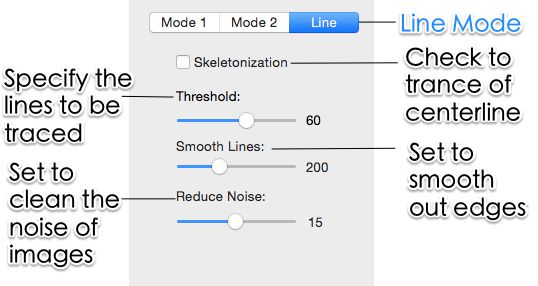
Super Vectorizer Pro gives you five distinct modes — colour, grayscale, black and white, line, and skeletonization — plus sliders for colour count, curve smoothing, noise suppression and corner threshold. On messy source material such as a scanned sketch, a photographed sign or a low-resolution PNG pulled off a website, that manual control is decisive. You can push noise removal up until speckles disappear, drop the colour count until the SVG is light enough for a website, or switch to skeletonization to reduce line art to single-stroke centerlines for a cutter or plotter.
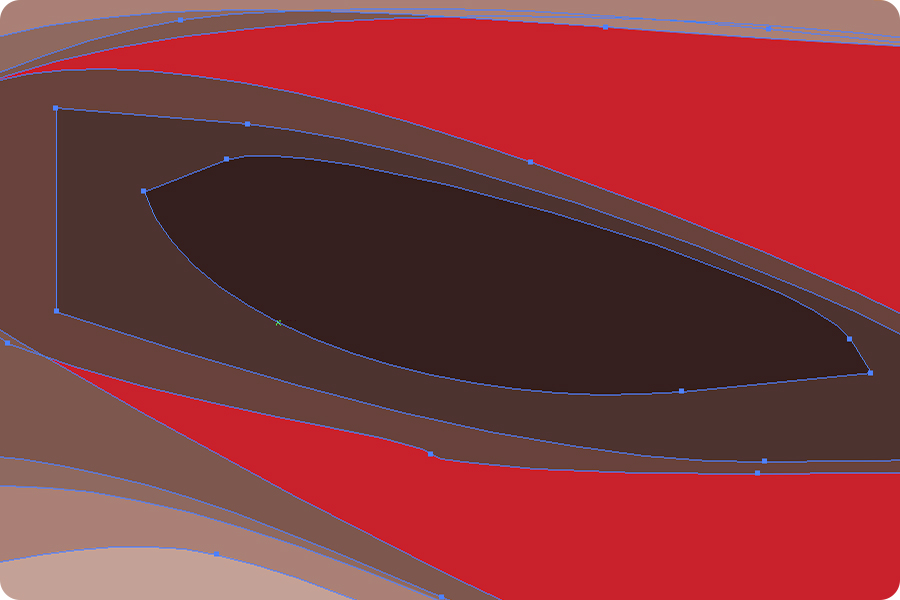
For a typical flat logo, honestly, Figma exports a cleaner file if you rebuild it by hand — but rebuilding takes time and skill. Super Vectorizer Pro gets you a usable traced vector from the source in minutes, which is usually the faster path when the source already exists. Our guide to high-quality PNG to SVG conversion walks through the specific settings that matter.
How Both Compare to Vectorizer.AI, Illustrator, Inkscape and Canva in 2026
Neither tool exists in a vacuum. Here is where they sit against the other four options most people evaluate.
| Tool | Price | Platform | Offline / Online | Batch support | Output control | Best for |
|---|---|---|---|---|---|---|
| Super Vectorizer Pro | $39.99 one-time (lifetime) | macOS 10.10+, Windows 7–11 | Offline | No (one at a time) | 5 modes + live sliders for color, smoothing, noise, corners | Converting existing raster art into production SVG, PDF, EPS, DXF, AI |
| Figma | Free Starter; Professional ~$12/mo per editor | Browser, Windows, macOS, Linux, iOS | Cloud-first (online sync) | No batch tracing | Full canvas design; per-shape SVG export | UI, icon and illustration design with clean SVG output |
| Vectorizer.AI | Subscription / credit packs | Browser | Online only | Yes, on paid tiers | Automatic with some post-trace tuning | Fast one-off cloud tracing of clean logos |
| Adobe Illustrator | $22.99/month | macOS, Windows | Offline (with online licence check) | Yes, via Actions scripting | Image Trace panel presets plus full path editing | Studios already inside Creative Cloud |
| Inkscape | Free, open source | macOS, Windows, Linux | Offline | Command-line only | Trace Bitmap dialog, multi-scan modes | Budget-conscious users comfortable with a learning curve |
| Canva | Free tier; Pro $15/month | Browser, iOS, Android | Online only | No | Basic tracing; SVG export is Pro-only | Social and marketing graphics, not production vectors |
Which Should You Choose? Four Common Scenarios
1. You have a client logo or scan that needs to become an SVG
Choose Super Vectorizer Pro. A $39.99 one-time licence pays for itself against a few months of subscription, and you keep the tool permanently with native Apple Silicon support. The one-at-a-time workflow is a non-issue at this volume because you would inspect each result anyway. It also keeps the artwork on your own machine.
2. You are designing a mobile app or website UI
Choose Figma. No tracer can lay out a responsive screen, build a component library or co-edit with your team in real time. Figma's SVG export from your own shapes is the right tool for that job, and its free Starter plan is enough to learn on.
3. You handle client artwork under confidentiality terms
Choose Super Vectorizer Pro. Local processing removes the upload question entirely — nothing is transmitted, nothing is stored on a third-party server, and you can document that in a compliance review. A cloud design suite inevitably syncs files online.
4. You occasionally need an SVG and want zero installation
Choose a browser tool. Figma's free Starter plan works well for designing simple shapes, and several free tracers are covered in our guide to image to vector AI free without login if you would rather not install or subscribe at all.
How to Vectorize an Image Offline with Super Vectorizer Pro
If you land on the desktop side of this comparison, the workflow takes about three minutes:
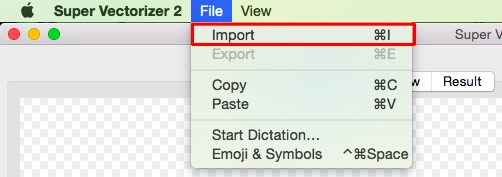
- Open your raster image. Drag a PNG, JPG, BMP, GIF or TIFF into the window. The app handles one image at a time.
- Choose a vectorization mode. Colour for logos and illustrations, grayscale for photos, black and white for stamps and stencils, line or skeletonization for sketches and cutter-ready line art.
- Tune the tracing parameters. Adjust colour count, curve smoothing, noise removal and corner threshold. The preview updates locally as you drag.
- Compare against the original. Toggle between the bitmap and the traced result to confirm that edges, gradients and small text survived vectorization.
- Save the vector file. Export as SVG, PDF, EPS, DXF or AI. Saving requires a licence — the trial is limited to previewing results.
Frequently Asked Questions
Is Super Vectorizer Pro better than Figma for vectorizing images?
For turning an existing PNG, JPG or BMP into a clean SVG, Super Vectorizer Pro is the better tool. It is purpose-built to convert raster artwork into editable vector files with tunable tracing modes, runs offline, and costs a one-time $39.99 licence. Figma is a collaborative UI and graphic design suite; its SVG output is excellent for shapes you draw on the canvas, but it is not a raster-to-vector tracer and has no automatic bitmap tracing engine. If your daily task is "I have this logo, make it a vector," the desktop vectorizer wins; if your task is "design a screen and export clean SVG from my own shapes," Figma wins.
How much does Figma cost compared to Super Vectorizer Pro?
Super Vectorizer Pro is a one-time purchase: $39.99 for a lifetime Mac or Windows licence, $49.99 for a Universal lifetime licence covering one Mac plus one Windows PC, or $29.99 for a one-year licence. Figma uses per-seat subscriptions: a free Starter plan for individuals, a Professional plan around $12 per month per editor (billed annually), an Organization plan from about $45 per month per seat, and custom Enterprise pricing. Because Figma bills per editor every month, a small team passes $39.99 in well under four months. Figma's free tier is genuinely useful for design work, but it is a different product category from a vectorizer.
Does Super Vectorizer Pro support batch conversion like Figma?
No. Super Vectorizer Pro processes one image at a time — there is no batch mode, no folder-level queue and no bulk export. Figma also has no automatic batch tracing, because converting bitmaps into editable paths is simply not what the suite does. For unattended bulk conversion of many raster files, neither tool is the right fit; a cloud batch API or a scriptable editor such as Illustrator is the honest recommendation. For typical logo, icon and cut-file work the one-at-a-time workflow is rarely a bottleneck.
Which is better for exporting SVG?
It depends on the source. Figma exports beautiful, hand-built SVG from vector shapes, components and frames you create on its canvas — ideal for UI, icons and illustrations you design from scratch. Super Vectorizer Pro exports SVG, PDF, EPS, DXF and AI from raster images you already have, with five tracing modes plus sliders for colour count, smoothing, noise and corners. Figma cannot turn a photographed logo into a vector for you; Super Vectorizer Pro cannot design a new app screen for you. They export SVG from opposite starting points.
Does Figma work offline, and when should I choose it over Super Vectorizer Pro?
Figma is a cloud-first product. Files live online, and although there is a desktop app, editing and syncing still require an internet connection and an active account. Choose Figma when you are designing interfaces, building component libraries, or collaborating live with a team on vector shapes. Choose Super Vectorizer Pro when you already have a raster file, want it traced privately on your own Mac or Windows PC, and prefer a one-time cost with no subscription and no upload step.
Can I use Figma as a free image vectorizer alternative?
Only partially, and not automatically. Figma's free Starter plan lets you draw and export vector shapes, but it has no built-in feature that converts an uploaded PNG or JPG into editable vector paths — you would have to trace the bitmap by hand with the pen tool, which is slow and inexact for photos or detailed logos. A dedicated vectorizer such as Super Vectorizer Pro (free trial to preview results, one-time licence to export) or an online tracer is the practical alternative when the source is a raster image rather than a design you build yourself.
The Bottom Line for 2026
Super Vectorizer Pro vs Figma is not really a quality contest — it is a question of which job you have. If you already own a PNG, JPG or BMP and need a clean, scalable file, the offline desktop vectorizer is cheaper over any reasonable timeframe, faster to iterate with, and keeps your artwork on your own hardware. At $39.99 once, it is the economical and private answer for conversion. If you need new vector UI, icons or illustrations designed from scratch, Figma's collaborative canvas and clean SVG export are the more capable tool and its subscription is the price of that capability.
Buy Super Vectorizer Pro if you want to own a vectorizer outright, work offline, keep client artwork on your own machine, and steer the trace by hand on a modern Mac or Windows computer. Buy a Figma plan if UI design, component libraries, or live team collaboration is the reason you are there. Most people who type "Super Vectorizer Pro vs Figma" into a search box arrive with a file already in hand — and for that specific job, the one-time offline licence is the stronger buy.
If you are leaning desktop, download the trial and run three of your own hardest images through it — a scanned sketch, a photographed logo, and a low-resolution PNG. Preview quality on your real source files tells you more than any comparison table, including this one.
Test the Desktop Side of This Comparison
Run your own images through Super Vectorizer Pro and preview the trace before you decide. One-time licence from $39.99 — Mac and Windows, including Apple Silicon.
Compatible with macOS 10.10+ (M1/M2/M3) & Windows 7/8/10/11
Try These Free Online Tools
No download required — convert, compress & optimize SVGs right in your browser
PNG to SVG Converter
Convert PNG, JPG, BMP images to scalable vector graphics instantly
PNG to SVG ConverterSVG Compressor (Mini)
Reduce SVG file size by up to 80% without losing quality
SVG Compressor OnlineSVG Optimizer
Clean up SVG code, remove redundant data and optimize for web
SVG Optimizer OnlineJPG to SVG Converter
Turn JPEG photos into crisp vector artwork in seconds
JPG to SVG ConverterEPS to SVG Converter
Convert EPS vector files to web-friendly SVG format
EPS to SVG ConverterAll Free Tools
Browse our complete collection of free online conversion tools
Browse All Free Tools