
Figma SVG Images Missing After Export: Six Measured Causes
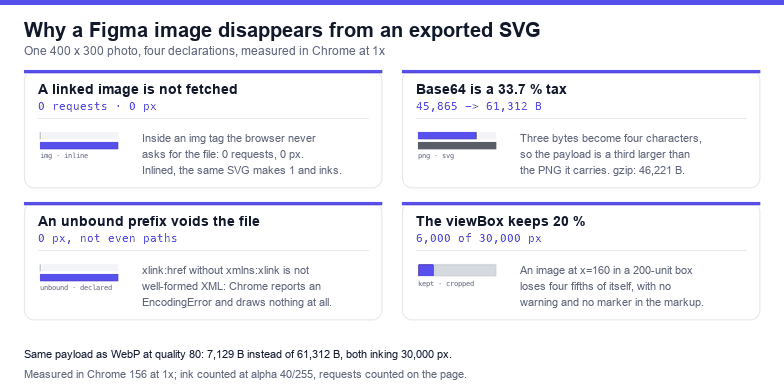
An image fill survives a Figma SVG export as a base64 payload inside an <image> element, which is why the export is bigger than the artwork and why the picture disappears the moment anything about that element changes. Measured on one 400 × 300 photo: the file is 45,865 bytes as a PNG and 61,312 bytes once embedded, while the same artwork with an external link is 143 bytes and renders 0 pixels inside an <img> tag — because Chrome issues zero requests for the linked file in that context.
Every figure below comes from rasterising fixtures in Chrome 156 at 1× and counting pixels with an alpha threshold of 40/255, plus a request log on the page. The photo is real, the markup is the shape Figma produces, and the only variable in each test is the one named in the heading.
What Figma actually writes
An image fill becomes an <image> with a href that starts data:image/png;base64,, an explicit width and height in user units, and a preserveAspectRatio. That is the whole mechanism, and it explains the size: base64 encodes three bytes as four characters, so the payload is always about a third larger than the file it carries. Measured on this fixture, 45,865 bytes of PNG became 61,156 characters of base64 inside a 61,312-byte SVG — a factor of 1.337.
Compression does not rescue it. The same SVG gzipped is 46,221 bytes, a 24.6 % saving, because base64 of already-compressed data has almost nothing left to squeeze. The external-reference version of the identical artwork is 143 bytes raw and 124 bytes gzipped. If you are looking at a 400 KB logo-and-photo lockup and wondering where it came from, it came from here.
Six things then make the picture vanish. They are ordered by how often they turn up in a support thread, not by how interesting they are.
Cause 1: a linked image is never fetched inside an img tag
This is the most common case and the most misleading, because the file looks fine when you open it. An SVG loaded through <img> — or as a CSS background, or as a favicon — is rendered in a restricted mode where the browser refuses to load any external resource. Not just scripts: images, fonts, stylesheets, everything. The element is drawn, the reference is skipped, and nothing is logged.
| How the SVG is used | Requests for the linked photo | Ink measured |
|---|---|---|
| Inlined in the HTML | 1 | 29,814 px |
<img src="pic.svg"> | 0 | 0 px |
CSS background-image | 0 | 0 px |
<object data="pic.svg"> | 1 | 29,814 px |
<iframe src="pic.svg"> | 1 | 29,814 px |
| Opened as a document | 1 | 29,814 px |
Read the second column again: in the <img> and background cases Chrome does not even attempt the request. There is no 404, no console warning, no blocked-by-CORS message. The picture is simply absent, which is exactly what makes this bug survive so many review rounds — the developer opens the SVG in a new tab, sees the photo, and concludes the file is fine.
The fix is to stop linking. Either inline the SVG into the page, or keep the file self-contained by embedding the image as a data URI — which is what Figma does by default. If you deliberately replaced the base64 with a URL to save weight, you moved the file from "self-contained" to "works only in three of six contexts".
Cause 2: xlink:href without the namespace kills the entire file
Older exports and hand-edited files use xlink:href instead of href. That prefix is not decoration: it is a namespace binding, and if the root element does not declare xmlns:xlink="http://www.w3.org/1999/xlink", the document is not well-formed XML.
Measured, the parser says so plainly — error on line 1 at column 95: Attribute xlink:href prefix is unbound — and an <img> pointing at that file fails with EncodingError: The source image cannot be decoded. The result is not a missing photo. It is a missing page: every path, every colour, the whole drawing. Adding the namespace declaration to the same markup makes the file parse and the image render.
The tell is that nothing renders, where the other five causes remove only the bitmap. If the entire SVG is blank, look at the first tag before you look at the image.
Cause 3: no width and height means the file's own pixels
An <image> with neither width nor height does not disappear, which is what most people expect, and that is why it is dangerous. Measured on a 400 × 300 photo in a 200 × 150 viewBox with no size attributes, the element reports a bounding box of 400 × 300 — the file's intrinsic pixels — and it paints 40,000 pixels of a 30,000-pixel canvas, spilling past every edge.
The visual symptom is "the image is zoomed in and cropped" rather than "the image is gone", and the correction is to write the four numbers Figma would have written: x, y, width, height. A related trap: width="100%" is legal and inherits the viewport, which is the right answer only when the bitmap is meant to be the background.
Cause 4: the viewBox silently crops what sits outside it
Filter effects and images are both clipped by the viewBox, and Figma's own "crop" toggle can leave an image element wider than the frame it is drawn into. Measured: the same 200 × 200 image placed at x="160" inside a 200-unit viewBox inks 6,000 pixels instead of 30,000 — 20 % of the picture survives, and the missing 80 % is not marked in any way.
A clip path does the same thing more honestly. Wrapping the image in a clipPath covering the top half gives exactly 15,000 of 30,000 pixels, and at least the markup says so. When the export looks cropped, compare the image's width plus x against the viewBox before touching anything else.
Cause 5: an image left inside defs is not drawn
If the <image> ends up in <defs> — usually because a layer was converted to a component, or a mask was flattened badly — it is a definition, not a painting. Measured on a fixture whose defs hold the photo and whose body holds one 40 × 40 rectangle: 1,600 pixels of ink, which is the rectangle and nothing else. Wrapping the same definition in <use href="#img"> brings the picture back at 30,000 pixels.
This one is easy to spot in code and hard to spot in design: search the file for <image, then check whether its parent is <defs>. If it is, something has to reference it.
Cause 6: how the aspect ratio decides what fit means
Figma writes preserveAspectRatio="none" whenever an image fill was resized non-proportionally, and the attribute is easy to inherit into markup where it no longer makes sense. The three behaviours, measured with a 4:3 photo in a square 200 × 200 box:
preserveAspectRatio | Ink | What you see |
|---|---|---|
none | 40,000 px | stretched to fill, proportions gone |
absent (default xMidYMid meet) | 30,000 px | letterboxed: 25 px empty above, 25 px below |
xMidYMid slice | 40,000 px | filled and cropped, edges lost |
The default reserves a quarter of the height in bands — 150 of 200 units are picture. That is not a bug, it is the definition of "meet", but designers read the empty bands as a broken export and stretch the image to compensate, which produces cause 6 in the first place.
Detecting a linked image in a file you did not make
Most of these arrive as somebody else's export, so the first question is simply whether any <image> points outside the file. One pass over the DOM answers it and names the offenders:
const svg = document.querySelector('svg');
const images = [...svg.querySelectorAll('image')];
const external = images.filter((el) => {
  const href = el.getAttribute('href') || el.getAttribute('xlink:href') || '';
  return href !== '' && !href.startsWith('data:');
});
console.log(images.length, 'image elements,', external.length, 'external');
external.forEach((el) => console.log('  linked:', el.getAttribute('href')));
On the fixture with a relative href="photo.png" it prints 1 image elements, 1 external and names the path; on the identical artwork with the base64 payload it prints 1 image elements, 0 external. That single line tells you whether the file can be shipped as an <img> at all.
The size bill, and how to pay less
If the file must stay self-contained, the payload format is the only lever left. Re-encoding the same photo as WebP at quality 80 and embedding that instead:
- PNG payload: 45,865 bytes → SVG 61,312 bytes → gzip 46,221 bytes
- WebP payload: 5,228 bytes → SVG 7,129 bytes → gzip 5,409 bytes
That is 88.4 % smaller for the same rendered coverage — both versions ink exactly 30,000 pixels at 200 × 150. It is lossy: 2,563 of those 30,000 pixels differ by more than 6/255, which at this size means a slightly softer gradient rather than anything a viewer notices. Keep PNG when the artwork has flat colour and hard edges at large size, and use WebP for photographic fills, which is what most image fills are.
Two other levers worth knowing. First, an embedded image is transparent where the source is transparent — measured alpha 0 at the corner — so replacing a white plate with a transparent PNG removes nothing but pixels. Second, if the picture is decorative and larger than the art, base64 is the wrong container entirely: ship it as a separate <img> behind the SVG and keep the vector file under 10 KB.
A five-minute checklist
- Does the file contain
<imagewith ahrefthat is not a data URI? Then it only works when inlined, opened directly, or framed. - Is the root element missing
xmlns:xlinkwhile the body usesxlink:href? Then nothing renders at all. - Does every
<image>carrywidthandheight? Missing ones fall back to the file's intrinsic pixels. - Is
x + widthinside the viewBox, and is the parent a<g>rather than<defs>? - Is
preserveAspectRatiostillnonefrom a resize you no longer want? - Is the payload PNG when a WebP would be 88 % smaller?
The one-line rule: a Figma image fill is a base64 payload that only exists inside the SVG, so any edit that turns it into a link also turns the picture into a request the browser will not make — and any edit that breaks the XML namespace takes the whole drawing with it.
Frequently asked questions
Why does my Figma SVG show the image in the browser but not on my site?
Because opening the file directly uses document mode and embedding it with <img> uses static mode. Measured on the same file: as a document it inks 29,814 pixels and makes one request for the linked photo; inside an <img> it inks 0 pixels and makes zero requests. Inline the SVG or embed the image as a data URI.
Why is my exported SVG bigger than the original PNG?
Base64 encodes three bytes as four characters, so the payload is a third larger before markup is added. Measured: a 45,865-byte PNG produced a 61,312-byte SVG, a factor of 1.337, and gzip only brought it to 46,221 bytes. Re-encoding the payload as WebP at quality 80 gave a 7,129-byte SVG with identical 30,000-pixel coverage.
What does "Attribute xlink:href prefix is unbound" mean?
It means the file uses the xlink: prefix without declaring xmlns:xlink on the root element, so it is not well-formed XML. Chrome refuses to decode it at all — measured, the <img> load fails with an EncodingError and nothing in the file is drawn, not even the paths that have nothing to do with the image.
Can I keep images linked to save file size?
Only if you control how the SVG is used. A linked image renders when the SVG is inlined, framed with <object> or <iframe>, or opened as a document — 29,814 pixels and one request in all four cases here — and renders nothing through <img> or a CSS background, where the request is not even attempted.
Related SVG Workflows
Image fills are one of seven things that go wrong between a Figma canvas and a working SVG. These pages cover the rest.
- Figma SVG export not working — blank files, greyed-out buttons and exports that contain one rectangle.
- Figma SVG viewBox fix — the canvas that is bigger than the artwork, measured with
getBBox(). - Figma SVG clipping mask fix — the intersection arithmetic behind a shape that vanished.
- Figma SVG drop shadow fix — the filter region, the viewBox and user units cutting the shadow three times over.
- Figma SVG to React component — the same export turned into a component that survives being rendered twice.
- Background remover — drop the white plate a flattened image layer carried with it.
- SVG to WebP — re-encode a heavy payload in the browser before you embed it.
Related Articles

Try These Free Online Tools
No download required — convert, compress & optimize SVGs right in your browser
SVG to WebP
Re-encode a heavy base64 payload at a fraction of the size before embedding it.
Convert to WebPBackground Remover
Drop the white plate a flattened image layer carried into the export.
Remove backgroundSVG Editor
Move an image back inside the viewBox and write the missing width and height.
Open editorSVG Validator
Report an unbound xlink prefix, a missing viewBox and dangling references.
Open validatorSVG to PNG
Render the file at 2x to see whether the picture is absent or merely cropped.
Convert to PNGSVG Optimiser
Minify the markup around the payload without touching the base64 itself.
Open optimiser