
Super Vectorizer Pro vs Canva in 2026 is a choice between a specialised offline vectorizer and a cloud-based design suite with basic tracing. Super Vectorizer Pro is the better fit if you need to convert a PNG, JPG or BMP into a clean SVG, PDF or AI file on your Mac or Windows PC, with five tunable vectorization modes and a one-time $39.99 price. Canva is the better fit if you want drag-and-drop templates for social posts, slides and marketing graphics, and only occasionally need to trace a simple image — but you will need a paid plan for SVG export and you must be online. If your main job is "turn this bitmap into a vector", Super Vectorizer Pro is faster, more accurate and more private. If your job is "create branded content from a template", Canva is hard to beat. In short, Super Vectorizer Pro vs Canva comes down to whether you need production vectorization or template-driven design.
Below we compare both tools across price, output quality, SVG export, platform coverage, privacy and ease of use. We also place them next to Vectorizer.AI, Adobe Illustrator and Inkscape so you can see the whole market. If you are weighing cloud-based AI tracers too, our Super Vectorizer Pro vs Vectorizer.AI guide covers that angle in detail.
Want to test the dedicated vectorizer side of this comparison on your own artwork? Try Super Vectorizer Pro free trial to preview vectorization results.
Compatible with macOS 10.10+ (M1/M2/M3) & Windows 7/8/10/11
The Short Verdict
Both tools can produce vector-like output, but they serve different workflows. Canva is a template-first design platform; Super Vectorizer Pro is a purpose-built raster-to-vector converter.
Super Vectorizer Pro Advantages
- One-time licence from $39.99 — no subscription ever
- Fully offline on macOS (incl. M1/M2/M3) and Windows
- Dedicated interface built around image tracing
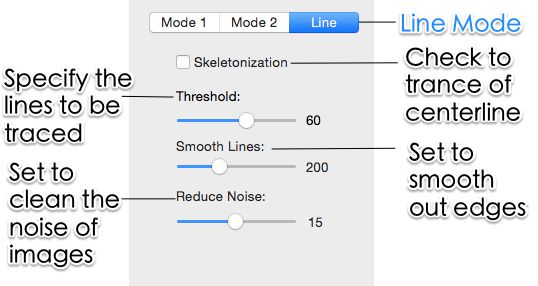
- Five modes: colour, grayscale, black and white, line, skeletonization
- Live sliders for colour count, smoothing, noise and corners
- Exports SVG, PDF, EPS, DXF and AI without a paid cloud plan
Canva Advantages
- Generous free tier for social graphics, slides and posters
- Huge library of templates, fonts, stock photos and elements
- Browser-based — works on any OS with internet access
- Real-time collaboration and sharing
- iOS and Android apps for mobile editing
- Ideal for non-designers building marketing content quickly
Super Vectorizer Pro vs Canva: Head-to-Head Comparison 2026
Here is the direct comparison across the factors that matter most when choosing between these two tools.
| Factor | Super Vectorizer Pro | Canva | Better for most users |
|---|---|---|---|
| Price model | One-time: $39.99 Mac or Win lifetime, $49.99 Universal, $29.99 one-year | Free tier; Pro ≈$12.99/month billed annually or ≈$15/month monthly | Super Vectorizer Pro One-time |
| 5-year cost (single user) | $39.99 total | $0 (free) or ~$780 (Pro) | Depends on needs |
| Platform | Native macOS 10.10+ (M1/M2/M3) and Windows 7–11 | Browser, iOS, Android | Tie — different use cases |
| Offline / online | Fully offline after install | Cloud-based; online only | Super Vectorizer Pro Offline |
| Batch support | No (one at a time) | No | Tie — neither offers true batch |
| Output quality — logos & flat art | Very good; adjustable colour count keeps paths lean | Basic trace effect; intended for web graphics, not production vectors | Super Vectorizer Pro Cleaner |
| Output quality — photos & scans | Strong; grayscale and skeletonization handle noise well | Limited; produces stylised effects rather than true vector paths | Super Vectorizer Pro Control |
| Export formats | SVG, PDF, EPS, DXF, AI | PNG, JPG, PDF, MP4, GIF, SVG (Pro only) | Super Vectorizer Pro Vector formats |
| Post-trace editing | Basic preview tuning only | Full drag-and-drop design editor with templates | Canva Editor |
| Learning curve | Minutes; single-task interface | Minutes for templates; deeper for brand systems | Tie — both are approachable |
| Try before you buy | Free trial to preview results; saving needs a licence | Free tier + paid-plan free trial for Pro features | Tie |
| Best for | Designers, crafters and print shops who mainly need raster-to-vector conversion | Marketers and small teams who need branded templates and occasional web graphics | — |
Pricing in 2026: One-Time Purchase vs Freemium Subscription
Pricing is where the two tools diverge most sharply, and the right choice depends on whether you are solving a vectorization problem or a marketing-design problem.
Super Vectorizer Pro is a one-time purchase. A lifetime Mac or Windows licence costs $39.99, a Universal licence covering one Mac plus one Windows PC is $49.99, and a one-year licence is $29.99. There is no subscription, no renewal fee on lifetime tiers, and future upgrades are included. Our pricing page lists all licence options.
Canva's free tier is genuinely useful. You can build social posts, presentations, posters, flyers and simple logos without paying. However, SVG export, background removal, premium templates, the brand kit, larger cloud storage and many stock assets sit behind Canva Pro. As of 2026, Canva Pro costs roughly $12.99 per month when paid annually, or about $15 per month when paid monthly. Over five years, that is roughly $780 — far more than Super Vectorizer Pro's $39.99.
The honest calculation: if you only need to convert logos, sketches, product photos or scanned artwork into SVG files, paying $39.99 once is dramatically cheaper than a Canva Pro subscription. If you also need Canva's templates, collaboration and stock library, the subscription may be worth it — but not for vectorization alone.
Output Quality: Production Vectorizer vs Web Graphics
Both tools can produce SVG output, but the similarity ends there.
Where Super Vectorizer Pro is strong
Super Vectorizer Pro was built to convert images to vectors. Its interface is organised around that single task. Five dedicated modes — colour, grayscale, black and white, line and skeletonization — match the type of source material you are working with. Live sliders for colour count, curve smoothing, noise removal and corner threshold let you tune the result in real time while watching a local preview update instantly.
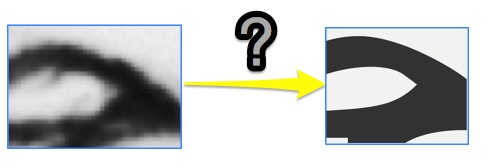
On difficult inputs — scanned sketches, photographed signs, low-resolution PNGs pulled from websites, noisy product photos — those controls make a visible difference. You can reduce colour count until the SVG is web-light, switch to skeletonization to collapse thick lines into cutter-ready centrelines, or push noise removal up until speckles disappear. The result is usually a cleaner, more usable vector path than Canva's trace-style effects produce from the same source.
Where Canva is strong
Canva's strength is not vector tracing — it is visual communication. Its drag-and-drop editor lets non-designers combine text, photos, illustrations, charts and templates into polished content. If you need an Instagram post, a slide deck, a flyer or a YouTube thumbnail, Canva is faster and more enjoyable than any vectorizer.
Canva does offer image effects such as trace-like filters, but these are designed for stylistic web graphics rather than production vectors. The paths are not optimised for cutting machines, print separations or hand-off to a developer. SVG export is also locked behind Canva Pro, and the exported SVG may contain many grouped elements and embedded bitmaps rather than clean Bézier curves.
If you care about maximum output quality with minimum effort, our PNG to SVG high-quality guide walks through the settings that matter regardless of which tool you choose.
Platform Coverage, Offline Access and Privacy
Platform and privacy are two areas where the tools are fundamentally different.
Super Vectorizer Pro runs entirely offline after installation. Your PNG, JPG, BMP, GIF or TIFF files never leave your computer. That makes it suitable for confidential client work, unreleased designs, or environments with restricted internet access. It runs natively on macOS 10.10 and later, including Apple Silicon M1/M2/M3 Macs, and on Windows 7 through 11.
Canva is a cloud platform. It runs in any modern browser and has iOS and Android apps, which is convenient for cross-device access and real-time collaboration. The trade-off is that your artwork is uploaded to and processed on Canva's servers. You need an internet connection to create, edit and export. For sensitive designs or compliance-sensitive industries, that matters.
If you need maximum portability and collaboration, Canva wins. If you need offline privacy and local processing, Super Vectorizer Pro wins.
Batch Processing and Automation
Neither tool is designed for unattended batch raster-to-vector conversion.
Super Vectorizer Pro processes one image at a time. You open a file, pick a mode, adjust the sliders, check the preview, save the result, then move to the next file. This inspection-first workflow suits most designers who want to verify each trace before using it — but it is not automation.
Canva also lacks batch raster-to-vector conversion. You can duplicate designs and replace images inside templates, but each image must be handled individually. The platform is built for human-driven design, not scripted image processing.
Honest summary: if you need automated high-volume workflows, consider Inkscape's command-line interface, Adobe Illustrator Actions, or an API-based vectorizer. For manual, quality-controlled work, Super Vectorizer Pro is the stronger choice between these two.
How Both Compare to Vectorizer.AI, Adobe Illustrator and Inkscape in 2026
Neither tool exists in isolation. Here is where they sit against three other popular options.
| Tool | Price | Platform | Offline / Online | Batch support | Output quality | Best for |
|---|---|---|---|---|---|---|
| Super Vectorizer Pro | $39.99 one-time (lifetime) | macOS 10.10+, Windows 7–11 | Offline | No (one at a time) | Excellent, five tunable modes | Designers and crafters who mainly need raster-to-vector conversion |
| Canva | Free tier; Pro ≈$12.99/month | Browser, iOS, Android | Online only | No | Basic trace effects; SVG export is Pro-only | Social and marketing graphics, not production vectors |
| Vectorizer.AI | $9.99/month (web); API from $9.99/month | Browser (any OS) | Online only | Via API only | Excellent on geometric art | Developers automating raster-to-vector conversion |
| Adobe Illustrator | ≈$22.99/month single-app | macOS, Windows | Offline (with online licence check) | Yes, via Actions scripting | Excellent, plus full vector editing | Studios already inside Creative Cloud |
| Inkscape | Free, open source | macOS, Windows, Linux | Offline | Yes, via command line | Good; Trace Bitmap needs tuning | Budget-conscious users who need a full vector editor |
Which Should You Choose? Four Common Scenarios
1. You need clean SVG files from logos, icons or scanned artwork
Choose Super Vectorizer Pro. The dedicated vectorization engine, adjustable modes and offline workflow are built for exactly this job. The one-time $39.99 price is far cheaper than a Canva Pro subscription used only for SVG export.
2. You make social media posts, slide decks and marketing flyers every week
Choose Canva. Its template library, stock assets and collaboration features are purpose-built for high-volume marketing content. Do not subscribe to Canva Pro only for SVG export — that is not its strength.
3. You own a Cricut, laser cutter or embroidery machine and need cutter-ready paths
Choose Super Vectorizer Pro. Its line and skeletonization modes produce single-stroke paths that work better with cutting software than Canva's stylised trace effects. You can also export directly to SVG, PDF, EPS, DXF or AI.
4. You collaborate with a remote team on branded content
Choose Canva for the collaboration, templates and brand kit. Use Super Vectorizer Pro separately for any raster-to-vector prep work, then upload the clean SVG into Canva for placement in your designs. The two tools can complement each other.
How to Vectorize an Image with Super Vectorizer Pro
If you land on the dedicated-vectorizer side of this comparison, the full workflow takes about three minutes:
- Open your raster image. Drag a PNG, JPG, BMP, GIF or TIFF into the Super Vectorizer Pro window. The app handles one image at a time.
- Choose a vectorization mode. Colour for logos and illustrations, grayscale for photos, black and white for stamps and stencils, line or skeletonization for sketches and cutter-ready line art.
- Tune the tracing parameters. Adjust colour count, curve smoothing, noise removal and corner threshold. The live preview updates instantly as you drag each slider.
- Compare against the original. Toggle between the bitmap overlay and the traced result to confirm that edges, gradients and fine details survived the conversion.
- Save the vector file. Export as SVG, PDF, EPS, DXF or AI. Saving requires a licence — the trial lets you preview results but not save them.
Frequently Asked Questions
Is Super Vectorizer Pro better than Canva for converting PNG to SVG?
Yes. Super Vectorizer Pro is purpose-built for raster-to-vector conversion, so it gives you more control over tracing modes, colour count, smoothing and noise removal. Canva can trace some images through its Edit Image effects, but the output is intended for quick social graphics rather than production SVG files. Canva also limits SVG export to paid plans.
Can Canva export SVG files?
Canva allows SVG export, but only on Canva Pro, Canva for Teams or Canva for Education plans. The free tier does not include SVG export. Even with a paid plan, the SVG is best treated as a web-ready graphic rather than a finely tuned vector tracing of a raster photograph.
Is Canva free to use?
Canva offers a free tier with millions of templates, stock photos and basic design tools. However, SVG export, background removal, premium templates and the brand kit require a paid plan. As of 2026, Canva Pro costs roughly $12.99 per month when billed annually, or about $15 per month when billed monthly.
Does Canva work offline?
No. Canva is a cloud-based design platform that runs in your browser or through mobile apps. You need an internet connection to create, edit and export projects. Super Vectorizer Pro, by contrast, runs entirely offline on macOS and Windows after installation.
Does Super Vectorizer Pro have templates like Canva?
No. Super Vectorizer Pro is not a template-based design suite. It does not make Instagram posts, slide decks or marketing banners. It converts existing raster images into clean SVG, PDF, EPS, DXF or AI files. If your workflow is design-from-template, Canva is the better tool. If your workflow is convert-this-image-to-vector, Super Vectorizer Pro is the better tool.
Which is more private: Super Vectorizer Pro or Canva?
Super Vectorizer Pro is more private for vectorization work because it runs locally. Your PNG, JPG, BMP or TIFF files never leave your Mac or Windows PC. Canva uploads everything you create to its cloud servers, which is convenient for collaboration but means your artwork is processed and stored online.
Super Vectorizer Pro vs Canva: The Bottom Line for 2026
Super Vectorizer Pro vs Canva is not really a battle between two similar tools — it is a decision about which problem you need to solve. Canva is one of the best template-based design suites for marketing content. Super Vectorizer Pro is one of the most focused raster-to-vector converters for Mac and Windows.
Buy Super Vectorizer Pro if your goal is to turn bitmaps into clean, editable SVG, PDF, EPS, DXF or AI files quickly, offline and without a subscription. At $39.99 once, it pays for itself quickly if you trace images regularly. Use Canva if your goal is to produce branded social posts, presentations and marketing materials from a library of templates, and if you are happy working in the cloud.
The two tools can also work together. You can vectorize a raster logo in Super Vectorizer Pro, export it as an SVG, and then drop that SVG into a Canva design. That gives you the clean vector source file from a dedicated desktop app plus the flexible design canvas from Canva.
Test the Dedicated Vectorizer Side of This Comparison
Run your own images through Super Vectorizer Pro and preview the trace before you decide. One-time licence from $39.99 — Mac and Windows.
Compatible with macOS 10.10+ (M1/M2/M3) & Windows 7/8/10/11
Try These Free Online Tools
No download required — convert, compress & optimize SVGs right in your browser
PNG to SVG Converter
Convert PNG, JPG, BMP images to scalable vector graphics instantly
PNG to SVG ConverterSVG Compressor (Mini)
Reduce SVG file size by up to 80% without losing quality
SVG Compressor OnlineSVG Optimizer
Clean up SVG code, remove redundant data and optimize for web
SVG Optimizer OnlineJPG to SVG Converter
Turn JPEG photos into crisp vector artwork in seconds
JPG to SVG ConverterEPS to SVG Converter
Convert EPS vector files to web-friendly SVG format
EPS to SVG ConverterAll Free Tools
Browse our complete collection of free online conversion tools
Browse All Free Tools