
Super Vectorizer Pro vs Inkscape in 2026 is a choice between a specialised paid vectorizer and a free open-source vector editor that includes tracing. Super Vectorizer Pro is the better fit if you want a $39.99 desktop app that opens a PNG, JPG or BMP and exports a clean SVG, PDF or AI file in minutes with five tunable modes and live sliders. Inkscape is the better fit if you want a fully featured vector editor at zero cost, accept a steeper learning curve, and do not mind spending extra time cleaning up traced results. If your main job is "convert this bitmap to a vector", Super Vectorizer Pro is faster and more reliable. If your job is "edit, design and occasionally trace", Inkscape costs nothing and gives you a complete toolkit. In short, Super Vectorizer Pro vs Inkscape comes down to whether you prioritise speed and output quality, or budget and editing flexibility.
Below we compare both tools across price, output quality, platform coverage, batch capability, learning curve and export options. We also place them next to Vectorizer.AI, Adobe Illustrator and Canva so you can see the whole market. If you are weighing cloud-based alternatives too, our Super Vectorizer Pro vs Vectorizer.AI guide covers that angle in detail.
Want to test the dedicated vectorizer side of this comparison on your own artwork? Try Super Vectorizer Pro free trial to preview vectorization results.
Compatible with macOS 10.10+ (M1/M2/M3) & Windows 7/8/10/11
The Short Verdict
Both tools convert bitmaps into editable vector paths. The split is focus: Inkscape is a general-purpose vector editor with tracing bolted on; Super Vectorizer Pro is built from the ground up to do one thing — turn raster images into clean vector files.
Super Vectorizer Pro Advantages
- One-time licence from $39.99 — no subscription ever
- Dedicated interface built around image tracing
- Five modes: colour, grayscale, black and white, line, skeletonization
- Live sliders for colour count, smoothing, noise and corners
- Cleaner traces on messy scans and low-resolution sources
- Native macOS including Apple Silicon (M1/M2/M3)
Inkscape Advantages
- Completely free and open source (GPL)
- Full vector editor: paths, text, layers, filters, extensions
- Cross-platform: macOS, Windows and Linux
- Batch tracing via command-line scripting
- Active community, extensions and documentation
- No vendor lock-in — export to any standard vector format

Super Vectorizer Pro vs Inkscape: Head-to-Head Comparison 2026
Here is the direct comparison across the factors that matter most when choosing between these two tools.
| Factor | Super Vectorizer Pro | Inkscape | Better for most users |
|---|---|---|---|
| Price model | One-time: $39.99 Mac or Win lifetime, $49.99 Universal, $29.99 one-year | Free and open source (GPL) | Inkscape Free |
| 5-year cost (single user) | $39.99 total | $0 | Inkscape $0 |
| Platform | Native macOS 10.10+ (M1/M2/M3) and Windows 7–11 | macOS, Windows and Linux | Inkscape Linux |
| Offline / online | Fully offline after install | Fully offline after install | Tie — both work offline |
| Batch support | No (one at a time) | Yes, via command-line scripting | Inkscape CLI batch |
| Output quality — logos & flat art | Very good; adjustable colour count keeps paths lean | Good; Trace Bitmap works but often needs path cleanup | Super Vectorizer Pro Cleaner |
| Output quality — photos & scans | Strong; grayscale and skeletonization handle noise well | Mixed; requires manual threshold tuning per image | Super Vectorizer Pro Control |
| Export formats | SVG, PDF, EPS, DXF, AI | SVG, PDF, EPS, PS and many more via extensions | Tie — both cover the essentials |
| Post-trace editing | Basic preview tuning only | Full vector editing suite | Inkscape Editor |
| Learning curve | Minutes; single-task interface | Weeks; professional-grade toolset | Super Vectorizer Pro Easier |
| Try before you buy | Free trial to preview results; saving needs a licence | Free download, no restrictions | Tie |
| Best for | Designers, crafters and print shops who mainly need raster-to-vector conversion | Budget-conscious users who need a full vector editor and can tolerate a learning curve | — |
Pricing in 2026: One-Time Purchase vs Completely Free
This is the most obvious difference between the two tools, and it matters differently depending on how you value your time.
Inkscape costs nothing. It is free software distributed under the GNU General Public Licence. You download it, install it and use it forever without paying a cent. That makes it the default choice for students, hobbyists, small-business owners on a tight budget, and anyone who simply prefers not to pay for software.
Super Vectorizer Pro starts at $39.99 for a lifetime Mac or Windows licence, $49.99 for a Universal licence covering one Mac plus one Windows PC, or $29.99 for a one-year licence. There is no subscription, no renewal fee and upgrades are included on lifetime tiers. Our pricing page lists all licence options.
The honest calculation is not just dollars versus zero dollars — it is dollars versus hours. Inkscape is free, but learning its interface, finding the right Trace Bitmap settings for each image and cleaning up the resulting paths takes time. Super Vectorizer Pro costs money upfront, but most users produce their first clean SVG within minutes of installing it. Over a year of regular tracing work, the time saved often exceeds the $39.99 purchase price.

Output Quality: Dedicated Tracing vs General-Purpose Editor
Both tools perform genuine vectorization — they analyse pixel data, detect edges and colour regions, and rebuild them as Bézier curves. But they approach the problem from opposite directions.
Where Super Vectorizer Pro is strong
Super Vectorizer Pro was built to convert images to vectors. Its entire interface revolves around that task. Five dedicated modes — colour, grayscale, black and white, line and skeletonization — give you a starting point matched to the type of source material. Live sliders for colour count, curve smoothing, noise removal and corner threshold let you tune the result in real time while watching a live preview update locally on your machine.
On difficult inputs — scanned sketches, photographed signs, low-resolution PNGs pulled from websites, noisy product photos — those controls make a visible difference. You can push noise removal up until speckles disappear, reduce colour count until the SVG is web-light, or switch to skeletonization to collapse thick lines into single-stroke centrelines for cutter-ready output. The result is usually cleaner straight out of the box than what Inkscape's Trace Bitmap produces from the same source.
Where Inkscape is strong
Inkscape's Trace Bitmap tool (accessed via Path → Trace Bitmap) uses the Potrace algorithm under the hood, which is the same engine that powers several other free tracers. It offers brightness cutoff, edge detection, colour quantisation and multiple-scans modes. For simple black-and-white logos and clean line art, it can produce perfectly usable results.
The limitation is that Inkscape treats tracing as one feature among hundreds. After the trace, you often need to manually delete stray nodes, simplify paths with Ctrl+L, adjust fill colours and fix overlapping shapes. That post-processing step is where most of the time goes. Users who already know Inkscape well may not notice the overhead; newcomers often find it frustrating compared with a tool that outputs clean paths on the first try.
If you care about maximum output quality with minimum effort, our PNG to SVG high-quality guide walks through the settings that matter regardless of which tool you choose.
Platform Coverage, Offline Access and Privacy
Both tools run entirely offline after installation. Neither uploads your artwork to a cloud server during tracing, which means both are suitable for confidential client work, unreleased designs or environments with restricted internet access.
Platform support is where Inkscape pulls ahead. Inkscape runs on macOS, Windows and Linux. If you use Ubuntu, Fedora or another Linux distribution as your daily workstation, Inkscape is essentially your only option between these two. Super Vectorizer Pro covers macOS 10.10 and later (including native Apple Silicon M1/M2/M3 support) and Windows 7 through 11, but there is no Linux version.
On macOS specifically, Super Vectorizer Pro has an edge in polish. It is a native Cocoa application designed for Mac, with a lightweight interface that launches in seconds. Inkscape on macOS historically ran through XQuartz, though newer versions offer a native build that has improved considerably. Many Mac users still report that Inkscape feels slower and less integrated than on Windows or Linux. For pure image-to-vector work on a Mac, Super Vectorizer Pro is generally the smoother experience.
If you need cross-platform flexibility or Linux support, Inkscape wins. If you are on Mac or Windows and want the fastest path from bitmap to vector, Super Vectorizer Pro is the stronger choice.
Batch Processing and Automation
This is one area where Inkscape has a structural advantage over Super Vectorizer Pro, provided you are comfortable with the command line.
Super Vectorizer Pro processes one image at a time. You open a file, pick a mode, adjust the sliders, check the preview, save the result, then move to the next file. This inspection-first workflow suits most designers who want to verify each trace before using it — but it is not automation.
Inkscape can batch-process files through its command-line interface. You can write a shell script or a Python script that calls Inkscape with the `--action` flag or uses extensions to trace an entire folder of images unattended. This is genuinely useful if you receive hundreds of similar assets — product photos, scanned documents, logo variants — and need them all converted while you do something else.
The catch is that command-line batch tracing in Inkscape requires technical setup. You need to write the script, test the parameters on sample images, and handle error cases where a trace fails or produces garbage. It is powerful, but it is not point-and-click. For most individual users doing a handful of traces per week, Super Vectorizer Pro's one-at-a-time workflow is actually more practical despite lacking batch mode.
Honest summary: automated high-volume workflows favour Inkscape CLI or an API-based service. Manual, quality-controlled work favours Super Vectorizer Pro.

How Both Compare to Vectorizer.AI, Adobe Illustrator and Canva in 2026
Neither tool exists in isolation. Here is where they sit against three other popular options.
| Tool | Price | Platform | Offline / Online | Batch support | Output quality | Best for |
|---|---|---|---|---|---|---|
| Super Vectorizer Pro | $39.99 one-time (lifetime) | macOS 10.10+, Windows 7–11 | Offline | No (one at a time) | Excellent, five tunable modes | Designers and crafters who mainly need raster-to-vector conversion |
| Inkscape | Free, open source | macOS, Windows, Linux | Offline | Yes, via command line | Good; Trace Bitmap needs tuning | Budget-conscious users who need a full vector editor |
| Vectorizer.AI | $9.99/month (web); API from $9.99/month | Browser (any OS) | Online only | Via API only | Excellent on geometric art | Developers automating raster-to-vector conversion |
| Adobe Illustrator | ≈$22.99/month single-app | macOS, Windows | Offline (with online licence check) | Yes, via Actions scripting | Excellent, plus full vector editing | Studios already inside Creative Cloud |
| Canva | Free tier; Pro $15/month | Browser, iOS, Android | Online only | No | Basic tracing; SVG export is Pro-only | Social and marketing graphics, not production vectors |
Which Should You Choose? Four Common Scenarios
1. You trace logos, icons or cut files a few times a month
Choose Super Vectorizer Pro. A $39.99 one-time payment buys you a tool that will still be working years from now without another invoice. The one-at-a-time workflow is irrelevant at this volume because you would inspect each result anyway. Most users get a usable SVG on the first or second attempt.
2. You are a student or hobbyist with zero budget for software
Choose Inkscape. It is free, capable and respected in the design community. Accept that the learning curve is steep and that traced results will need manual cleanup. If you stick with it, you will gain valuable vector-editing skills that transfer to any other tool later.
3. You run Linux as your primary operating system
Choose Inkscape. It is the only option here that runs natively on Linux. Super Vectorizer Pro supports macOS and Windows only. If you occasionally need higher-quality traces, consider running Super Vectorizer Pro in a virtual machine or using a cloud-based vectorizer alongside Inkscape.
4. You own a print shop or embroidery business and trace dozens of files daily
Choose Super Vectorizer Pro for the tracing quality and speed, and consider learning Inkscape's command-line interface for batch automation on the days when volume spikes. The combination gives you the best of both worlds: clean output from Super Vectorizer Pro for important jobs, and unattended batch processing from Inkscape for routine conversions.
How to Vectorize an Image with Super Vectorizer Pro
If you land on the dedicated-vectorizer side of this comparison, the full workflow takes about three minutes:
- Open your raster image. Drag a PNG, JPG, BMP, GIF or TIFF into the Super Vectorizer Pro window. The app handles one image at a time.
- Choose a vectorization mode. Colour for logos and illustrations, grayscale for photos, black and white for stamps and stencils, line or skeletonization for sketches and cutter-ready line art.
- Tune the tracing parameters. Adjust colour count, curve smoothing, noise removal and corner threshold. The live preview updates instantly as you drag each slider.
- Compare against the original. Toggle between the bitmap overlay and the traced result to confirm that edges, gradients and fine details survived the conversion.
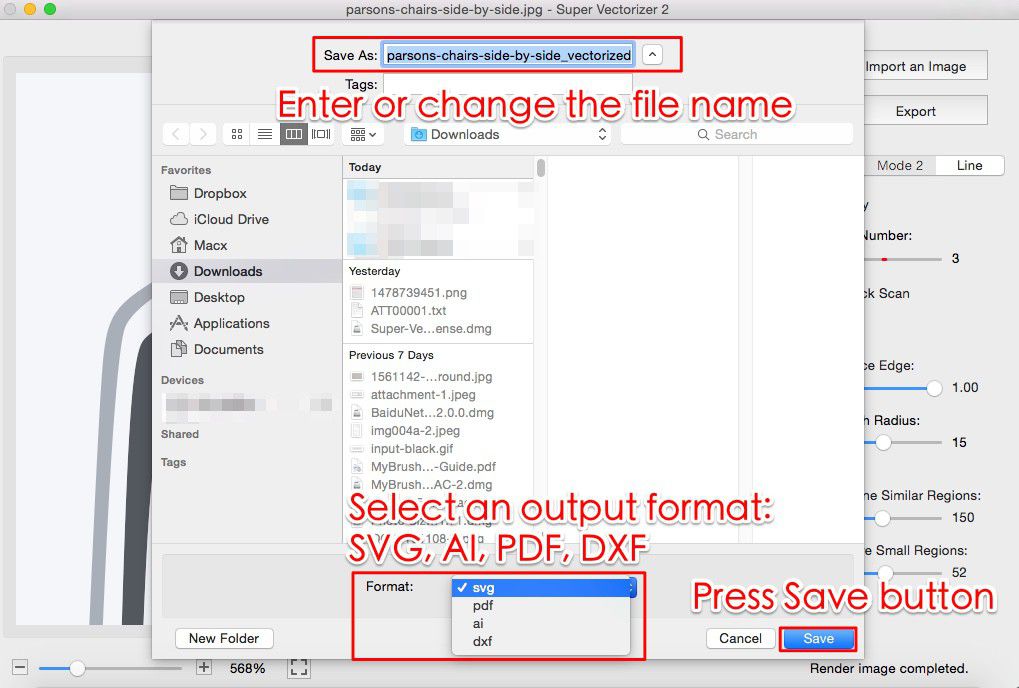
- Save the vector file. Export as SVG, PDF, EPS, DXF or AI. Saving requires a licence — the trial lets you preview results but not save them.
Frequently Asked Questions
Is Super Vectorizer Pro better than Inkscape for image tracing?
For the specific task of converting a bitmap to a vector file, yes — Super Vectorizer Pro produces cleaner results faster because it is purpose-built for that single job. Inkscape can trace bitmaps through its Trace Bitmap tool, but it requires more manual tuning and the output often needs cleanup. If you also need full vector editing after the trace, Inkscape gives you that for free. If you only need to convert images to SVG or PDF, Super Vectorizer Pro saves time and frustration.
Is Inkscape free to use?
Yes. Inkscape is free and open-source software released under the GPL licence. There is no subscription, no purchase price and no usage limit. You can download it and use it commercially without paying anything. The trade-off is that you will spend more time learning the interface and more time cleaning up traced results compared with a dedicated vectorizer.
Does Inkscape support batch image tracing?
Inkscape supports batch processing through command-line scripting, which is an advantage over Super Vectorizer Pro's one-at-a-time workflow. Advanced users can write shell scripts or Python scripts that call Inkscape's command-line interface to trace multiple files automatically. However, setting this up requires technical skill and is not available through the graphical interface.
Can Super Vectorizer Pro replace Inkscape entirely?
No. Super Vectorizer Pro converts raster images into vector files. It does not draw shapes, edit paths, set type, create gradients or build multi-layer compositions. Inkscape does all of those things plus tracing. The two tools are complementary: use Super Vectorizer Pro when your priority is fast, clean conversion of existing artwork, and use Inkscape when you need to edit, compose and refine vectors afterward.
Which runs better on macOS: Super Vectorizer Pro or Inkscape?
Super Vectorizer Pro runs natively on macOS 10.10 and later, including Apple Silicon (M1/M2/M3) Macs, with a lightweight interface designed specifically for Mac. Inkscape runs on macOS through XQuartz or as a native app depending on the version, but many users report slower performance and occasional UI quirks on Mac compared with Windows or Linux. For pure image-to-vector work on a Mac, Super Vectorizer Pro is generally smoother.
Does Super Vectorizer Pro have a free trial?
Yes. Super Vectorizer Pro offers a free trial that lets you preview vectorization results before buying. Saving the exported vector files requires a licence. The trial is useful for testing whether the output quality meets your needs on your own source images.
Super Vectorizer Pro vs Inkscape: The Bottom Line for 2026
Super Vectorizer Pro vs Inkscape is ultimately a question about what you value more: time or money. Inkscape costs nothing and gives you a professional-grade vector editor. Super Vectorizer Pro costs $39.99 once and gives you a tool that turns bitmaps into clean vectors faster, with less manual cleanup and a shallower learning curve.
Buy Super Vectorizer Pro if you want a fast, affordable, offline raster-to-vector converter that does not require learning a complex design suite. At $39.99 once, it pays for itself quickly if you trace images regularly. Download Inkscape if your budget is zero, you are willing to invest time in learning a powerful tool, and you value having a full vector editor at your disposal even if the tracing results need extra attention.
The best move for anyone still undecided is to try both. Install Inkscape for free and run a few test images through Trace Bitmap. Then download the Super Vectorizer Pro trial and run the same images through its five modes. Preview quality on your actual source files tells you more than any comparison table — including this one.
Test the Dedicated Vectorizer Side of This Comparison
Run your own images through Super Vectorizer Pro and preview the trace before you decide. One-time licence from $39.99 — Mac and Windows.
Compatible with macOS 10.10+ (M1/M2/M3) & Windows 7/8/10/11
Try These Free Online Tools
No download required — convert, compress & optimize SVGs right in your browser
PNG to SVG Converter
Convert PNG, JPG, BMP images to scalable vector graphics instantly
PNG to SVG ConverterSVG Compressor (Mini)
Reduce SVG file size by up to 80% without losing quality
SVG Compressor OnlineSVG Optimizer
Clean up SVG code, remove redundant data and optimize for web
SVG Optimizer OnlineJPG to SVG Converter
Turn JPEG photos into crisp vector artwork in seconds
JPG to SVG ConverterEPS to SVG Converter
Convert EPS vector files to web-friendly SVG format
EPS to SVG ConverterAll Free Tools
Browse our complete collection of free online conversion tools
Browse All Free Tools