
Converting a JPG to vector AI free means using an AI-powered tracing tool to turn a compressed JPEG photo into a scalable SVG file without paying. The challenge is that JPG compression introduces artifacts — blocky noise, color shifts, and blurred edges — that make vectorization harder than working with clean PNGs. In this guide, we compare the best free AI vectorizers for JPG files, explain why JPEG quality matters, and walk through a step-by-step workflow so you get crisp, editable vector output instead of a messy pile of paths.
Ready to convert your JPG photos? Try Super Vectorizer Pro free trial to preview AI vectorization results on your own machine.
Compatible with macOS 10.10+ (M1/M2/M3) & Windows 7/8/10/11
Why JPG to Vector AI Free Is Harder Than PNG
JPEG is a lossy format. Every time a JPG is saved, the compressor discards fine detail to shrink file size. This creates three problems for AI vectorization:
- Block artifacts: 8×8 pixel blocks become visible in flat color areas, and the tracer may interpret each block boundary as a separate shape.
- Color bleeding: JPG compression smears adjacent colors together, so a red logo on a white background may produce a pink halo around the edges.
- No transparency: JPG does not support alpha channels. If your image has a background, the vectorizer will trace it too, creating unwanted paths you must delete manually.
PNG avoids all three issues — it uses lossless compression and supports transparency. If you have the option, always convert from PNG instead. When you only have a JPG, the tools and techniques below will help you get the cleanest possible result.

Best Free AI Vectorizers for JPG Files (2026)
Here are the top tools for converting JPG to vector AI free, ranked by output quality, ease of use, and whether they work offline:
| Tool | Price | Platform | Offline | Batch | Best For |
|---|---|---|---|---|---|
| Super Vectorizer Pro | $29.99 one-time (free trial to preview) | Mac & Windows | Yes | No (one at a time) | Offline AI tracing with fine-tuned control Best Quality |
| Vectorizer.AI | Free credits, then paid | Web | No | No | Quick online AI tracing |
| Inkscape | Free (open source) | Mac, Windows, Linux | Yes | No | Manual tracing with full control |
| Adobe Express | Free with Adobe ID | Web | No | No | Quick conversion inside Adobe ecosystem |
| VTracer | Free (open source) | Web, Mac, Windows | Yes | No | Command-line batch-style workflows |
Super Vectorizer Pro stands out for JPG files because its AI engine includes built-in noise reduction and corner-smoothing specifically designed for compressed raster input. The free trial lets you preview the vectorized result on your own machine — no upload required. Note that the trial previews results but does not export the final SVG file.
How to Convert JPG to Vector AI Free: Step-by-Step
- Prepare your JPG. Start with the highest-resolution version available. If the image has a busy background, crop it or remove the background before tracing. The less visual noise the AI has to process, the cleaner your vector paths will be.
- Choose a tracing mode. Most AI vectorizers offer multiple modes. Use line art for logos and line drawings, color for illustrations and photos with flat color regions, and skeletonization for thin strokes like handwriting. For JPGs with visible compression artifacts, start with the color mode at a lower color count (8-16 colors) to force the AI to simplify.
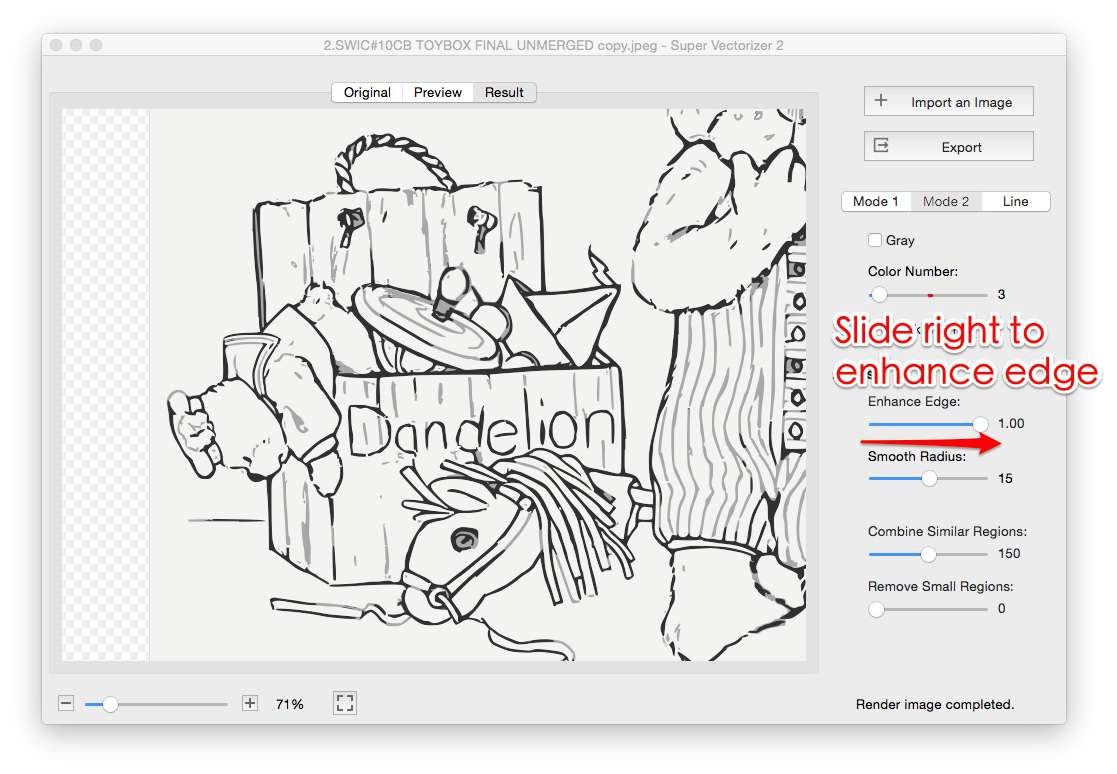
- Adjust noise reduction. If your tracer has a noise-reduction or corner-threshold setting, increase it slightly for JPG input. This tells the AI to ignore small artifacts and focus on the main shapes. In Super Vectorizer Pro, this is controlled via the corner threshold and noise reduction sliders.
- Preview and iterate. Check the preview for stray paths, jagged curves, and color separation. Adjust settings and re-trace until the result looks clean. Remember that Super Vectorizer Pro processes one image at a time, so you can give each JPG your full attention.
- Export as SVG. Once satisfied, export the file. If you are using a free online tool, download the SVG. If you are using the Super Vectorizer Pro trial, you can preview the result but need a license to export.

JPG to Vector AI Free: Common Problems and Fixes
Problem: Too Many Anchor Points
This happens when the AI tries to trace every JPG artifact as a separate shape. Fix: increase the noise-reduction setting, lower the color count, or use a higher corner threshold. The goal is to tell the tracer "ignore details smaller than X pixels."
Problem: Colors Look Washed Out
JPG compression can shift colors subtly. After tracing, you may notice that reds look slightly orange or blues look grayish. Fix: increase the color depth in your tracer settings (e.g., from 16 to 32 colors), or post-process the SVG in a vector editor like a free SVG editor to correct individual color values.
Problem: Edges Look Jagged
Lossy JPG edges are inherently blurry, which can cause the tracer to create zigzag paths. Fix: use a tool with curve smoothing (Super Vectorizer Pro has this built in), or apply a slight Gaussian blur to the JPG before tracing to soften the artifacts so the AI sees cleaner boundaries.
Online vs Desktop: Which Is Better for JPG to Vector AI Free?
Online tools like Vectorizer.AI and Adobe Express are convenient — no installation, works in any browser. But they have drawbacks for JPG vectorization:
- Upload required: Your JPG goes to a remote server. If the image contains sensitive content (logos, client work, personal photos), this may be a privacy concern.
- File size limits: Free online tools often cap uploads at 2-10 MB. High-resolution JPGs from modern cameras can exceed this.
- Internet dependency: No connection, no conversion.
Desktop tools like Super Vectorizer Pro and Inkscape run entirely on your machine. Your files never leave your computer, there are no upload limits, and you can work offline. Super Vectorizer Pro offers a free trial to preview results — you can test the AI tracing quality on your own JPGs before deciding to purchase.

The Bottom Line for 2026
JPG to vector AI free is possible, but the quality of your result depends heavily on the source image and the tracer's noise-reduction capabilities. For quick one-off conversions, free online tools work. For professional work with compressed JPGs, a desktop AI vectorizer with adjustable settings produces noticeably cleaner SVGs.
Desktop AI Vectorizer (Super Vectorizer Pro)
- Offline — no upload, full privacy
- AI noise reduction for JPG artifacts
- Adjustable corner, color, and smoothness settings
- Free trial to preview results before buying
- Processes one image at a time for focused tuning
Free Online Tools
- No installation required
- Works in any browser
- Quick for simple, high-contrast images
- Upload limits and privacy concerns
- Less control over tracing parameters
JPG → SVG: Format-Specific Conversion Notes
- AI and design users get editable vectors: trace a JPG, then tweak curves and colors in Illustrator or Figma.
- JPEG block artifacts can confuse the tracer — raise Filter speckles (6) to dissolve the 8×8 grid before tracing.
- Photo preset handles tonal gradients; switch to Poster for flatter JPG graphics and logos.
- Because the trace is local, proprietary client art never leaves your machine.
Frequently Asked Questions
Can AI vectorize a JPG for free?
Yes — several tools offer free AI-powered JPG-to-vector conversion. Vectorizer.AI provides limited free credits online, Inkscape is fully free with a built-in Trace Bitmap feature, and Super Vectorizer Pro offers a free trial to preview results on your own machine. The key limitation is that most free options either restrict output or require an internet connection.
Why does my JPG vector look noisy?
JPG compression creates blocky artifacts and color shifts that become visible when traced. To reduce noise: use the highest-quality source JPG available, increase the color-count setting in your vectorizer, and apply a slight blur or noise reduction before tracing. Desktop tools like Super Vectorizer Pro let you fine-tune corner thresholds and noise reduction per image.
Is JPG to SVG better than PNG to SVG?
PNG is generally better for vectorization because it uses lossless compression and supports transparency. JPG is lossy — each re-save degrades quality. If you have the choice, convert from PNG. If you only have a JPG, use the highest-resolution version and choose a vectorizer with strong noise-reduction capabilities.
Does Super Vectorizer Pro support batch conversion of JPGs?
No — Super Vectorizer Pro processes one image at a time. It does not have a batch mode. This one-at-a-time workflow lets you fine-tune tracing settings for each image, which often produces better results than bulk processing.
What is the best free JPG to vector AI tool?
For quick online conversions, Vectorizer.AI offers good quality with limited free credits. For offline, private work with no upload required, Super Vectorizer Pro provides a free trial to preview AI tracing results on Mac and Windows. Inkscape is fully free and open-source but requires manual tuning of its Trace Bitmap feature rather than using AI.
Try AI JPG-to-Vector Tracing on Your Own Machine
Download Super Vectorizer Pro and preview the AI vectorization quality on your JPG photos — no upload, no account, no internet required.
Compatible with macOS 10.10+ (M1/M2/M3) & Windows 7/8/10/11
Related SVG Workflows
- JPG to SVG Converter Guide
- PNG to SVG High Quality Guide
- Image to Vector AI Free Without Login
- Best Free Image Vectorizer Tools 2026
- Convert Image to SVG Free Guide
- JPG to SVG Converter (Tool Page)
- Super Vectorizer Pro vs Vectorizer.AI 2026
- PNG to SVG Online
- Best Image Vectorizer 2026: 6 Top Picks Tested and Compared — our full roundup of the best image vectorizers across free, AI, and offline tools.
- PNG to Vector AI Free 2026: 7 Tools That Actually Cost Nothing — the free PNG-to-vector AI tools that genuinely cost nothing to use.
Try These Free Online Tools
No download required — convert, compress & optimize SVGs right in your browser
PNG to SVG Converter
Turn PNG images into crisp vector artwork in seconds
Free OnlineSVG Compressor (Mini)
Reduce SVG file size by up to 80% without losing quality
Free OnlineJPG to SVG Converter
Convert JPEG photos to scalable vector format
Free OnlineEPS to SVG Converter
Convert EPS illustrations to scalable vector graphics
Free OnlineAll Free Tools
Browse our complete collection of free online conversion tools
Related SVG Workflows
- ›AI to SVG Converter — Vectorize AI-generated artwork.
- ›AI Image to SVG — Turn AI outputs into scalable SVG.
- ›Online Image Vectorizer — Trace raster images in your browser.
- ›Vectorizer.AI Alternative — A private offline alternative.
- ›Best PNG to SVG Converters — Compare the top PNG-to-SVG tools.
- ›Line Art to SVG — Vectorize line drawings and sketches.